Examine Scheduling Policies
Learning Objectives
After completing this unit, you’ll be able to:
- Describe how work rules shape scheduling.
- Create a custom work rule.
- Explain how service objectives help rank candidates.
- List the default service objectives provided by Salesforce.
Find Qualified Candidates with Work Rules
Remember those true or false questions in school? Work rules assess mobile workers in a similar way. If a work order specifies the Los Angeles territory, the engine asks: Does the candidate work in the Los Angeles territory? If not, they fail the work rule. If yes, they pass and are considered for a Los Angeles job.
The scheduling engine moves on to the next work rule. Does the candidate have the necessary skills to complete the job? If not, they fail and aren’t considered for the job. If yes, the candidate passes and the engine moves on to the next rule. Work rules reduce the pool of candidates from all possible mobile workers to just those who can do the job.
The managed package installs with several work rules. Some rules apply to candidates. For example, Match Skills ensures that a candidate is qualified to do the job. And Required Resource ensures that the specified worker works with a certain customer. Some rules apply to time. Service Appointment Visiting Hours makes sure that the appointment is scheduled during a customer’s visiting hours.

If you schedule appointments automatically, they always follow the work rules and all is well. But, if you schedule or reschedule appointments using drag and drop, it may violate your work rules. For example, if you drag an appointment to a worker who doesn’t have a required skill, a rules violation occurs. A yellow triangle  appears on the Gantt next to the appointment with a rules violation. But there’s no need to worry, the dispatcher can use the dispatcher console to resolve the problem and reschedule easily.
Create a Work Rule
Salesforce already provides a set of work rules with the managed package so you can hit the ground running. But sometimes the standard rules don’t meet all of your organization’s needs, and you need to create a custom work rule more suited to your business standards.
Let’s say you discover that sometimes the engine assigns mobile workers to appointments during their lunch break – and that’s not ok, so let’s create a rule to change this.
- From the App Launcher
 , find and select Work Rules.
- In the Work Rules tab, click New.
- Select the work rule’s record type. In this case, we select Field Service - Service Resource Availability, and click Next.
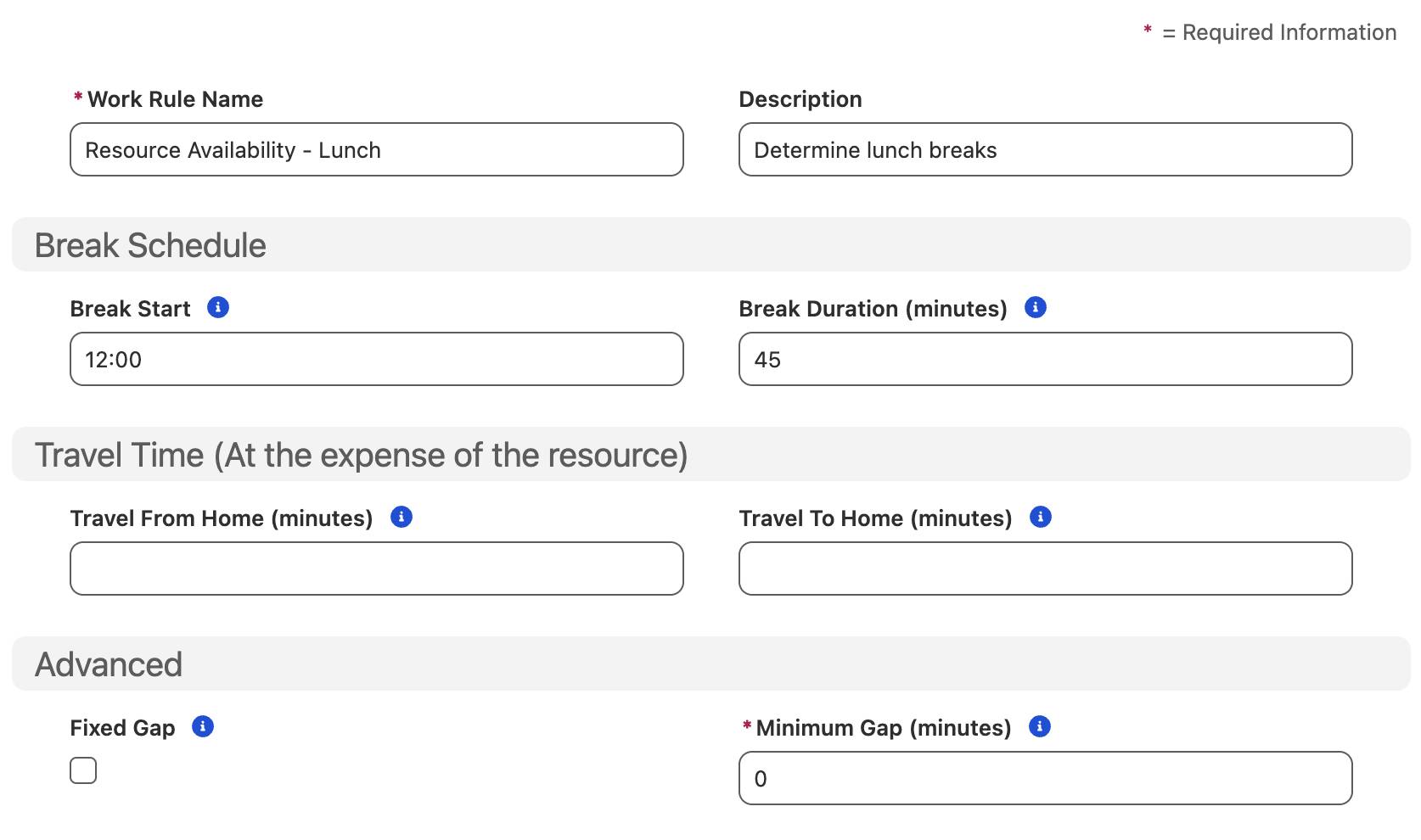
- Define the work rule by entering the following values.
- Name:
Resource Availability - Lunch - Description:
Determine lunch breaks - Break start:
12:00 - Break duration:
45
- Minimum gap time:
0 - Leave the other values blank.
- Click Save.
The new work rule appears in the list of available work rules. Later, you can add it to your scheduling policy to implement it.
Now that you are familiar with the pass or fail world of work rules and how they narrow the list of candidates, the question is—out of all the candidates who pass, which one is best for the job? That’s where service objectives come in.
Rank Candidates Based on Service Objectives
When the scheduling engine has a list of qualified candidates, the next step is to rank them and pick the best one. If work rules are like a binary pass or fail, service objectives are more like numeric grades: They’re ranked from most to least important by weights.
More important service objectives receive a higher weight than less important ones. Each candidate gets a score based on how well they meet each service objective. Optimization uses different mechanisms to calculate scores based on the optimization engine type. When you’re using Enhanced Scheduling and Optimization, the engine scores a schedule by using penalties. For example, the penalty for scheduling an appointment with 2 hours of added travel time is higher than the penalty for scheduling an appointment with 1 hour of added travel time. The goal is to find a schedule with the least penalty points.
However, when you’re not using Enhanced Scheduling and Optimization, the engine scores the schedule in an opposite manner, by using rewards. For example, the reward of scheduling an appointment with 2 hours of added travel time is less than the reward of scheduling an appointment with 1 hour of added travel time. The goal is to find a schedule with the highest reward points.
Here’s a list of service objectives the managed package provides. As with work rules, you can create service objectives when you need them.
Service Objective |
How It’s Used |
|---|---|
ASAP |
Measures how soon the appointment can be scheduled. ASAP is tricky, as it can contradict other objectives. For example, scheduling an appointment as soon as possible can result in more travel time. If prompt service is an important consideration, assign a high weight. |
Group Nearby Service Appointments* |
Identifies geographical clusters so that a single worker manages the entire workload for a cluster. This clustering eliminates path overlap and maximizes productivity by ensuring one mobile worker "owns" the area for the day. If reducing inefficient "ad-hoc" stops in favor of dedicated area coverage is an important consideration, assign a high weight |
Minimize Gaps* |
Measures how closely the appointment slots are grouped together to reduce idle time between them. It favors creating continuous blocks of appointments for one resource over scattered appointments throughout the day. If continuous productivity is an important consideration, assign a high weight. |
Minimize Overtime |
Measures the use of overtime hours needed for a service appointment. It favors slots requiring the least extended hours. If reducing overtime costs is an important consideration, assign a high weight. |
Minimize Travel |
Measures travel time required for a service appointment. It favors the time slot requiring the least travel time. If reducing travel costs like mileage, gas, and service costs while increasing productivity is an important consideration, assign a high weight. |
Preferred Resource |
Measures whether an appointment is given to the preferred mobile worker. If it’s important that the preferred mobile worker shows up, assign a high weight. If it’s critical that a certain worker shows up or stays away, use the Required Resource or Excluded Resource work rules. |
Resource Priority |
Assigns a priority value to service resources to indicate which service resources to prioritize for scheduling over others. |
Same Site* |
Prefers scheduling appointments in the same location during the same shift to the same resource. This minimizes travel time and multiple resource visits. |
Skill Level |
Prefers scheduling appointments to service resources depending on how proficient they are for the skill level. Specify whether to favor the least- or most-qualified mobile worker. If assigning more qualified workers to complicated work or high-priority accounts is an important consideration, assign a high weight. |
Skill Preference* |
Prefers scheduling appointments to service resources with a skill type that is a higher priority. If certain skills are more important to perform the work than others, assign a high weight. |
Now that you have a clear picture of both work rules and service objectives, it is time to see them in action together. In the next unit, you will learn about scheduling policies, which bring work rules and service objectives together into a single, powerful set of instructions for the engine. You will also get a look at the default scheduling policies already in your org, so you can see how everything connects before you start building your own.
Resources
- Salesforce Help: Create and Manage Field Service Work Rules
- Salesforce Help: Create and Manage Field Service Objectives
- Salesforce Help: Prioritize Field Service Appointments for Optimization