Test the Approval Process on a Quote
Learning Objectives
After completing this unit, you’ll be able to:
- Integrate your approval workflow with the Request for Approval custom button.
- Preview approvals to visualize approval chains before submission.
- Submit a quote for approval.
- Execute approval requests as a reviewer.
Wire Up the Request for Approval Button
Every approval workflow needs a way for users to start it. That's where the Request for Approval button comes in. Sales reps can use this custom quick action on the Quote record page to easily submit a quote for approval. It's the bridge between the automation Jordan built in Flow Builder and the people who use it every day.
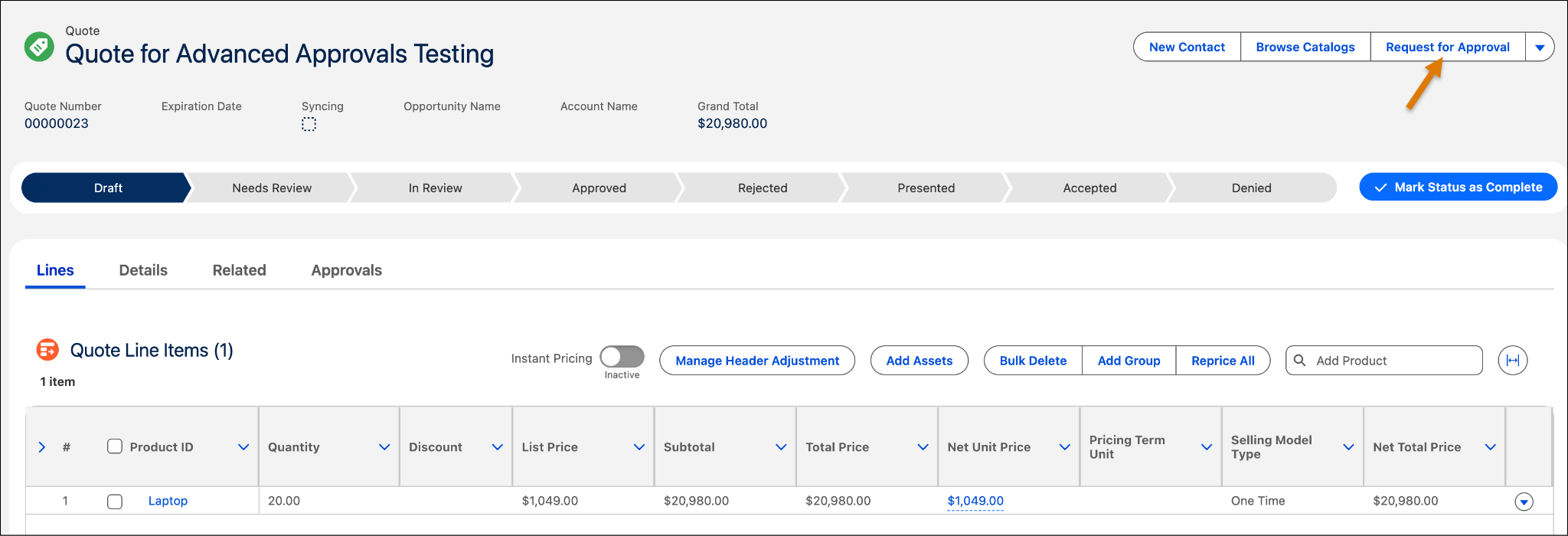
Good News! Your Developer Edition org already includes the Request for Approval button on the quote page. If you want to learn more about creating this custom button yourself, refer to Add an Approval Button on a Record Page.
Jordan has built and activated the Discount Threshold Approval workflow and now it’s time to see it in action on an actual quote. Before that happens, there's one final piece to put in place. The backend Apex class, QuoteApprovalController, doesn't yet know which approval flow to launch.
Follow along to point the QuoteApprovalController at your flow.
- From Setup, in the Quick Find box, find and select
Apex Classes.
- To filter all Apex Classes starting with the letter Q, select Q.
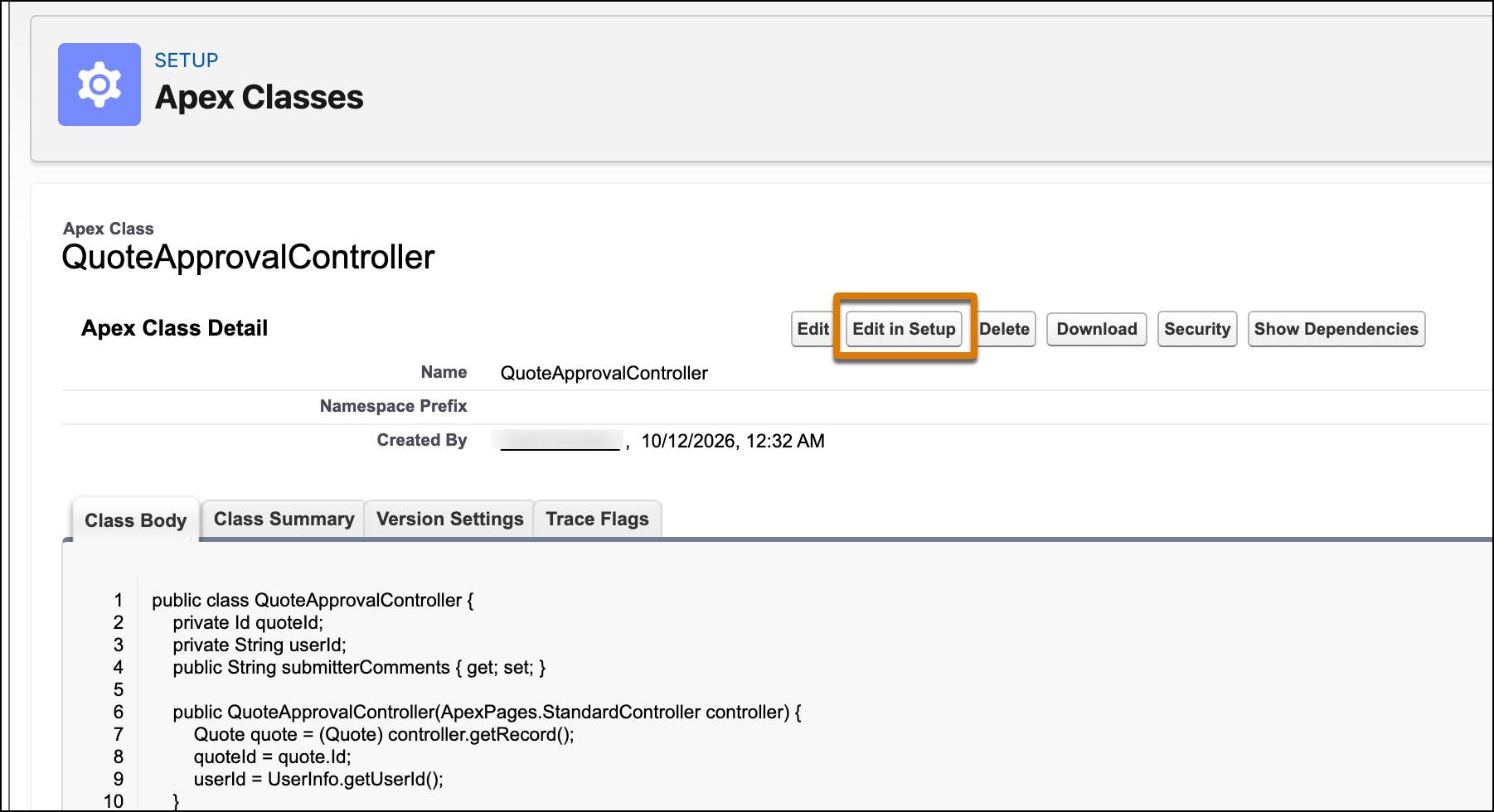
- Select QuoteApprovalController.
- On the QuoteApprovalController apex class page, select Edit in Setup.
- On the Apex Class Edit page, locate the line that says String flowApiName = "Approval_Autolaunched_Flow".
- Replace this placeholder flow name with
Discount_Threshold_Approval, the API name of the flow you built in the previous unit.
- Save your changes.
Your Apex Class should look like this.
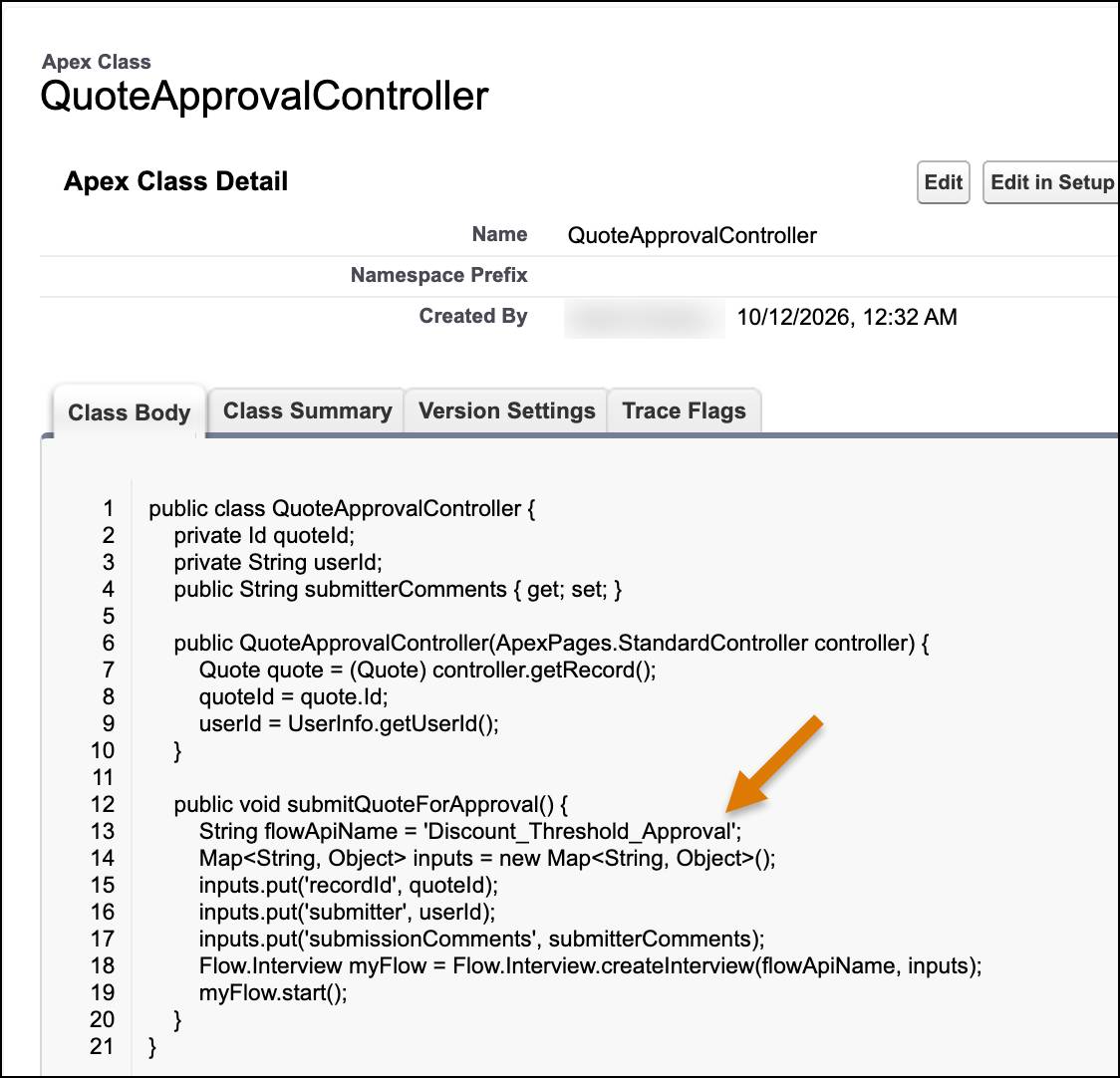
With that single line updated, every quote submitted through the Request for Approval button now routes into the workflow Jordan built.
Gain Visibility with Preview Approvals
Before Jordan submits a quote for approval, he wants to know who reviews it and in what order. That's where Preview Approvals comes in. Submitters can use this feature to preview the entire approval workflow. They can see every approval chain, each assigned approver, and the exact order in which approvals will occur, all before initiating the approval process.
Follow Jordon as he adds this feature to his quote page.
- From the App Launcher, find and select Quotes.
- Select Recently Viewed, and change the list view to All Quotes.
- Open the Quote for Advanced Approvals Testing quote.
- On the quote page, select
 [Alt text: Setup.] and then select Edit Page.
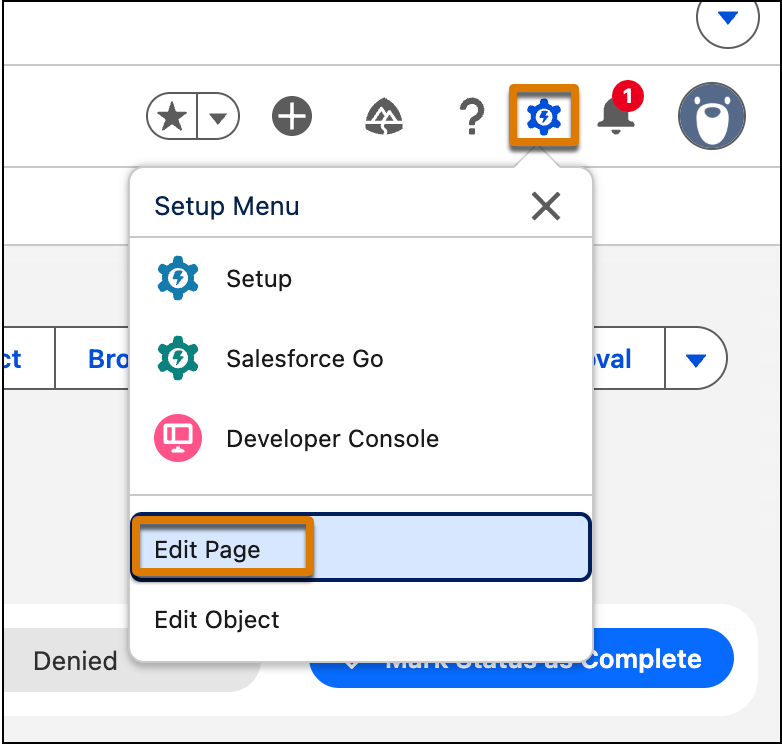
This opens the Lightning App Builder.
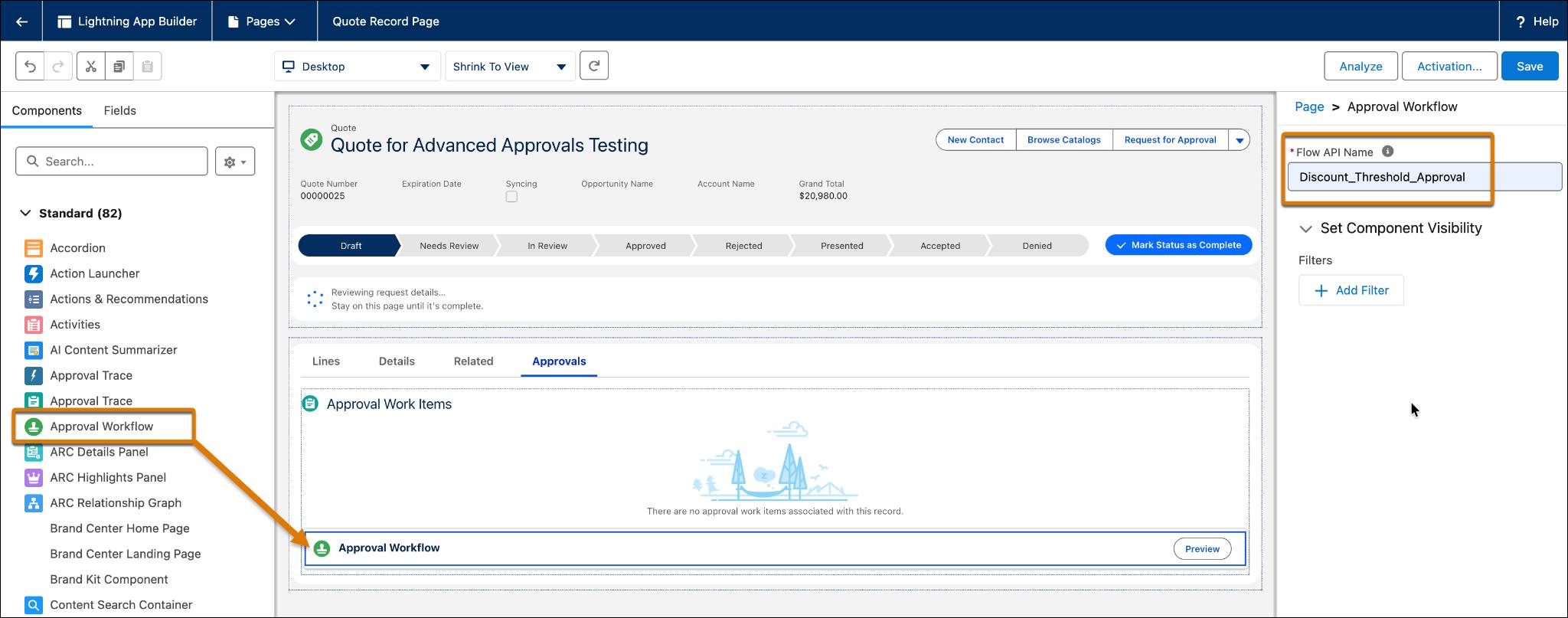
- On the quote record page, select the Approvals tab.
- Drag the Approval Workflow component onto the Approvals canvas.
- For Flow API Name, enter
Discount_Threshold_Approval.
- Save your work.
- Select
 [Alt text: Back.] to navigate back to your quote.
You have successfully added the Preview Approvals feature to your quote record. Time to see it in action.
- From the quote page, select Browse Catalogs.
- In the All Catalogs list, select Hardware Catalog, and select Next.
- Under Categories, select Laptops.
- From the displayed products list, select Laptop, and select Add.
- Select Save Quote. The Laptop product gets added to your quote.
- Next to the Laptop product, double-click the Quantity field, and type
20.
- Save your changes.
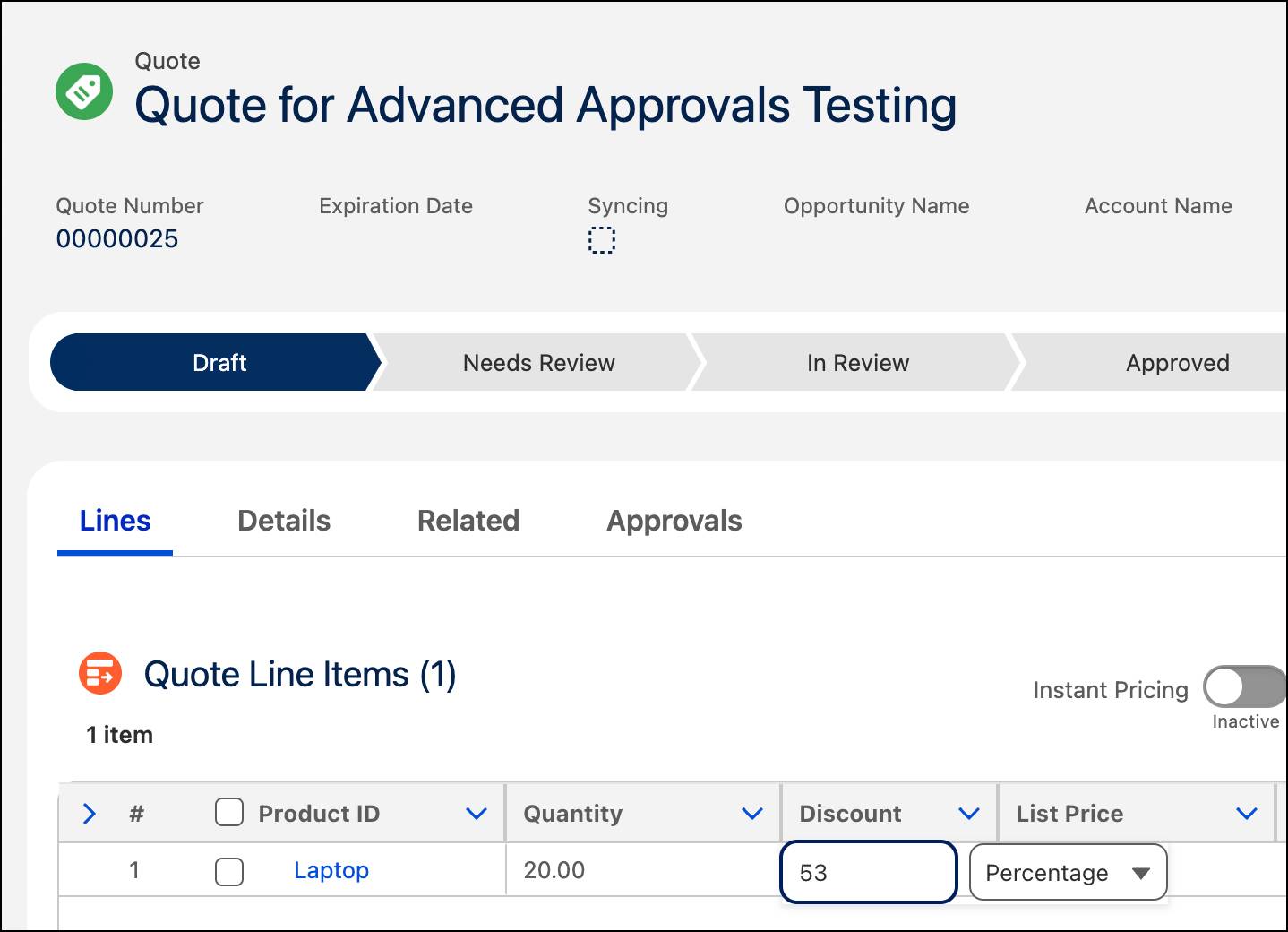
- Next, double-click the Discount field and add a discount of
53Percentage.
- Save your changes.
- Navigate to the Approvals tab.
- In the Approval Workflow canvas, select Preview.
This opens the Preview quote approval workflow and you can preview the entire approval chain.
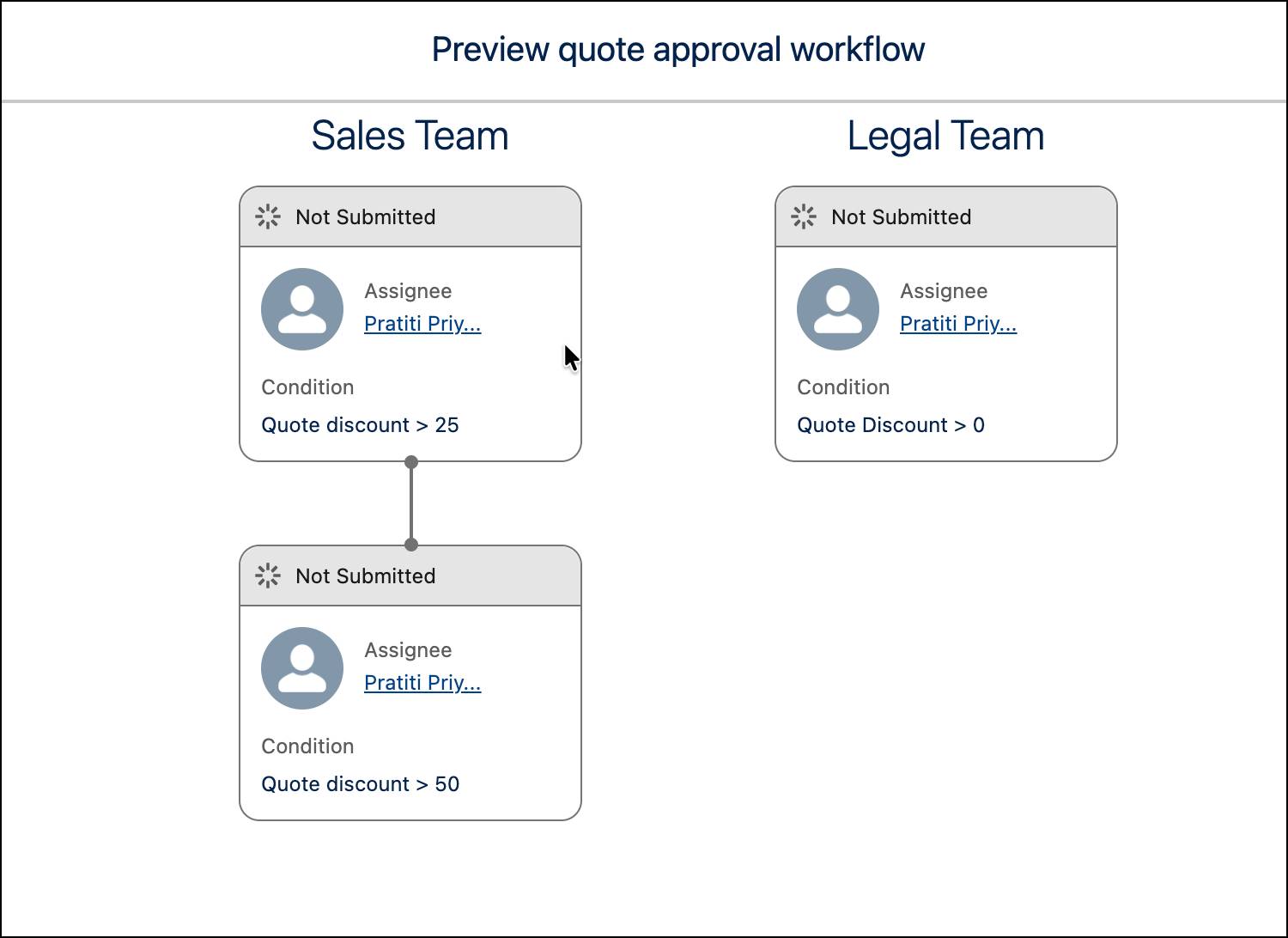
As your quote includes a 53 percent discount on a quote line item, all three approval steps are displayed. Notice that the Legal Team and the first Sales Team steps start at the same time, while the Sales SVP step remains pending until the sales manager approves.
Previewing the approval chain helps submitters set clear expectations with customers about how long a deal may take to be approved.
Submit the Quote for Approval
Happy with the preview, Jordan is now ready to submit his quote for approval.
- Close the preview window.
- On the quote page, select Request for Approval.
- In the Enter comments for Approver(s) field, enter
Requesting approval for a 53% discount on a bulk laptop order. - Select Submit.
The quote has officially entered the approval pipeline. Next, you step into the approver's seat and see the process through to completion.
Review and Complete Approval Requests
While real-time managers process these approval requests straight from their email inboxes or through Slack, you use your system administrator credentials to review and clear all three queues. Let’s get reviewing.
- On the Approvals tab, notice that two Approval Work Items (AWIs) are created. If you don’t see them, refresh the page and check again.
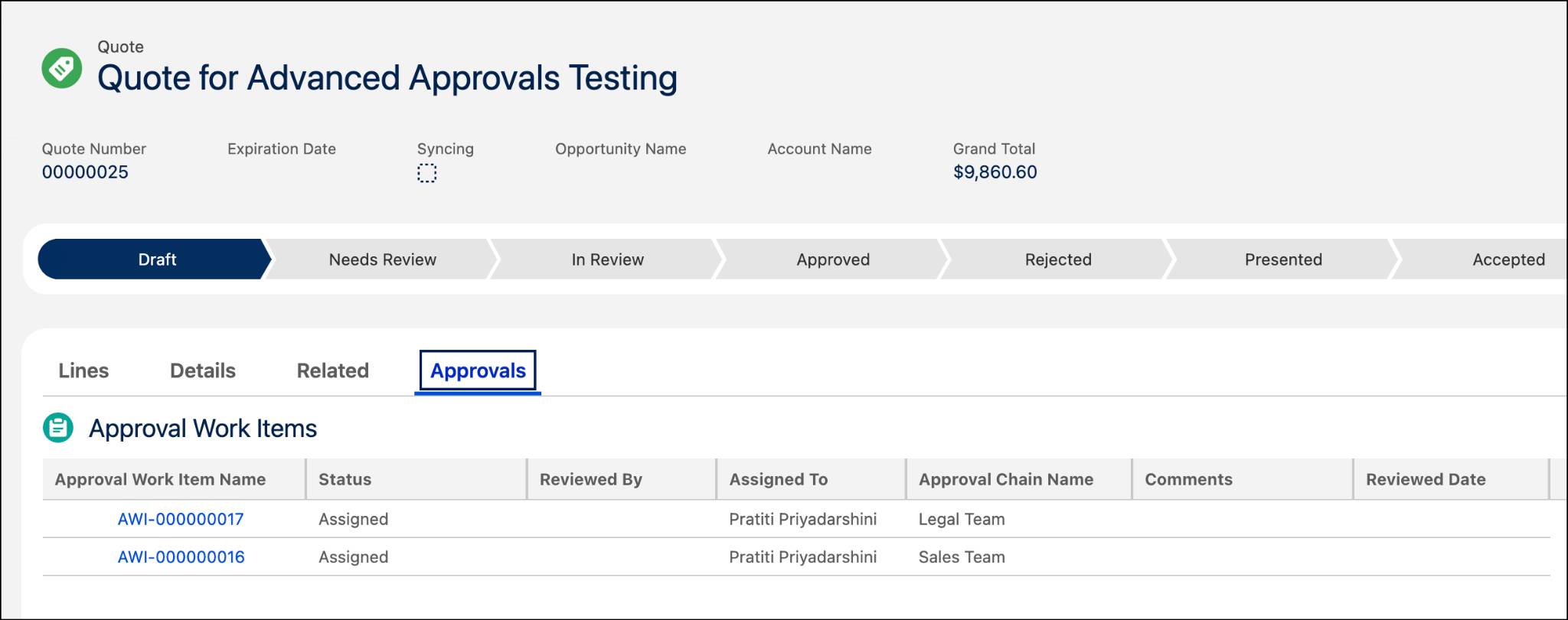
One AWI is assigned to the Legal Team. This got created because your quote carries a discount, satisfying the Legal Team step's entry condition. The other AWI is assigned to the sales manager within the Sales Team and is created because your quote's discount exceeds 25 percent, satisfying the first Sales Team step's entry condition. Both these approvals work in parallel.
- Select the first AWI.
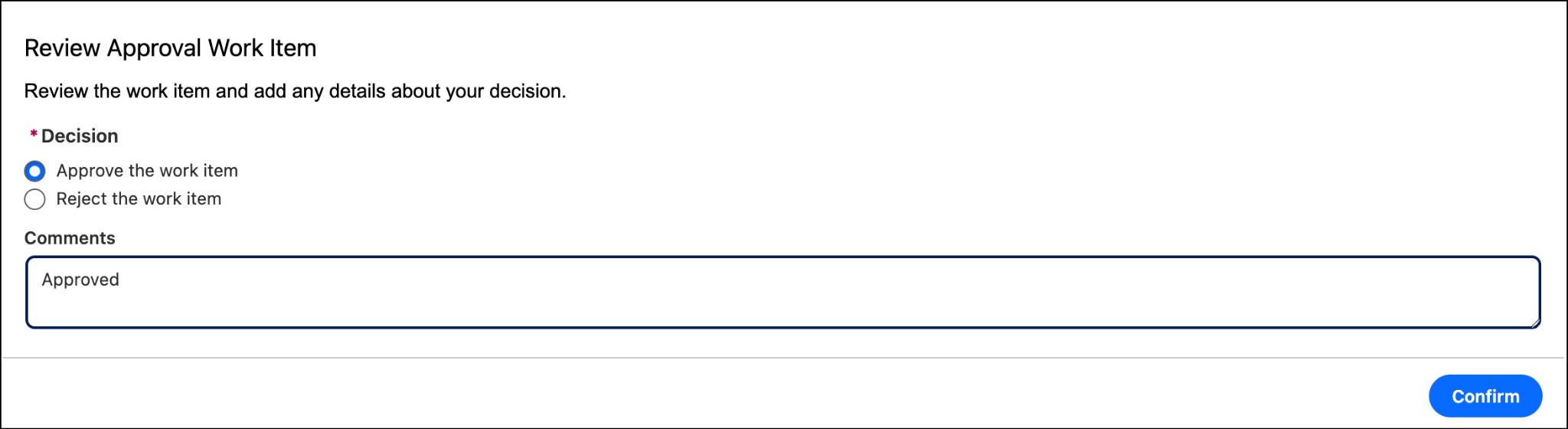
- Select Review.

- Under Decision, select Approve the work item.
- For Comments, enter
Approved.
- Select Confirm.
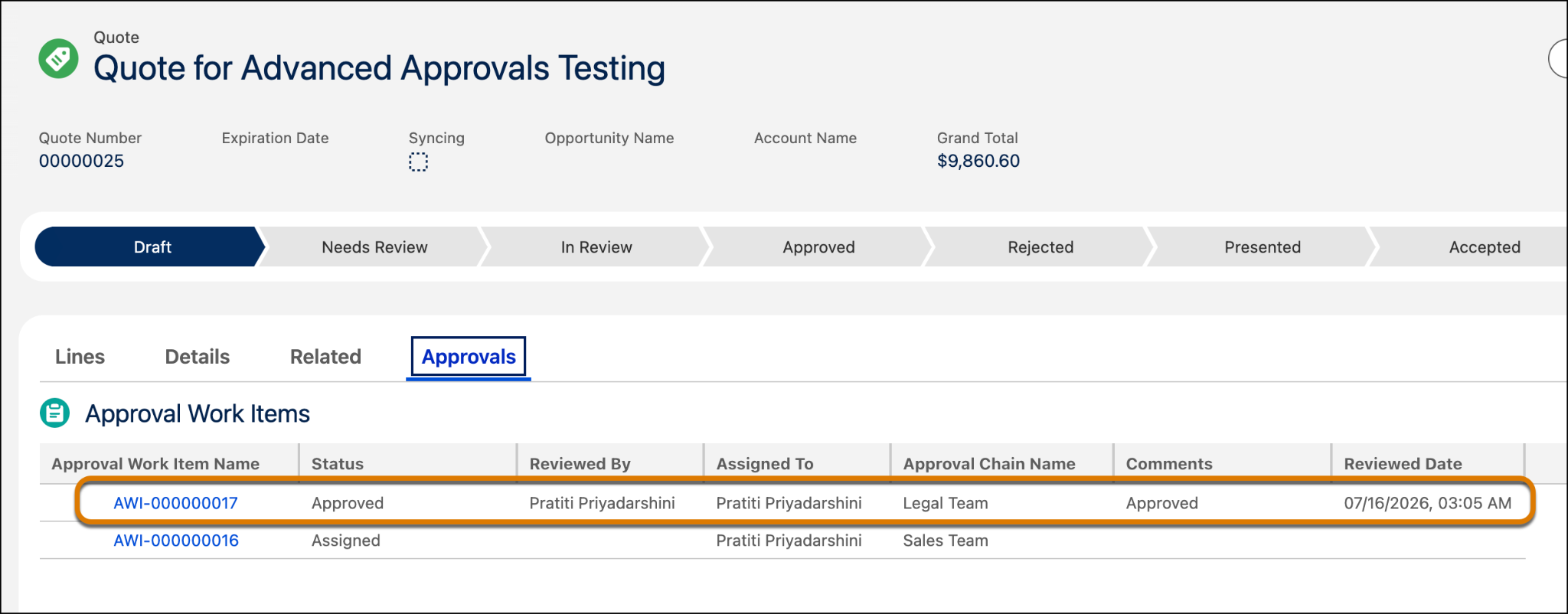
- Navigate back to the Approvals tab.
- Notice that the status of the respective AWI now appears as Approved. The Comments and Reviewed Date fields are also populated.
- Similarly, approve the other AWI.
- Go back to the Approvals tab and refresh the page.
- Notice that the status of this AWI now appears as Approved. Also, a third AWI has appeared.

The third AWI is created as your quote includes a discount greater than 50 percent, and the previous Sales Team step is approved, satisfying the entry condition for this approval step.
- Follow the same steps to approve the third AWI.
- Go back to the Approvals tab and refresh the page.
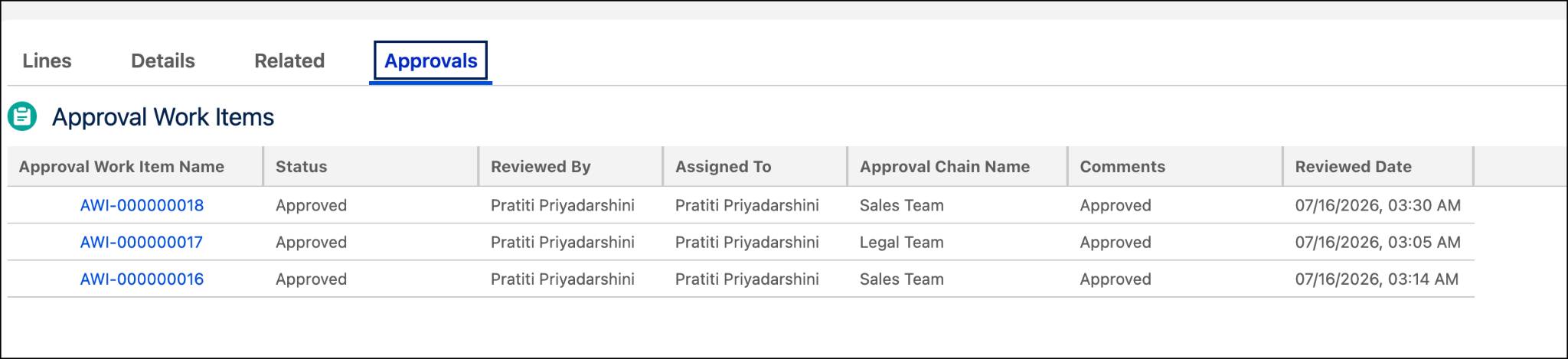
With sign-off from Legal, the sales manager, and the sales SVP, all required approval steps are now complete.
It’s a Wrap
Congratulations! You've watched a discounted quote move through a fully automated, multi-tiered approval chain. The Discount Threshold Approval workflow you built is now fully operational, automatically routing quotes to the right approvers based on the discount thresholds and chain dependencies you defined.
With Advanced Approvals in place, InfintraBytes now has a scalable, automated way to enforce its discount policy without slowing down the sales cycle. And you have the hands-on skills to design similar multistep, cross-object approval processes for any business.