Configure Sales Approval Steps and Stage Exit Condition
Learning Objectives
After completing this unit, you’ll be able to:
- Set up sequential approval steps to route records.
- Define entry conditions to trigger approval steps.
- Configure stage exit conditions.
- Activate your discount approval workflow.
Assemble the Sales Approval Steps
In the previous unit, you established the framework for your approval process and successfully added the legal approval step. In this section, you configure the sequential sales approval steps to ensure that high-value discount quotes are routed to the appropriate approvers for review. Before you begin, let’s revisit the use case.
Approval Condition |
Required Approver |
Approval Chain Name |
|---|---|---|
Compliance approval for quotes with any discount value specified |
Legal Specialist |
Legal Team (Parallel) |
Sales approval for quotes carrying a discount greater than 25% |
Sales Manager |
Sales Team (Sequential) |
Sales approval for quotes carrying a discount greater than 50% |
Sales SVP |
Sales Team (Sequential) |
Follow along with Jordan as he configures the first step in the Sales Team approval chain.
- From the Approvals Home page, select Manage All Flow Approval Processes and then select Discount Threshold Approval.
- Click View in Flow Builder. Your approval flow opens in a separate window.
- In the Quote Discount Approval stage, select + Add Step.
- Select Approval Step, and add these details:
- Label:
Quote Discount > 25 - The API Name should auto-populate as
Quote_Discount_25.
- Label:
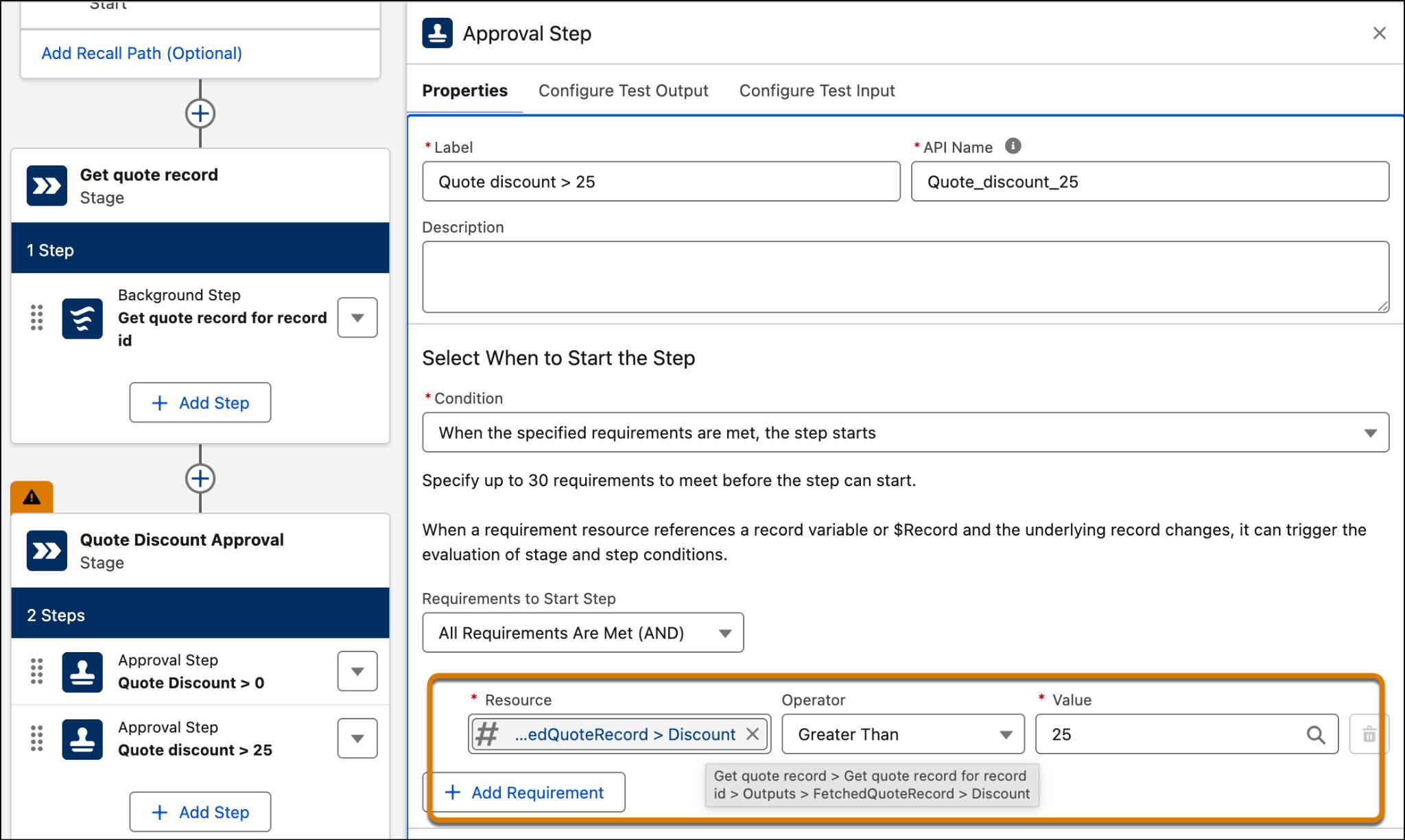
- Under Select When to Start the Step, add these details:
- Condition: When the specified requirements are met, the step starts
- Requirements to Start Step: All Requirements Are Met (AND)
- Resource: Get quote record > Get quote record for record id > Outputs > FetchedQuoteRecord > Discount
- Operator: Greater Than
- Value:
25.This condition makes sure that this step triggers only when the quote discount exceeds 25.
- Condition: When the specified requirements are met, the step starts
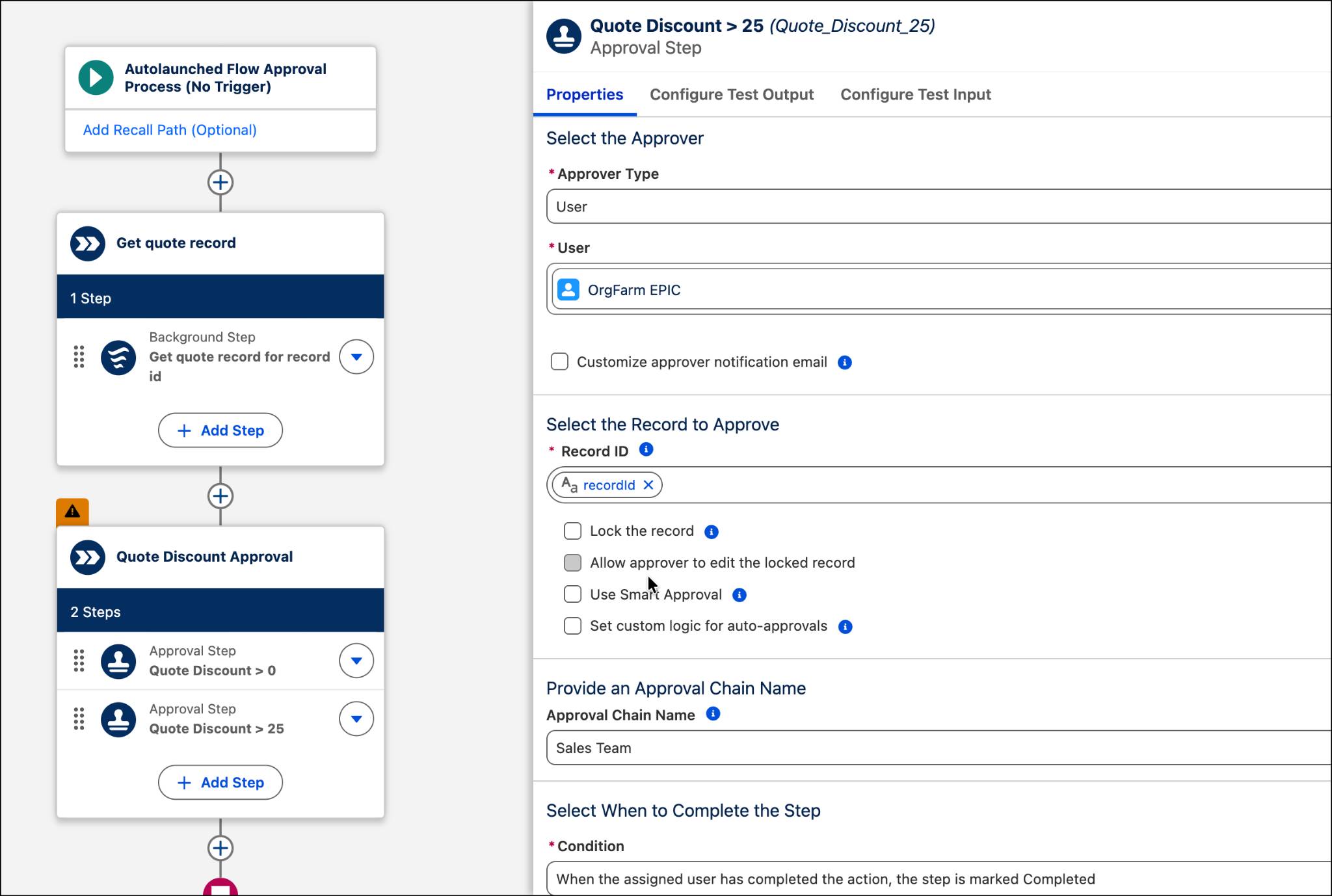
- Under Select an Action to Run, select Approvals Workflow: Evaluate Approval Requests.
- Under Select the Approver, make sure User is selected for Approver Type and select OrgFarm EPIC as the User.
- Under Select the Record to Approve, complete these actions:
- For Record ID, select recordId.
- Uncheck Lock the record checkbox.
- For Record ID, select recordId.
- For Approval Chain Name, enter
Sales Team.
- Under Select When to Complete the Step, select When the assigned user has completed the action, the step is marked Completed.
- Close the Approval Step.
- On the Flow Builder canvas, select Save.

This step is triggered whenever a quote discount exceeds 25 percent, routing it to the sales manager’s queue. It lives in its own dedicated chain name and runs parallel to the compliance approval track.
Configure the Final Sales Approval Step
Now, for the final step. Discounts greater than 50 percent require approval from the Sales SVP. Unlike the previous approvals, this step doesn't begin until the sales manager has approved the request. This is sequential routing in action. Time to add this to the workflow.
- In the Quote Discount Approval stage, select + Add Step.
- Select Approval Step, and add these details:
- Label:
Quote Discount > 50 - The API Name should auto-populate as
Quote_Discount_50.
- Label:
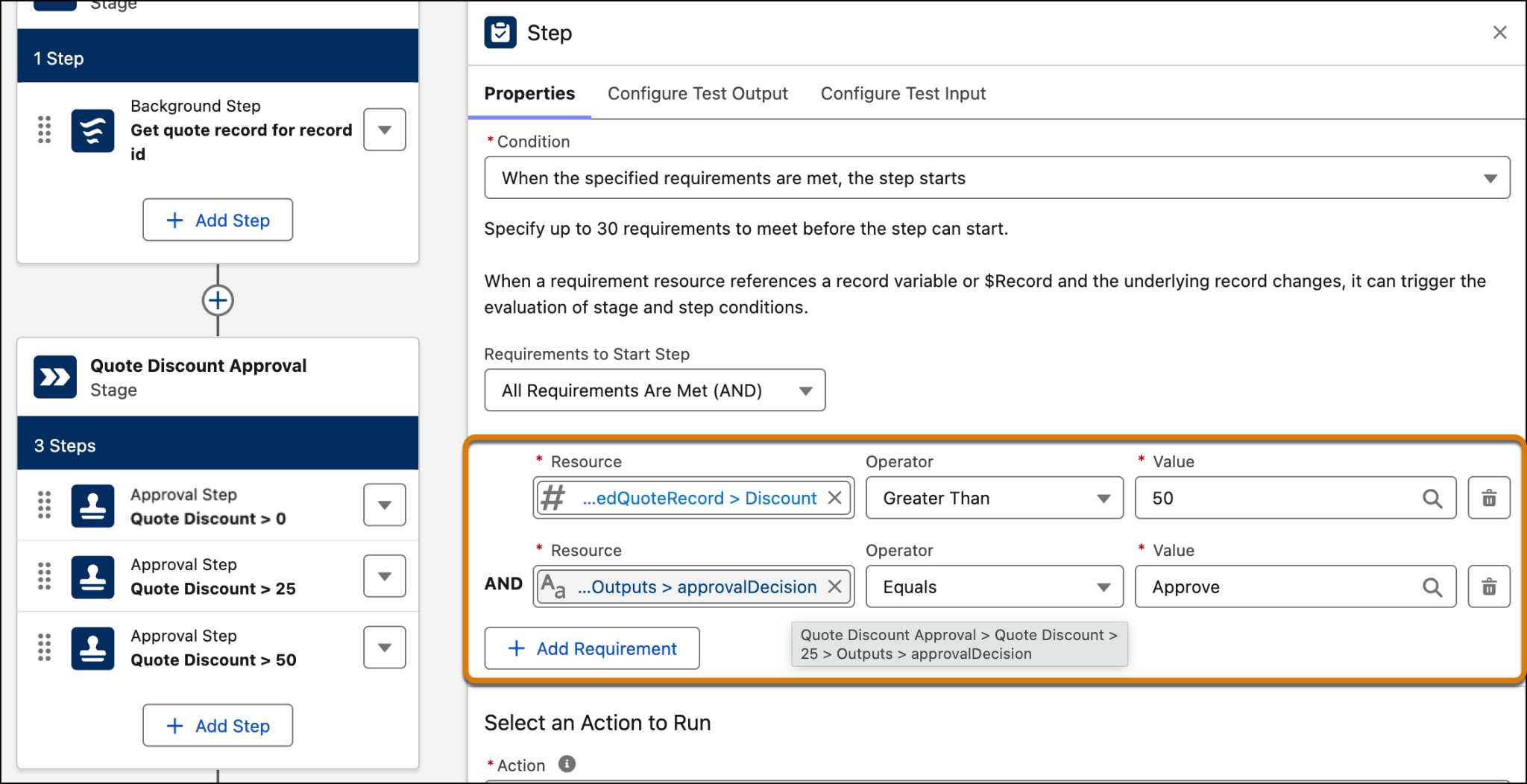
- Under Select When to Start the Step, add these details:
- Condition: When the specified requirements are met, the step starts
- Requirements to Start Step: All Requirements Are Met (AND)
- Resource: Get quote record > Get quote record for record id > Outputs > FetchedQuoteRecord > Discount
- Operator: Greater Than
- Value:
50
- Condition: When the specified requirements are met, the step starts
- Select +Add Requirement and add these details:
- Resource: Quote Discount Approval > Quote Discount > 25 > Outputs > approvalDecision
- Operator: Equals
- Resource: Quote Discount Approval > Quote Discount > 25 > Outputs > approvalDecision
- Value:
Approve
The second requirement is critical here. By creating a dependency, it ensures the Sales SVP review occurs only after the sales manager approves the request. This is how you build sequential logic into your approval chains.
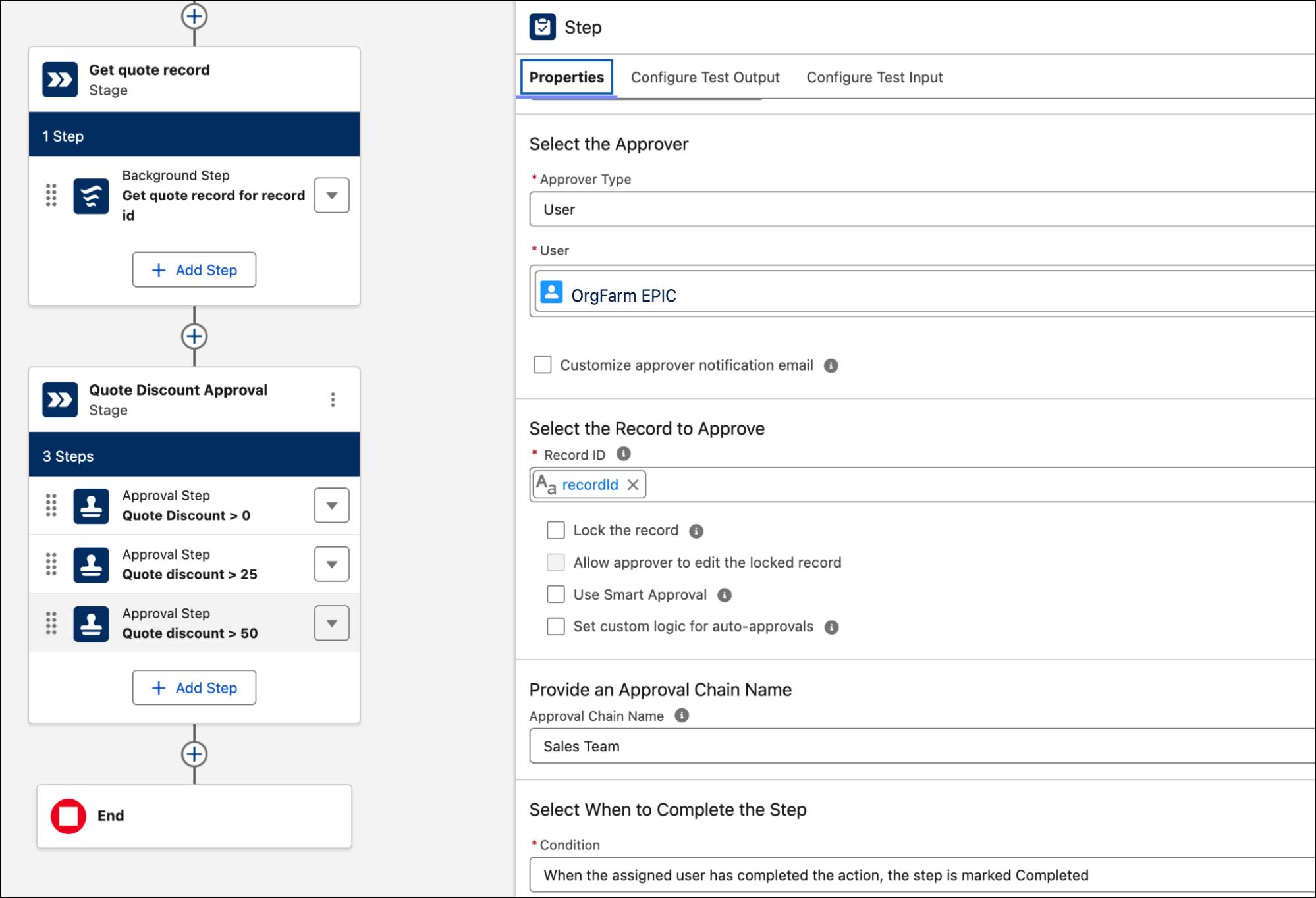
- Under Select an Action to Run, select Approvals Workflow: Evaluate Approval Requests.
- Under Select the Approver, make sure User is selected for Approver Type and select OrgFarm EPIC as the User.
- Under Select the Record to Approve, complete these actions:
- For Record ID, select recordId.
- Uncheck Lock the record checkbox.
- For Record ID, select recordId.
- For Approval Chain Name, add
Sales Team.
- Under Select When to Complete the Step, select When the assigned user has completed the action, the step is marked Completed.
- Close the Approval Step.
- On the Flow Builder canvas, select Save.
You've successfully configured the sequential sales approval steps.
Revisit the Stage Exit Condition
Serial and parallel approvals can stall when a stage's exit condition isn't properly configured for every routing outcome. Recall the exit condition you set for the Quote Discount Approval stage in the previous unit: When all steps have been marked Completed, the stage is marked Completed.
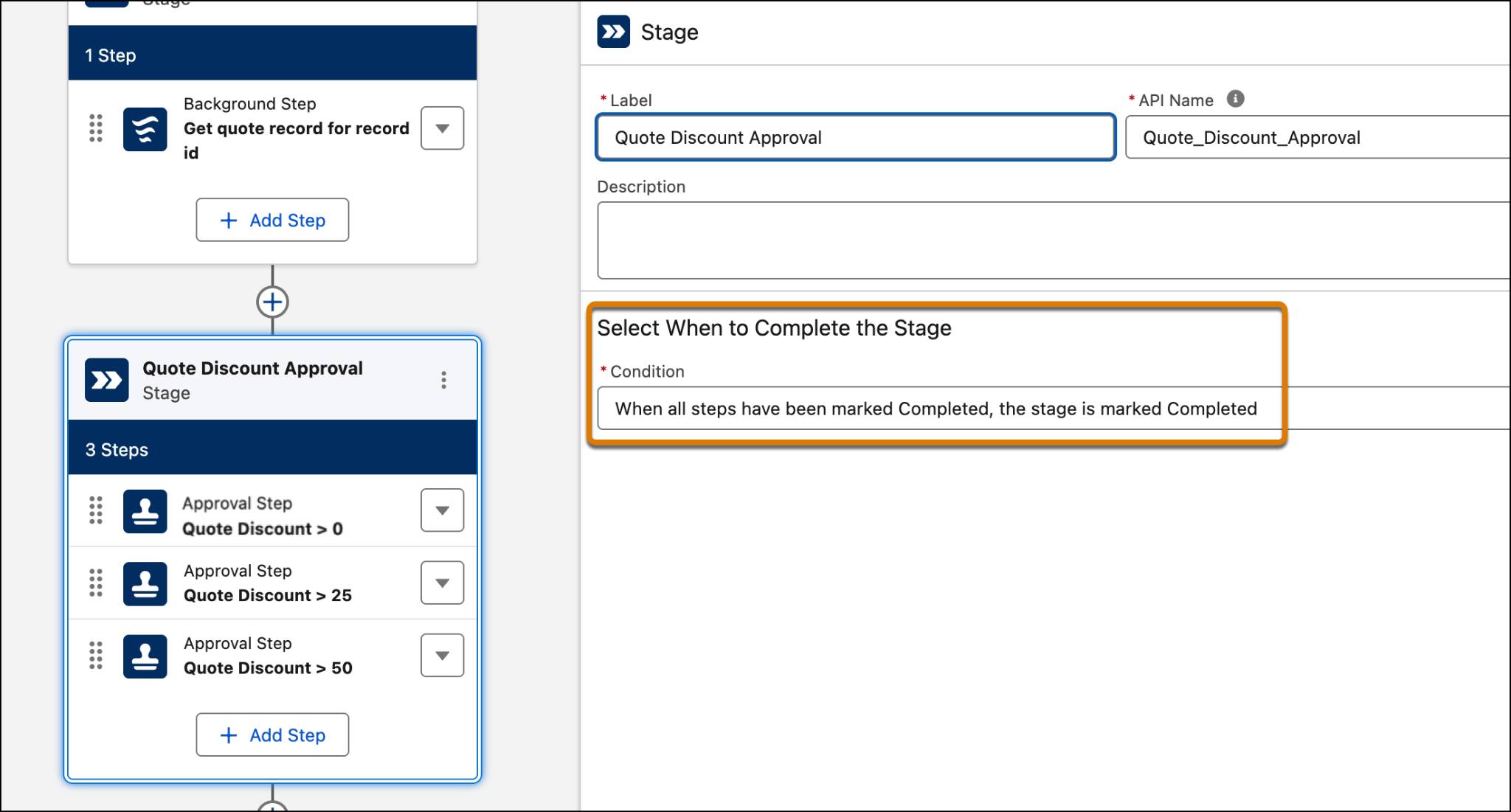
This condition expects every step within that stage to run and reach completion. However, in your Quote Discount Approval stage, each of the three steps triggers only when specific discount thresholds are met. So if a quote carries a 15 percent discount, only the Legal step is triggered and completed. The sales manager and sales SVP steps never start. Because these untriggered steps never reach completion, the stage remains in a waiting state indefinitely, causing a workflow deadlock.
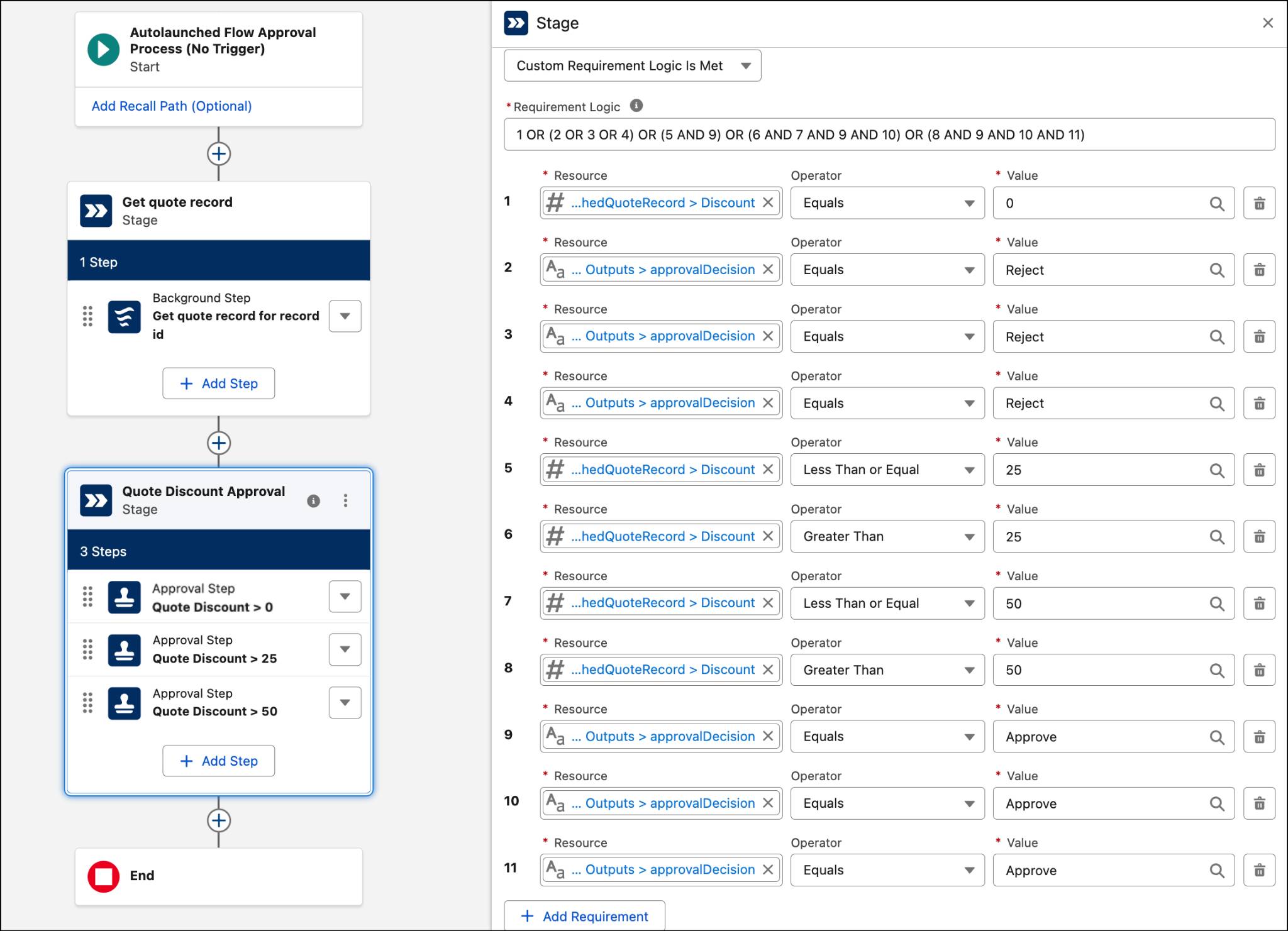
Let’s fix this by setting a custom stage exit condition that accounts for skipped steps and allows the workflow to move forward seamlessly. Follow along in your org.
- Select the Quote Discount Approval stage element on the canvas.
- Under Select When to Complete the Stage, change the condition to When the specified requirements are met, the stage is marked Completed.
- For Requirements to Complete Stage, select Custom Requirement Logic is Met.
- For the first requirement, add these details:
- Resource: Get quote record > Get quote record for record id > Outputs > FetchedQuoteRecord > Discount
- Operator: Equals
- Value:
0
- Select +Add Requirement ten times and add each one in the exact listed sequence:
# |
Resource |
Operator |
Value |
|---|---|---|---|
2 |
Quote Discount Approval > Quote Discount > 0 > Outputs > approvalDecision |
Equals |
Reject |
3 |
Quote Discount Approval > Quote Discount > 25 > Outputs > approvalDecision |
Equals |
Reject |
4 |
Quote Discount Approval > Quote Discount > 50 > Outputs > approvalDecision |
Equals |
Reject |
5 |
Get quote record > Get quote record for record id > Outputs > FetchedQuoteRecord > Discount |
Less Than or Equal |
25 |
6 |
Get quote record > Get quote record for record id > Outputs > FetchedQuoteRecord > Discount |
Greater Than |
25 |
7 |
Get quote record > Get quote record for record id > Outputs > FetchedQuoteRecord > Discount |
Less Than or Equal |
50 |
8 |
Get quote record > Get quote record for record id > Outputs > FetchedQuoteRecord > Discount |
Greater Than |
50 |
9 |
Quote Discount Approval > Quote Discount > 0 > Outputs > approvalDecision |
Equals |
Approve |
10 |
Quote Discount Approval > Quote Discount > 25 > Outputs > approvalDecision |
Equals |
Approve |
11 |
Quote Discount Approval > Quote Discount > 50 > Outputs > approvalDecision |
Equals |
Approve |
- Finally, in the Requirement Logic field, enter
1 OR (2 OR 3 OR 4) OR (5 AND 9) OR (6 AND 7 AND 9 AND 10) OR (8 AND 9 AND 10 AND 11).
- Close the Quote Discount Approval stage.
- Save your work.
Great work! The stage exit condition is now configured to complete correctly, no matter how the approval unfolds.
Activate the Approval Workflow
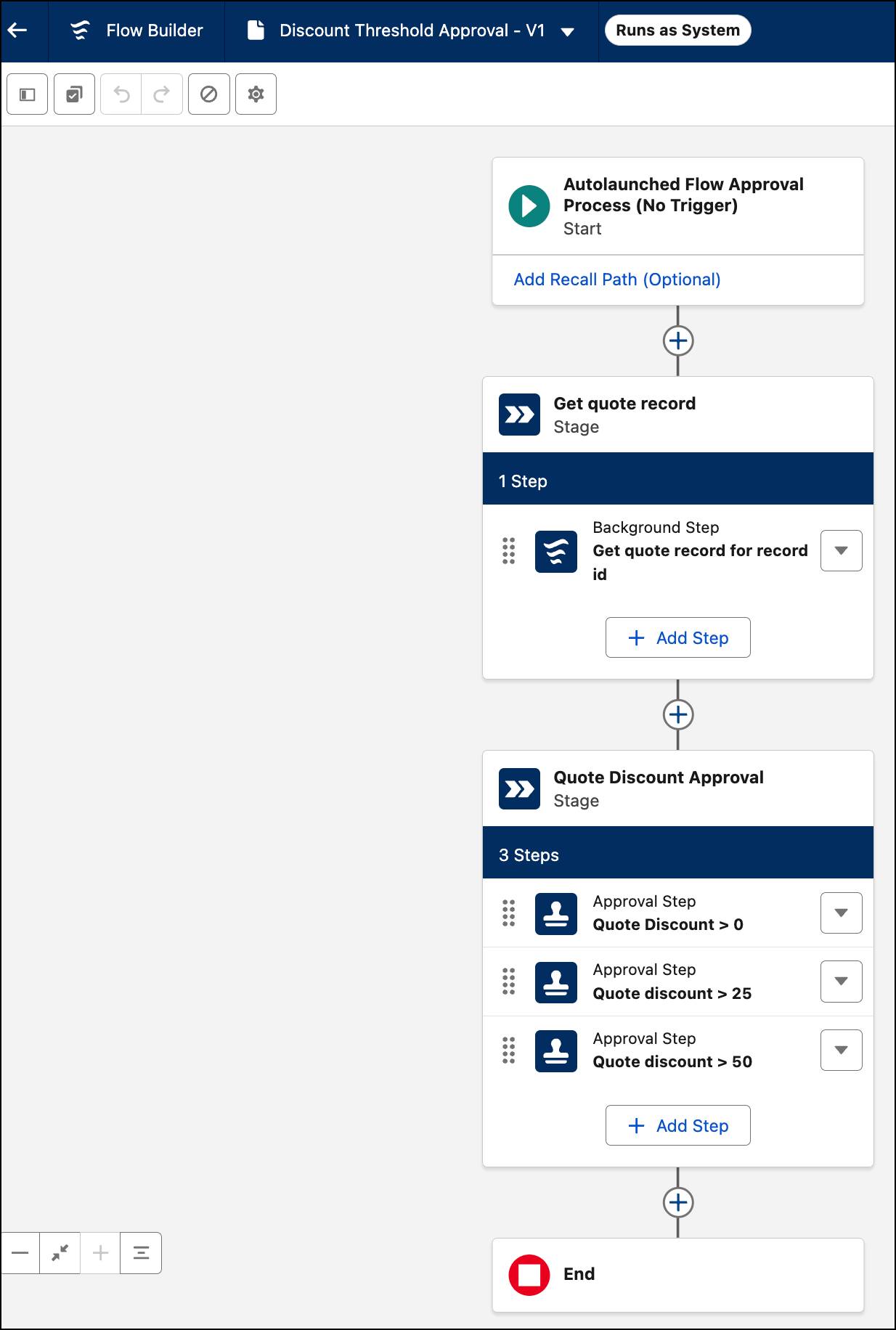
Before activating the approval workflow, it's good practice to do a quick check of your approval framework.
- Review your flow canvas. You should see:
-
Get quote record stage with one background step
-
Quote Discount Approval stage with three approval steps
- All elements connected to the End element
-
Get quote record stage with one background step
- Select Activate.
Congratulations! Your discount approval workflow is now live.
Moving On
Jordan has built a complete, multi-tiered discount approval workflow with both parallel and sequential routing logic. In the next unit, he puts this workflow to the test by creating a quote with a steep discount, previewing the approval path, submitting it for approval, and stepping into the shoes of different approvers to see the process from start to finish.