Build a Discount Approval Workflow
Learning Objectives
After completing this unit, you’ll be able to:
- Explain the role of the Fetch Quote Details flow in an approval workflow.
- Create an Autolaunched Flow Approval Process in Flow Builder.
- Add an approval stage to your approval workflow.
- Define entry conditions to trigger approval steps.
Plan Your Approval Journey
Before diving into the technical configuration of your discount approval workflow, it’s essential to understand the organizational goals driving these changes. A well-planned approval process not only ensures compliance and consistency but also empowers your sales teams to operate efficiently. By clearly defining your business requirements upfront, you create a robust structure that minimizes friction and maximizes productivity. This preparatory phase is a critical step in setting up a scalable and reliable automation framework. With this foundation in place, let’s explore the scenario that guides our hands-on implementation.
A Business Scenario
As a fast-growing electronic product and solution provider, InfintraBytes operates in a highly competitive market. To win bids and close deals, sales representatives frequently apply discounts to their customer quotes. However, the company recently noticed a dip in profit margins due to unauthorized, high-percentage discounts being applied to quotes. To protect margins while keeping the sales cycle fast, InfinitraBytes has decided to implement a strict, automated, and multi-tiered quote discount approval process.
Jordan Lee (he/him), who serves as both the approval designer and admin at InfintraBytes, is leading this deployment. The corporate compliance board has established a three-tiered routing enforcement matrix for Jordan to build. Here’s the approval logic.
Approval Condition |
Required Approver |
Approval Chain Name |
|---|---|---|
Compliance approval for quotes with any discount value specified |
Legal Specialist |
Legal Team (Parallel) |
Sales approval for quotes with discounts greater than 25% |
Sales Manager |
Sales Team (Sequential) |
Sales approval for quotes with discounts greater than 50% |
Sales SVP |
Sales Team (Sequential) |
This critical work lays the foundation for a robust, automated approval framework that ensures compliance and protects your margins.
Next, let's get you set up with a dedicated environment so you can begin building.
Launch a Developer Edition Org with Advanced Approvals
To complete this badge, you need a custom playground that contains the Approvals app and our sample data.
- Click Create Playground, and then click Yes, Create Playground.
- Your new org is automatically attached to your Trailhead account.
- Make note of your org's expiration date and complete this badge before then.
- Click Launch to open the playground.
Enable Pricing
Now that your org is connected, follow these steps to make sure it’s ready to use.
- From Setup, in the Quick Find box, find and select Salesforce Pricing Setup.
- Under the Sync Pricing Data section, select Sync.

- Confirm that you want to sync your org.
The pricing data sync takes a few minutes to complete, but you don’t have to wait. Proceed to the next section.
Retrieve Quote Record Details
Before an approval workflow can route a quote to the right approver, it needs specific context such as the total discount percentage. When a quote is submitted for approval, the workflow knows an event occurred, but it doesn't automatically have access to all the quote's field values. It needs a way to retrieve that data.
Advanced Approvals bridges this gap by using a subflow that acts as a data retrieval utility. Here's how it works.
- The main approval workflow passes the QuoteId to the subflow.
- The subflow queries the database to retrieve that specific quote record.
- It then returns the complete quote data, including all field values, back to the main workflow.
Good News! Your Developer Edition org already includes an activated Fetch Quote Details subflow. Now you can focus on building the main approval flow while the subflow takes care of retrieving the required data.
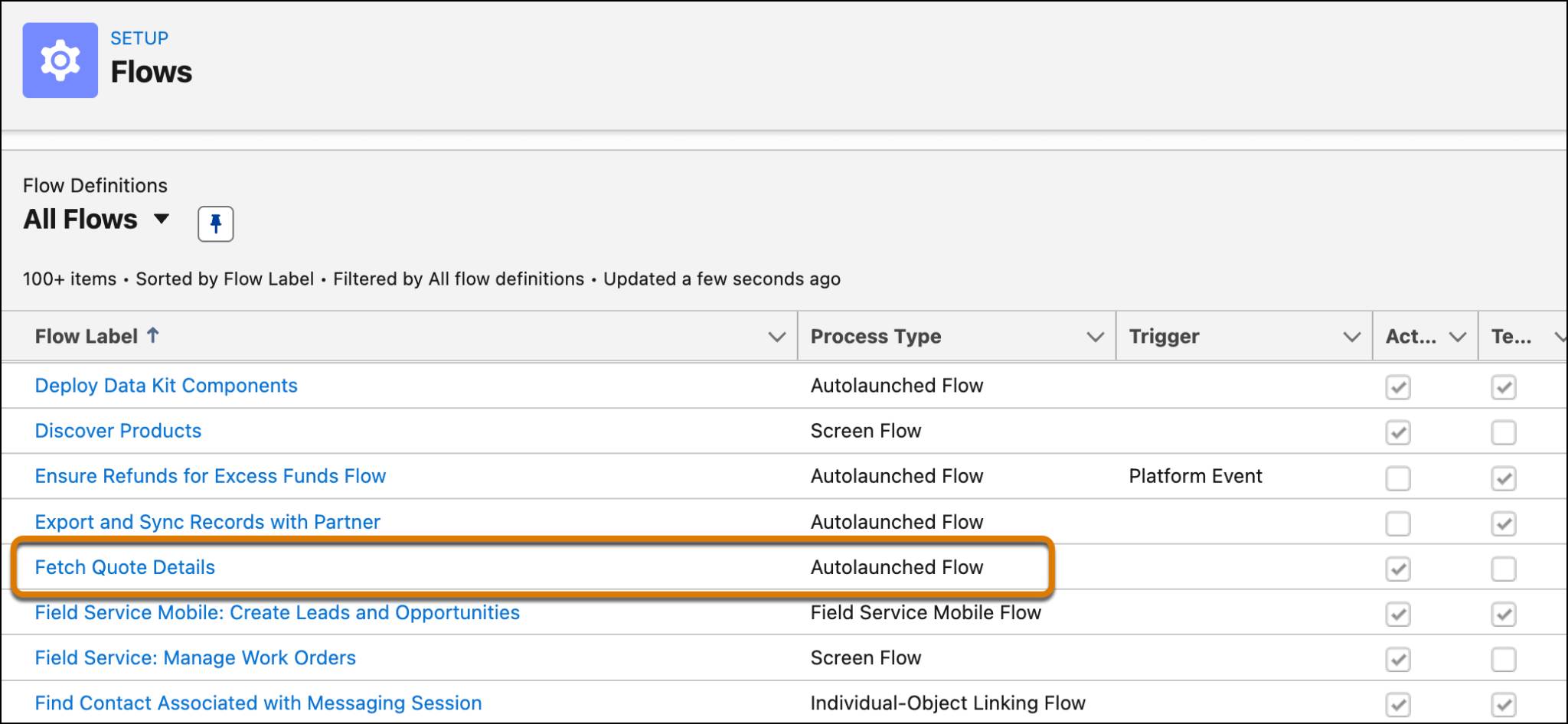
In the next section, you use this subflow to set up your approval flow.
Create an Approval Workflow
With the background data services in place, Jordan moves on to create a discount approval workflow by using the flow approval process. Follow along.
- From the App Launcher, find and select Approvals.
- From the Approvals Home page, select Create Flow Approval Process.
- Select Start from Scratch. A new canvas for an Autolaunched Flow Approval Process (No Trigger) opens in a separate workspace window.
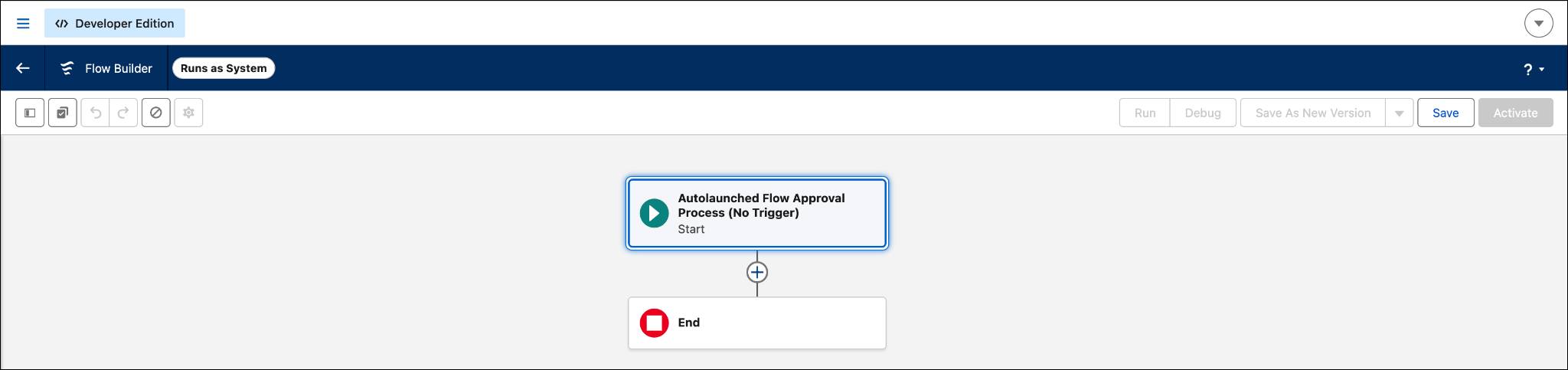
- On the Flow Builder canvas, select
 and select the Stage element.
- Add these details:
- Label:
Get quote record - The API Name should auto-populate as
Get_quote_record.
- Condition: When all steps have been marked Completed, the stage is marked Completed
- Label:
- Close the Stage element.
- In the Get quote record stage, select + Add Step.
- Select Background Step, and add these details:
- Label:
Get quote record for record id - The API Name should auto-populate as
Get_quote_record_for record id.
- Condition: When the stage starts, the step starts
- Label:
- Under the Select an Action to Run section, add these details:
- Action: Fetch Quote Details
- InputQuoteID: recordId
- Action: Fetch Quote Details
- Select Save.
- On the Save the orchestration pane, add your approval flow details:
- Flow Approval Process Label:
Discount Threshold Approval
- The API Name should auto-populate as
Discount_Threshold_Approval.
- Description:
Quote discount approval workflow
- Flow Approval Process Label:
- Save your work.
- Close the background step.
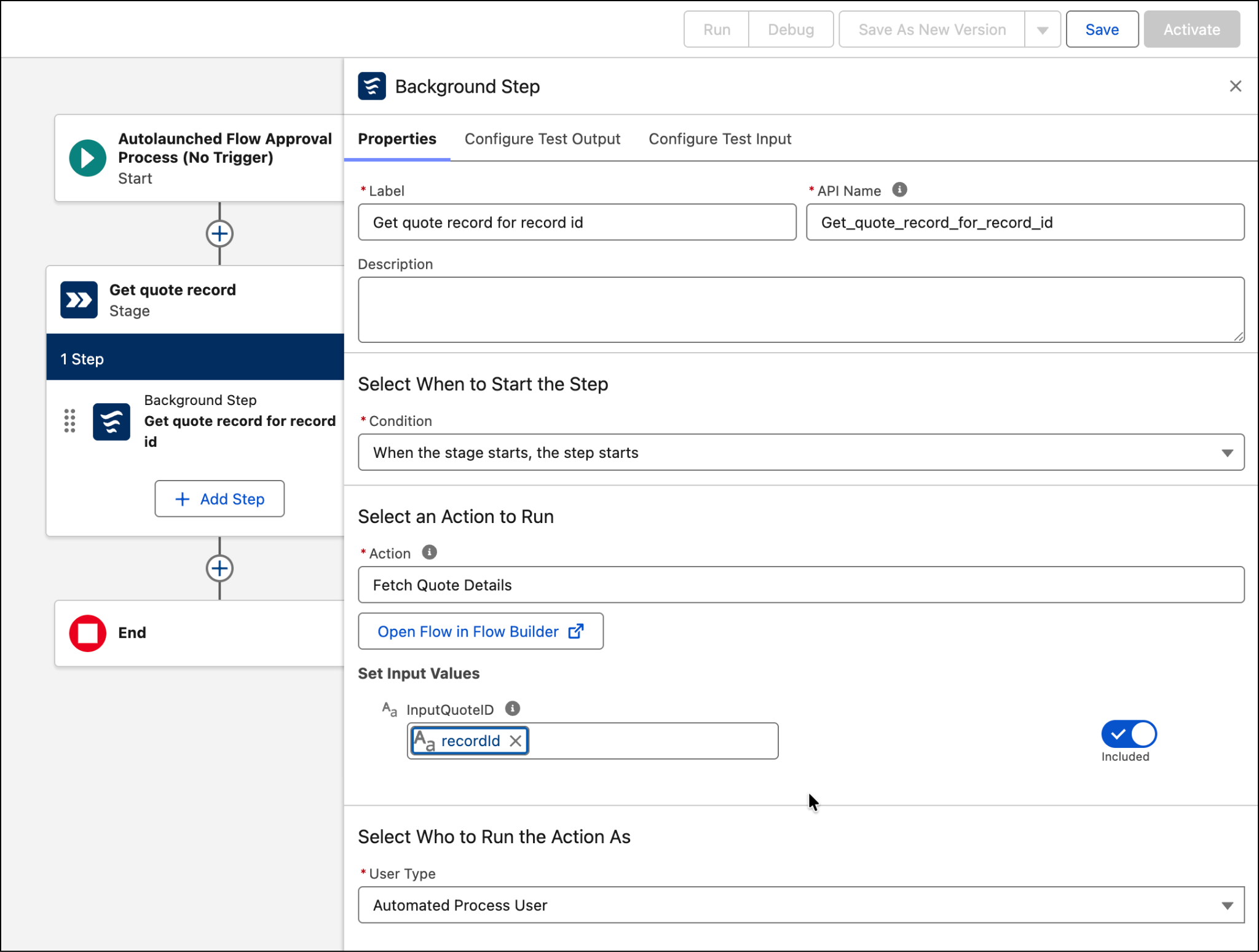
Your approval flow can now retrieve the quote record details needed to evaluate discount thresholds.
Add an Approval Stage
Now it's time to add the core approval logic that brings InfintraBytes' three-tier discount approval policy to life. Follow along as Jordan adds a stage element and configures the first approval step in the Discount Threshold Approval flow.
- Select
 below the Get quote record stage and select the Stage element.
- Add these details:
- Label:
Quote Discount Approval - The API Name should auto-populate as
Quote_Discount_Approval.
- Condition: When all steps have been marked Completed, the stage is marked Completed. For now, let this be selected. You’ll update this to a custom exit condition in the next unit.
- Label:
- Close the Stage element.
You've added the stage element. Next, configure the first approval step based on the routing logic.
Set Up the Legal Approval Step
InfintraBytes requires compliance review from the Legal team for any quote carrying a discount. This approval step runs in parallel with the sales approval chain. Time to configure it.
- On the Quote Discount Approval stage, select + Add Step.
- Select Approval Step, and add these details:
- Label:
Quote Discount > 0 - The API Name should auto-populate as
Quote_Discount_0.
- Label:
- Under Select When to Start the Step, add these details:
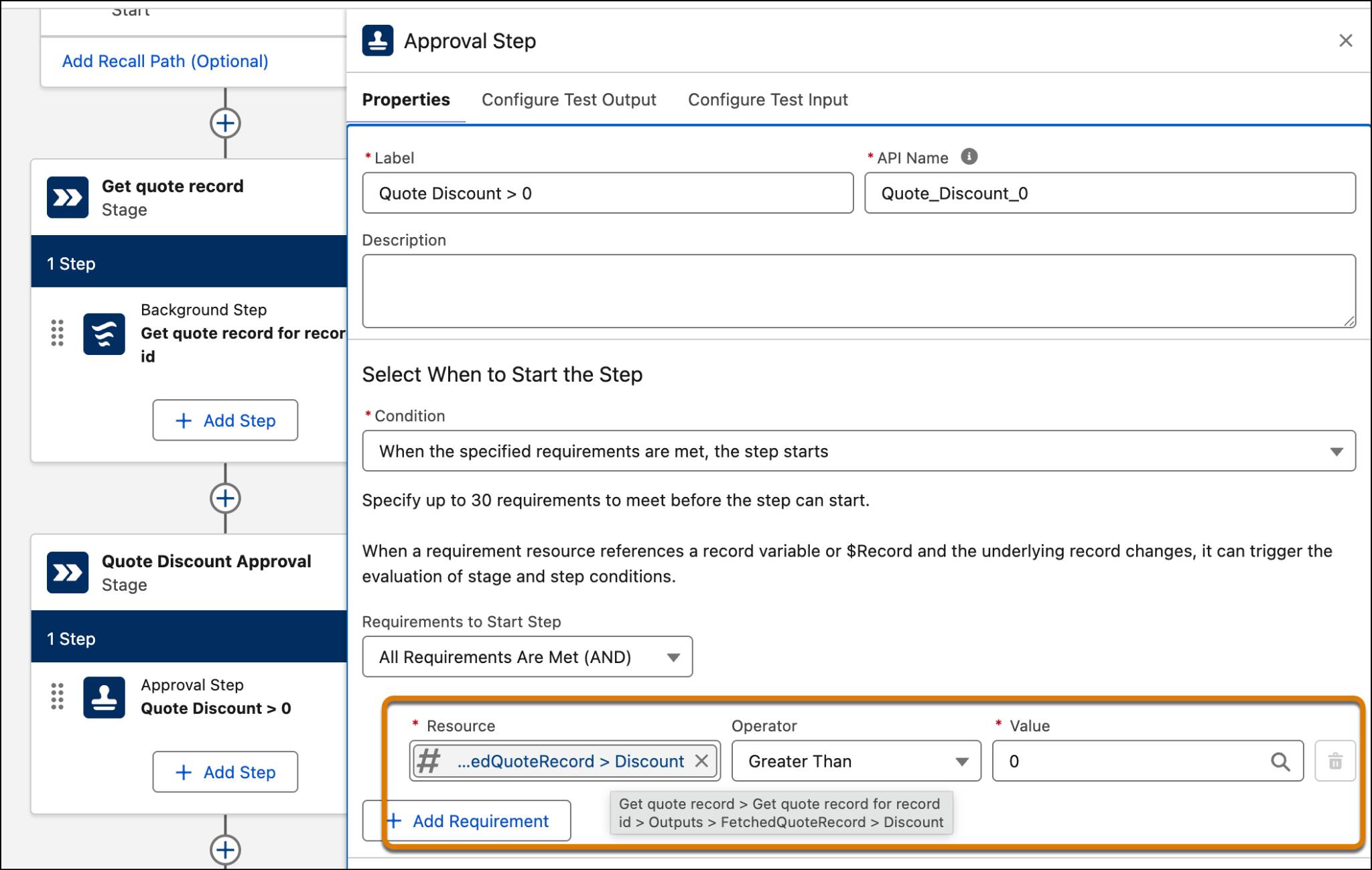
- Condition: When the specified requirements are met, the step starts
- Requirements to Start Step: All Requirements Are Met (AND)
- Resource: Get quote record > Get quote record for record id > Outputs > FetchedQuoteRecord > Discount
- Operator: Greater Than
- Value:
0. This condition ensures the step triggers only when the quote discount exceeds zero.
- Condition: When the specified requirements are met, the step starts
4. Under Select an Action to Run, select Approvals Workflow: Evaluate Approval Requests.
5. Under Select the Approver, make sure User is selected for Approver Type and select OrgFarm EPIC as the User.
6. Under Select the Record to Approve, complete these actions:
- For Record ID, select recordId.
- Uncheck the Lock the record checkbox.

- For Approval Chain Name, enter
Legal Team.
- Under Select When to Complete the Step, select When the assigned user has completed the action, the step is marked Completed.
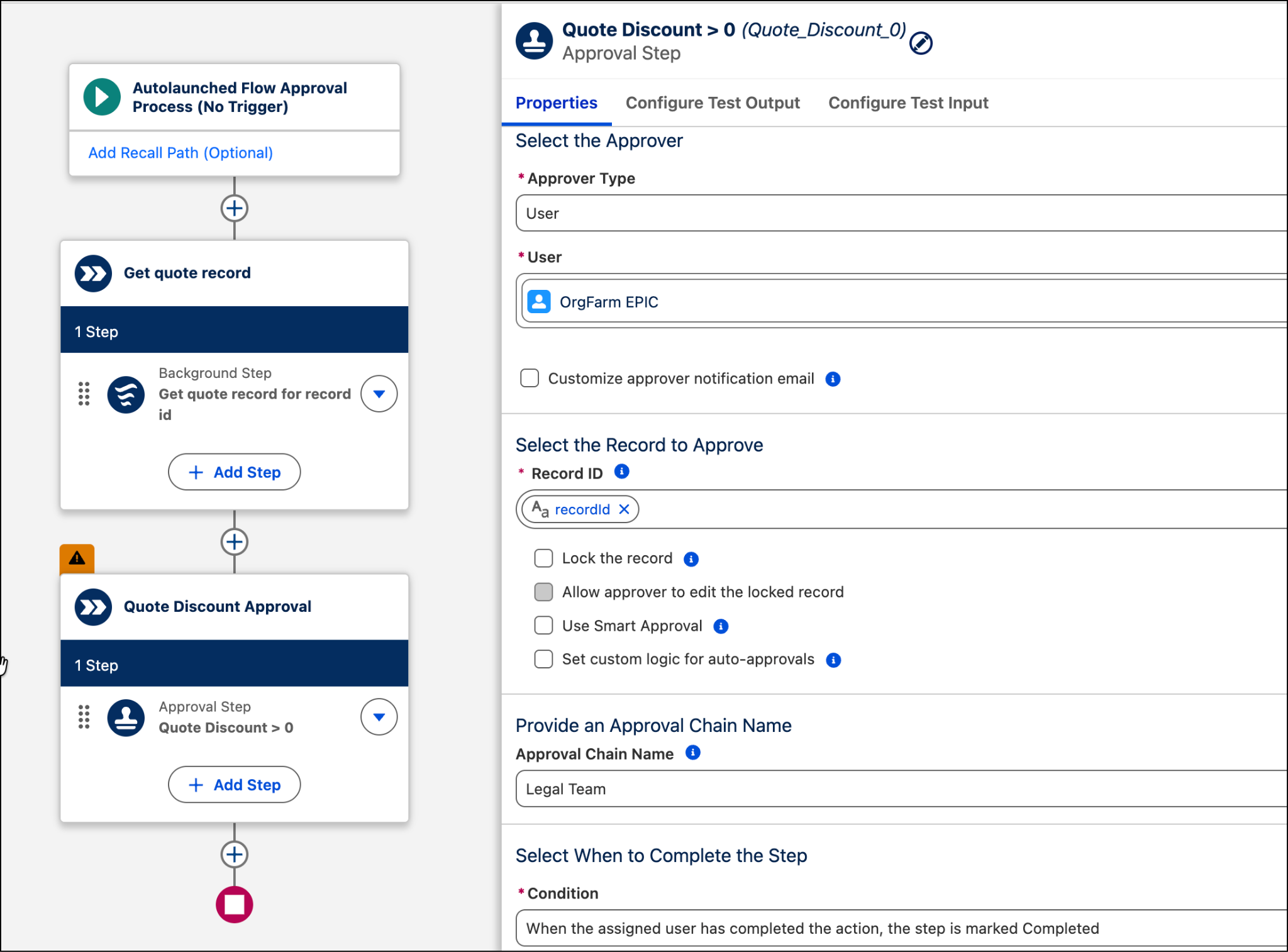
- Close the Approval Step.
- On the Flow Builder canvas, select Save.
Your first approval step is configured and ready to route discounted quotes to the Legal team for compliance review.
Next Up
You’ve successfully built the approval framework, configured data retrieval, added the approval stage, and set up the first approval step. In the next unit, you configure the remaining approval steps and complete your workflow. Stay tuned!