Create, Explore, and Enrich a Knowledge Graph
Learning Objectives
After completing this unit, you’ll be able to:
- Turn on Tableau Knowledge and create a knowledge graph.
- Navigate a knowledge graph using the Graph and Explorer views.
- Describe how business preferences enrich a knowledge graph.
Turn On and Open Tableau Knowledge
Tableau Knowledge is turned off by default in Tableau Cloud, so Linda must first take a few steps to turn it on. For these instructions, review Turn on Tableau Knowledge.
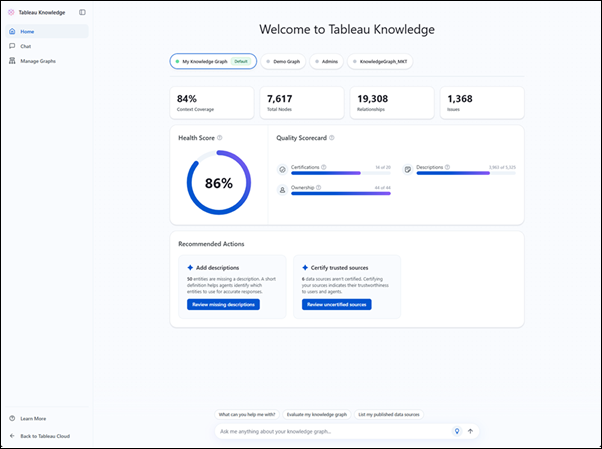
Linda turns on Tableau Knowledge, then selects Tableau Knowledge in the navigation pane in Tableau Cloud to open the home page. For more information about what displays, see Explore the Tableau Knowledge Home page.
Create a Knowledge Graph
Tableau Knowledge suggests relevant assets to include in Linda’s knowledge graph. From these suggestions, she selects the assets she needs, such as workbooks, published data sources, and business preferences.
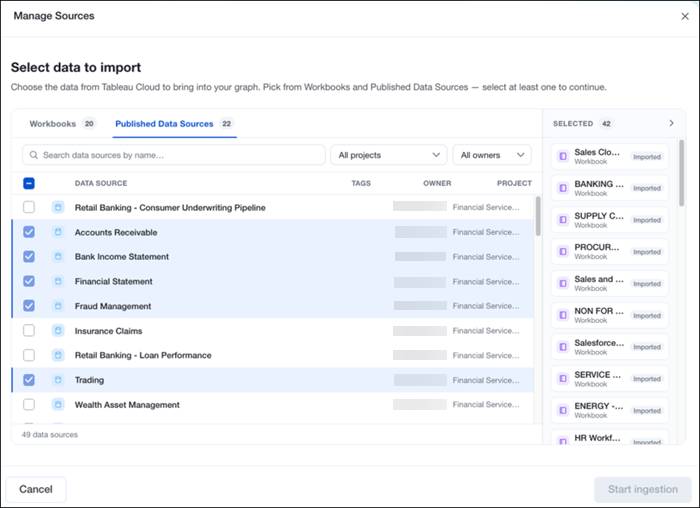
Follow these steps to create your first knowledge graph.
Set a Default Knowledge Graph
Linda now needs to set her new graph as the default knowledge graph. Because she has only one graph, Linda sets it as the default to clear the error message on the home page.
Having a default graph matters in two scenarios: when an external agent queries Tableau Knowledge, and when Linda asks a question using the native Tableau Agent for Knowledge. In both cases, if the query doesn’t specify a graph, the system uses the default knowledge graph. The home page shows which graph is set as the default, making it easy for Linda to see where her agents will pull answers from.
Refer to these instructions on how to set a knowledge graph as default.
Navigate the Graph Views
When Linda selects her data sources, Tableau Knowledge automatically infers relationships between them and illustrates those relationships in the graph. Linda reviews what Tableau Knowledge infers to make sure AI agents know how her data fits together.
She can view these relationships in two ways.
-
Graph view: Each entity type appears as a node connected to its related nodes visually. Linda can search for nodes, zoom in and out, and double-click to drill down.
-
Inspect a node: Linda selects a node to open its detail pane and learn more about the node.
-
Traverse a relationship: She selects the line between nodes to see the relationship type.
-
Inspect a node: Linda selects a node to open its detail pane and learn more about the node.
-
Explorer view: Entities appear in a hierarchical tree with related nodes nested together. Linda expands nodes to explore the relationships.
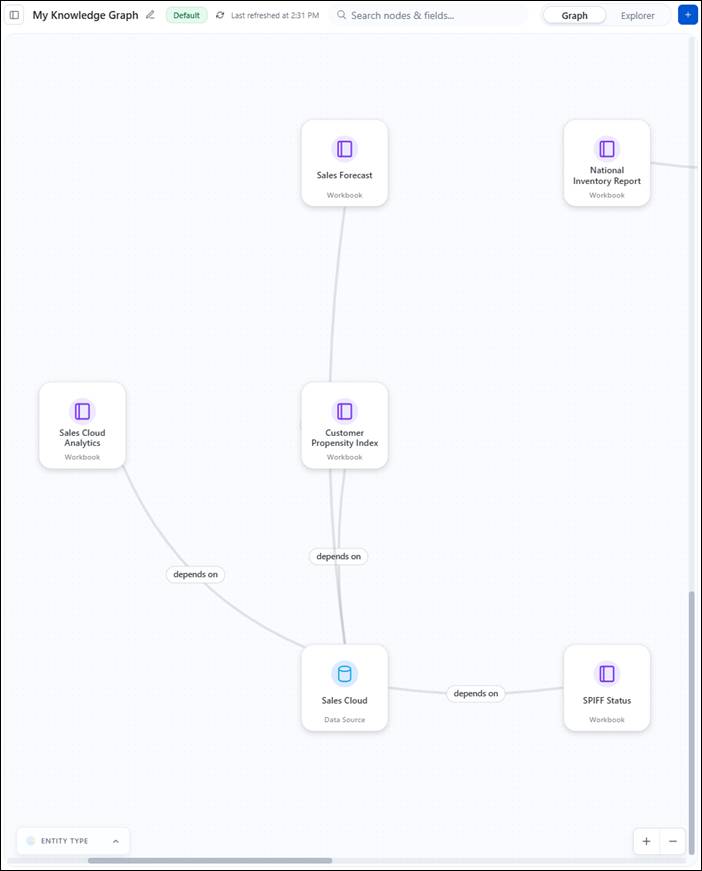
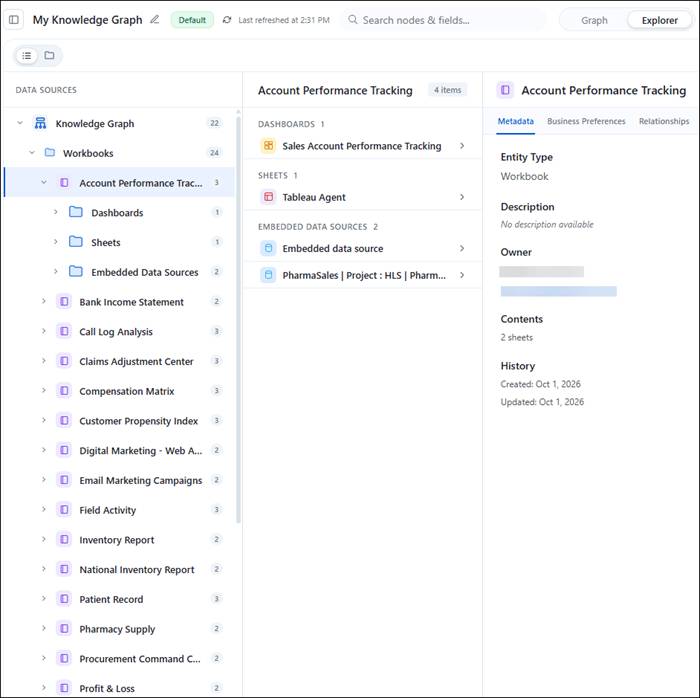
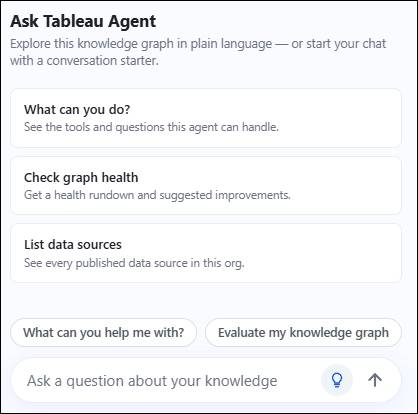
In either view, Linda can start a conversation with Tableau Agent for Knowledge to get insights on her graph. She can ask the agent to assess graph quality, answer questions about the data, or help manage her graphs. To get started, she types a question in the chat window or selects a suggested question.
Verify the Graph
In the Graph view, Linda checks that her sales data is connected correctly. She selects the Order Line Items node and follows its relationship to the Return Authorizations node. Because Tableau Knowledge identified this relationship, the agent can connect returns to orders when a user asks about “net revenue.”
Enrich the Graph with Business Preferences
To guide agents toward a more consistent interpretation of her graph, Linda needs to add business preferences. Business preferences are natural-language instructions that explain a company’s rules, terminology, and use of data. For example, a business preference defines the best-performing accounts as those with the highest total_amount.
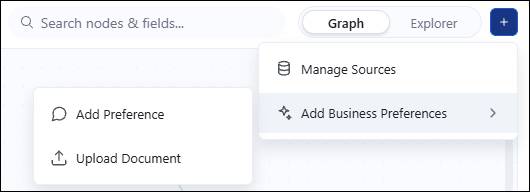
You can create a business preference as a single natural-language instruction, or you can upload a file of your business preferences. For instructions on both methods, review Add global business preferences.
From Creation to Maintenance
With the graph built and enriched, the AI agents at Cloud Kicks now have the context they need. In the next unit, you learn how to monitor a graph’s health over time, review AI-generated recommended actions, and connect external agents.