Use Conditional Logic to Send the Right Prompt for Each Context
Learning Objectives
After completing this unit, you’ll be able to:
- Use conditional expressions to determine which prompt is sent to the LLM.
- Use the Variables tab to see the current value of your agent's variables.
Step 1: Conditionally Define the Agent's Prompt
Agentforce lets you send completely different prompts to the LLM based on the value of variables. A powerful feature! With other agents, the entire prompt is sent to the LLM every turn, regardless of the current context or state. In that scenario, you're forced to rely on complicated prompt engineering and luck to guide the LLM through complex reasoning.
With Agentforce, you can use reasoning logic to define a specific prompt to work specifically for each of your agent's states. Agentforce processes the reasoning logic and sends only the resulting prompt to the LLM–ensuring the LLM prompt is always specific to the agent's current context. For more information about how Agentforce resolves reasoning instructions, read this Help article.
To reward loyal customers, you want the CC Service Agent to send these prompts to the LLM.
Condition |
Prompt Sent to LLM |
|---|---|
A customer's lifetime value is greater than or equal to $50,000 |
Thank the customer for being a Platinum member. |
A customer's lifetime value is less than $50,000 and greater than $25,000 |
Thank the customer for being a Gold member. |
- In Canvas view, select the Experience Management subagent.
- Place your cursor at the end of paragraph 2, after
before running any other actions, and press Enter to add a new line.

- Type
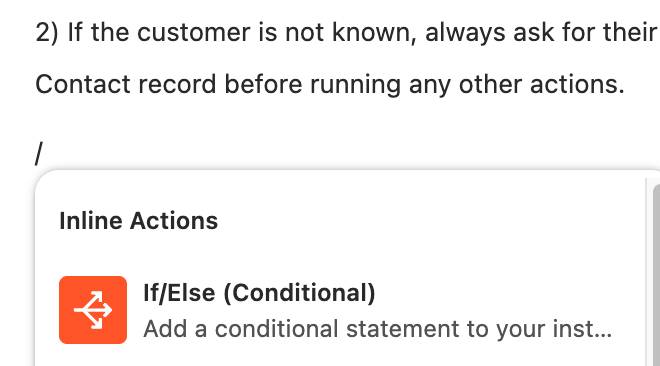
/to bring up the Inline Actions menu, then select If/Else (Conditional).
- Select the LifetimeValue variable, greater than or equal to, and, for Enter Value, type
50000.
- On the line below, click to the left of Write instructions and type
Thank the customer for being a Platinum member!

- Press Enter/Return twice.
- Repeat the above steps to add a condition when LifetimeValue is < 50000 and >= 25000, with the text
Thank the customer for being a Gold member!
- Click Save.
You've created this conditional expression in your subagent instructions.

If the customer has a lifetime value of greater than or equal to $50,000, the LLM receives the prompt: "Thank the customer for being a Platinum member!" If the customer has a lifetime value greater than or equal to $25,000 but less than $50,000, the LLM receives the prompt: "Thank the customer for being a Gold member!" If the customer has a lower lifetime value, the LLM doesn't receive either of these prompts.
Test Your Conditional Logic
Now, let's test your agent!
- Select Preview.
- Enter this prompt in the Preview panel:
Can you let me know more about the full moon beach party experience?
- When asked for email and membership number, enter:
I am sofiarodriguez@example.com and my membership number is 10008155.
Because Sophia's lifetime value is $50,000, she is greeted as a Platinum member. To try the agent with another user, first reset the context by clicking  . Then enter the same question about the beach party in the Preview panel for these different users.
My email is ilsagalgey@example.com and my membership number is 10002212.My email is terianncreer@example.com and my membership number is 10003172.
See the Agent Set the Lifetime Value Variable
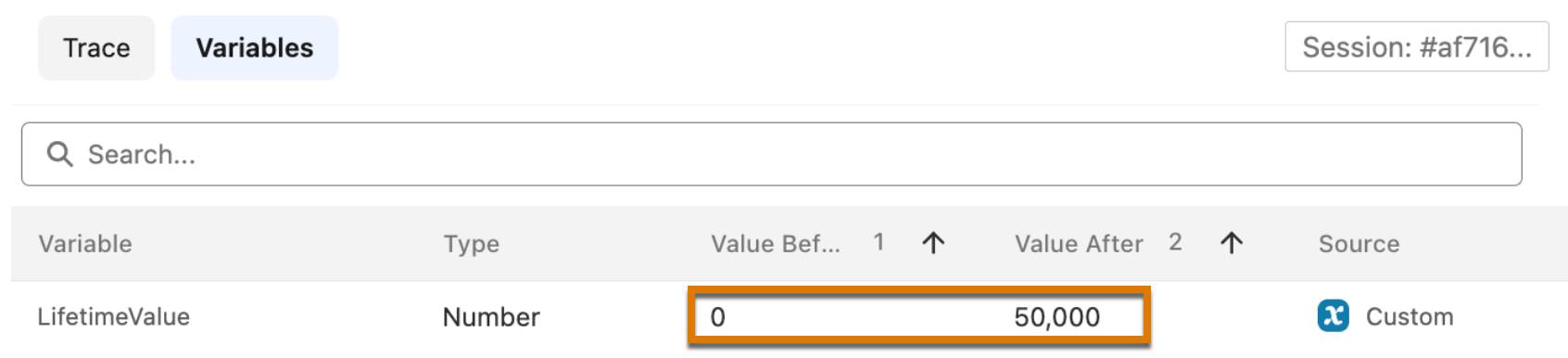
Agentforce Studio's preview view shows you the value of all your variables, before and after a step takes place. In Preview, click the Variables tab. You can see that the agent retrieved the $50,000 lifetime value from Sophia's contact record, then updated the LifetimeValue variable.
Quiz Scenario
For the first question in the quiz, consider these reasoning instructions.
   reasoning:
       instructions: ->
           if @variables.loyalty_tier == "Basic":
               | If the user wants to make a return, apologize and explain that basic members are not eligible for returns. Offer to connect them with a live agent if they need additional support.
           if @variables.loyalty_tier == "Premium":
               | If the user wants to make a return, confirm with them which order they want to return. Once confirmed, process the return with {!@actions.create_return}.