Test Your App in a Staging Environment
Learning Objectives
After completing this unit, you’ll be able to:
- Describe best practices for setting up and testing in a staging environment.
- Explain feature differences between a regular workspace, a developer sandbox, and a partner sandbox.
- Explain the use case and configuration process for the Simple IdP app to manage user authentication in a developer sandbox.
Provision a Sandbox
Need a safe place to test your Enterprise org applications? The Slack Developer Program offers developer sandboxes, and the Slack Partner Developer Program offers partner sandboxes. These are fully featured Enterprise org environments that allow you to build and test safely without impacting a production environment.
If you’re a member of the Slack Developer Program, you can provision up to two active sandboxes at any given time. Each sandbox supports up to three workspaces, eight users, and provides access to all the Enterprise org features you need for comprehensive testing. Developer sandboxes have a default lifespan of 6 months and can be extended as long as you remain in the Developer Program.
If you aren’t in the Slack Developer Program, your sandbox is essentially any regular Slack workspace that you create yourself. You can build and test most app functionality there, but you won’t have access to true Enterprise+-specific features or multi-workspace enterprise sandboxes.
If you need to test Enterprise features, you either need access through your employer’s (or client’s) environment, or you need to apply for the Slack Developer Program when/if eligible.
Compare Sandbox Options
Compare regular Slack workspaces, developer sandboxes, and partner sandboxes. Discover the key benefits of each type and why developer sandboxes are essential for building and testing enterprise-grade Slack apps.
Regular Workspace |
Developer Sandbox |
Partner Sandbox |
|
|---|---|---|---|
Who can access |
Anyone |
Slack Developer Program members |
Slack Developer Program members + verified partners |
Environment type |
Single workspace |
Enterprise org (multiple workspaces) |
Enterprise org (multiple workspaces, higher limits) |
Test multi-workspace features |
Not available |
Full support |
Full support, higher scale |
Admin/Org-level APIs |
Limited or unavailable |
Full support |
Full support |
Compliance and security controls |
Standard workspace settings |
Enterprise-grade |
Enterprise-grade, more configurable |
Sandbox isolation |
No (acts like a normal production workspace) |
Fully isolated; safe for testing |
Fully isolated; safe for testing, more capacity |
Automation limits |
Standard workspace limits |
Standard developer quotas |
Higher quotas/fewer limits |
User/workspace limits |
Workspace member limits |
Multiple workspaces, limited users |
More users, more workspaces |
Prebuilt templates |
No |
No |
Yes, for quick test setup |
Early access to betas |
No |
Some previews |
Early/broader access |
Best for |
Basic testing, prototyping, individual apps |
Most internal/external Slack app dev/test |
Partners, ISVs, large-scale demos/solutions |
Cost |
Free/paying for premium features |
Free with program acceptance |
Free with partner status |
Complete the Organization Setup
- Click Finish Setup in the email invitation.
- Enter your name and create a password to set up a Primary Org Owner account.
- Give your organization a name. You can update the name later if you want to change it, but note that you can’t change the URL of your sandbox organization.
- Agree to the general terms of service.
Create a Workspace
Once the Primary Org Owner creates their account, they should create at least one workspace. Click Manage Workspaces, and follow the guided steps to set up a new workspace. You need to provide a name and a subdomain for each workspace you create.
Set Up Authentication
Enterprise orgs require all users to use SSO, which means that admins must set up an identity provider (IdP). If you already have an IdP, you're welcome to use that one on your sandbox.
Simple IdP
If you don’t have access to an IdP, we offer a Slack app called Simple IdP that mocks an IdP to enable you to create and manage user accounts. If you opt to use Simple IdP, all user accounts for your Enterprise org sandbox must be created with the test IdP, and it will not be possible to create and use accounts outside the test IdP app. Follow these instructions to manage accounts.
- Navigate to https://slack-test-idp-for-sandboxes.herokuapp.com and install the app. Make sure you install the app on the org and not a workspace.

- Copy over the required preconfigured settings from Simple IdP that you need to copy into your sandbox’s SSO configurations.
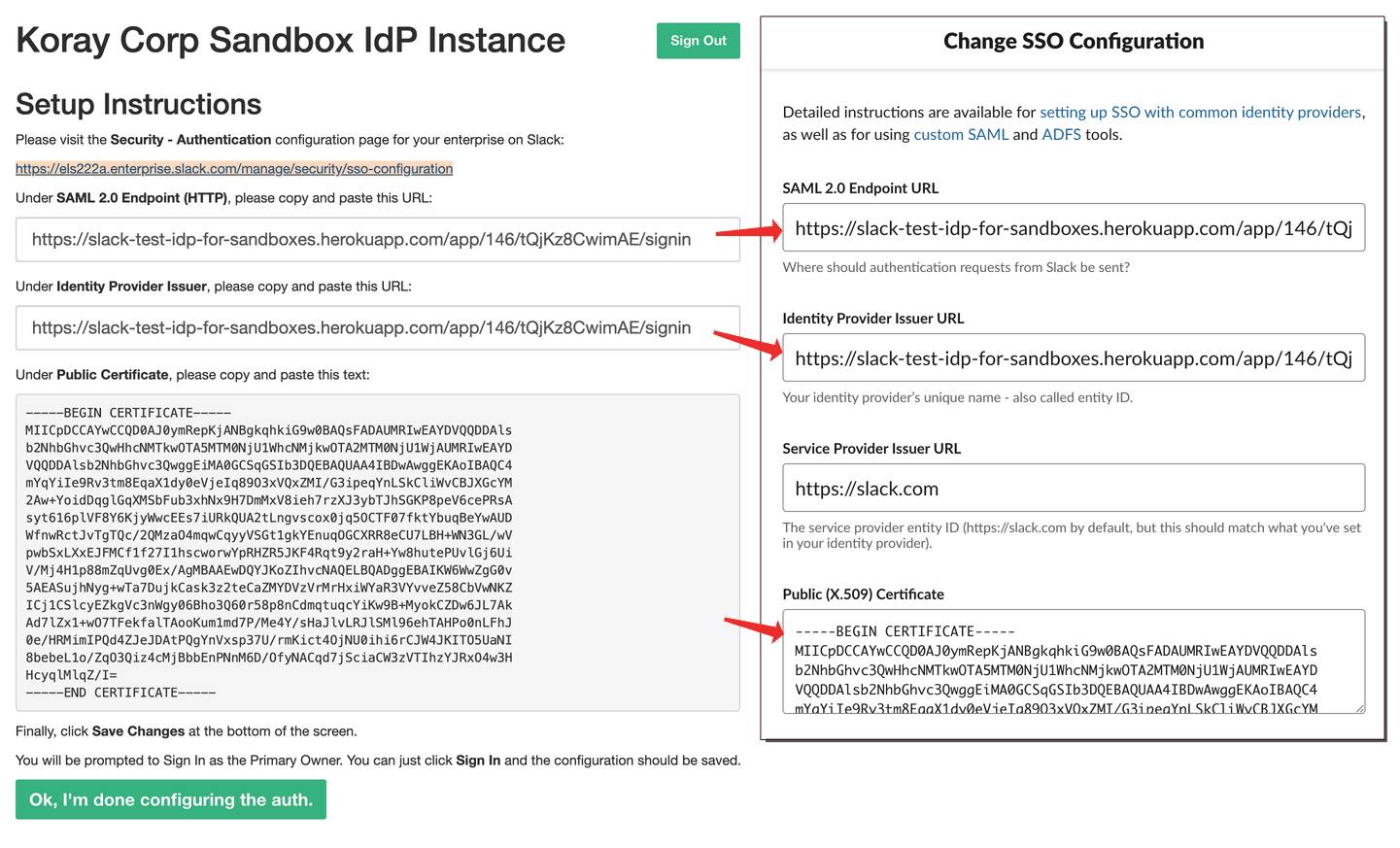
You can now add as many auto-generated users as you like through Simple IdP. For the most part, these auto-generated users are good for testing your app. However, if you need more than one real person signed into your organization at a time, you need to take a few extra steps. With the Simple IdP app, each person that you want to be able to sign into the sandbox first needs to sign in as the primary owner, authenticate the Simple IdP app, sign out, and then sign in as themselves. Let’s break down the steps.
- First, navigate to Create a custom user and provision an account for them in the Simple IdP app. The user now appears in the Organization Members list at http://[org-domain].enterprise.slack.com/manage/people.
- Add that user to a workspace.
- Instruct the user to follow these steps:
- Navigate to the sign-in page for the workspace you added them to (http://[workspace-domain].slack.com/).
- Click Sign in with SAML.
- Click Sign in with Slack on the page that loads.
- Sign in with the primary owner's email and password.
- Authorize the Simple IdP app.
- Enter the user’s email address on the resulting page, and click Sign In. That will take them to the Org control panel, where they can then launch the team. After that, they’ll remain logged in.
If you have questions as you start to use your sandbox, contact support. The Slack support team will get back to you as quickly as possible.
Data Retention
As a test instance, your Enterprise org sandbox comes with some limitations. If you are building third-party apps on Slack, the developer instance of an Enterprise org is a development sandbox with limitations around data retention and user account creation. These limitations exist because the sandbox isn’t intended for normal use; it’s intended for testing purposes only. Slack retains messages and files shared in the sandbox for only 3 days after they're created.
