Maintain Your Platform Administrator Certification for Spring ’26
Learning Objectives
After completing this unit, you’ll be able to:
- Describe how Setup with Agentforce streamlines administrative tasks by using an AI-powered, conversational experience in Setup.
- Explain how the Request Approval component enables users to submit records for approval directly from record pages without custom buttons.
- Articulate how component-level styling overrides can be used to customize the appearance of screen flows for different audiences.
- Explain how the Flow Logs tab uses Data 360 to provide centralized visibility into flow performance.
- Describe how the Delete Salesforce Files permission expands file management capabilities for non-admin users.
Stay Current With Your Certification
Salesforce certifications hold the most value when you keep them relevant. To keep your Platform Administrator certification current, complete this badge by the due date.
Interested in learning more about getting certified? Check out the Platform Administrator certification.

As part of the Salesforce Credentialing and Certification Program, you agree to the terms of the Salesforce Credentialing and Certification Program Agreement. Review the exam policies in the agreement and the Salesforce Credentialing and Certification Program Agreement and Code of Conduct article before you continue.
Platform Administrator Certification Overview
As a Platform Administrator, you deliver the best value when you do the following.
- Automate administrative tasks using AI-driven and declarative tools.
- Simplify user experiences by reducing custom development and friction.
- Customize interfaces and flows to meet the needs of different audiences.
- Monitor and manage org health, automation performance, and data effectively.
In this badge, you review key updates you need to know for Platform Administrator Spring ’26 to keep your certification current and your skills sharp.
Streamline Administrative Tasks with Setup with Agentforce (Beta)
Administrative work often requires jumping between Setup pages, documentation, and metadata views. Setup with Agentforce reduces this friction by allowing admins to chat directly with an AI-powered agent to ask questions, issue commands, and troubleshoot issues—without needing to go back and forth between pages.
As a result, Platform Administrators can:
- Complete Setup tasks with fewer clicks.
- Stay focused by working from a single conversational interface.
- Troubleshoot configuration issues with guided explanations.
- Access metadata previews, list views, and record details inline.
- Manage users and troubleshoot user access.
- Configure permission sets, permission set groups, sharing rules, and organization-wide defaults.
- Create custom objects and fields.
- Create and manage flows.
- Fix formula issues and explain how formulas work.
- Create custom report types and Lightning pages.
- Navigate directly to the correct Setup page for a task.
- Review org usage, licenses, and health metrics.
- Retrieve information from Salesforce Help and documentation.
This represents a major shift in how Platform Administrators interact with Setup. By combining conversational AI with in-context configuration tools, Salesforce makes administrative work faster and easier to scale—especially for complex or rapidly changing orgs.
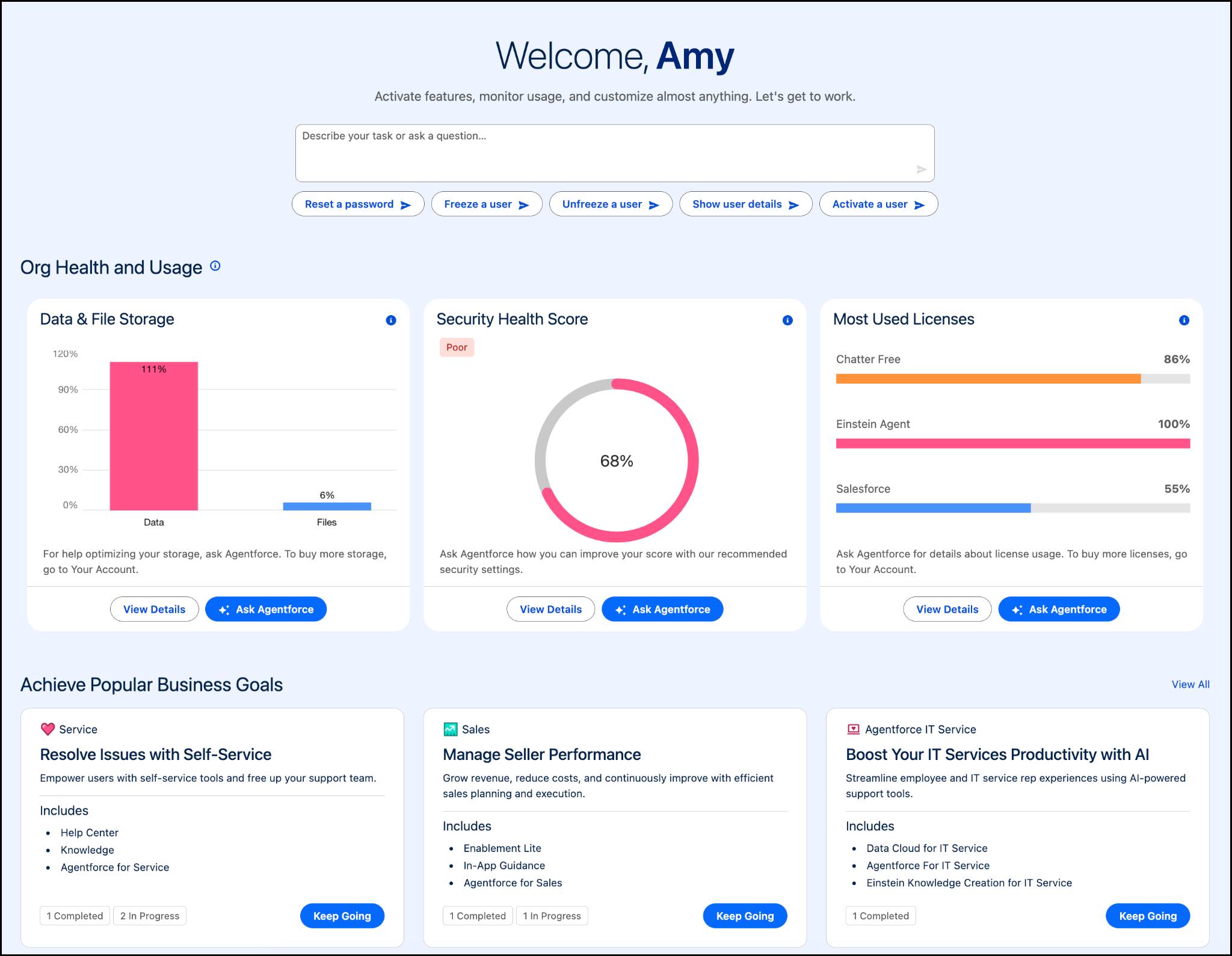
You can access Setup with Agentforce from every page in Setup. Setup Home now includes a prompt bar to start conversations, org health and usage metrics, and conversation recommendations for common admin tasks. Other Setup pages include an Ask Agentforce for Setup (Beta) button that opens the agent panel without interrupting your workflow.
When needed, you can expand conversations into a full-screen agentic experience, opening new console tabs with a canvas for deeper exploration.
Permissions and Prerequisites
To use Setup with Agentforce, users must:
- Have the Use Setup with Agentforce permission.
- Have the Execute Prompt Template permission.
- Have access to the Data 360 default data space.
- Have the required permissions for the Setup tasks they want to perform.
Before enabling the feature, ensure that:
-
Data 360 is set up in your org.
-
Einstein Generative AI is enabled.
-
Agentforce is enabled.
How to Enable Setup with Agentforce
- From Setup, enter
Agentforcein the Quick Find box.
- Select Setup with Agentforce (Beta).
- Turn on the feature.
- Refresh your browser.
Once enabled, you can start conversations from:
- The prompt bar or recommendations on Setup Home.
- The Ask Agentforce for Setup (Beta) button on any Setup page.
Setup with Agentforce is available in Lightning Experience for Enterprise, Performance, Unlimited, and Developer editions with Foundations or Agentforce 1.
Add Approval Submissions to Record Pages Without Custom Buttons
The Request Approval component lets you submit records for approval directly from record pages—no custom buttons required. It integrates with autolaunched flow approval processes, allowing approval submissions to feel native, consistent, and easier to maintain across your org. That means Platform Administrators can deliver a cleaner user experience, reduce custom development, and maintain greater flexibility as approval requirements evolve.
The Request Approval component connects a record page to an active, autolaunched flow approval process. When users submit a record, the component launches the flow and passes required inputs to start the approval process.
Key capabilities include:
- Submitting records for approval directly from record pages.
- Requiring submitters to select the first approver.
- Allowing or hiding submission comments.
- Supporting approval submissions in both Lightning App Builder and Experience Builder.
Before adding the component to a record page, consider what information you want to collect from the submitter.
-
First approver selection: If you want submitters to choose the first approver, design your flow approval process to accept the firstApprover input variable and assign approval steps accordingly.
-
Submission comments: To expose submitter comments to approvers, configure the flow to use the submissionComments input variable. You can also hide comments entirely by selecting Hide submitter comments in the component settings.
After you add the component to a page, configure it to reference an active autolaunched flow approval process. To set up the Request Approval component, use these settings.
-
Lightning App Builder: Ensure you have the Manage Flow permission. This allows you to customize record page layouts.
-
Experience Builder: Ensure you’re a member of the Experience Cloud site. You also need the Create and Set Up Experiences permission or site-level access (admin, publisher, or builder).
This feature is available in Lightning Experience for Enterprise, Performance, Unlimited, Einstein 1, and Developer editions.
Tailor Screen Flows to Your Audience with Component-Level Styling Overrides
Salesforce now lets Platform Administrators apply component-level styling overrides in Screen Flows, making it easier to deliver visually consistent and audience-specific flow experiences. By customizing styles at the screen and component level, you can deliver more personalized, branded, and user-friendly flow experiences—without sacrificing maintainability or relying on global themes.
When editing a Screen Flow, you can customize styles for the header, container, and footer of each screen. Supported styling options include:
- Background color
- Border color, weight, and radius
- Text color and formatting
- Button styling and layout
You can also apply styling overrides to a wide range of screen components, including:
- Checkbox and Checkbox Group
- Currency, Number, Date, and Date and Time
- Display Text and Long Text Area
- Picklist, Multi-Select Picklist, and Radio Button
- Password and Text
- Section and Repeater
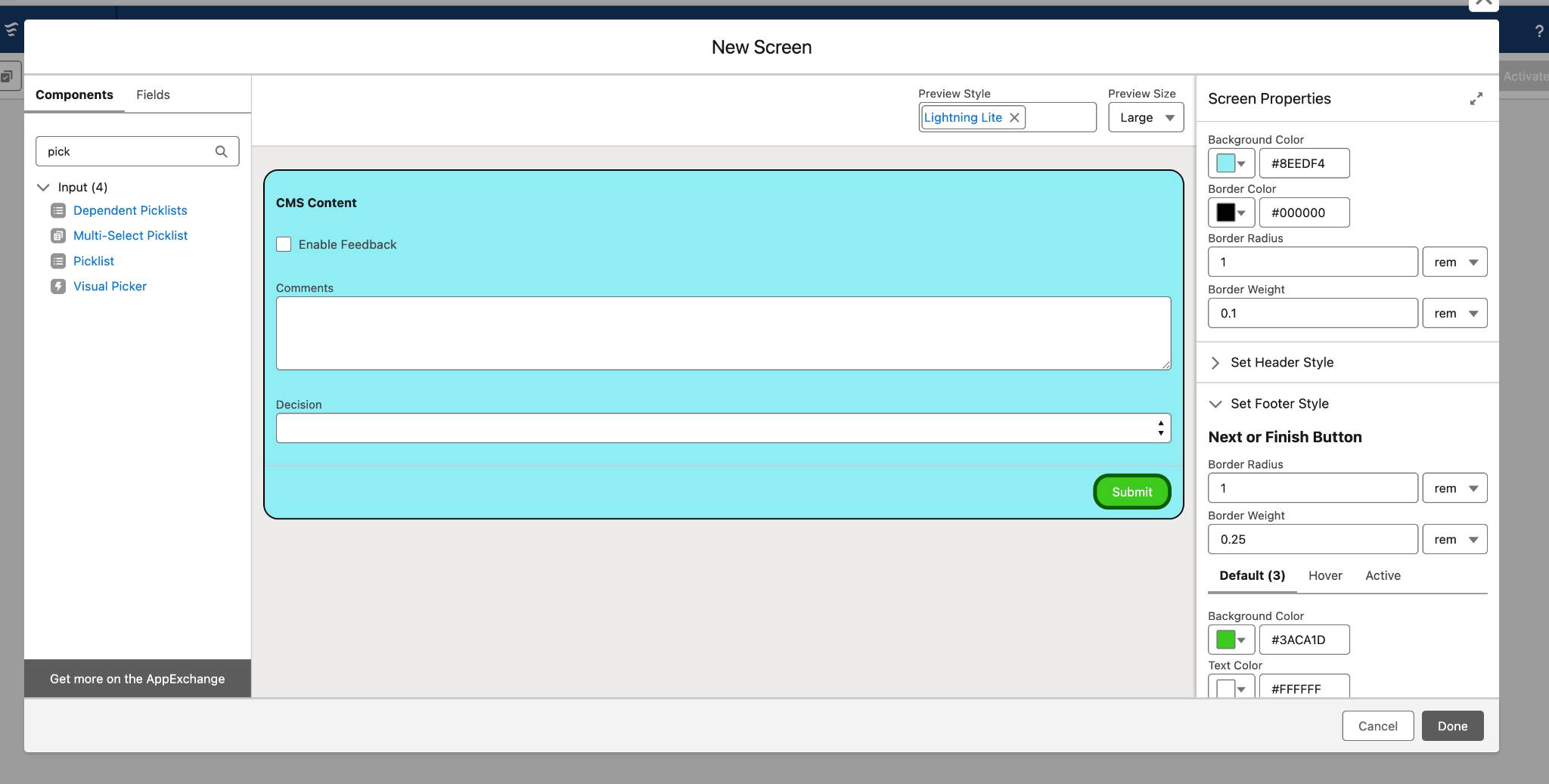
Any styling changes you apply at the component level override the default theme, giving you greater control over how screen flows look across different contexts. Additionally, all styling is configured declaratively—no custom CSS or code required.
To customize the appearance of a screen in a Screen Flow, complete these steps.
- Edit the Screen element in Flow Builder.
- Open the Screen Properties panel.
- Select the Style tab.
- Configure styling options for the screen’s header, container, footer, and supported components.
This feature is available in Lightning Experience and Salesforce Classic in Essentials, Professional, Enterprise, Unlimited, and Developer editions. It also applies to Aura, LWR, and Visualforce sites accessed through Lightning Experience and Classic, as long as your org has at least one active community license.
Set Up and Monitor Flow Logging in One Place
The Flow Logs tab centralizes Flow logging and monitoring, making it easier to understand performance, spot issues and bottlenecks, monitor enabled flows, and make more informed decisions when optimizing or troubleshooting automation.
Flow logging is powered by Data 360, which collects and stores flow execution metrics. Once enabled, Data 360 provides performance data that helps administrators analyze how flows behave in real time. This unified approach helps admins proactively manage automation instead of reacting to issues after they impact users.
From the Flow Logs tab, you can set up Data 360 in your org, enable flow logging, review which flows are currently logging data, and track performance metrics for enabled flows.
To access flow logging, open the Automation Lightning app and select the Flow Logs tab. From there, you can complete the initial setup and monitor flow activity across your org.
This feature is available in Lightning Experience for Essentials, Professional, Enterprise, Performance, Unlimited, and Developer editions.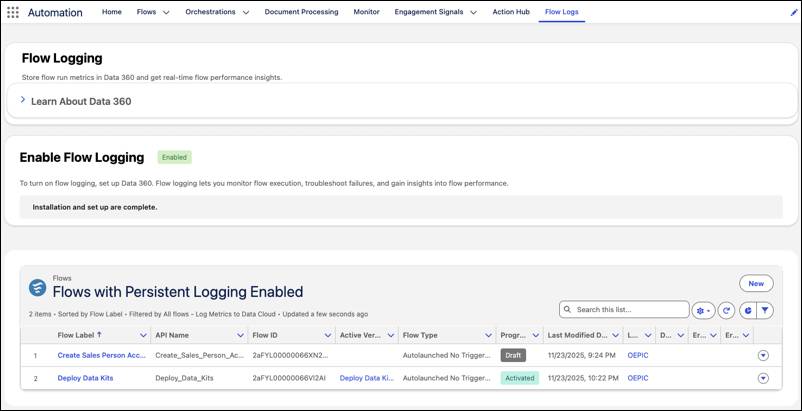
Allow More Users to Delete Files
The Delete Salesforce Files permission gives Platform Administrators a simple, fast way to extend file management capabilities beyond admins and file owners. This reduces administrative overhead, improves collaboration, and keeps your org’s files organized.
This permission allows users to delete any file they can view, rather than limiting deletion to admins or file owners. The feature was developed in response to customer feedback on IdeaExchange. Here are some key points to consider.
- The permission can be assigned through profiles or permission sets.
- It applies across both Lightning Experience and Salesforce Classic.
- It supports more efficient collaboration and file lifecycle management.
As a best practice, consider assigning this permission through permission sets to limit access to specific roles or teams. To allow users to delete files, enable Delete Salesforce Files for a profile or permission set.
This feature applies to Salesforce Files accessed through Lightning Experience and Salesforce Classic in Essentials, Group, Professional, Enterprise, Performance, Unlimited, Contact Manager, and Developer editions. 
Sum It Up
In this unit, you learned about new tools that help Platform Administrators work more efficiently and deliver better user experiences. These updates include using Setup with Agentforce to find and configuration settings using natural language, with the following benefits.
- Simplify administrative tasks.
- Submit approvals directly from record pages.
- Customize Screen Flow styling for different audiences.
- Monitor flow performance in one place with Flow Logs.
- Expand file management with the Delete Salesforce Files permission.
Together, these enhancements reduce manual effort while giving admins more flexibility and visibility across their org.
Resources
- Salesforce Help: Streamline Administrative Tasks with Setup with Agentforce (Beta)
- Salesforce Help: Add Approval Submissions to Record Pages Without Custom Buttons
- Salesforce Help: Submit Records for Approval by Using the Request Approval Component
- Salesforce Help: Tailor Screen Flows to Your Audience with Component-Level Styling Overrides
- Salesforce Help: Set Up and Monitor Flow Logging in One Place
- Salesforce Help: Allow More Users to Delete Files