Plan and Create a Relationship Graph
Learning Objectives
After completing this unit, you'll be able to:
- Start a new Actionable Relationship Center (ARC) relationship graph.
- Configure the root node of a graph.
Get to Work with Actionable Relationship Center
In the previous unit, you learned the basics of Actionable Relationship Center (ARC).
Now, it’s time to get hands-on and create an ARC graph from scratch. In this unit, you sign up for a free Trailhead playground org, then begin your new graph.
Sign Up for a Custom Playground with Actionable Relationship Center
To complete this badge, you need a special limited-time custom playground that contains Actionable Relationship Center and our sample data.
- Select Create Playground, and then select Yes, Create Playground.
- Your new org is automatically attached to your Trailhead account.
- Make note of your org's expiration date and complete this badge before then.
- Select Launch to open the playground.
In your playground org, ARC is ready to use. We turned on ARC, assigned its permissions, and enabled a few other features. To learn how to set up ARC on your own, see the Salesforce Help resources at the end of this unit.
Decide How to Start Your Graph
You have two ways to start an ARC graph.
- Build a graph from scratch to add and configure every node yourself.
- Start from a template and begin with preconfigured nodes, then customize those nodes to save time.
In this badge, you build a graph from scratch so you learn how each piece fits together, but templates are a great shortcut. It's worth knowing your options, so take a minute to explore the basics of templates.
When you create a graph, you select from three template types.
-
Default templates are included with Salesforce industry clouds and ready to use.
-
Custom templates are graphs you create and save for reuse.
-
Installed templates are created by a third party for you to install in your Salesforce org.
The default templates available to you depend on the industry cloud installed in your org. Here are a few examples.
Industry Cloud |
Default Template |
Preconfigured Relationships |
|---|---|---|
Financial Services Cloud (Business Client Engagement) |
B2B Account to Account Relationship |
Accounts to subsidiaries, owners, controlling parties, and accounts for commercial clients |
Digital Insurance |
Insurance Personal Lines |
Accounts to contacts, insurance policies, and claims |
Health Cloud |
Patient Relationships |
Patients to households, care plans, and accounts |
Manufacturing Cloud |
Manufacturing Asset Relationships |
Assets to related asset warranties, cases, work orders, work order line items, and assets |
Nonprofit Cloud (Fundraising) |
Fundraising Person Account Relations |
Person accounts to accounts, household details, household members, opportunities, and gift commitments |
Cumulus Bank uses Financial Services Cloud, so the B2B Account to Account Relationship template is a good starting point for them. That template includes a subsidiary related-account node. If you start from that template, you can customize the existing nodes, remove the nodes you don't need, and add other nodes.
But, as you’re learning the basics, you start from scratch in this badge.
Create a Graph
To start, create your graph.
- From Setup, in the Quick Find box, enter
Actionable, and then select Actionable Relationship Center in the Feature Settings section.
- Select New Relationship Graph.
- Select New, Start from scratch.
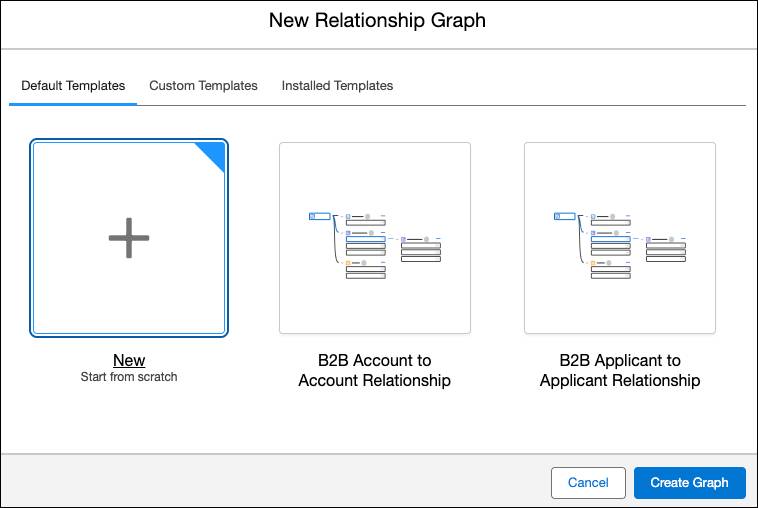
- Select Create Graph.
You’re now on your empty graph, ready to start configuring settings.
Configure Graph Properties and the Root Node
First, configure the ARC graph’s properties.
The graph label helps you identify the graph when you add it to a record page layout. Use a unique, descriptive name.
- In the Label field, enter
Commercial Account Opportunities.
- In the Developer Name field, enter
Commercial_Account_Opportunities.
- In the Graph Type field, select Horizontal Hierarchy.
- Select the root node on the graph.
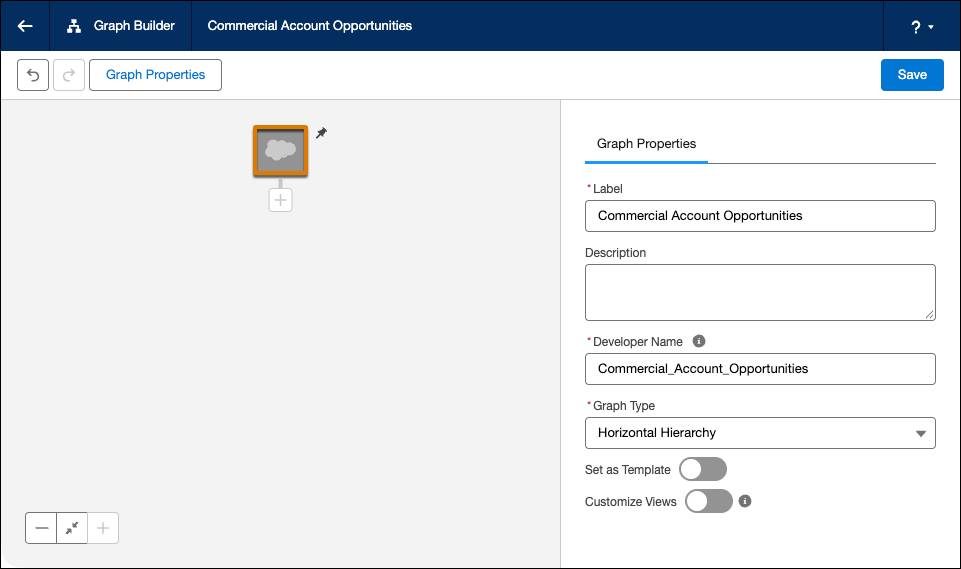
- On the Properties tab, in the Object field, select Account.
- Save your work.
If you plan to reuse similar versions of a graph in a few different ways, you can select Set as Template to save the graph configuration as a custom template. You can’t add a template graph to a record page, though, so don’t select that option in this badge.
The root node on the ARC relationship graph matches the object on which the graph appears. A graph can only appear on record pages of the root node’s object. So, to add this graph to account record pages, set the root node to Account.
Notice that there was a Node Configuration option on the root node, as well. You can’t select a Node Configuration when you first configure the root node because it’s the first node, but take a moment to consider the options.
-
Default saves this node’s child node configuration as a template for other nodes of the same object. Each object can have only one default node.
-
Linked uses the child node configuration of the same object’s default node, then adopts the same child node relationships.
-
Custom creates a unique configuration or a terminal node, which is a node that doesn’t have child node relationships.
For example, this Account object has the Default node configuration. Every other Account node with the Linked node configuration inherits the same child nodes. These node configuration options set and inherit only the child node configurations, and not the property, display, and options for the node itself.
This setting is important later in the badge, when you create a Linked node.
What’s Next?
In this unit, you learned the options for creating a graph from scratch or from a template. Then you created your graph and set the root node.
Now, you have everything to go deeper and create other nodes. Continue with those new nodes in the next unit.
Resources
- Salesforce Help: Create a Relationship Graph in Actionable Relationship Center
- Salesforce Help: Actionable Relationship Center (ARC) in Financial Services Cloud
- Salesforce Help: Actionable Relationship Center (ARC) in Insurance
- Salesforce Help: Actionable Relationship Center in Health Cloud
- Salesforce Help: Actionable Relationship Center Templates for the Manufacturing Prebuilt App
- Salesforce Help: Configure Actionable Relationship Center Graphs for Automotive Cloud