Monitor Data Quality and Track Record Changes
Learning Objectives
After completing this unit, you’ll be able to:
- Review the overall data quality status of a record.
- Identify change events for a record in the History page.
- Distinguish between submitted and approved changes in the history view.
The Supplier Data That Looked Fine
Clean supplier data doesn’t announce itself and neither does bad data. At Coral Cloud Resorts, they want to ensure that all their records meet basic data quality standards, but no one knows where to find that information.
Supplier 360 includes a set of predefined data quality rules applied to the fields of the business entities. It validates these fields based on the data quality rules configuration. In this unit, you learn how to review the data quality status of a supplier or contact record and interpret the rule association status. You also use the History tab to trace every change event on a record, which includes who triggered it, when it happened, and which source system was involved. Learn how to filter the history feed to find what you need quickly.
Review the Data Quality Status of a Record
To assess the quality of a record and monitor the rule associations linked to it, review its data quality status. The Data Quality Status dialog box shows you all the rule associations that ran on a record, or didn't run, and their outcomes.
To view the data quality status of a record:
- Open the record.
- Select Actions.
- Select Data Quality Status.
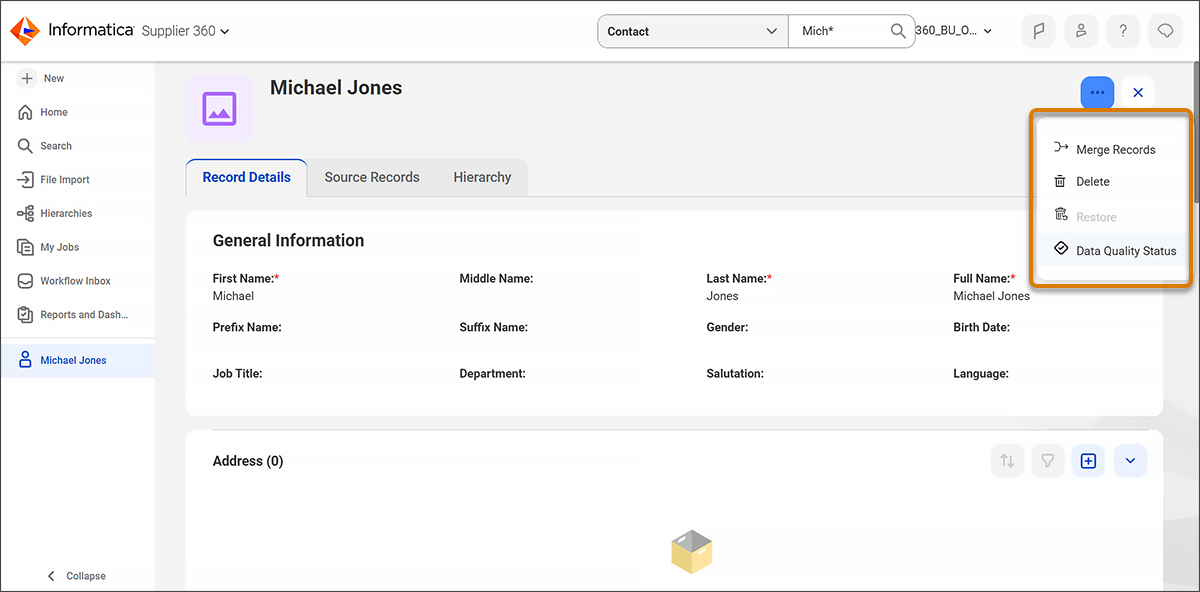
The Data Quality Status dialog box shows the rule association names, the objectives they belong to, the rule association type, and the statuses.
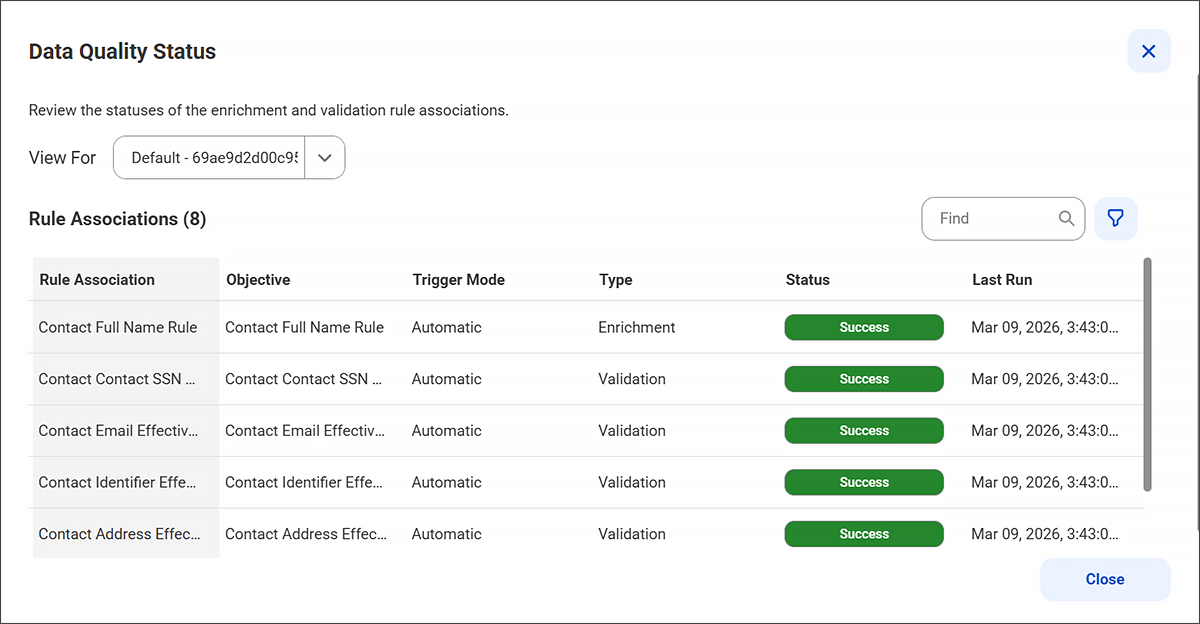
To view rule association statuses for the master record, select Master Records from the View For list. To view statuses for a specific source record, select the source record from the View For list.
Interpret Rule Association Statuses
Each rule association on a record has a status that tells you what happened when the rule ran or why it didn't.
Select each status to review what it means.
Track Changes with the History Page
The History tab includes a complete log of change events for a record. You can review change events such as create, update, delete, merge, unmerge, and restore, along with relationship updates. You can filter the history feed and group it by day, month, or year.
To review the history of a record, open the record and select the History tab. Each entry in the history feed includes the event type and the details of what changed. Select an event in the history panel, then select the following tabs for more details.
-
Business Entity Fields: This tab displays the changes to the business entity fields. To view all fields, clear Show the updated fields.
-
Event Summary: This tab displays the summary and details of the event. This tab appears for delete, merge, unmerge, and restore events, and for relationship updates. It doesn’t appear when you create and update events.
-
System Fields: This tab displays the metadata changes.
The following table includes the event types in the history feed.
Event Type |
What It Records |
|---|---|
Created |
A new record was added. |
Updated |
One or more fields were changed. |
Deleted |
The record was soft-deleted. |
Restored |
A deleted record was restored. |
Merged |
The record was merged with another record. |
Unmerged |
A previously merged record was split. |
Added |
A relationship was added to the record. |
Removed |
A relationship was removed from the record. |
Purged |
The record was permanently deleted. |
Filter and Group History Entries
For records with a long history of changes, use the filters and view options to find what you need.
Select Show/Hide Filter on the History page and select Add Filter to filter by:
-
Date Range: Filter by Today, Last 7 days, Last 30 days, or a custom range.
-
Event: Filter by one or more event types.
-
Business Entity Fields: Filter by a single field or all fields.
Use the View option to group the history feed by Daily, Monthly, or Yearly. This option is useful for high-volume supplier records that receive updates from multiple source systems throughout the week.
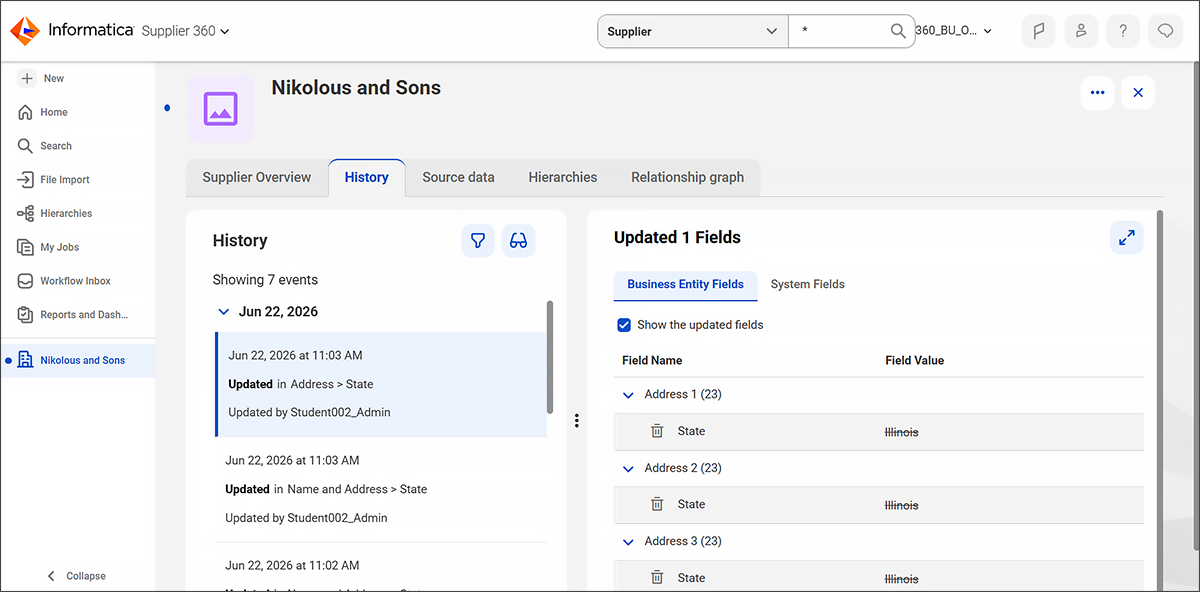
When Coral Cloud Resorts’s procurement team notices that the supplier Nikolous and Sons’s Address details were updated, they open the History tab and find the entry immediately. The address field was updated on June 22, 2026.
From Hidden Issues to Clear Insights
You can now review the data quality status of a supplier record, read rule association statuses, and trace change events on the History tab.
Coral Cloud Resorts has a supplier compliance review coming up, and the team is using the opportunity to organize and update their data. In the next unit, you help make that happen. You edit records at every scale and ensure every supplier record is accurate, complete, and ready to represent Coral Cloud Resorts at its best.