Create Communication Assets
Learning Objectives
After completing this unit, you’ll be able to:
- List the email templates available in the Referral Promotion guided flow.
- Describe the different Refer a Friend widget states.
Design Email and Widgets
To maximize the referral program’s reach, craft a comprehensive engagement strategy with communication assets such as emails and a widget. Referral Marketing supports three communication methods: Marketing Cloud Engagement, Marketing Cloud Next, and Salesforce Email (or an external email service). The method you select determines which communication assets and channels are available for your promotion.
Customize the Email Templates
The promotion template determines the names of the stages that are used to categorize email. For different stages of the referral process, Yasmin can customize and enable the promotion’s communication channels to engage with advocates and their friends.
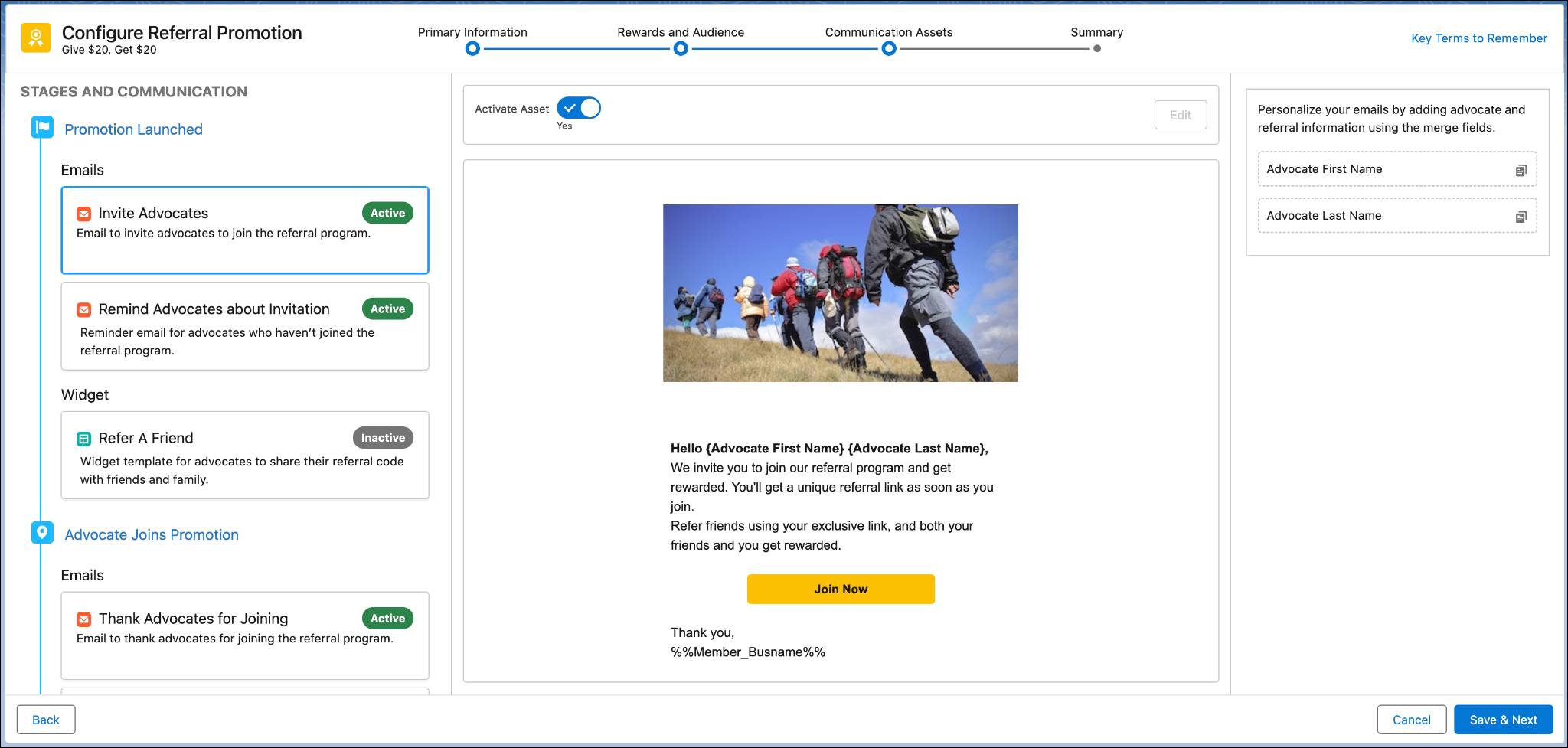
Referral Marketing offers email templates for each stage of the customer journey, including primary templates and reminder templates. Use primary email to highlight program benefits and prompt users to action. Configure reminder email to nudge customers after a specific number of days. The content of the messages changes based on when the selected promotion template rewards advocates and their referred friends.

The default Refer a Friend promotion template includes these stages and email templates.
Stage |
Template |
Description |
|---|---|---|
Stage 1: Promotion Launched |
|
This email announces the referral program and invites advocates to join. Set it as the first in your email strategy. If advocates don’t enroll, send a reminder to encourage them to join. |
Stage 2: Advocate Joins Promotion |
|
After an advocate joins, send their referral code and a thank-you message to build engagement. For those yet to refer, send reminder email highlighting available rewards. |
Stage 3: Advocate Refers Friend |
|
When an advocate refers a friend, email the friend the referral code. If the friend hasn’t signed up, send a follow-up encouraging them to complete the sign-up process. |
Stage 4: Friend Signs Up |
|
When a friend joins, send them a thank you email and include details of the reward that’s offered to them. If they haven’t completed the reward activity, remind them to do so. |
Stage 5: Friend Completes First Purchase |
|
After a friend makes a purchase, send the advocate a thank you email with information about their earned reward. |
Yasmin personalizes each message to align with Cloud Kicks branding. She adjusts the subject and content of the email and activates them. She also tailors the widget.
Modify the Widget
For easy participation and a connected user experience, Yasmin adds a Refer a Friend widget to the promotion. The widget lets customers join the program and then share their referral links through email and social media. The widget is an important touchpoint in a customer’s journey, acting as a reminder to advocate for the brand.
The Refer a Friend widget includes these states.
|
State
|
Description
|
|---|---|
New Advocate |
Applies to people without a contact record in an org. For example, users who are interacting with the brand for the first time. |
Advocate Not Registered |
Applies to people with a contact record in an org. For example, a user who has made prior purchases. |
Registered Advocate |
Appears when the person viewing the widget is enrolled in the referral promotion. |
Display Error State |
Appears when the widget can’t display information. |
You learn how the widget states change later in the module.
For each state, Yasmin customizes the content, background image, and text formatting. Here’s an example showing the New Advocate state of the widget template.

You can also customize how the widget works behind the scenes. For example, you can add a mobile number field, a consent checkbox, or terms and conditions. To learn more, refer to Create a Custom Refer a Friend Widget in Salesforce Help.
Yasmin previews how the widget appears on desktop, tablet, and mobile. When it looks right, she saves and activates it. An admin deploys it on the Cloud Kicks experience site. The same widget can also be embedded on an external website.
Watch this video to see how to embed the widget in both places.
All the communication assets are in place. In the next unit, follow Yasmin as she activates the promotion.