Enable and Set Up Agentforce Sales Coach
Learning Objectives
After completing this unit, you’ll be able to:
- Enable and create a user for Agentforce Sales Coach.
- Grant access to, configure, and activate Agentforce Sales Coach.

Enable Sales Coach in Agentforce
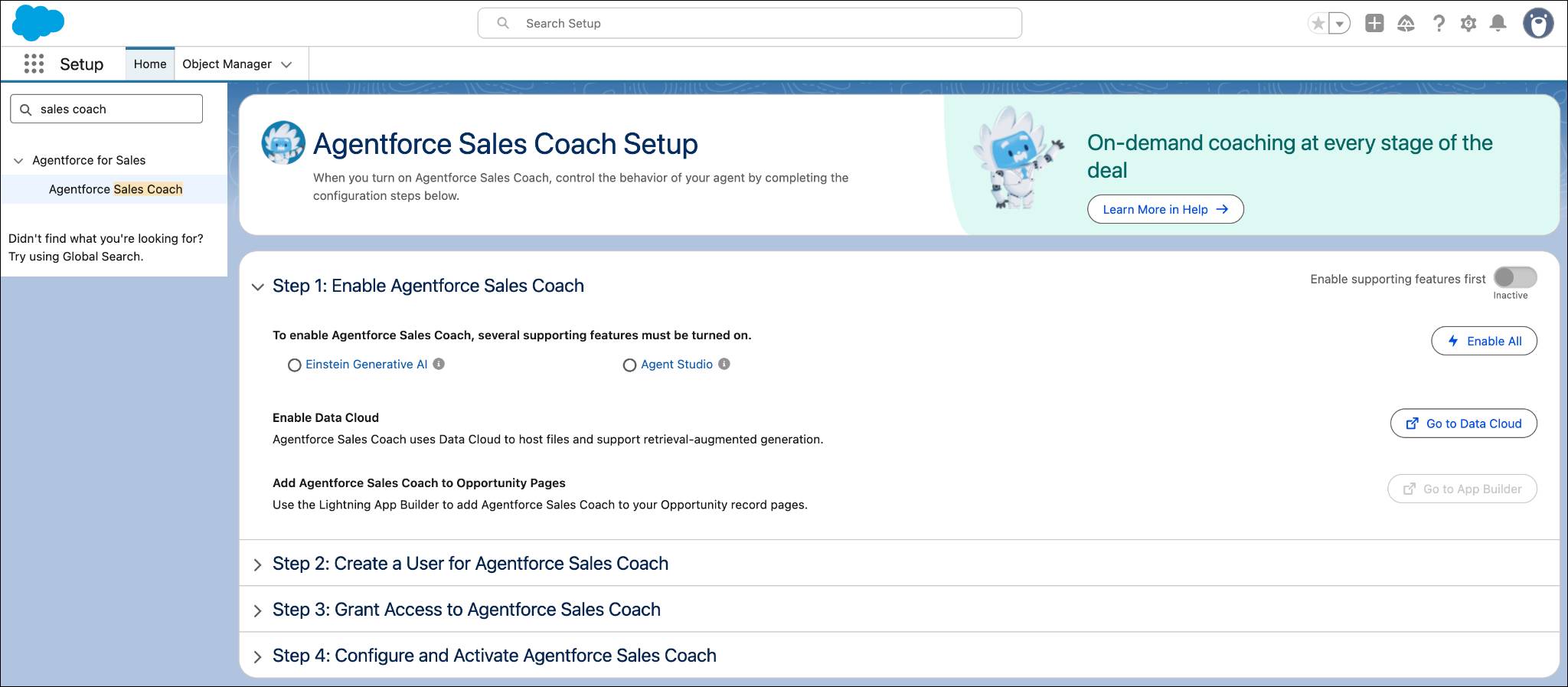
To get Sales Coach up and running, there are a few supporting services you must enable first. The Agentforce Sales Coach Setup wizard makes it easy to enable all the required supporting features, showing a list of the features you need and which ones are enabled.
Enable Supporting Features
- Be sure to take the steps at the top of this page to get a new Trailhead Playground with Agentforce sales coaching and connect it.
- Then, from the playground home page, click the gear icon
 .
.
- In the Quick Find box type
Sales Coachand click Agentforce Sales Coach.
- The Agentforce Sales Coach Setup wizard makes it easy to enable all the required supporting features. It shows you a list of the features that you need and which ones are enabled. Click Enable All.
-
- You also use Data Cloud for Agentforce sales coaching. We’ve enabled it for you in your custom Playground. Click Go to Data Cloud.
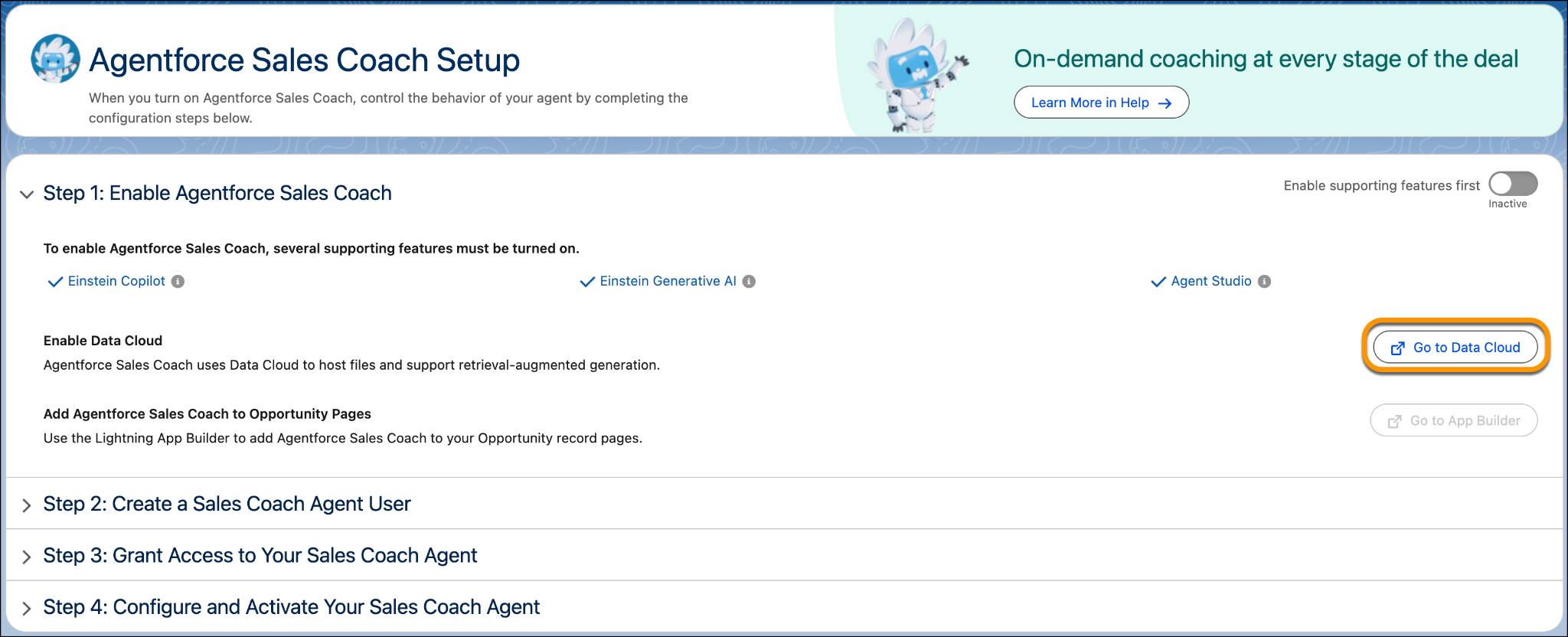
- Since Data Cloud is already enabled, on this page you should see a section called Your Home Org Details with Home Org ID, Home Org Instance, and a few other columns. Confirm that you see that section, and then close the Data Cloud Setup page.
- Return to the Agentforce Sales Coach Setup page and refresh the browser.
- In the Step 1: Enable Agentforce Sales Coach section, click the toggle to activate Agentforce Sales Coach.
-

- A popup window appears. Click Got It. A confirmation box shows you that Agentforce Sales Coach is now active.
Grant Users Access to Sales Coaching
For this project, you need to assign access to yourself enabling you to configure and operate the Sales Coach agent.
- Click Step 2: Create a User for Agentforce Sales Coach to expand this section.
- Click Go to User Setup.

- A new tab opens where you can create a new user. Populate the New User fields as follows:

- First Name:
Sales Coach - Last Name:
Agent - Alias: auto-populates
- Email: your email address
- Username: scoach + <your initials> + <today’s date> + <your favorite color> + @thsc.com
The username must be unique.
- Nickname: auto-populates
- Company:
Acme - User License: Einstein Agent
- Profile: Einstein Agent User
- Click Save. Your Agentforce Sales Coach user record has been created. You can close this tab and jump back to the Agentforce Sales Coach Setup tab.
- In the Step 2: Create a User for Agentforce Sales Coach section of the Agentforce Sales Coach Setup page, click Go to Permission Sets.
- This opens a new tab where you can manage the assignments for the Agentforce Sales Coach permission set. Click Add Assignments.
- Select the Sales Coach Agent checkbox, click Assign, and then click Done. You’ve now added the Agentforce Sales Coach permission set to your Sales Coach Agent user. Close this tab and return to the Agentforce Sales Coach Setup tab.

Grant Users Access to Sales Coaching
For this project, you need to assign yourself some permissions that let you configure and use the Agentforce sales coaching agent.
- From the Agentforce Sales Coach Setup page, click Step 3: Grant Access to Agentforce Sales Coach to expand this section.
- Click the first Go to Permission Sets next to Assign Users to Manage Agentforce Sales Coach.
- This opens a new tab where you can assign the Manage Agentforce Sales Coach permission set. Click Add Assignments.
- Check the box next to YOUR NAME, click Assign, and click Done. You’ve now granted yourself the ability to manage Agentforce Sales Coach. You can close this tab and return to the Agentforce Sales Coach Setup tab.
- In Step 3: Grant Access to Agentforce Sales Coach, click Go to Permission Sets next to Assign Users to Access Agentforce Sales Coach.

- This opens a new tab where you can assign the Use Agentforce Sales Coach permission set. Click Add Assignments.
- Check the box next to YOUR NAME, click Assign, and click Done. You now can use Agentforce Sales Coach. You can close this tab and return to the Agentforce Sales Coach Setup tab.
Add Agentforce Sales Coach to Opportunity Pages
Now that you have the right permissions, let’s add Agentforce Sales Coach to the Opportunity page. This is the primary interface where you engage with your Sales Coach once it’s active and configured. This step marks the third requirement in the Agentforce Sales Coach setup process.
- Click Step 1: Enable Agentforce Sales Coach to expand this section.
- Click the Go to App Builder button
 . Lightning App Builder opens in a new tab. This is where you edit the Opportunity Record page layout.
- From Builder, click and drag Agentforce Sales Coach to just above your Related Lists section.
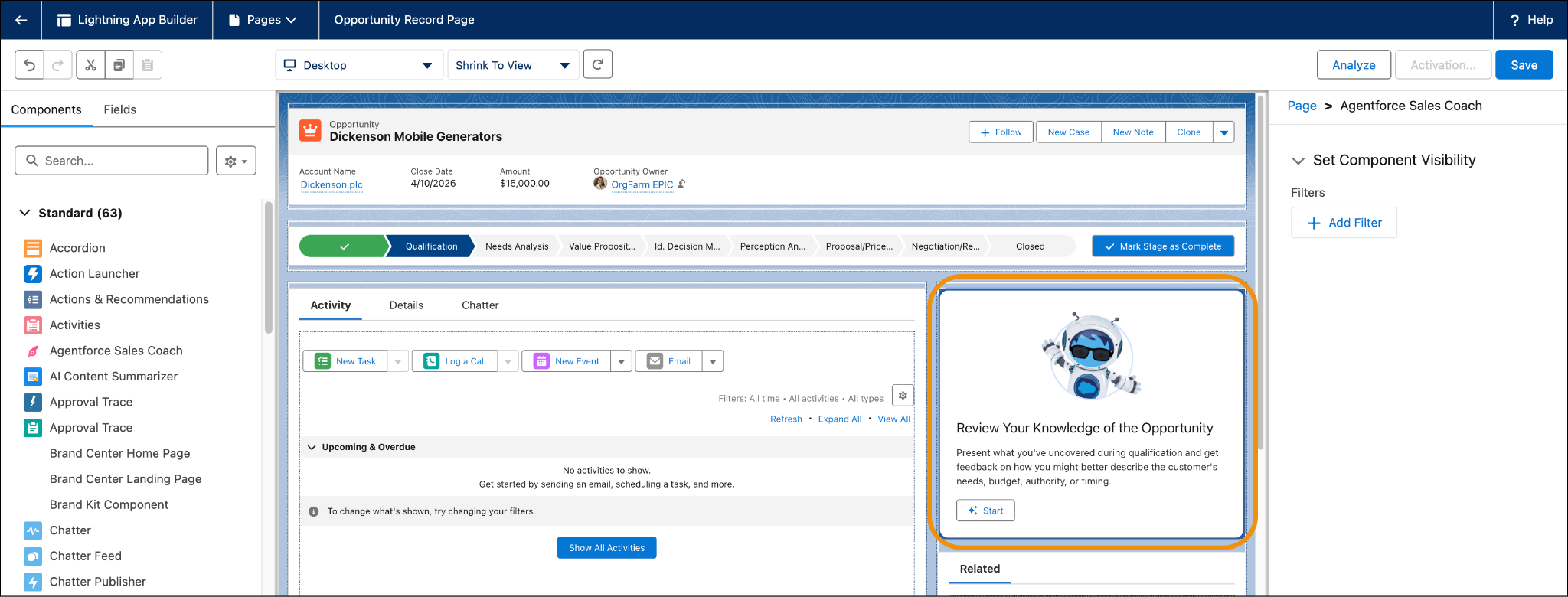
- Click Save, and then click Activate.
- Click Assign as Org Default.
- Leave Desktop as the default. Click Next, and click Save. You're finished with this tab, so you can close it. Once you are back on the Setup page, go ahead and refresh the page.
You’re almost done setting up the agent. Once you configure and activate Agentforce Sales Coach, you can begin customizing it.
Configure and Activate Agentforce Sales Coach
Now that the prework is done, you’re ready to configure and activate Sales Coach.
- From the Agentforce Sales Coach Setup page, click Step 4 Configure and Activate Agentforce Sales Coach to expand this section.
- Click the Go to Agent Builder button.

- A new tab opens where you can select the agent you want to create. Within the Agentforce Builder, select Agentforce Sales Coach and then click Next.
- In the Review Topics section, ensure all available topics have been added. Click Next.
- In the Define Settings section, populate the fields as follows:
- Name:
Sales Coach Agent - API Name:
Sales_Coach_Agent - Description:
A Sales Coach Agent gives sales reps personalized sales coaching for the opportunity they’re working on.
- Role:
You are a digital Sales Coach Agent who gives sales reps personalized sales coaching for the opportunity they’re working on. - Company:
Acme is a B2B provider of cutting-edge, energy-efficient IT hardware and networking equipment designed to reduce energy consumption and support sustainability without compromising performance. - Agent User: Select Sales Coach Agent from the list.
- Check the Keep a record of conversations with Enhanced Event Logs to review agent behavior box.
- Name:
- Click Next.
- In the Select Language and Tone section, leave the default settings as is, and click Next.
- In the Select Data section, leave it blank, and click Create. Keep this tab open–you use it in the next section.
Once you finish creating your agent, you can always upload more resources by clicking the book icon in the left-hand side menu bar.
Now you know how to enable Sales Coach, create a Sales Coach user, grant users access to Sales Coach, and configure and activate your Agentforce Sales Coach. Up next, you learn how to customize it.