Develop a Special Event Menu
Learning Objectives
After completing this unit, you’ll be able to:
- Use the Merchant Management Agent to create a menu.
- Use Einstein to generate a description of the menu.
Ready, Set, Bake!
Astro heads into the bakery, walking past the trays of flour-dusted loaves and racks of pastries and sandwiches. Astro calls the kitchen staff around a table to talk about the Trailheadathon request and asks them to design some fun and tasty sandwiches for a special menu. “Maybe we knead to create a new kind of bread, too?” they suggest.

“I loaf it!” Codey tells Astro. “You can always crust us to create the best breads and sandwiches!” Astro rolls their eyes and says, “All right, stop loafing around and get zwieback to work!”
Codey heads back into the bakery kitchen with Ruth, the lead sandwich architect. “If they have a Trailheadathon, we’ll have a Trailbreadathon!” he tells her. “This is scone to be fun,” Ruth responds and adds, “wheat better get to work!”
That afternoon, after the brunch rush ends Codey gets to work trying out new bread recipes for Ruth to use for her sandwiches. Codey measures and mixes and kneads and bakes, turning out all sorts of fun things like naan and roti, cornmeal cakes and flatbreads. Ruth peruses the supplies in the refrigerator for just the right sandwich fixings.
Finally, the breads are baked and Codey and Ruth survey their work. “Um, maybe I could make a sandwich on a pretzel, too?” Ruth suggests. “Hmmm, but a pretzel is knot bread,” winks Codey.
By the time the bread has cooled enough to slice for sandwich samples, Ruth has covered the table with all kinds of spreads and meats and cheeses and vegetables.
As Codey slices into a loaf, he looks surprised. “Whoops!” he hoots, holding up a slice of bread with a big hole in the middle from an air bubble. “Something went a-rye! The Trailheadathon people deserve butter than this.” He holds the slice in front of Astro who pokes their face through the slice and waves. Haha! “It’s AstroToast!” Ruth giggles. “Wait, let me take a picture!”

It’s well past their breadtime when Astro, Codey, and Ruth leave the bakery for home, stuffed from sampling every kind of sandwich they could think of. They chose four new sandwiches featuring the new breads. In the morning, Astro will work on the menu.
Help Astro Create a Special Menu
Monday morning customers, especially the early risers, are more interested in grabbing a coffee and pastry on their way to work than loafing over breakfast at the bakery. This gives Astro time to decide on other items to include on the menu for the event. They use the Merchant Management agent in the Merchant Management App to generate a menu. Using this agent will also create new records for each menu item in the app so they can report on which sandwiches are the most popular and what ingredients they used.
Add the Menu to the Merchant Management App
- Click
 to open App Launcher, then search for and select the Pronto Merchant Management app.

- Click the dropdown arrow next to Home and select Storefronts.
- Click the arrow next to Recently Viewed, then select All.
- In the list of Storefronts, click Basil & Thyme Cafe.
- On the Basil & Thyme Cafe Storefront, click the Related tab. The related tab contains hours, menus, reviews, and other details about the storefront.
- Click
 to open the Merchant Management Agent.
- In the text field at the bottom of the agent, copy and paste Astro’s new menu. Then click Enter or Return on your keyboard.
Create an event menu for Basil & Thyme Cafe called "Trailheadathon Event Menu" with these items:
Breakfast Items: (Available until 11AM or until sold out.)
- Chocolate Croissant, $3.99 380 cal
- Yogurt and Granola Parfait, $5.99 250 cal
- This Egg’s on a Roll, a traditional egg sandwich on a toasted butter roll, $4.99, 350 cal
Starters:
- Lettuce Eat, a seasonal garden salad, $4.99, 380 cal
- Breezy Caprese, heirloom tomatoes with fresh basil and balsamic glaze, $8.99, 290 cal
- Cheesy French Onion Soup, classic preparation with gruyere and a crouton, $4.99, 350 cal
Sandwiches:
- I’ll Have Naan of That!, Grilled veggies wrapped in naan, $9.99, 620 cal
- Butter Me Up! Roast beef and swiss on a buttered French roll, $9.99, 780 cal
- You Lefsemething Behind, whitefish salad on traditional Scandinavian potato bread, $8.99, 540 cal
- Chicken Panini, grilled herb-marinated chicken with arugula and cherry tomatoes on ciabatta , $10.99, 480 cal
Sides:
- Homemade Potato Chips, parmesan and fresh herbs (gf), $2.99, 420 cal
- Bowl of Veggie Sticks, balsamic honey dip (v)(gf), $3.99, 180 cal
- Seasonal Fruit Cup (gf), $5.99, 250 cal
Desserts:
- Giant Chocolate Chip Cookie, $1.99, 380 cal
- Gluten-free (you'd never know) banana bread, $4.99, 220 cal
- The Agent responds letting you know the menu has been created. If your agent provides a menu record number in the response, click it.
Note: If your agent didn’t return a menu record number in its response, you can get to the menu this way: In the center pane, the Basil & Thyme Cafe Related list should still be open, so scroll down to find the Menus related list, then click  to update the list. Then click Menu-00000104 (your menu number may be slightly different) to open the Trailheadathon Event Menu record.

The menu record opens, showing each menu item as a link to a corresponding record. Did you notice that each item is categorized by type of food like breakfast or sandwich? This will make it easy for Astro to run reports on popular items or identify menu items that they can improve or replace.
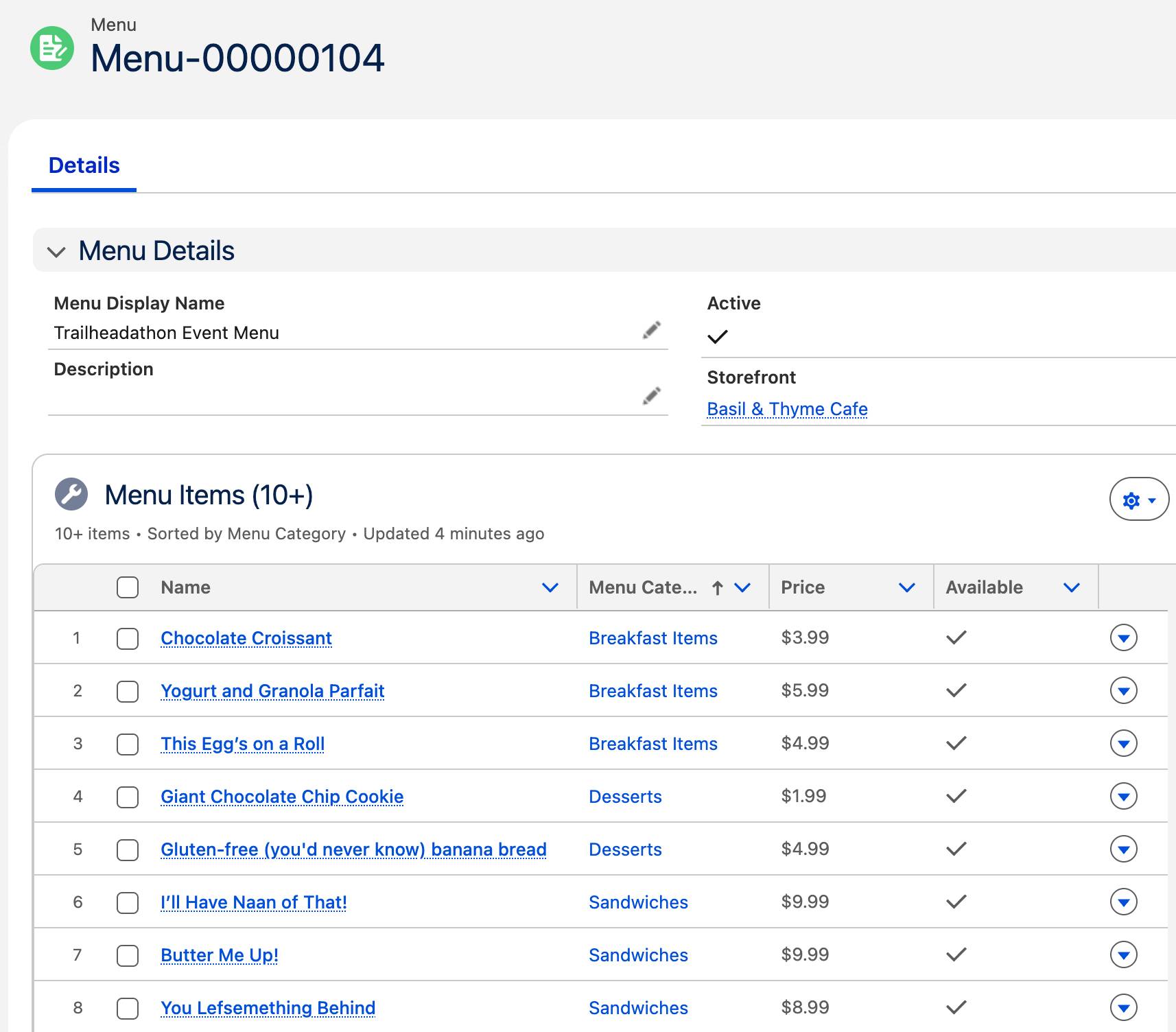
- Notice that the Active field has a check mark. This means customers can see the menu and order from it. However, Astro doesn’t want the menu to be available to customers until the Trailheadathon event starts next week. In the agent text field, copy and paste
Please deactivate the menu.Then press Return or Enter on your keyboard.
Note: Your menu may already be deactivated. If so, you may skip this step.
- The agent responds that the menu has been deactivated. Refresh your browser to see that the Active checkbox is no longer checked.

- Click
 to close the Merchant Management Agent.
Souper! You just helped Astro generate a menu along with records for each of the menu items.
Connect the Generate Menu Description Prompt Template to the Menu Description Field
Astro wants the new menu to have a description that describes the menu. In the previous unit, you activated a prompt template that uses Einstein to do just that. You need to add the prompt template to the Trailheadathon Event Menu page layout so Astro can generate a description.
- Make sure you’re on the Menu Details screen for the Trailheadathon Event Menu that you just created. Click
 , then click Edit Page.

- In Lightning App Builder, in the Menu Details panel, click inside the Description field to highlight it.
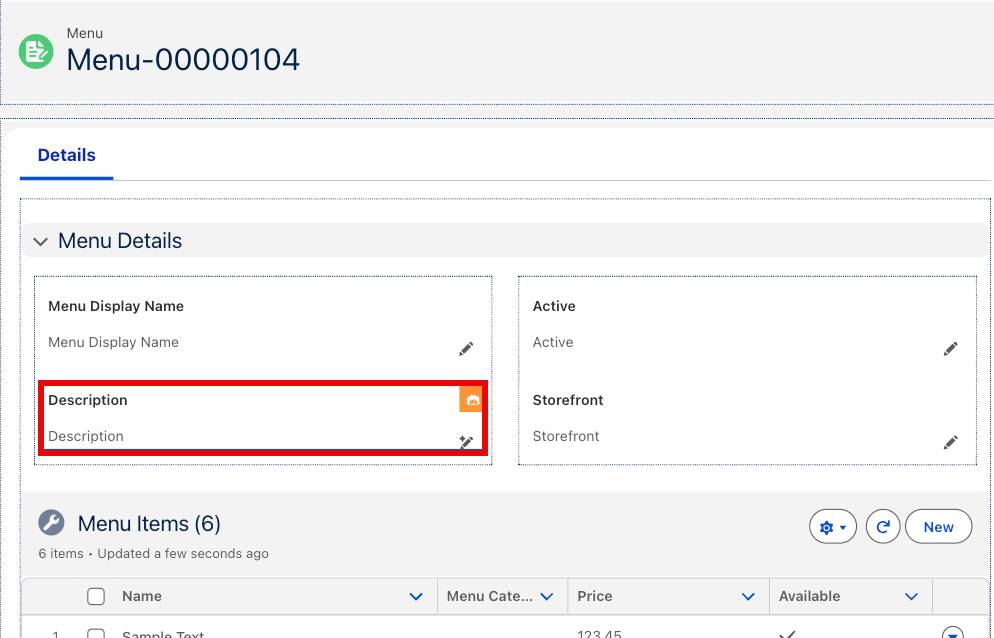
- In the Page > Description panel on the right, under Prompt Template, type generate, then select Generate Menu Description.

- Click Save.
- Click Activation….
- In the Activation: Menu Record Page popup, click Close.
- Click
 to leave Lightning App Builder and return to the menu record.
Great job! You just added an Einstein-enabled prompt template to the Description field of the Menu page layout.
Generate a Menu Description
Now that the prompt template is connected to the Description field, you can help Astro generate a description of their menu. You notice that the pencil icon in the Description field has changed to a pencil with a plus sign. The plus sign indicates that the field is Einstein-enabled.
- In the Menu Details section, in the Description field, click
 .
.

The Description field becomes editable and the pencil icon changed to three stars.
- Now, click
 . This opens the Einstein - Description Field tool. Einstein generates a description of the menu that looks similar to what’s in the image below.

- Click Use to add the menu to the Description field.

- Close the Einstein popup to see the Save button, then click Save. The generated text is now saved in the Description field.
Now, Astro has a description of the menu for the event. Easy as pie!
You’re on a Roll!
You helped Astro create a menu and a menu description for the Trailheadathon event. In the next unit, you create a promotion so the participants can save some dough when they order food for the Trailheadathon, and you set up a gift certificate for the winning team.