Get to Know Agentforce Builder
Learning Objectives
After completing this unit, you’ll be able to:
- Describe how Agentforce Builder’s guided setup helps you create agents.
- Discuss Agentforce Builder elements that help you customize an agent to your business needs.
Before You Start
This module uses Agentforce and artificial intelligence (AI) terminology. It’s a good idea to earn the Introduction to Agentforce and the Autonomous Agents Trailhead badges before starting this module.
Build Your Agent Workforce
While you’re reading this, perhaps your slow cooker is switching on so your dinner is ready when you get home, or maybe the smart lock on your front door just let your son inside after school. Maybe your robotic vacuum cleaner is gliding around your kitchen. Like many people, you curated a smart workforce at home that helps you be more productive and allows you to focus on other things you enjoy, or simply need to do.
Now, with Agentforce, you can assemble the same kind of smart workforce at work, too. If you’re a Salesforce admin, or simply have Agentforce permissions, you can build a workforce of AI agents to help your customers and employees do their jobs. This means everyone—from colleagues to customers—can focus on the important stuff. You can configure Agentforce to help sales reps with prospecting, support customer service with help requests, provide feedback in sales role-play scenarios, and so much more.
Meet Agentforce Builder
To build an Agentforce of agents that can be trusted to handle all sorts of jobs that use your sensitive company and customer data, you need an intuitive and trustworthy tool. Introducing Agentforce Builder. Agentforce Builder helps you create and deploy your Agentforce to the places your employees or customers need them, like Slack, your CRM, or your website. Agentforce Builder’s step-by-step interface guides you through the choices and information-gathering that qualify each agent for its specific role. Once built, you’ll find infinite ways to customize agents in Agentforce Builder. You can preview and fine-tune your agents in Agentforce Builder, too.
Let’s take a whirlwind tour of Agentforce Builder.
First Stop, Agentforce Studio
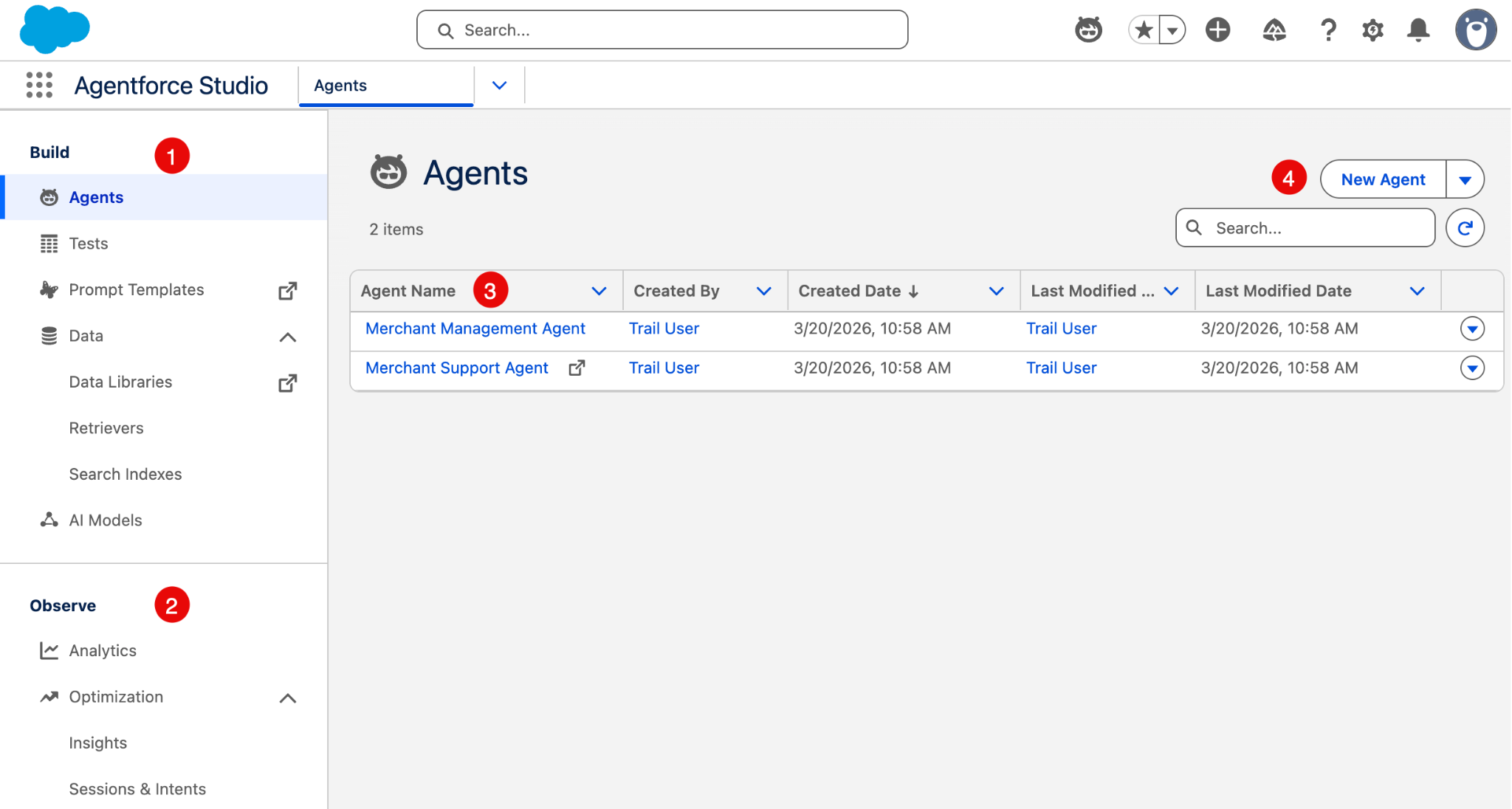
You can find Agentforce Studio in the App Launcher menu ( ). Let’s take a look around.
- In the Build pane, you can access agents you’ve created, launch Agentforce Test Suites, create or modify prompt templates, and add or update data your agent can access, including data libraries, retrievers, and search indexes. You can also choose which AI models your agents use. (1)
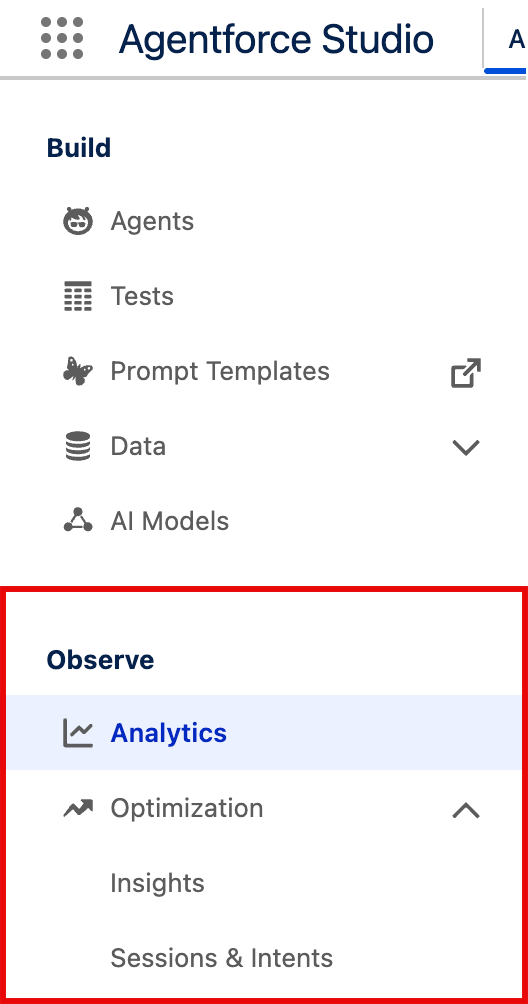
- Tools in the Observe pane let you monitor the performance of your agents through agent analytics. You can also review agent insights and session data from customer or employee interactions so you can see how your agent performs in real-world scenarios and optimize its performance. (2)
In the Agents panel you can:
- View a clickable list of all your agents. (3)
- Click the New Agent button to open Agentforce Builder to create a brand new agent. (4)
Build a New Agent
Not all jobs are the same, and Agentforce Builder helps you create and customize agents to ensure they do the jobs you want them to do, and are qualified to do them. When you click New Agent, Agentforce Builder guides you through each step of the agent-building process.
-
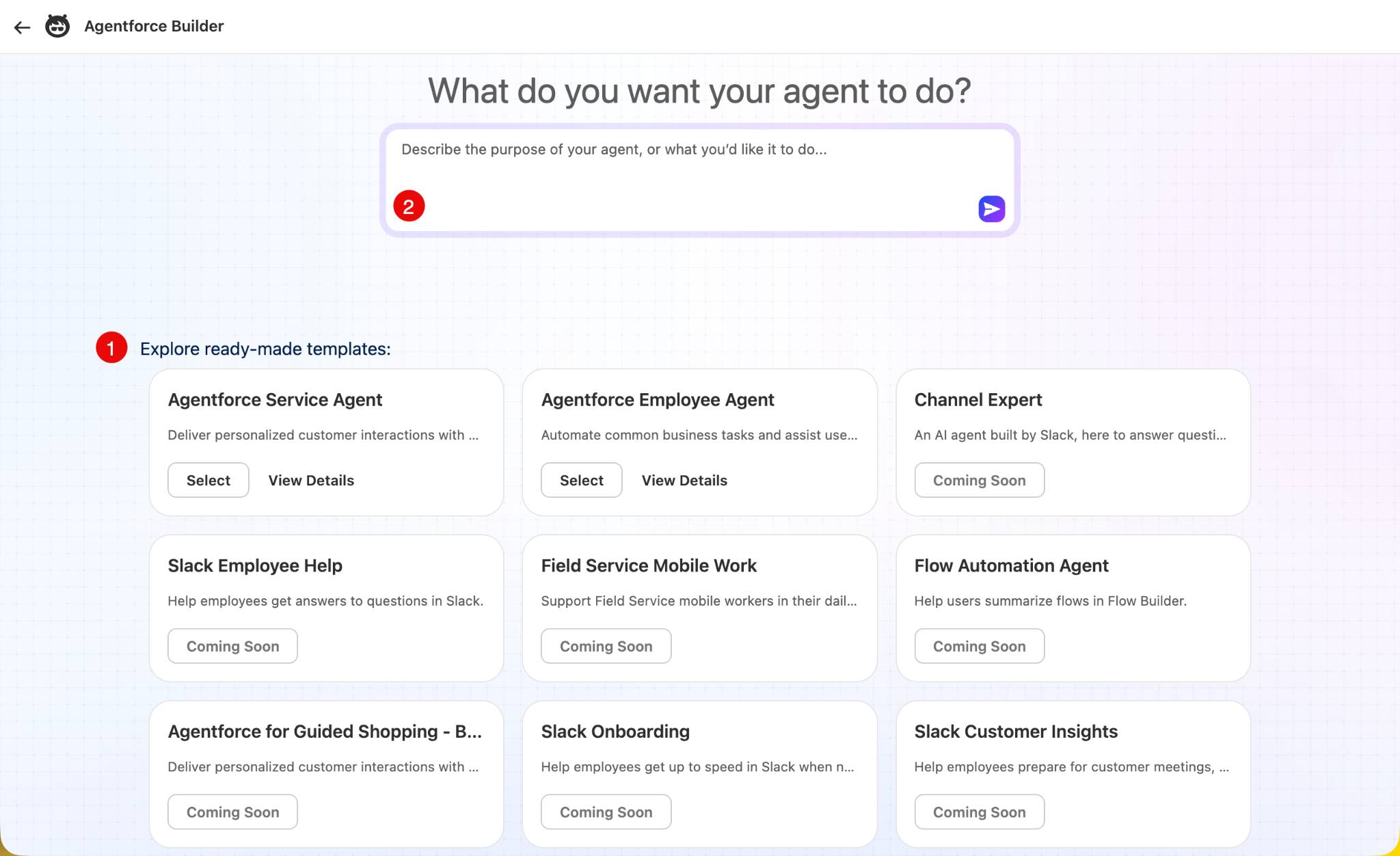
What do you want your agent to do?: Agentforce comes with many preconfigured agent templates so you can get started quickly. In fact, it’s best practice to use preconfigured templates when building an agent because common subagents, actions, and variables are already included for the jobs that type of agent can do. If you don’t see a preconfigured template that aligns with the job you want your agent to do, just type the purpose of your agent in the What do you want your agent to do? field. The template you choose or the description you write for your agent defines the subagents and actions that will be associated with your agent.
-
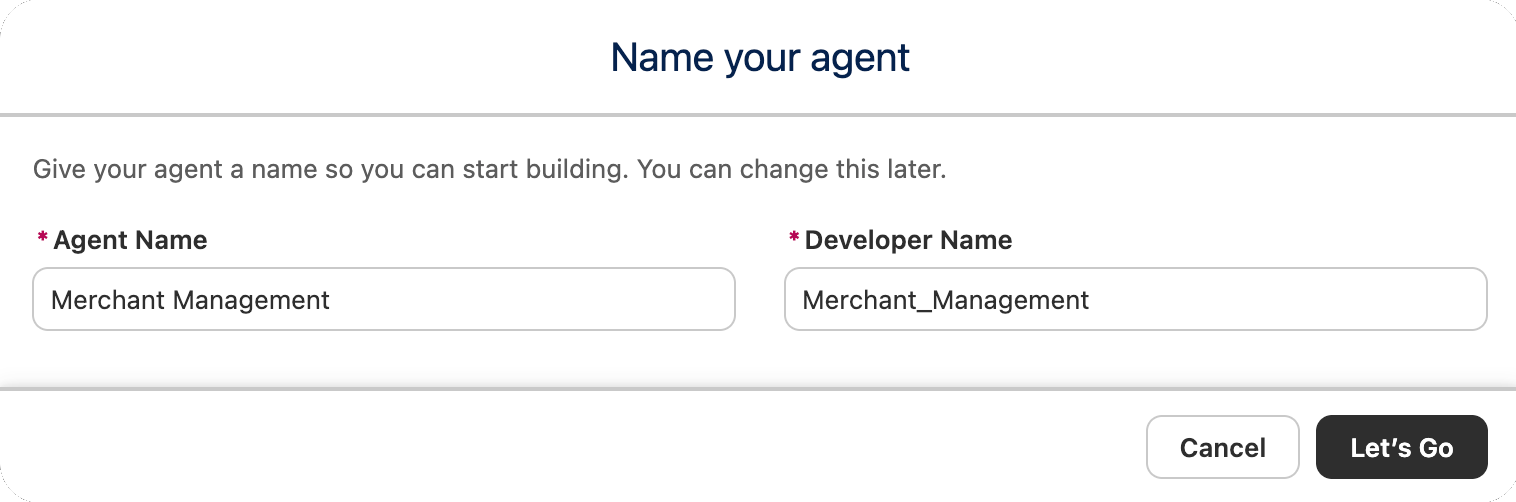
Name your agent: Choose a descriptive name for your agent.
Customize Your Agent
By the time you choose an agent template or describe the jobs you need done, your agent is already being configured to do the job or jobs you want it to do. But the real magic happens after you name your Agent and click that Let’s Go button. This is where your agent comes to life. Relevant subagents and actions are automatically associated with your agent and it becomes functional. Once your agent is created, you can try it out and customize it further. Here are some ways you can do that:
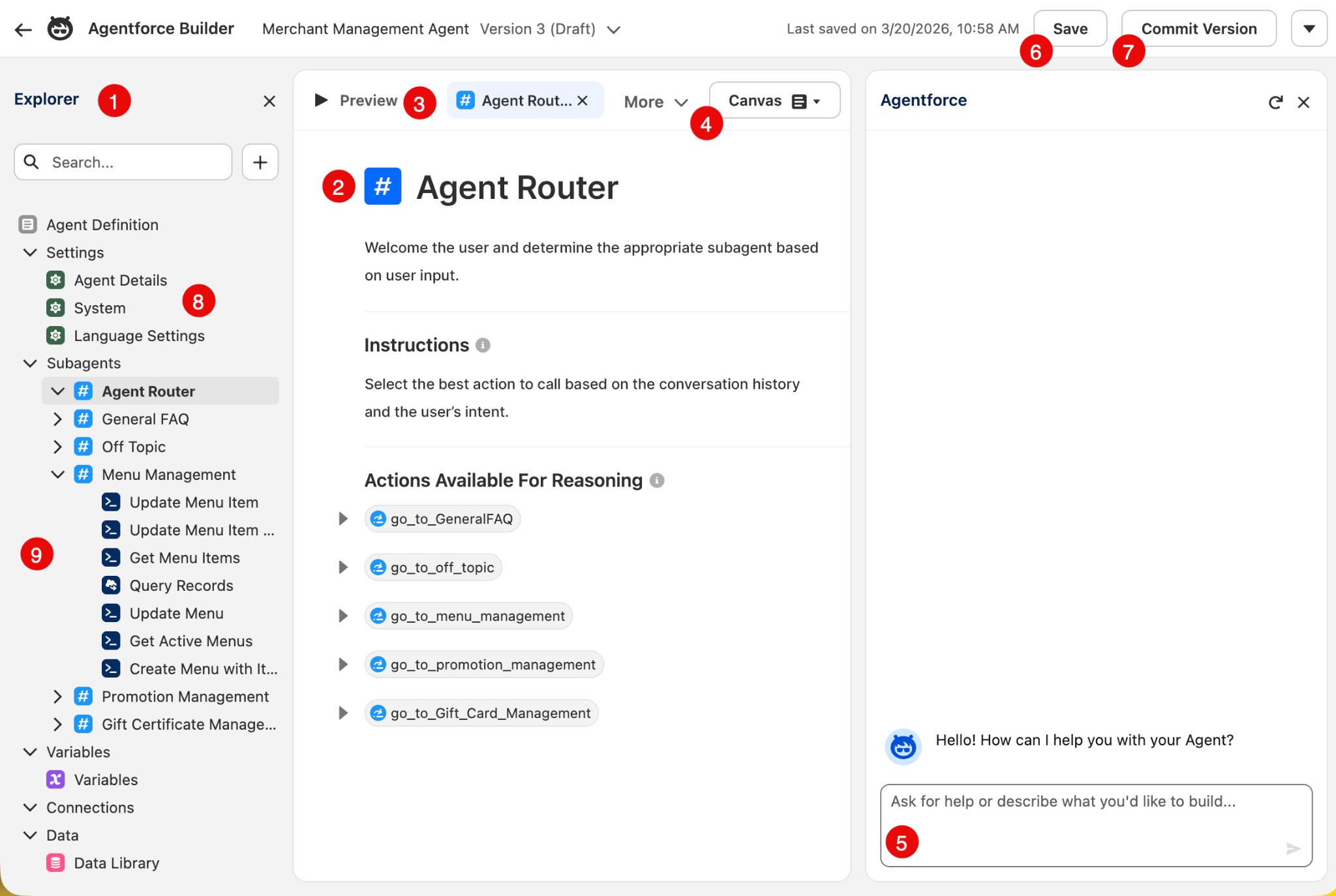
- Use tools in the Explorer palette to add or edit subagents, actions, variables, data sources, and more, so it meets your exact needs. (1)
- Modify your agent in the Canvas panel using the natural language editor. Or, add logic to your agent using quick actions, or the picker to add resources like subagents, actions, and variables. (2)
- Test your agent in Preview mode, then view behind-the-scenes conversation details that show which subagents, actions, instructions, and reasoning your agent used to answer your preview queries. Based on your agent’s performance, you can refine your customizations until you get it just right. (3)
- Switch between the natural language Canvas and code-based Script views. Any changes you make in Canvas view show up in Script view, and vice versa. (4)
- Interact with your agent in the Conversation Preview pane using real-world scenarios it was designed to do — or was not designed to do — to see how it performs. (5)
- Save the current draft of your agent. (6)
- Commit a version of your agent that you can activate to make it available to your users. You can’t modify a committed version of your agent, but you can create a draft and modify the draft. (7)
- Edit your agents’ details in the Settings menu. Here you can edit your agent’s name and description, set the languages your agent responds in, and craft instructions that guide your agent on how to interact with users. You can also customize welcome and error messages to match the voice and tone of your business. (8)
- Add or update subagents and actions by adding them from the Asset Library or by creating new ones. (9)
Agentforce Observability
So you’ve created and fine-tuned an agent, released it to your users, and now you’d like to know how it’s performing. You can do that with Agentforce Observability. The tools in the Agentforce Studio Observe pane let you view your agent’s performance so you can learn what’s working and what you could continue to improve.
- Agentforce Analytics captures every event and interaction within a session and logs them as individual events. You can query these events to learn how to optimize your agent.
- Agentforce Optimization lets you dive deeper into your agents' conversations to gain insights on issues like unresolved interactions and knowledge gaps. Optimization capabilities include intents, quality scores, session analysis, and trend identification. You can learn more about Agentforce Optimization tools in the Resources section.
With observability information, you can return to Agentforce Builder and further refine your agent to make it as helpful as it can be.

Wrap Up
You just learned about Agentforce Builder, the intuitive step-by-step interface where you can build and deploy agents that can handle all types of business tasks. As your Agentforce grows, so does your ability to work more effectively and efficiently. Continue your Agentforce learning journey with the Trailhead badges and Help topics in Resources.
Resources
- Trailhead: Introduction to Agentforce
- Trailhead: Autonomous Agents
- Salesforce Help: Explore Agentforce Builder
- Salesforce Help: About Agent Optimization