Execute Opportunity Rules
Learning Objectives
After completing this unit, you’ll be able to:
- Create a Salesforce Flow to execute your business rule.
- Return a calculated discount and risk status for an opportunity.
Create a Salesforce Flow
Now that your context definition, decision table, and expression set configuration is complete, it’s time to build a Salesforce Flow to integrate all the components, execute your rules, and get the output.
To help you, we’ve already created and provided two custom fields in the Opportunity object in your Developer Edition org: Calculated Discount and Risk Status. When the Salesforce Flow runs, the output is saved in these fields. You create a Record-Triggered Flow for the Opportunity object and add these three actions in this sequence.
-
Build Context Action to hydrate the data from the context definition.
-
Run Expression Set Action to run the expression set rule and provide the output.
-
Persist Context Data Action to save the output to the Opportunity record.
Start by building and configuring a Record-Triggered Flow.
- From Setup, in the Quick Find box, enter
Flows, and then select Flows.
- Select New Flow.
- In the New Automation window, under Frequently Used, select Record-Triggered Flow. Alternatively, under Categories, select Triggered Automations and then select Record-Triggered Flow.
The Flow opens in the Flow Builder in a new tab. A Record-Triggered Flow Start element is added to the Flow canvas and the Configure Start settings panel appears.
- In the Configure Start panel, under Select Object, for Object, find and select Opportunity.
- Under Configure Trigger, for Trigger the Flow When, select A record is created or updated.
- Close the Configure Start panel.
Next, create a formula to provide the opportunity recordId to the Build Context action in the Flow. This formula makes sure that context service knows in which opportunity record the results must be saved.
- In the Flow Builder, select
 to open the Toolbox panel.
- In the Toolbox panel, under Manager, select New Resource.
- In the New Resource window, find and select Formula.
- Provide these details.
- API Name:
OpportunityData - Data Type: Text
- Formula:
"{ \"Opportunity\": [ { \"id\": \"" & {!$Record.Id} & "\", \"businessObjectType\": \"Opportunity\"}]}"
- API Name:
- Select Done.
- Close the Toolbox panel.
Fetch Context Data
Now, add the Build Context action to get the context data.
- In the Flow Builder, after the Record-Triggered Flow Start element, select
 , then find and select Action.
- In the Action panel, under Search Actions, find and select Build Context.
- In the Build Context panel, for Label, enter
Fetch Context Data. The API Name field auto populates with Fetch_Context_Data.
- Under Set Input Values, for Context Definition, enter
SalesTransaction. You’re manually entering the context definition name here and not selecting it.
- Under Set Input Values, turn on Context Data. Then, find and select the OpportunityData formula.
- Save your flow.
- In the Save the flow window, for Flow Label, enter
Opportunity Discount and Risk Status Calculation. The Flow API Name field auto populates with Opportunity_Discount_and_Risk_Status_Calculation.
- Save your work.
- Close the Build Context panel.
Call Expression Set
Next, add the expression set action to call the expression set.
- In the Flow Builder, after the Fetch Context Data action element, select
 , then find and select Action.
- In the Action panel, under Search Actions, find and select CalculateOpportunityDiscount-Bre.
- In the CalculateOpportunityDiscount-Bre panel, for Label, enter
Run Expression Set Rules. The API Name field auto populates with Run_Expression_Set_Rules.
- Under Set Input Values, turn on SalesTransactionId. Then, find and select Outputs from Fetch Context Data > Context Id.
- Close the CalculateOpportunityDiscount-Bre panel.
- Save your flow.
Update Opportunity Record
Now add the context service persist action to save the results in the Opportunity record.
- In the Flow Builder, after the Run Expression Set Rules action element, select
 , then find and select Action.
- In the Action panel, under Search Actions, find and select Persist Context Data.
- In the Persist Context Data panel, for Label, enter
Update Opportunity Record. The API Name field auto populates with Update_Opportunity_Record.
- Under Set Input Values, for Context Id, find and select Outputs from Fetch Context Data > Context Id.
- Close the Persist Context Data panel.
- Save your flow.
- Select Activate.
Here’s how your final Flow structure looks.
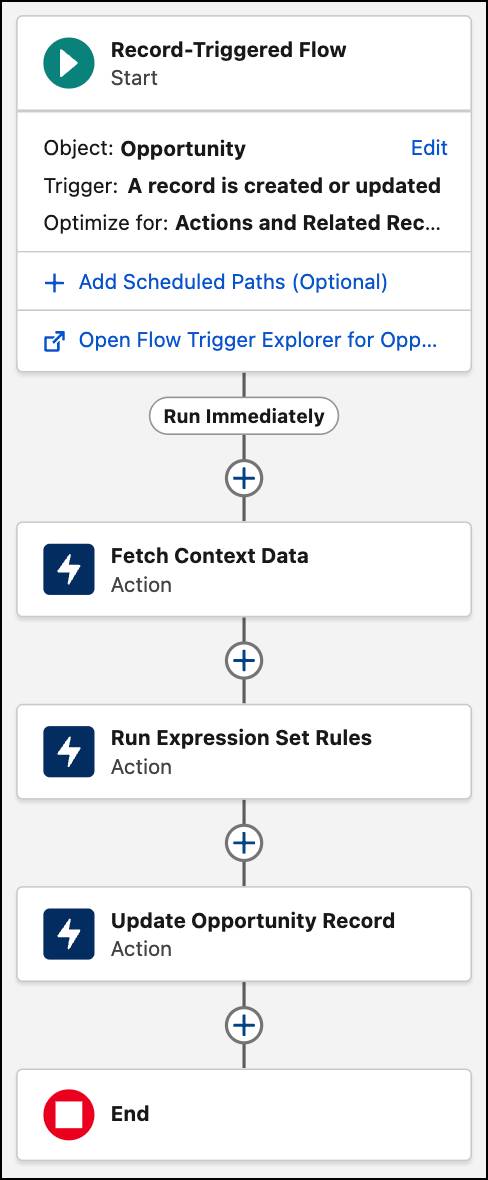
The Record-Triggered Flow automatically executes whenever you create or update an opportunity record.
Get Calculated Discount and Risk Status for an Opportunity
Great job so far! You’ve created and configured all the components you need for the scenario. Now it’s time to see them in action.
Create opportunity records to get the calculated discount and risk status for two risk scenarios: High Risk and Approved. Test for the High Risk scenario first. You select the Edge Communications account, which has a Hot account rating.
- Select
 , then find and select Opportunities.
- Select New.
- In the New Opportunity window, specify these details.
- Opportunity Name:
Opportunity One - Account Name: Edge Communications
- Amount:
150000 - Close Date: Enter today’s date
- Stage: Value Proposition
- Opportunity Name:
- Save your work.
- In the Opportunity One record, select the Details tab.
In this scenario the opportunity amount is greater than 100,000 and the account rating is Hot. Hot account rating translates to a 10% base discount. So the final calculated discount is 10% + 5% as the amount is greater than 100,000. In the Opportunity One record, notice that the Calculated Discount is 15%. And as the Calculated Discount is greater than or equal to 15%, the Risk Status is High Risk. You’re getting the expected outcome.
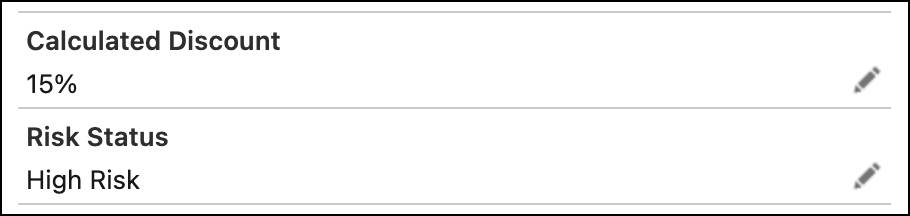
Now, test for the Approved scenario. You select the Cloud Kicks account whose account rating is Cold.
- Select
 , then find and select Opportunities.
- Select New.
- In the New Opportunity window, specify these details.
- Opportunity Name:
Opportunity Two - Account Name: Cloud Kicks
- Amount:
50000 - Close Date: Enter today’s date
- Stage: Value Proposition
- Opportunity Name:
- Select Save.
- In the Opportunity Two record, select the Details tab.
In this scenario the opportunity amount is less than 100,000 and the account rating is Cold. Cold account rating translates to a 0% base discount. So the final calculated discount is 0% + 0% as the amount is less than 100,000.
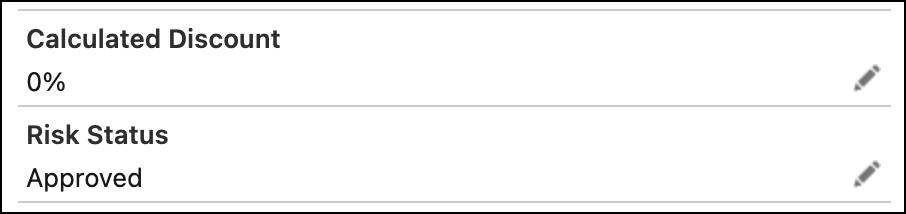
In the Opportunity Two record, notice that the Calculated Discount is 0%. And as the Calculated Discount is less than 15%, the Risk Status is Approved. You’re getting the expected outcome.
Awesome work! Your Business Rules Engine and Context Service components are working as expected. You can create or update opportunity records to try out other combinations of the scenario.
Wrap Up
In this badge, you learned how Business Rules Engine and Context Service components work together to determine opportunity discount and risk status for an opportunity. You worked through the example scenario to configure Context Definition, Decision Table, Expression Set, and Salesforce Flow components. Finally, you tested your configuration to verify the output.
Now, think of the ways you can use Context Service and Business Rules Engine to optimize your data operations and automate your processes. What resources does your team need?