Synchronize and Replicate Salesforce Data
Learning Objectives
After completing this unit, you'll be able to:
- Monitor job results and find error files when data fails to import.
- Explain what a replication task does and when to use it.
- Set up a replication task to back up Salesforce data to a CSV file.
- Choose between downloading all data (Full Load) or only new changes (Incremental Load).
Check Job Results and Fix Errors
After Cassie runs her synchronization task to send contact records into Salesforce, she opens My Jobs (or the Monitor tool) to make sure everything is transferred correctly.
When the job finishes, the summary shows:
-
Successful rows: 144 records were added or updated in Salesforce.
-
Error rows: 33 records were rejected.

When a task encounters errors, IDMC creates an error file that Cassie can download directly from the job details page. This way, she can look into why 33 records were rejected.
Cassie opens the error file, which lists the exact rows that failed and why. In this case, several email addresses were formatted incorrectly (such as missing an @ symbol) and failed Salesforce's built-in rules. Instead of re-entering everything, Cassie sends the list back to her team to fix the typos at the source. The next time the task runs, it cleanly updates those remaining records without creating duplicates.

Learn About a Replication Task
Shortly after fixing the contact sync, AW Computing's compliance team reaches out with a new request: they need a weekly backup of all Salesforce Account records saved into a SQL table on an external server. Cassie could build a full mapping for this, but she doesn't need to transform or change the data—she just wants an exact copy of the table.
For simple copy-and-paste backup jobs, CDI provides a shortcut called a replication task. A replication task is a simplified, automated tool designed to make direct copies of database tables or Salesforce objects. You don't need to draw connections or map fields one by one—you simply choose your source, choose where the copy should go, and let IDMC do the heavy lifting.
It copies to databases or flat files and is designed for bulk extraction rather than transformation. Cassie can configure a task to replicate all rows of a source object each time the task runs, or to only replicate the rows that changed since the last time the task was run.
A replication task is the right tool and reads the Account object and writes it to a flat file, with no field mapping configuration required.
Cassie creates a replication task by clicking New | Other Assets | Replication Task and enters a Name, Location, Connection and selects the Account Salesforce object.

Cassie specifies the connection and target prefix. Cassie can choose the type of replication, whether to do a:
-
Full load: Copies every single record every time the job runs.
-
Incremental load: Copies all records on the first run, but on future runs, it only copies records that have changed since the last backup.

The account table contains a lot of fields that AW Computing does not use. On the Field Exclusions tab Cassie can remove the fields she does not want by unchecking a few internal system fields that her compliance team doesn't need, keeping the final spreadsheet clean and lightweight.

Schedule and Monitor the Replication Task
Cassie's compliance team needs the Salesforce Account backup to run every Sunday at midnight. She navigates to the Schedule tab, and configures the task to run on a weekly schedule.
She saves the schedule and adds her email and the compliance team's email to the notification settings.

On Monday morning, Cassie opens the Monitor service and locates her job to verify the results. She can see it ran successfully.
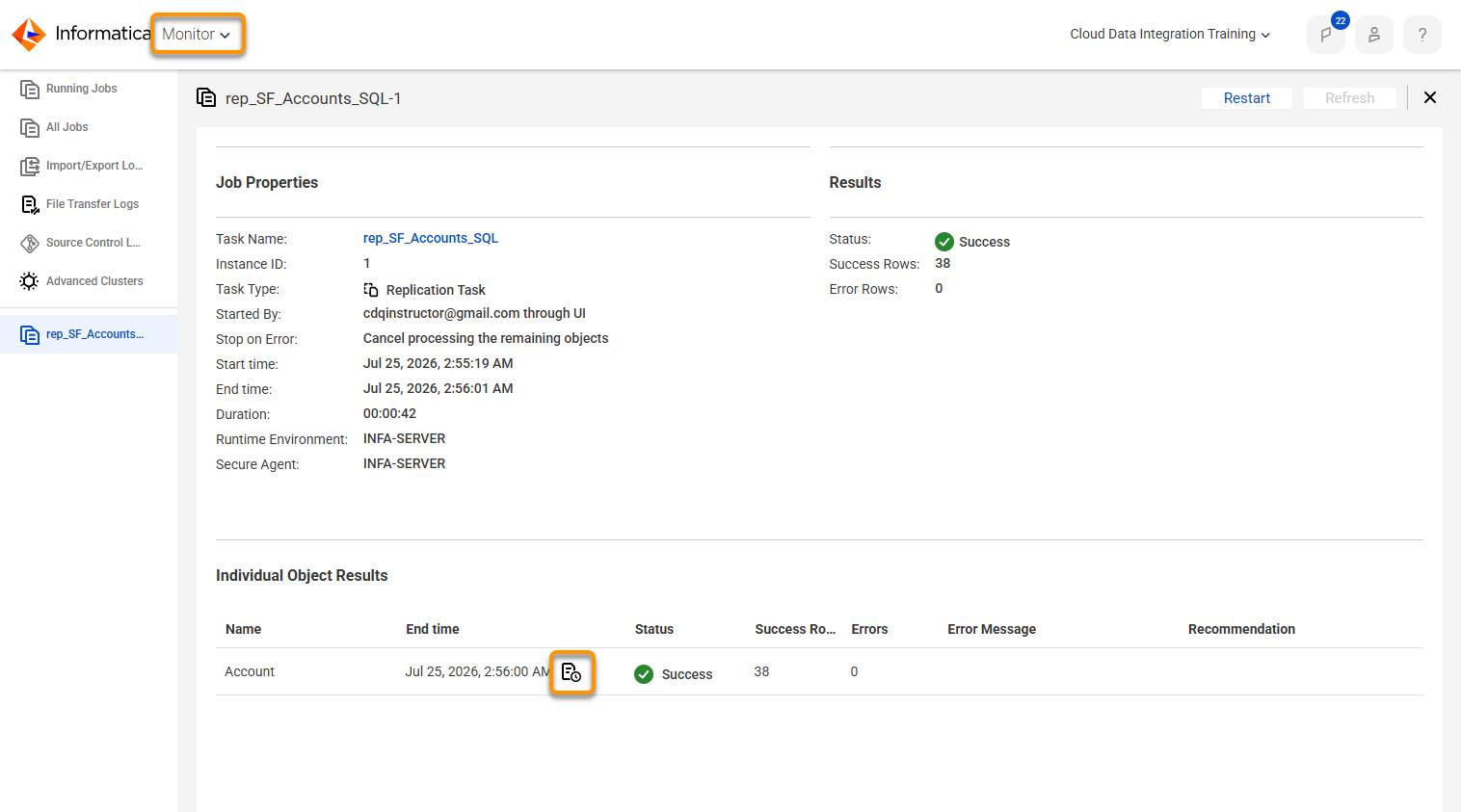
-
Status: Succeeded.
-
Rows Copied: 3,838 records.
-
Destination: The data is in the external table, and the compliance team received an email confirming the completed backup.
Because Cassie chose Incremental Load, future Sunday runs will finish even faster because IDMC will only copy the small handful of records that were added or modified during the week. This reduces processing time and file size for the weekly backup.
Cassie checks her mail and sees the notification telling her the task ran successfully.

Wrap It Up
Cassie used the job results and error file to find and fix 33 rejected contact records. Then she set up a replication task to back up Salesforce Account records each week, with no field mapping required. She chose an incremental load, excluded fields her team doesn’t need, and set up email notifications. Now the compliance team gets a fresh backup every Sunday.
Cassie gets another request, this time to archive data from a legacy server. In the next unit, she explores a new type of task that’s built for the job.