Archive Data Streams
Learning Objectives
After completing this unit, you'll be able to:
- Explain the purpose and primary use cases of a data transfer task.
- Configure a data transfer task to migrate and archive data using inline lookups.
- Compare and select the appropriate task type for different data integration scenarios.
- Configure automated email notifications to prevent silent failures in production.
Explore Data Transfer Tasks
A data transfer task is a streamlined tool in Cloud Data Integration (CDI) designed to move data directly from a source to a destination. It is built for fast migration, archival, and bulk loading where heavy data transformation isn't required.
Cassie's team at AW Computing needs to archive an old SQL Server orders table (dbo.Orders) along with customer addresses before decommissioning the legacy server. They need to save this combined data as a flat file (LegacyOrders.csv) on an SFTP server.
A data transfer task is the perfect tool for this job: it quickly extracts, enriches, and transfers the data without requiring a full mapping.
Configure a Data Transfer Task
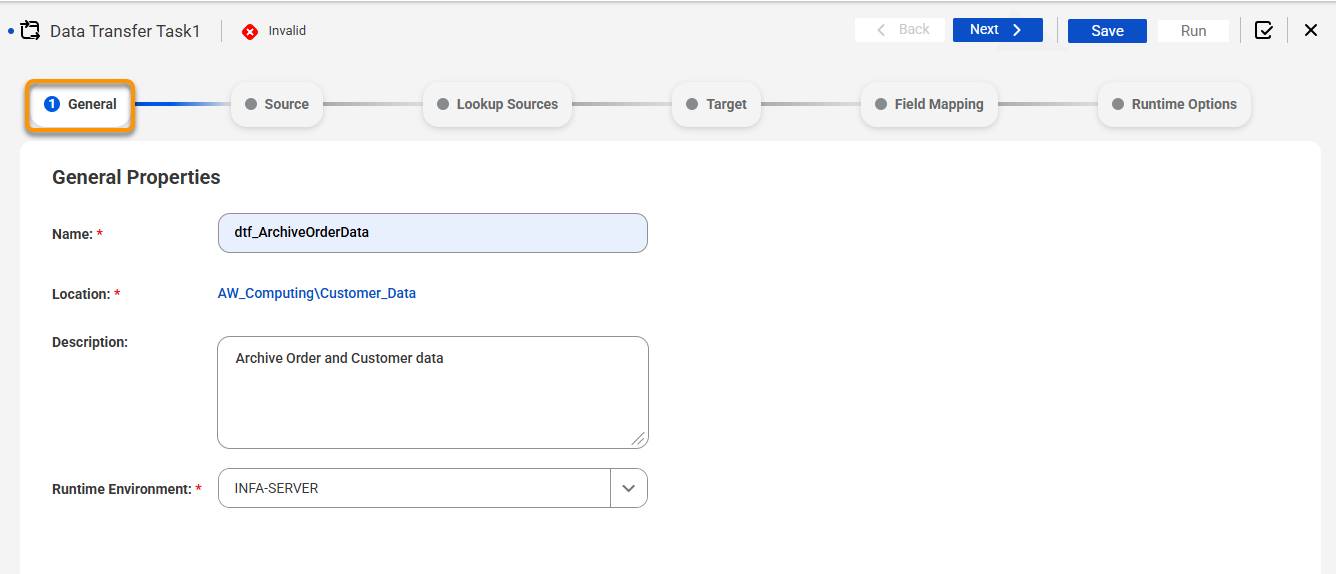
- Cassie creates a new data transfer task by clicking New | Data Integration | Data Transfer Task and configures the General Properties such as Name and Runtime Environment.
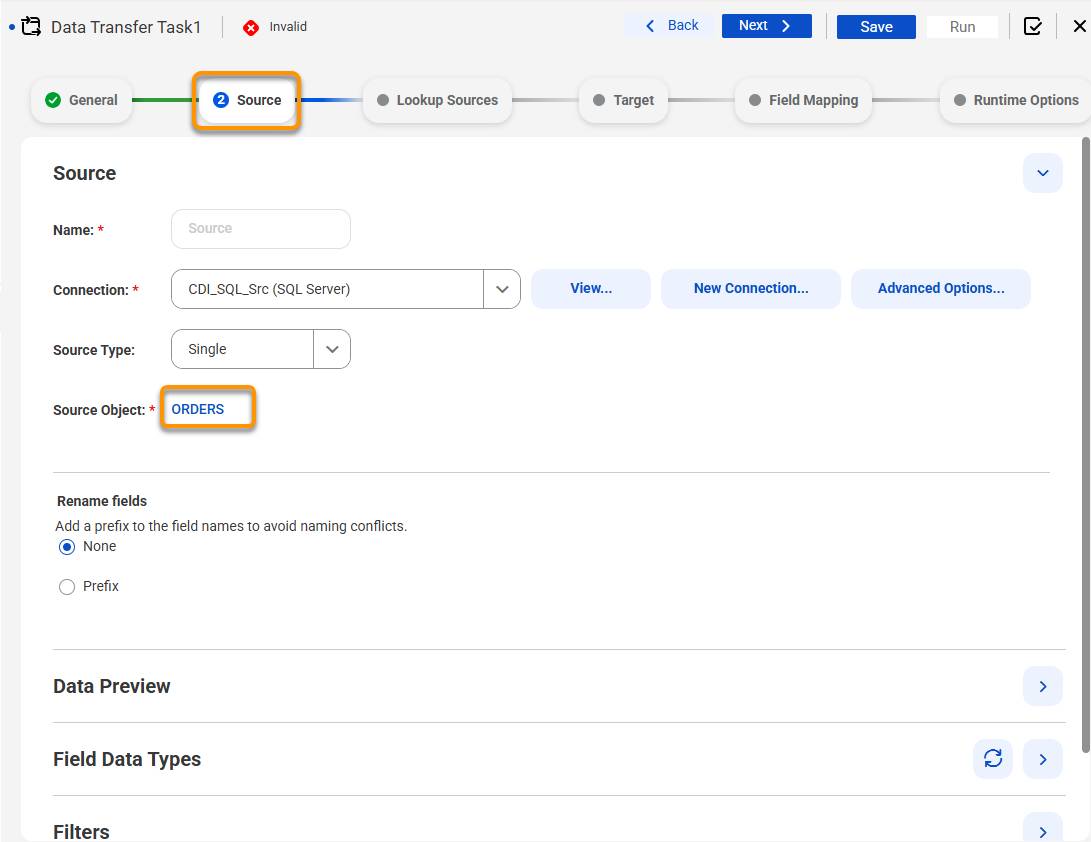
- She configures the Source tab and defines the SQL Server connection selecting the Orders table. She previews the data to ensure she has the right table.
-
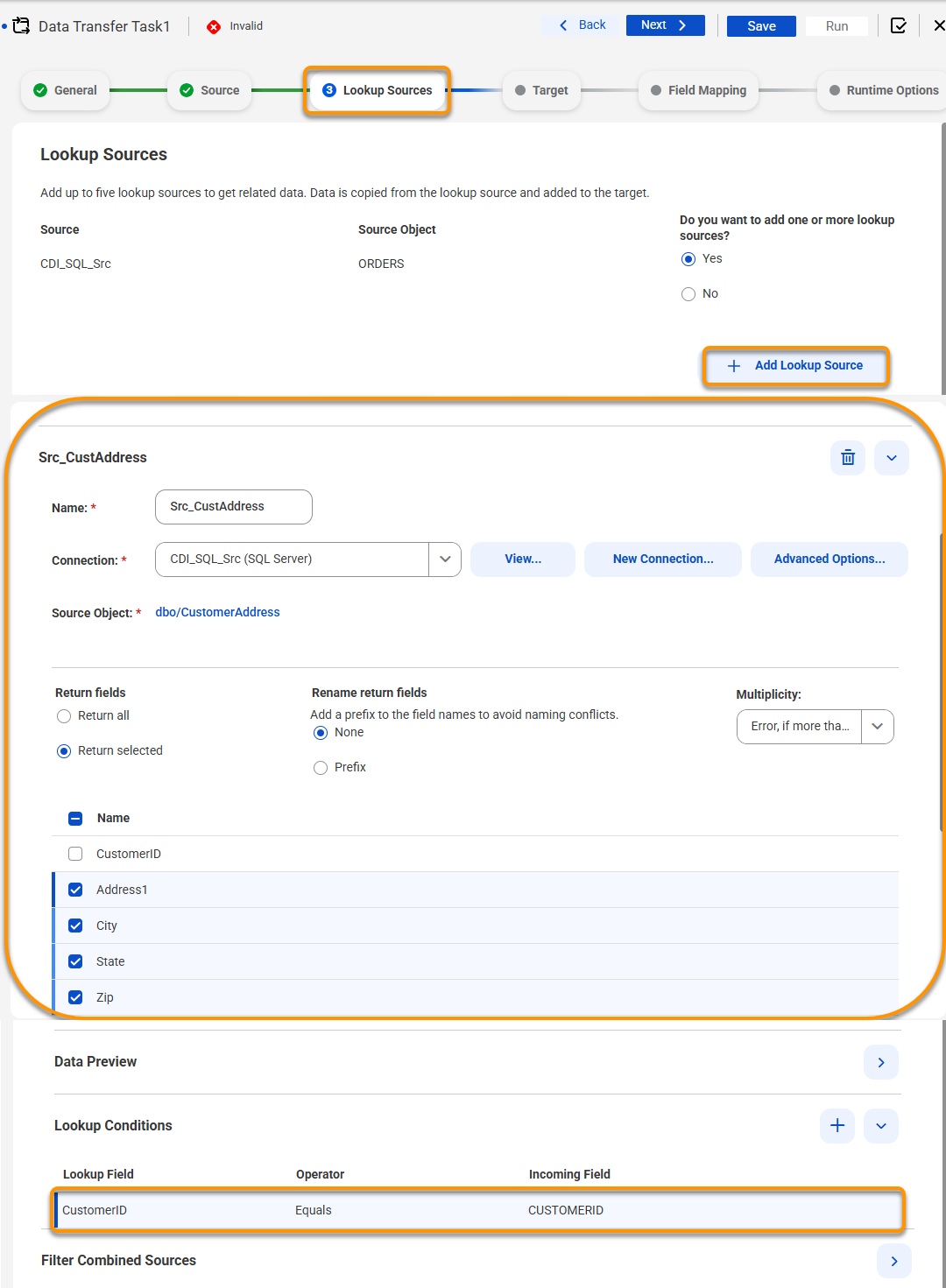
Lookup Source: Cassie has been asked to include the customer address along with each order. To do that she can lookup the customer address table, select the fields she would like returned, and include them with the order by setting the lookup condition to the customer id in both datasets.
-
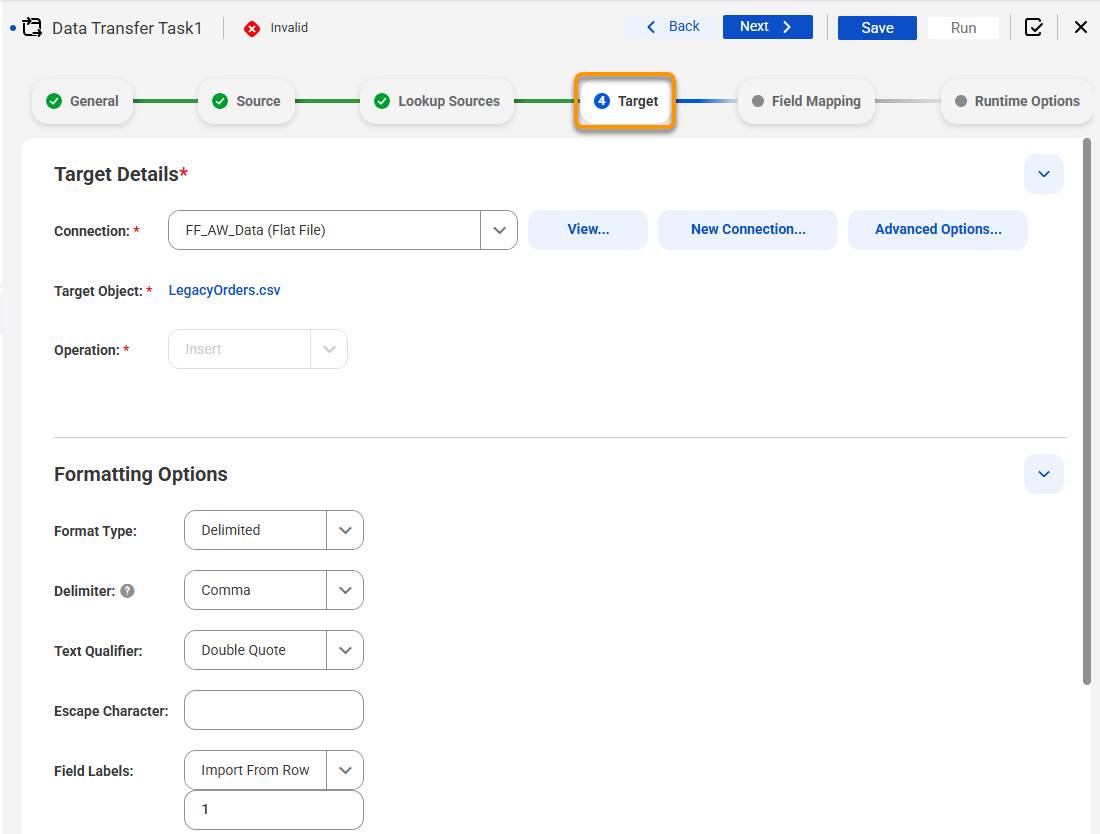
Target: Flat file connection → SFTP destination path LegacyOrders.csv
-
Operation: Insert (write all records)
-
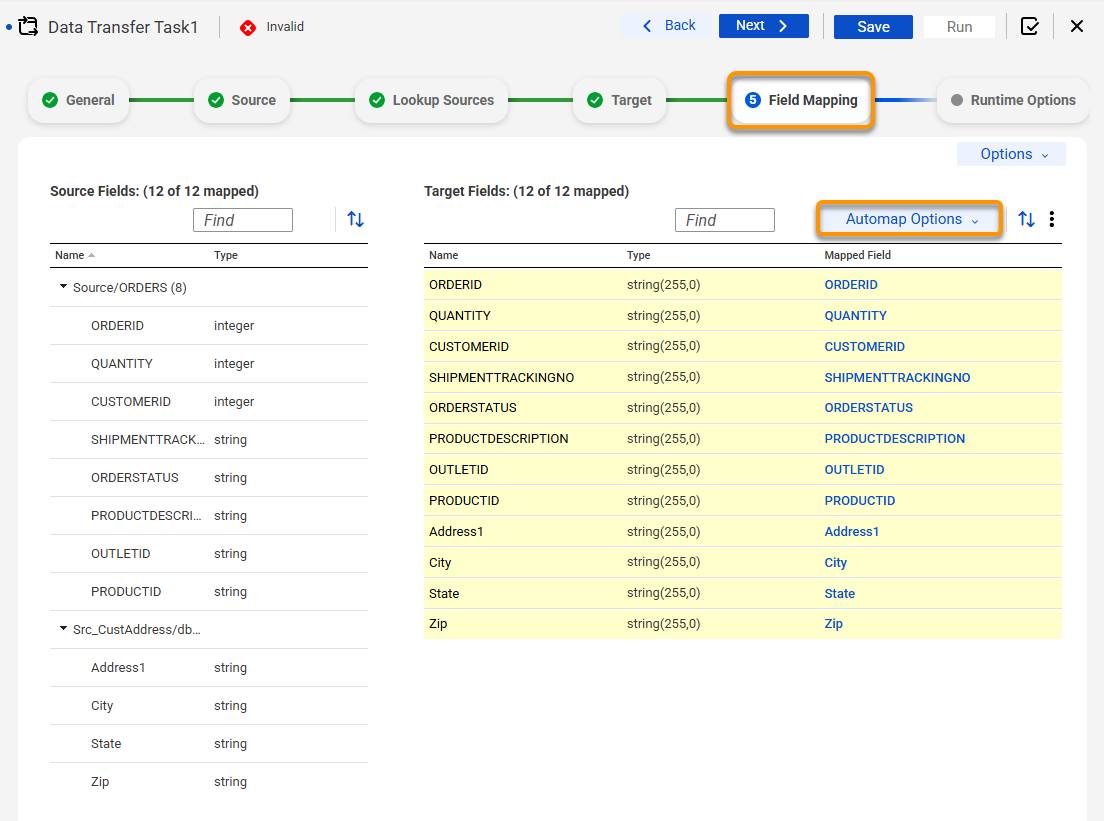
Field Mapping: Cassie configures the field mapping tab and includes the order and address fields.
-
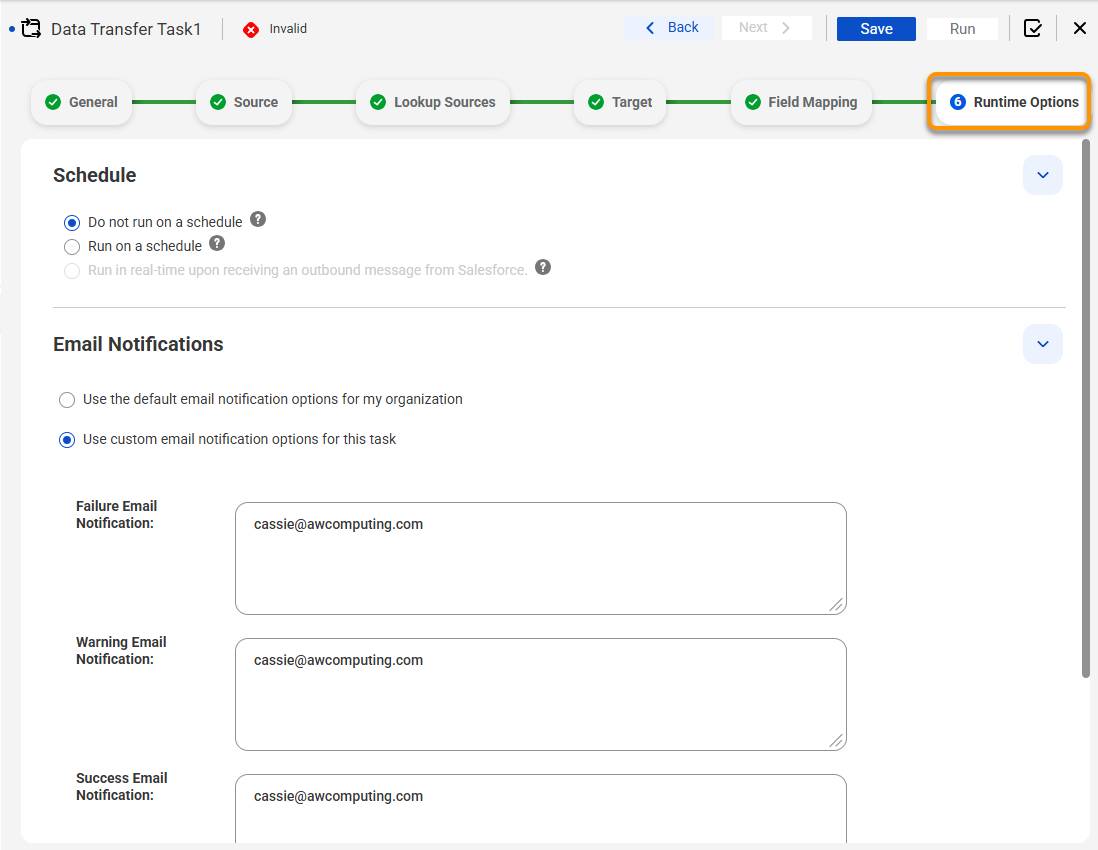
Runtime Options: Cassie includes her email address to ensure she is notified in case of failure, warning and on the success of the transfer task.
Cassie runs the task. IDMC reads all records from dbo.Orders and writes them to the SFTP flat file. My Jobs confirms the data transferred with no errors.
Choose the Right Task Type
By the end of this badge, Cassie has four predefined task types in her toolkit. Here’s a rundown of the tasks and what they do.
Task Type |
Description |
|---|---|
Mapping task |
Handles complex extract, transform, and load (ETL) with transformations, filters, mapplets, parameters, and multisource joins. |
Synchronization task |
Syncs data between a source and target (databases, flat files, or Salesforce) using insert, update, upsert, or delete operations. |
Replication task |
Replicates data and schema from a cloud application or relational database to a target for backup, archival, or offline reporting. |
Data Transfer task |
Moves or copies data from a source to a target efficiently with minimal transformation, ideal for bulk loading and file transfers. |
Notification Settings Across Task Types
Cassie uses email notifications consistently across all task types she has configured in this badge. Every task in CDI supports notification settings that let her specify:
-
On success: A confirmation email when the task completes cleanly
-
On warning: An alert when the task completes but some rows were rejected
-
On failure: An urgent alert when the task does not complete
Cassie adds her own email and her manager's email to the failure notification for every task. For the archive task, she also notifies the team responsible for decommissioning the legacy SQL Server. They need confirmation that the data landed on the SFTP server before they proceed.
Setting up notifications on every task is a best practice. Silent failures—where a task fails but no one is alerted—are one of the most common causes of data quality issues in production integration environments.
Wrap It Up
Cassie has automated AW Computing's data operations from end to end. Customer contacts sync to Salesforce every night, Salesforce accounts are backed up every week, and legacy order data is archived before the old server is retired. Each task runs on a schedule and is monitored through the Informatica Intelligent Data Management Cloud (IDMC) Monitor service, so her team no longer spends hours exporting, converting, and uploading spreadsheets. AW Computing gets clean, reliable data every day.
There is one question that remains which is, in what order do these tasks run? A schedule starts each task at a set time, but it can't make one task wait for another. Some tables must finish loading before other tasks can begin, and Cassie needs a way to run her tasks in sequence. This involves taskflows, which you can learn about in Taskflows and Job Monitoring in Cloud Data Integration.