Build the Core Product Catalog
Learning Objectives
After completing this unit, you’ll be able to:
- Distinguish marketable product concepts from tangible product records.
- Explain how product specification types define product behavior.
- Describe how a product hierarchy organizes markets, brands, and child products.
- Explain how product guidance connects approved messages and objectives to the product model.
Build the Product Foundation
In the previous unit, you learned why a governed product catalog matters. Strategy and compliance travel with each product instead of relying on a representative's memory. For now, that four-stage lifecycle model is still a design.
Now, Cumulus Pharma, a leading California-based fictional pharmaceutical company, is ready to build one for its new drug for autoimmune disorders, Immunexis. Modeling the product in the commercial catalog ensures every field team works from the same governed source.
In this unit, you take on the first stage: defining the catalog. You learn how Life Science Marketable Product organizes a portfolio, how product classification dictates behavior, and how to build a launch sample—a concept record linked to a Product2 record.
Work from the Admin Console
The Admin Console in the Life Sciences Commercial app is the launch point for product administration. From its Products area, you configure and govern product operations through menus that track the lifecycle.

The menus track the lifecycle, from defining the catalog through aligning and prioritizing it.
-
Product Configuration sets up the record types and specification mappings that decide product behavior.
-
Product Hierarchy builds the portfolio structure holding each product, its type, and its guidance.
-
Product Alignment assigns products and their messages to target territories.
-
Product Alignment Jobs publishes territory alignments imported in bulk.
-
Territory Products sets priority order for a given territory.
This unit works with the first two, Product Configuration and Product Hierarchy, where the model and product behavior take shape. The rest come into play as the lifecycle continues in later units.
Explore Marketable Products
Every entry in the life sciences product hierarchy is a Life Science Marketable Product record. Each record has a Type that defines what it represents, such as a market, therapeutic area, or product.
This table presents the available types, from the broadest grouping down to a single sellable item.
Type |
What It Represents |
Example |
|---|---|---|
Market |
The broadest grouping the portfolio is organized around |
Immunology |
Therapeutic Area |
A group of related conditions that share clinical features |
Autoimmune Disorders |
Brand |
The brand name of a medicine, device, or therapy |
Immunexis |
Indication |
A single condition a product treats |
Rheumatoid Arthritis |
Brand Indication |
A brand paired with one of its indications |
Immunexis for Rheumatoid Arthritis |
Product |
A tangible, sellable item, linked to a Product2 record |
Immunexis 50mg |
Product type classifies the record, but it doesn’t place the record in the hierarchy. The Parent Product field creates the hierarchy by linking one Life Science Marketable Product to another.
This diagram shows two relationships: the parent product lookup that connects marketable product records to each other, and the Product lookup that connects a marketable product to Product2.

Parent Product is a lookup field from each Marketable Product to a single parent Marketable Product. Each record names one parent, and many records can share the same parent. Repeat that link across the catalog, and the tree takes shape. A product points up to its brand, and a brand points up to its therapeutic area. Optional lookups, such as Parent Indication and Parent Therapeutic Area, carry additional context. Parent Product alone determines where a record sits in the hierarchy.
A second relationship connects the hierarchy to the physical product record. When a Marketable Product record has the type Product, it can reference a Product2 record. Product2 identifies the physical or sellable item, such as a sample, order item, or promotional item.
Concept records and physical product records play different roles. A therapeutic area or indication is not sellable. It organizes the product structure used for field guidance. A brand carries the commercial product context for approved conversations. A product node can connect that context to a physical item in Product2.
At Cumulus Pharma, Autoimmune Disorders gives Immunexis a therapeutic context. Immunexis represents the brand. Immunexis 50mg is a product under that brand and references a Product2 sample record. Product Guidance is added to the eligible Immunexis brand context, where approved messages and objectives support field conversations.
The Product Hierarchy page in the Admin Console presents this as a working tree.
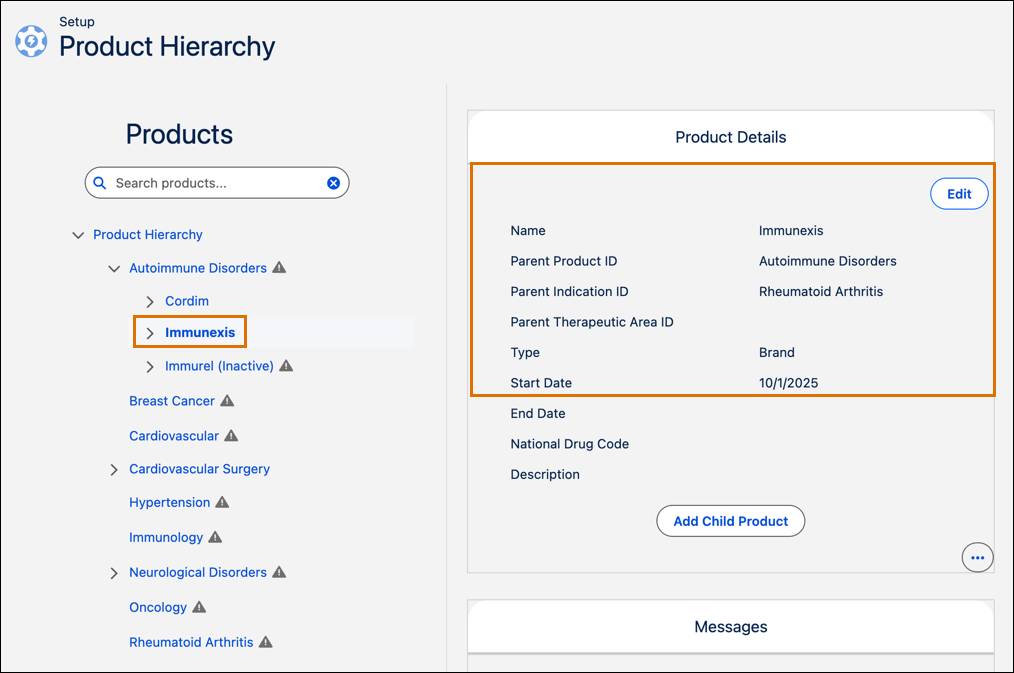
For Cumulus, the concept scaffolding is already in place. Immunexis sits as a brand under the Autoimmune Disorders therapeutic area, next to other autoimmune brands. What's missing is the physical launch sample. Before building it, you set the rules that define how it behaves.
Map Product Behavior Before You Build
Different physical products require different rules. A sample pack requires inventory tracking and signature capture, whereas a promotional brochure does not. Setting product behaviors upfront ensures the platform applies the relevant rules from the start.
Three components work together.
- The Product Record Type is a standard Salesforce record type on the Product2 object. It manages the record's presentation, from its page layout and picklist values to who can see it. You create one for each kind of physical product you carry, such as LS Sample and LS Marketing Item. On its own, though, a record type is generic. It says nothing about sampling rules or inventory.
- The Product Specification Type supplies that meaning. Included classifications connect a product to a set of built-in life sciences workflows. The Sample Product type turns on inventory workflows, including allocation rules and signature capture. The Promotional Item type marks a record for detailing only, with no inventory to track. The Order Item type handles products a customer orders outright.
- The Product Specification Record Type connects the two components. Each one maps a record type to a specification type, and that mapping gives a record type its life sciences behavior. Map the LS Sample record type to the Sample Product specification, and any product built as an LS Sample behaves as a real sample. The Is Commercial checkbox marks whether the product is sold commercially.
Agentforce Life Sciences provides the specification types; you create the record types and mappings in Product Configuration before building products.

Cumulus creates LS Sample and LS Marketing Item record types and maps each to its corresponding specification.

When you create a product and pick its record type, the mapped specification sets the behavior automatically. Choose LS Sample, and the product follows the Sample Product rules for inventory, allocation, and signatures. With the mappings in place, every product you build carries the correct behavior.
Add a Physical Product to the Catalog
The Product Hierarchy page creates both the Marketable Product and linked Product2 record in one flow.
Here’s how Cumulus Pharma adds the Immunexis 50mg launch sample to its catalog.
- In the Product Hierarchy tree, select Immunexis and choose Add Child Product.
- To link a Product2 record, set Type to Product.
- On the Product2 record, select LS Sample. It immediately inherits sampling behavior from your mapping.

On the Marketable Product record, configure allocation settings: Enter order quantity limits, set the distribution method to Drop and Ship, and mark it available for sampling allocation.

Saving the Marketable Product creates both linked records, placing Immunexis 50mg and its sampling behavior directly under the Immunexis brand.
What’s Next?
In this unit, you learned how to turn the product model into a working catalog by setting up behavior mappings, defining hierarchy, and adding a launch sample.
In the next unit, you learn about authoring product guidance. You also learn about the approved messages and objectives that representatives use, and attaching that guidance to your catalog products.