Get Started with Informatica QuickLook
Learning Objectives
After completing this unit, you'll be able to:
- Explain how to install the Informatica QuickLook extension in Google Chrome and Microsoft Edge.
- Apply your organization’s POD URL to configure the extension settings.
- Summarize how to log in to Informatica QuickLook using your Informatica Data Management Cloud credentials.
Faster Access to Data Assets
End users spend a lot of time searching for the right data asset across multiple tabs and applications. A quick search that jumps directly to the asset detail page—without opening the full catalog—saves time and keeps work on track.
Informatica QuickLook is a browser extension for Google Chrome and Microsoft Edge. It lets you search for business and technical assets in Informatica Cloud Data Governance and Catalog (CDGC) directly from your browser toolbar. Enter a keyword, browse the results, and open an asset's full detail page in the catalog—all without navigating away from what you're working on.
Angela Duran, a business analyst at Infiwave, manages dozens of data assets across the company’s catalog every week with Informatica QuickLook. Before Angela installed QuickLook, when colleagues asked her about a specific dataset, she had to switch to the catalog, log in, and run a search. She would lose her place in whatever she was working on. But now with QuickLook, Angela searches for assets right from her browser toolbar in seconds and opens them directly in CDGC without interrupting her workflow.
In this unit, you follow the same path as Angela. You install and configure the extension so you can connect it to your organization’s catalog.
Before You Begin
Make sure you can access your CDGC organization before you install the extension. You also need a valid Intelligent Data Management Cloud (IDMC) account to log in. You can install the extension on Windows or macOS operating systems.
Install the Extension on Google Chrome
Because Angela uses Google Chrome, she installs the extension directly from the Chrome Web Store.
Here’s how to install it.
- Go to the Chrome Web Store.
- Search for
Informatica QuickLook.
- Select Add to Chrome.
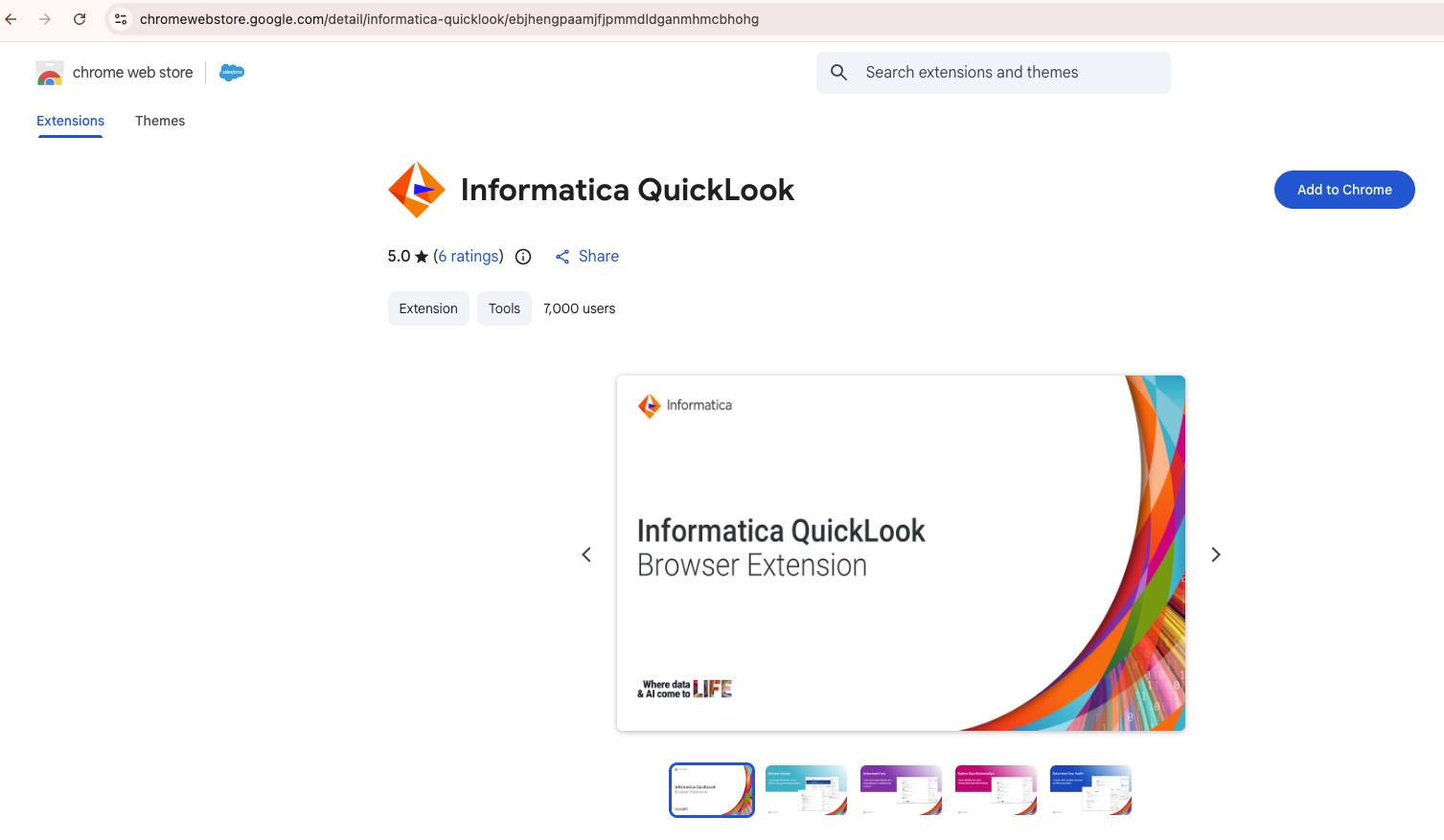
- Select Add Extension to approve the permissions the extension needs to access your organization's data.
The Informatica QuickLook extension is added to your Google Chrome browser.

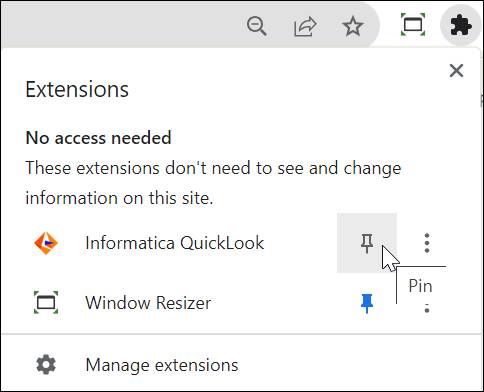
After the extension is installed, pin it to the toolbar so it’s easily accessible.
- Select Extensions
 in your browser’s toolbar.
- Pin the Informatica QuickLook extension to the toolbar.
Install the Extension on Microsoft Edge
At Infiwave, some colleagues use Microsoft Edge. Angela helps them through the setup.
Here’s how to install it.
- In Microsoft Edge, open the Google Chrome Web Store.
- Search for
Informatica QuickLook.
- Select Get Extension.
- On the Allow extensions from other stores dialog box, select Allow.
- Select Add Extension to approve the permissions the extension needs to access your organization’s data.
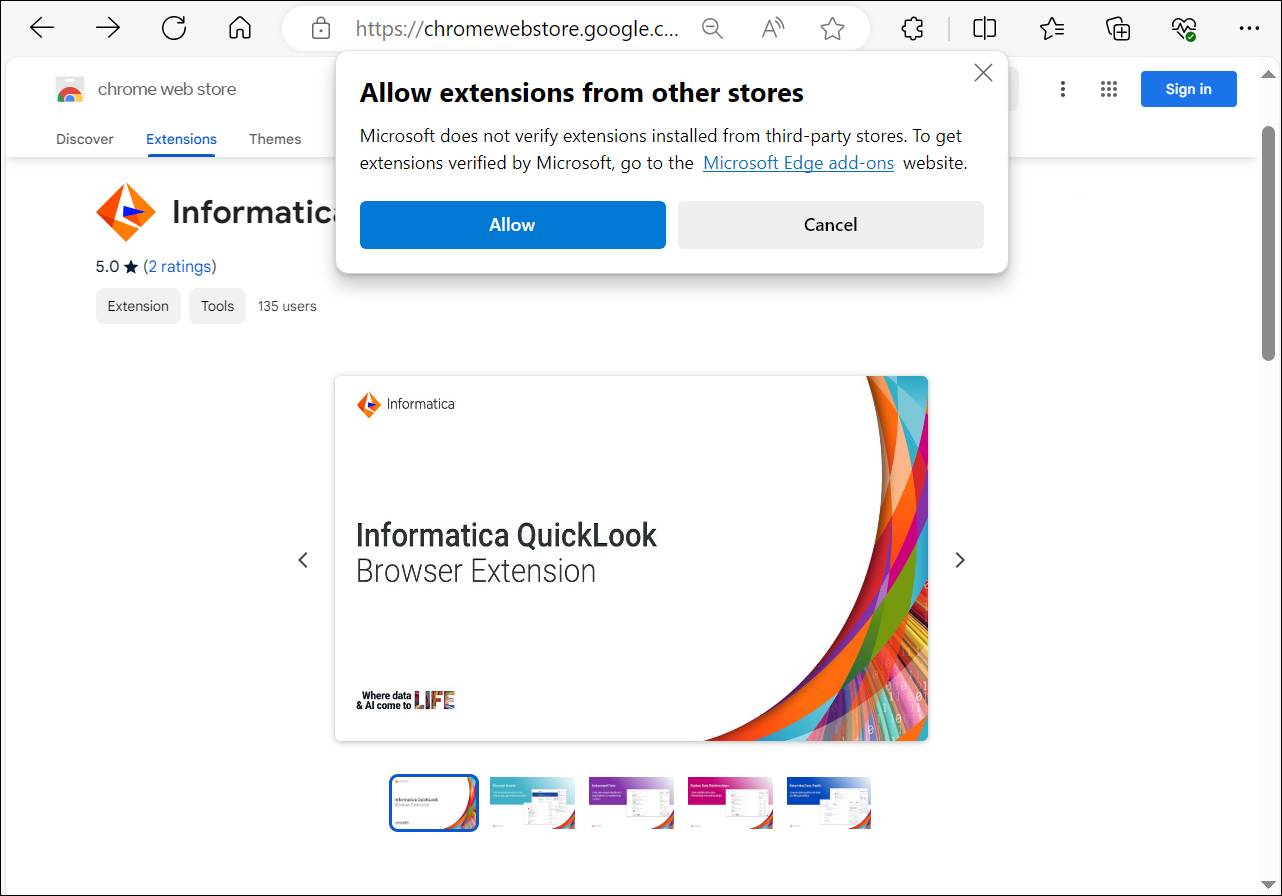
The Informatica QuickLook extension is added to your Microsoft Edge browser. Pin it to the toolbar following the same steps as Chrome.
Configure POD URL and Log In to Chrome
Angela needs to connect the extension to Infiwave’s catalog before she can search. She configures the POD URL to get started.
Here’s how to configure it.
- Select the right-click context menu in the Informatica logo on your browser extensions toolbar.
- Select Options.
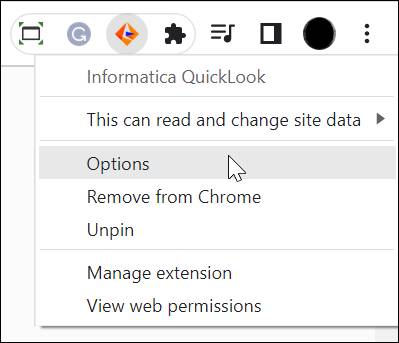
- In the Informatica QuickLook dialog box, select a POD region from the Select POD Region menu.
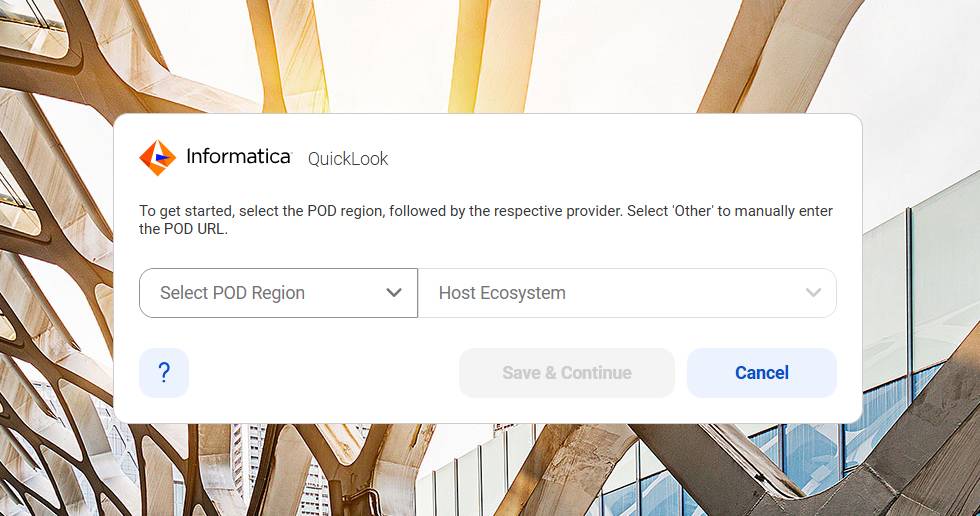
- From the Host Ecosystem menu, select your host ecosystem. The extension auto-configures the POD URL based on your selection.
- Optionally, select Other to manually enter a POD URL.
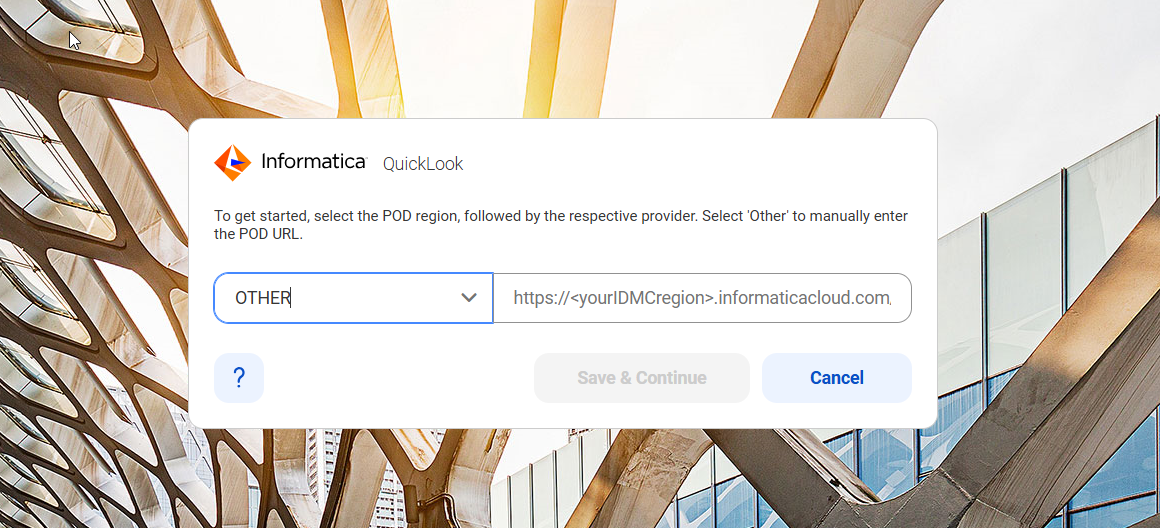
- Select Save & Continue.
With the POD URL configured, Angela logs in with her IDMC credentials to access Infiwave’s catalog.
Here’s how to log in.
- Open a web page in your browser to launch the extension. The extension can’t launch without an open browser page.
- Select the Informatica QuickLook logo on your browser toolbar.
- Select Log In.
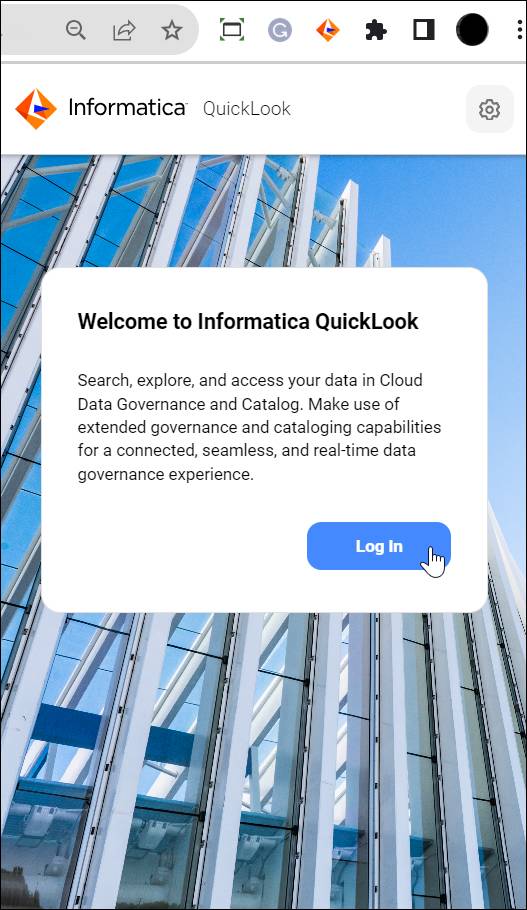
- Enter your IDMC user name and password, or log in using Single Sign-On (SSO).
With the extension installed and configured, you’re ready to search. In the next unit, you follow Angela as she uses Informatica QuickLook to find the customer data assets her colleague needs—without ever leaving her browser.
Resources
- Informatica Success Portal: Informatica QuickLook Browser Extension (login required)
- Informatica Documentation: Set Up Informatica QuickLook (login required)