Browse Assets by Type
Learning Objectives
After completing this unit, you’ll be able to:
- Summarize how to browse the catalog to explore assets by type.
- List business asset types.
- Describe how to use each asset type in your daily workflow.
- Identify tabs and data in an asset page.
Browse the Catalog
Sometimes Angela doesn’t have a specific asset in mind—she just wants to explore what’s in the catalog. Instead of searching, she uses the Browse page.
The Browse page lets you explore assets organized by type. It gives you a structured view of the catalog, so you can drill down from high-level categories into the specific assets that matter to you.
The Browse interface includes:
-
Asset type tabs: Navigate tabs to browse assets by type. On some tabs, such as the Glossary tab, you can filter further by selecting a specific asset type such as Business Term, Domain, Metric, or Subdomain.
-
Layouts: Review the layouts assigned to you based on your user role. You can apply a layout and set it as your default.
-
Settings: Use Settings in each tab to include or hide asset-specific columns.
-
Tab Settings: Select which asset type tabs and tab sequence you want to use.
-
Preview pane: Select an asset to review key details without opening the full asset page.The Overview tab includes basic attributes, and the Related Assets tab includes the types of relationships the asset has with other assets.
-
Filter and sort: Apply filters or sort columns within any asset type tab. Sort by name or by when the asset was last updated.
To find child assets within a parent asset, focus on the parent asset row and use the Find bar. CDGC displays the first 25 assets matching your query, with a View More Assets option if there are additional results.
Business Asset Types Overview
Here are the most common business asset types you work with day to day.
Business Asset Type |
What It Represents
|
When to Use It |
|---|---|---|
AI Model |
A business representation of an AI model, including its parameters, inputs, outputs, and purpose |
To understand AI insights that affect data quality scores |
AI System |
A machine learning system that uses multiple AI models to perform tasks |
To review automated systems that process customer data |
Business Area |
An organizational grouping that represents a business unit or function |
To identify which teams own specific data domains |
Data Quality Rule Template |
A reusable template that defines data quality rules |
To check what quality standards apply to key data sets |
Data Quality Rule Occurrence |
A specific instance of a data quality rule applied to an asset |
To check quality rule results for a specific table or column |
Data Set |
A logical grouping of data used in a business context |
To connect technical tables to their business-level definitions |
Geography |
A geographic entity such as a region, country, or city |
To filter data assets relevant to specific market regions |
Glossary Domain |
A top-level category that organizes glossary content |
To navigate to a specific area of the business vocabulary, such as finance or marketing |
Glossary Subdomain |
A subcategory within a glossary domain |
To find terms within a narrower scope, such as “Pricing” under “Finance” |
Glossary Business Term |
A standardized definition for a data concept |
To search for what a data field means across your organization, such as what Net Revenue includes or excludes |
Glossary Metric |
A measurable business indicator with a defined formula |
To check the definition of KPIs such as Customer Acquisition Cost before using them in a report |
Legal Entity |
A recognized legal body such as a company or subsidiary |
To track which legal entities are associated with specific data |
Manual Data Element |
A data element created manually in CDGC rather than extracted from a source |
To document data elements that exist outside cataloged systems |
Policy |
A governance rule or guideline that controls how data is used |
To review which policies apply to a specific asset, especially for personally identifiable information (PII) or regulated data |
Process |
A documented workflow or operation that involves data |
To understand how data moves through a business workflow, such as Order Fulfillment |
Project |
A time-bounded initiative tied to data governance work |
To track data governance efforts for a product launch |
Regulation |
An external regulatory requirement such as GDPR or CCPA |
To confirm that a data asset complies with applicable regulations |
System |
A business-level representation of a source system |
To identify which business systems feed data into the catalog |
Explore Key Tabs in an Asset Page
Select any asset—for example, a Glossary Business Term—to open its full asset page. CDGC organizes every asset page into tabs, which make it easy to find detailed information.
The key tabs on an asset page include:
-
Overview tab: This displays the system attributes (system-defined properties) and custom attributes (user-configured properties) of the asset. For technical assets, the Overview tab also includes the technical name, lifecycle stage, data profiling statistics, glossary associations, and data classification results.
-
Relationships tab: This includes all assets directly or indirectly connected to this asset. You can switch between grid view and graph view. Relationships are inbound (from a related asset to this asset) or outbound (from this asset to a related asset). Use this tab to review which policies govern a glossary term and which tables it’s linked to.
-
Lineage tab (for technical assets): This includes a visual representation of data flow, where the data comes from and where it goes. This helps to trace the origin of a data element and understand how transformations affect it.
-
Stakeholders tab: This includes the users responsible for the asset. Stakeholders are authorized users who can approve or reject change requests.
-
History tab: This provides an audit log of changes made to the asset, including updates to attributes, relationships, and stakeholder assignments. It’s useful for compliance and data governance reporting.
-
Tickets tab: This includes open change request tickets associated with the asset.
For technical data sets, the asset page also includes a Contains tab that lists all child data elements—such as columns in a table—with their names, types, profiling statistics, and associated glossary and data classification assets.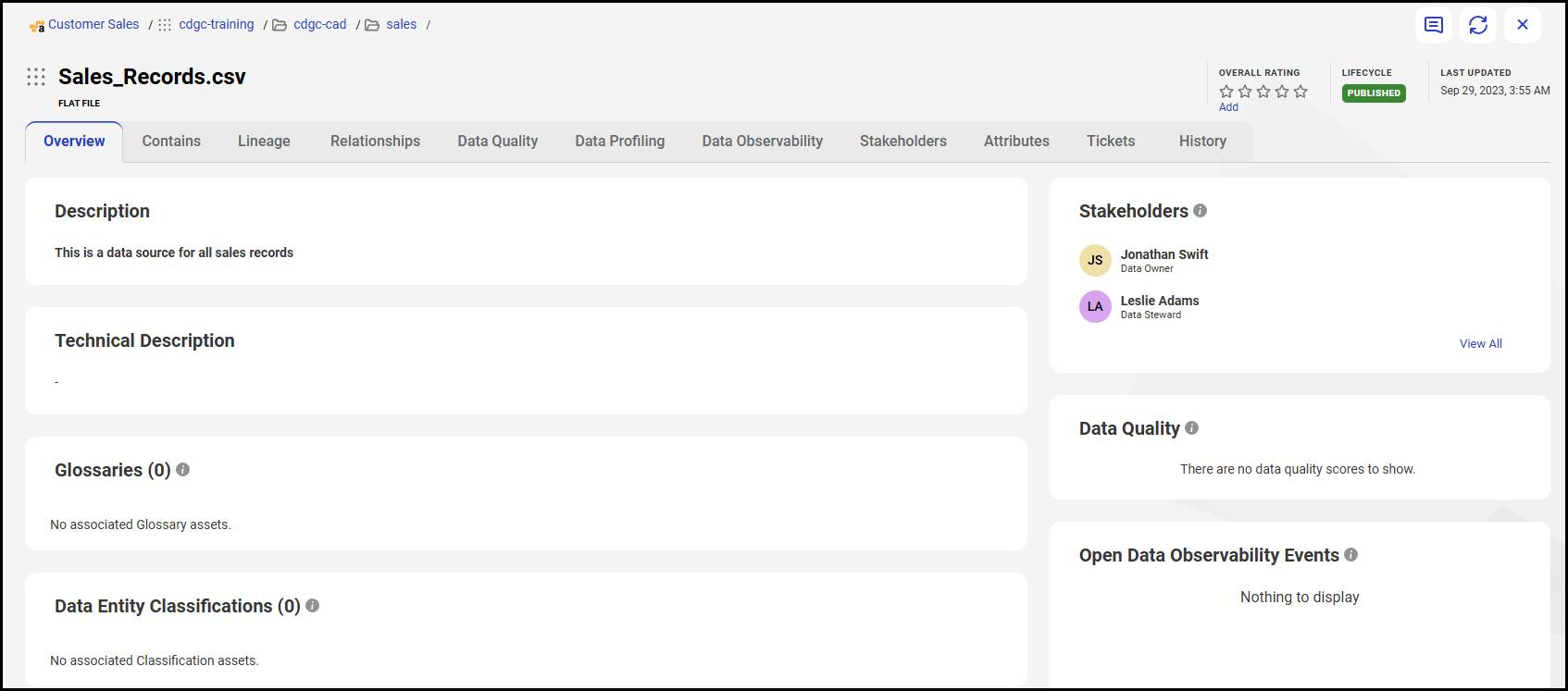
Now that you’re comfortable navigating asset pages, you can determine who owns data, what terms mean, and which rules govern assets—all from a single page.
With the skills you gained in this badge, you can help your team discover, understand, and confidently use the right data across your organization.
Resources
- Informatica Documentation: Browse for Assets (login required)