Localize and Reuse Content
Learning Objectives
After completing this unit, you’ll be able to:
- Explain how to create and manage localized versions of a page for different regions and languages.
- Summarize best practices for organizing localized content in a multiregion B2C commerce storefront.
Extend the Campaign to Global Markets
The summer sale is live in the US. Now the team wants the same campaign to run in the UK and Germany, with the same layout and hero component, but with local pricing, regional imagery, and the correct language. Building three separate pages from scratch wastes time and creates a maintenance headache.
In this unit, you take the campaign landing page from unit 2 and extend it to cover multiple locales. You also look at how content blocks reduce content duplication when the same block appears on several pages.
Trace the Localization Model in Page Designer
For each page you create, Page Designer automatically creates a variation for each locale in the fallback hierarchy defined in Business Manager. If the fallback hierarchy for Canadian French is fr_CA > fr > default, Page Designer creates page variations for fr_CA and fr at the same time it creates the default page.
Each locale variation inherits the layout and component structure of the default page. You localize content at the component level.
-
Text and images: Update per component for each locale.
-
Page name and description: Edit in Page Settings Localization tab.
-
Page visibility: Show or hide the page for a specific locale.
Localize what differs by region. Leave everything else to the fallback hierarchy. If a component is not localized, it shows according to the fallback hierarchy. The page type defines regions and component types and are the same across all locale variations.
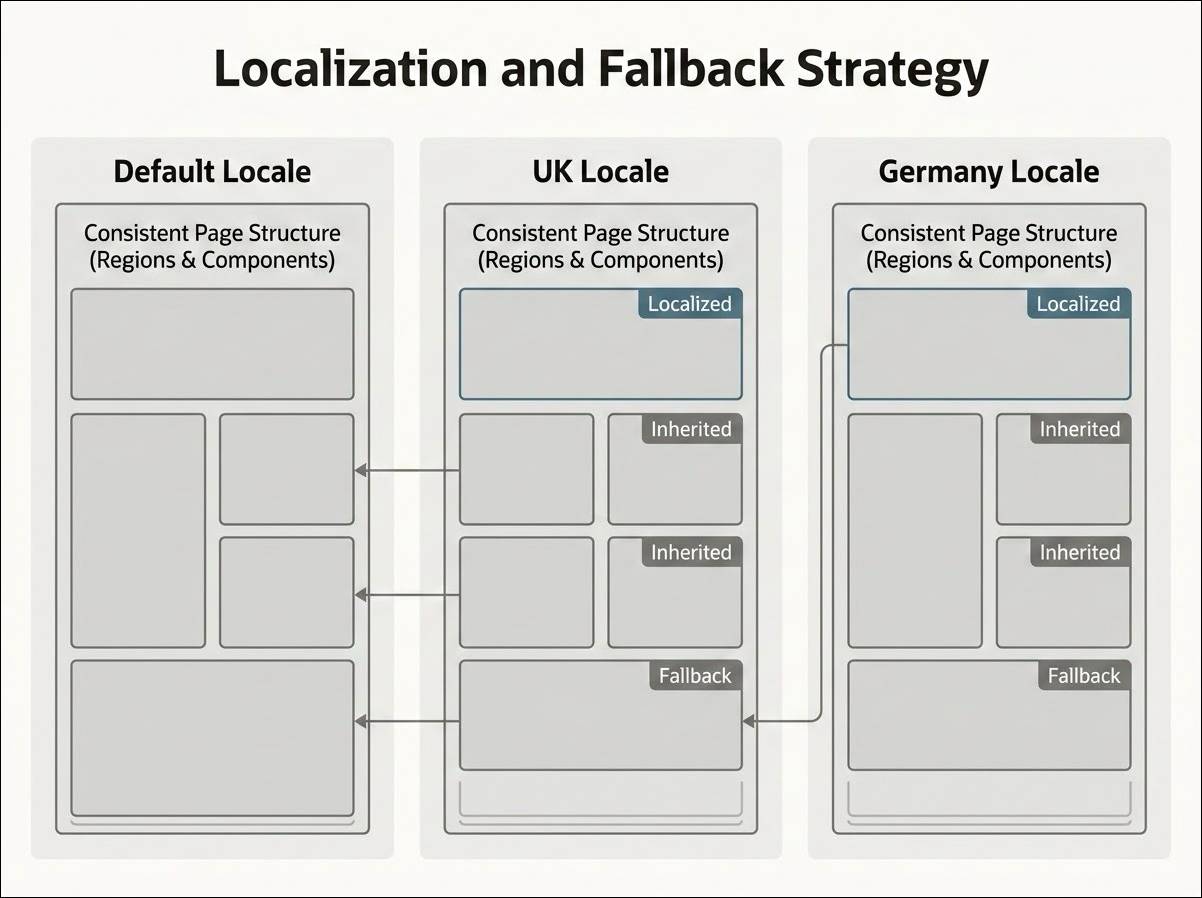
Localize a Page
- In Business Manager, select App Launcher.
- Select Merchant Tools | Content | Page Designer.
- Open a page in the visual editor.
- Select the locale from the top dropdown menu. The page banner shows the fallback hierarchy for the locale.
- Review the components on the canvas. As you hover over each component, a pink box and fallback label appear around components that aren’t localized. Localized components show a blue box.
- Select the component you want to localize. In the right pane, change the text or images.
- Select Apply. The component turns blue.
- Select Save.
To delete the localized component and use content from the fallback hierarchy, select Revert to fallback from the dropdown menu. This action permanently deletes the localized version.
To hide or show the page for this locale:
- Select Visible for this locale or the Page Settings icon.
- Turn Page Visible for this Locale to Visible or Hidden.
By default, a page is visible for every supported locale.
When you save changes on the SEO (search engine optimization) or Localization tab in Page Settings, you break the fallback connection for all text on both tabs. There’s no Revert to Fallback option for SEO or Localization fields on locale page variations. Finalize your default locale content before you modify SEO localization fields.
Localize Content Blocks
Content blocks support localization through locale settings. You start with a base-language version and then add localized versions for each target locale.
To localize a content block:
- Open the page containing the content block in Page Designer.
- Select the locale from the locale selector.
- Select the content block you want to localize.
- Select the dropdown menu next to the content block name.
- Select Localize.
- Edit the content block attributes for the selected locale. Update only the content that requires translation or locale-specific changes. The content block retains the styling and layout attributes from the original.
- Select Apply.
The content block now has a locale-specific version. Changes to this version affect only storefront pages using the selected locale.
Apply Multiregion Localization
Localization across regions is easier when you set up the right foundation first. Here’s what works.
-
Start with the default locale. Build and finalize the page in your base language before you work on locale variants. The default page is the structural foundation that all locale variations inherit.
-
Use the fallback hierarchy deliberately. Don’t localize every component for every locale. Localize only what requires different content. The fallback chain handles the rest automatically.
-
Preview each locale before publication. Switch to each locale in the visual editor and scan the canvas. Pink (Fallback) components show per the fallback chain. Confirm that fallback content is appropriate before going live.
-
Organize pages in folders. Assign pages to content library folders in Business Manager. Organized folders keep localized campaign pages findable and reduce the risk of publishing the wrong version.
Up Next
In this unit, you extended a single campaign page to cover multiple locales using Page Designer’s fallback hierarchy, learned how to localize content blocks, and reviewed how content blocks fit in a content reuse strategy.
In the next unit, you publish the completed page.