Explore Approval Types and Smart Features
Learning Objectives
After completing this unit, you’ll be able to:
- Distinguish between serial and parallel approvals.
- Explain how Smart Approvals and Rule-Based Auto-Approvals reduce bottlenecks and manual reviews.
- Describe how integrated email templates and Slack notifications accelerate approval communication.
Discover Serial and Parallel Approvals
In the real world of business approvals, a one-size-fits-all approach just doesn’t work. Sometimes you need approvals to happen in a specific order like when a manager must approve a purchase before a director reviews it. Other times, multiple teams need to review and approve simultaneously. To support these different needs, you can route approval requests in two ways.
- Serial, where approvals occur one after another
- Parallel, where all approvals occur at the same time
For example, a complex quote might require an initial review from a sales manager, followed by additional approvals from various members of the finance, legal, sales ops, professional services, and discounts departments. After the Finance team approves the quote, the accounts payable representative and controller must approve it as well. Similarly, after the Legal team approves, the vice president must also approve.
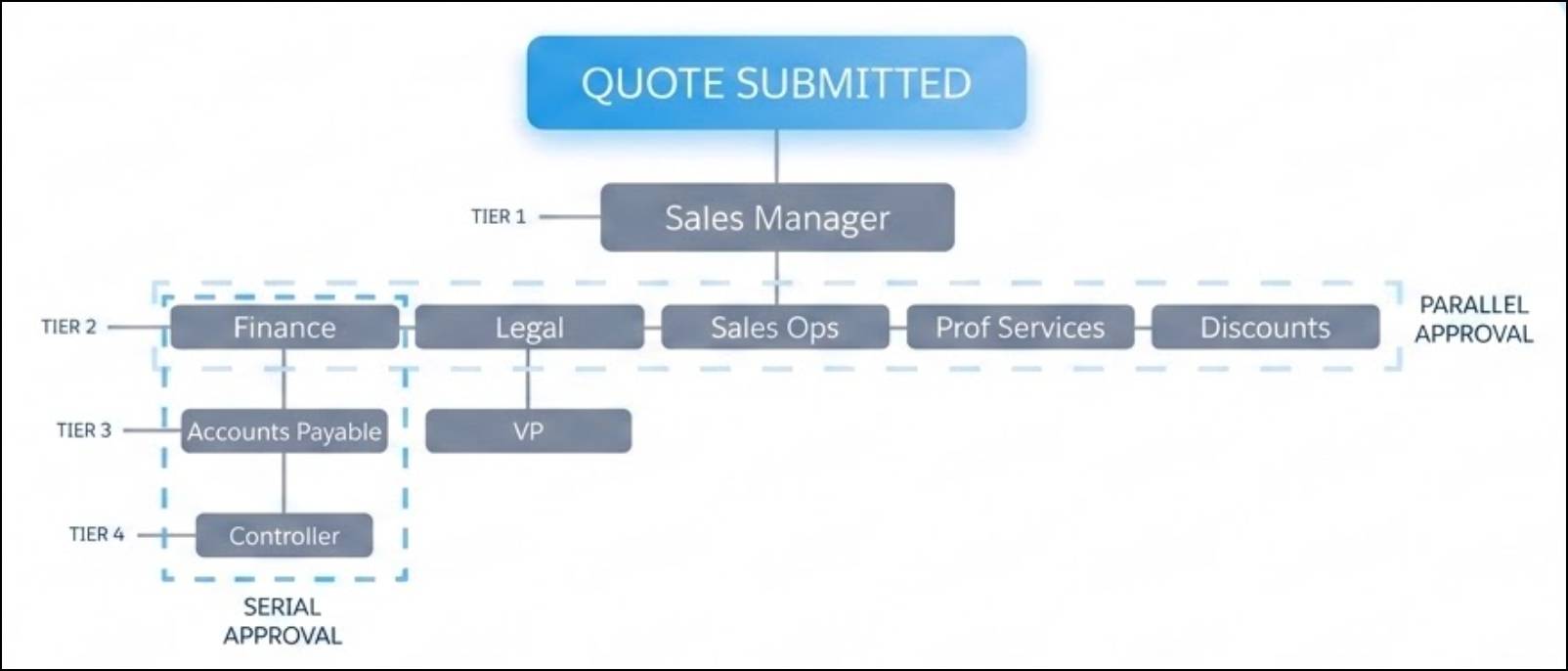
Managing approval processes that involve both serial and parallel reviews can be complex. Advanced Approvals simplifies this challenge by enabling businesses to build sophisticated, multistep approval workflows with flexible routing options. Powered by Flow Builder, it allows approval designers and administrators to enforce business policies, automate approval paths, and adapt to complex approval requirements without writing code.
To understand how Advanced Approvals achieves this flexibility, let's look at the key mechanism that powers it.
Approval Chains and Routing Logic
To implement serial and parallel approvals, you need to understand how approval chains work. An approval chain is a label that identifies the specific group and sequence of approvers for a given process. You create approval chains inside Salesforce’s Flow Builder by adding a Stage element to your flow and assigning approval steps within it. Each step includes an approval chain name that determines how approvers are grouped.
For serial approvals, assign the same approval chain name to every approval step so approvers review the request one after another. For parallel approvals, create multiple approval steps having different approval chain names. This triggers all chains at the same time, allowing multiple approvers to review the request simultaneously.
You can also combine sequential and parallel routing within the same approval process by creating multiple approval chains that run simultaneously while maintaining a defined approval order within each chain. For example:
- Sales chain: Manager → VP → SVP. All steps use the same approval chain name, so approvals occur in sequence.
- Legal chain: Legal team review. This chain uses a different approval chain name and runs independently.
- Finance chain: Finance team review. This chain also uses a different approval chain name and runs independently.
All three chains start at the same time, but the Sales chain processes approvals one by one. The core rule is simple: use the same approval chain name for serial routing and different approval chain names for parallel routing.
Now that you understand how Advanced Approvals supports sequential and parallel routing, move on to explore how it can automate routine approval decisions and help reduce the need for manual review.
Remove Bottlenecks with Auto-Approvals
A sales rep submits a major quote for approval after days of negotiation. It clears Finance and Operations, but Legal rejects it because of a minor typo. After fixing the issue and resubmitting, the entire approval process starts over, forcing every approver to review the same information again. The result? Delays, frustrated customers, and stalled deals.
Advanced Approvals addresses this challenge with two powerful features: Smart Approvals and Rule-Based Auto-Approvals. Follow along to explore what they are, how they differ, and how they eliminate approval bottlenecks.
Smart Approvals
Smart Approvals automatically fast-track records that have already been through the approval process and haven't changed in ways that would affect the previous decision. It streamlines resubmissions by evaluating whether approval steps still need manual review. Each approval step has entry conditions that determine when it's required. For example, a Finance approval step is triggered when the discount on a quote exceeds 10%.
When a record is resubmitted after rejection, Smart Approvals re-evaluate each step's entry conditions. If the values that triggered a step in the previous submission still satisfy the entry conditions and is less than the originally submitted discount, Smart Approvals bypasses the human review queue and auto-approves the record instantly.
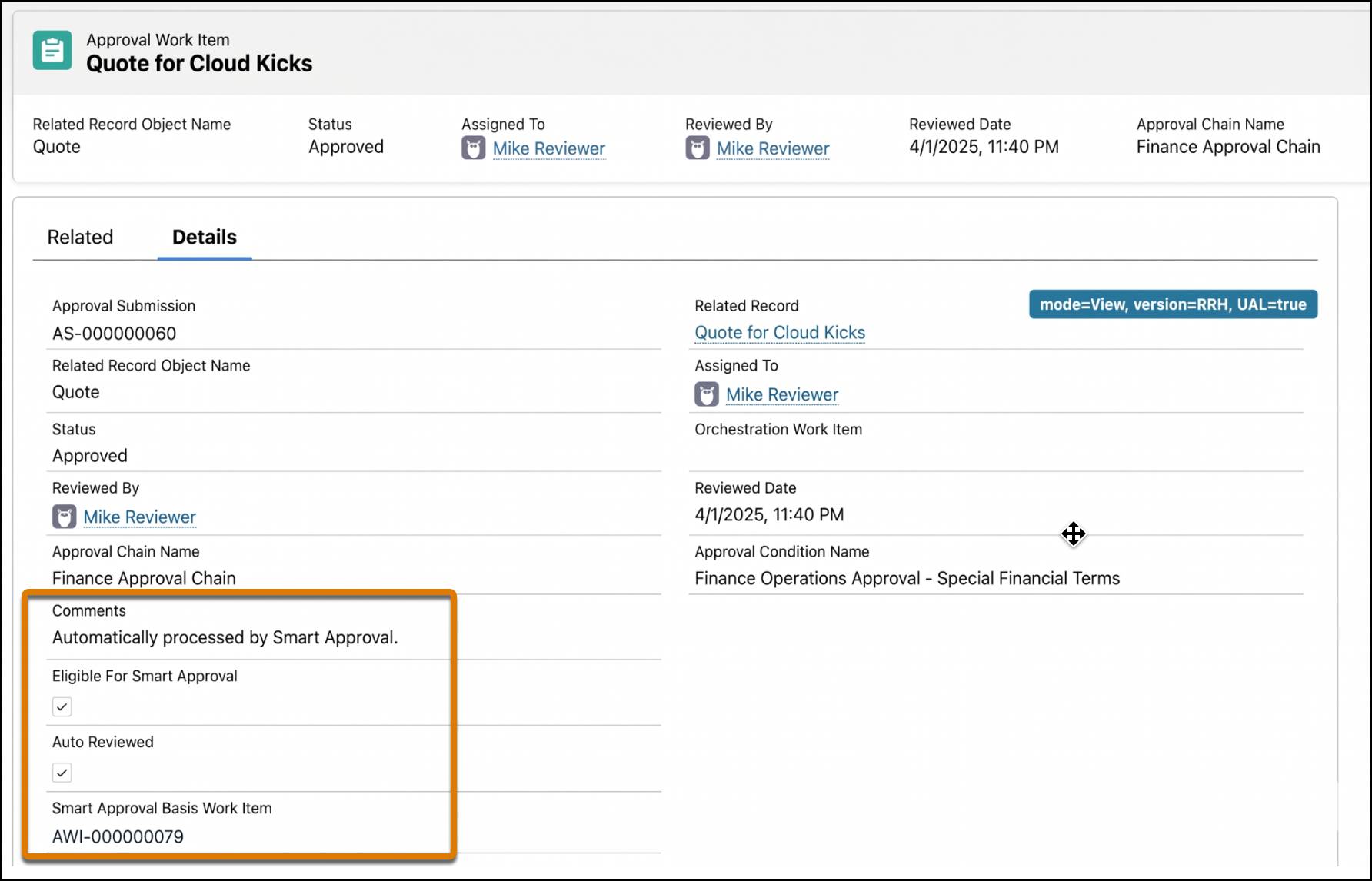
Smart Approvals is configured at the individual approval step level, allowing you to selectively enable auto-approval for specific steps in your approval workflow rather than for the entire approval process. This gives you greater control over which approvals can be automatically bypassed when the relevant conditions remain unchanged.
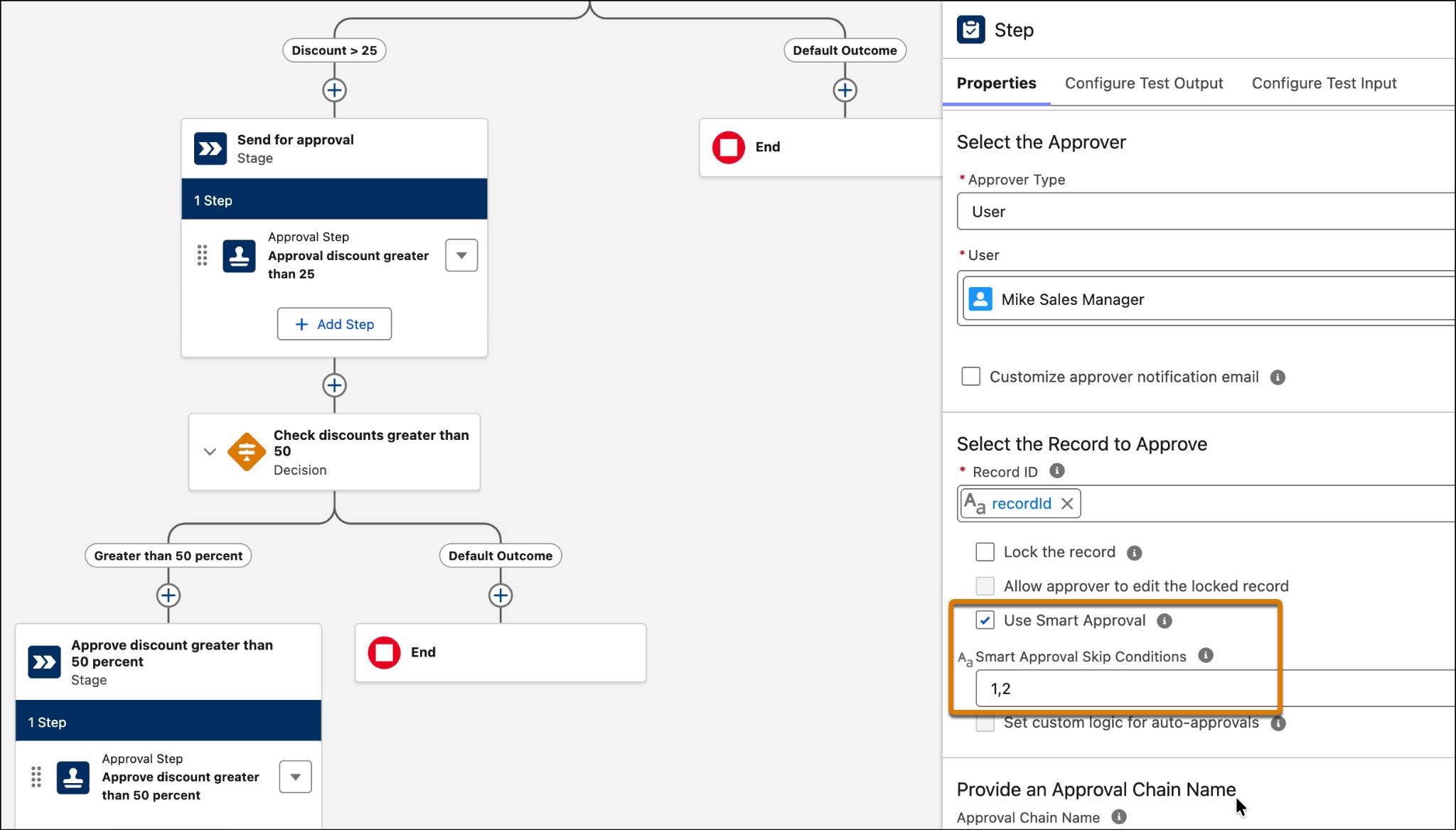
If you want to exclude certain conditions from the Smart Approvals evaluation, specify their condition numbers in the Smart Approval Skip Conditions field as a comma-separated list. This ensures the system always requires a fresh human review for those specific rules whenever a record is resubmitted.
Rule-Based Auto-Approvals
Rule-Based Auto-Approvals use custom logic to determine whether a previously approved step can be automatically approved on resubmission. While Smart Approvals rely on entry conditions to determine auto-approval, Rule-Based Auto-Approvals let you build sophisticated comparison rules using Salesforce flows.
When a record is first submitted, the system saves a snapshot of its data. Later, if the record is resubmitted, the approval engine compares the current values with the saved snapshot. If the changes meet the criteria defined in your rule, the approval step is automatically approved without requiring another manual review. This helps approvers focus on meaningful changes while reducing delays caused by minor updates.
How Rule-Based Auto-Approvals Work
Rule-Based Auto-Approvals operate through three interconnected components: approval steps, background steps, and autolaunched flows.
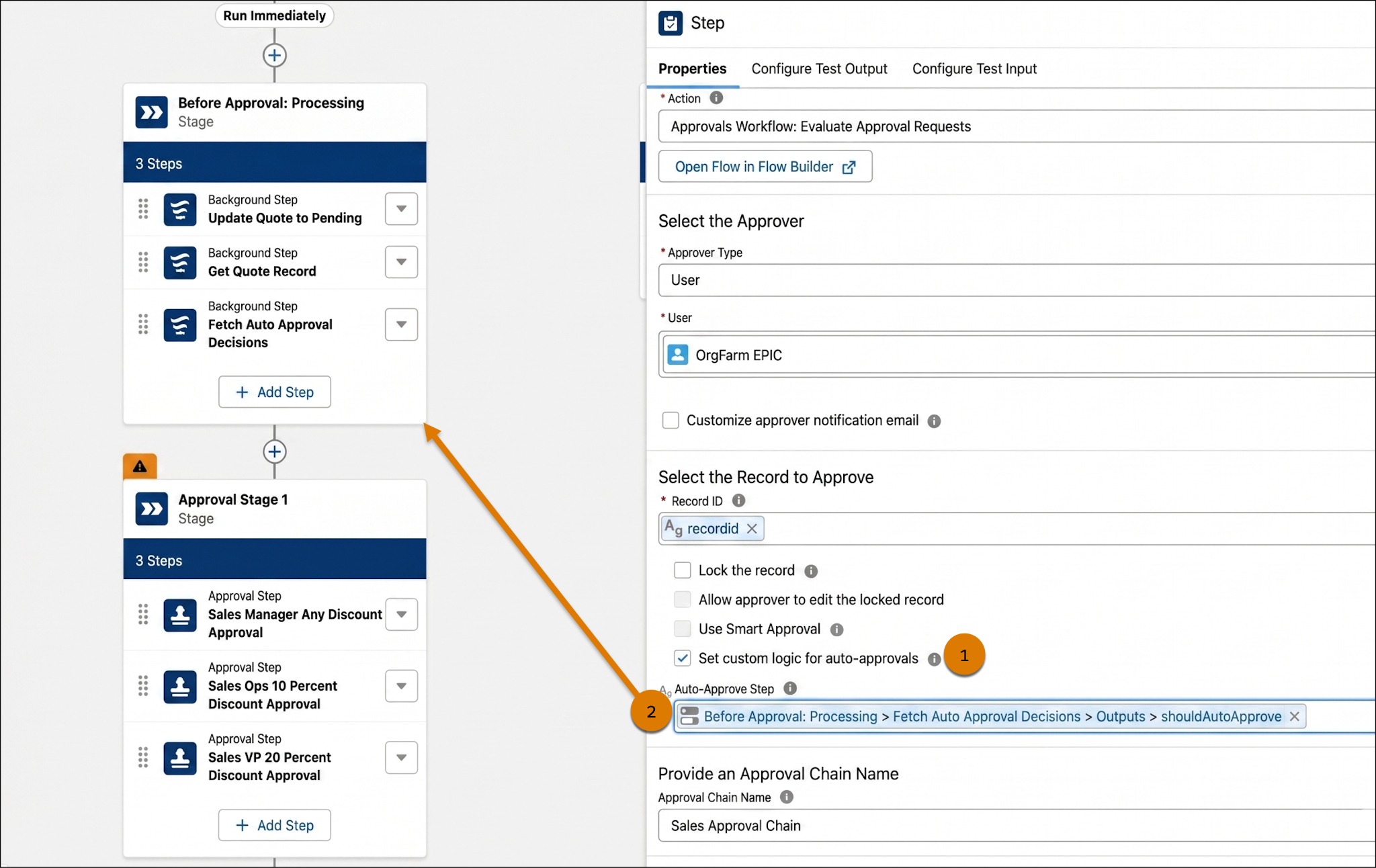
When you configure an approval step to use rule-based logic, you select the Set custom logic for auto approvals (1) option and connect it to a background step (2). This background step acts as a bridge between your approval workflow and an autolaunched flow that contains your comparison logic. The autolaunched flow does all the heavy lifting. It uses a specialized invocable action to retrieve the snapshot record data captured during the previous submission and compares this data against the current record data using standard flow actions. For example, it calculates the difference between the old discount and new discount, checks if that difference is within 5%. Based on the result, the approval engine then decides whether to auto-approve the step or route it for manual review.
The beauty of this architecture is its flexibility. You can build complex comparison logic that goes beyond the capabilities of Smart Approvals, such as percentage-based thresholds, date comparisons, or multi-field evaluations. You have complete control over defining what qualifies as a minor change versus a significant change that requires human review. This level of precision accelerates deal cycles and keeps your pipeline moving efficiently.
Speed Up Approvals with Email and Slack Notifications
Workflows stall when approvers miss requests. Advanced Approvals solves this by bringing review notifications directly into your team's daily collaboration platforms, allowing approvers to act on requests without switching contexts.
Approvals by Email
Email remains one of the most reliable ways to reach approvers, and Advanced Approvals takes full advantage of it. Unlike basic notification systems that send generic alerts, in Advanced Approvals, you can use customized Salesforce Lightning or Visualforce email templates to deliver the exact information approvers need to make fast, informed decisions.
Instead of a simple, “You have an approval request,” your approver receives an email showing the exact quote details, discount percentages, product line items, or contract terms they need to review. This eliminates the need to log in to Salesforce just to understand what they're approving.
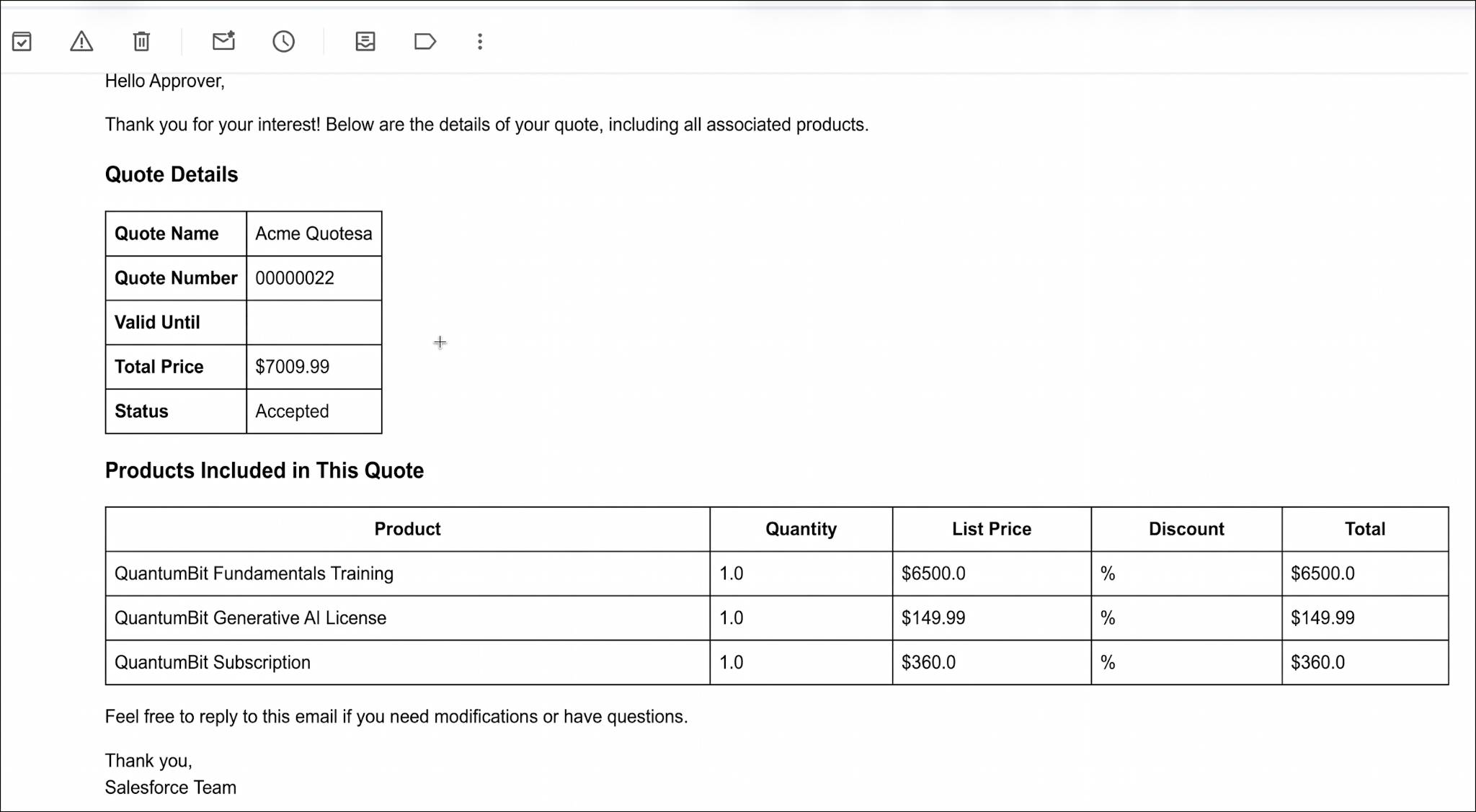
Email notifications cover the full approval lifecycle. Approvers receive alerts when submissions are created, approved, rejected, reassigned, or auto-approved. To set this up, use the Configure Approval Alerts tile in the Approvals Home page. From there, you create Approval Alert Content Definitions that link your preferred templates to specific approval workflows, as shown here.
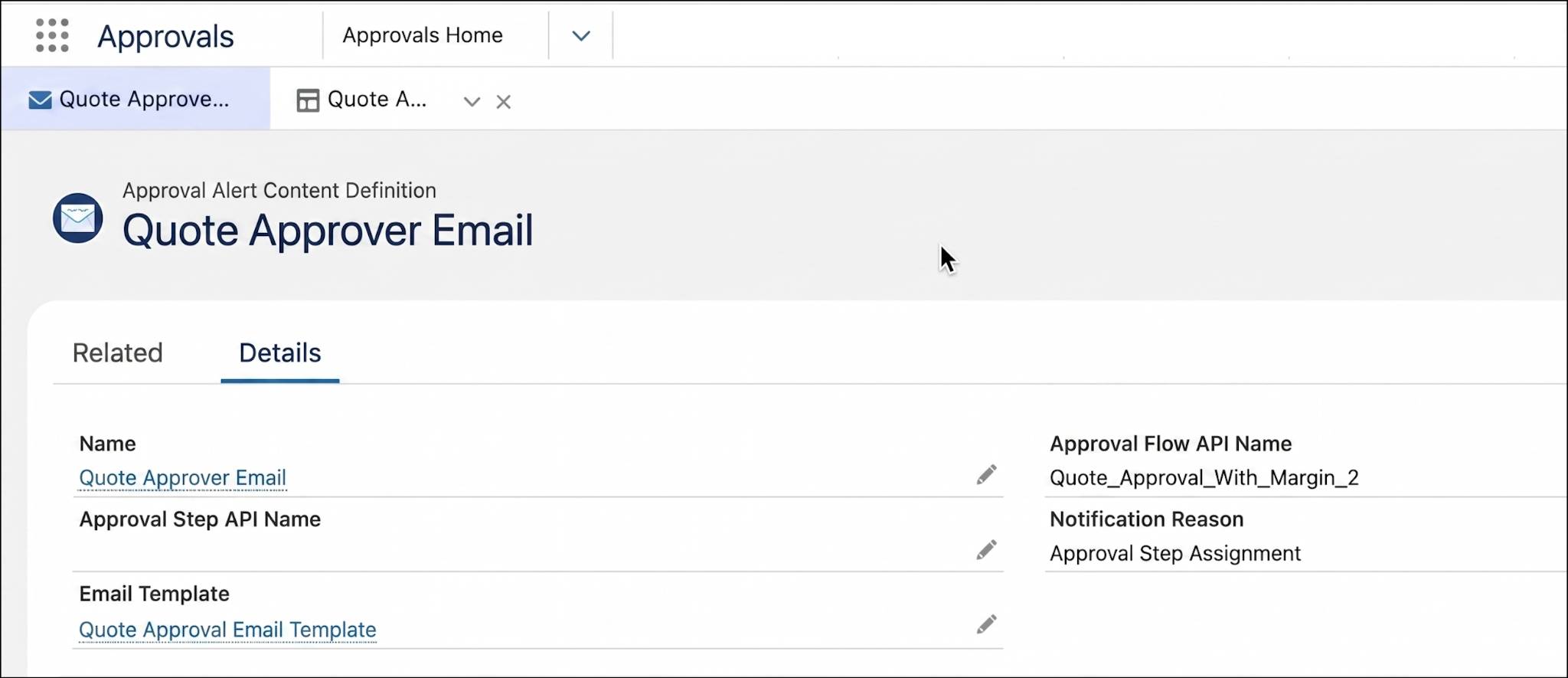
You can also assign different email templates to individual steps within an approval workflow, ensuring the information is always relevant to that specific stage. This targeted approach reduces back-and-forth communication and accelerates the entire approval cycle.
Approvals in Slack
For teams that live in Slack, Advanced Approvals brings the entire approval experience directly into your workspace. Instead of monitoring email or checking Salesforce, approvers manage everything from Slack.

The Salesforce app in Slack provides approvers with a dedicated approval space where they can view all pending submissions and assigned work items at a glance. No more hunting through email threads or switching between multiple tabs. Everything lives in one unified command center. When the approver selects Approve or Reject, the action syncs back to Salesforce in real time.
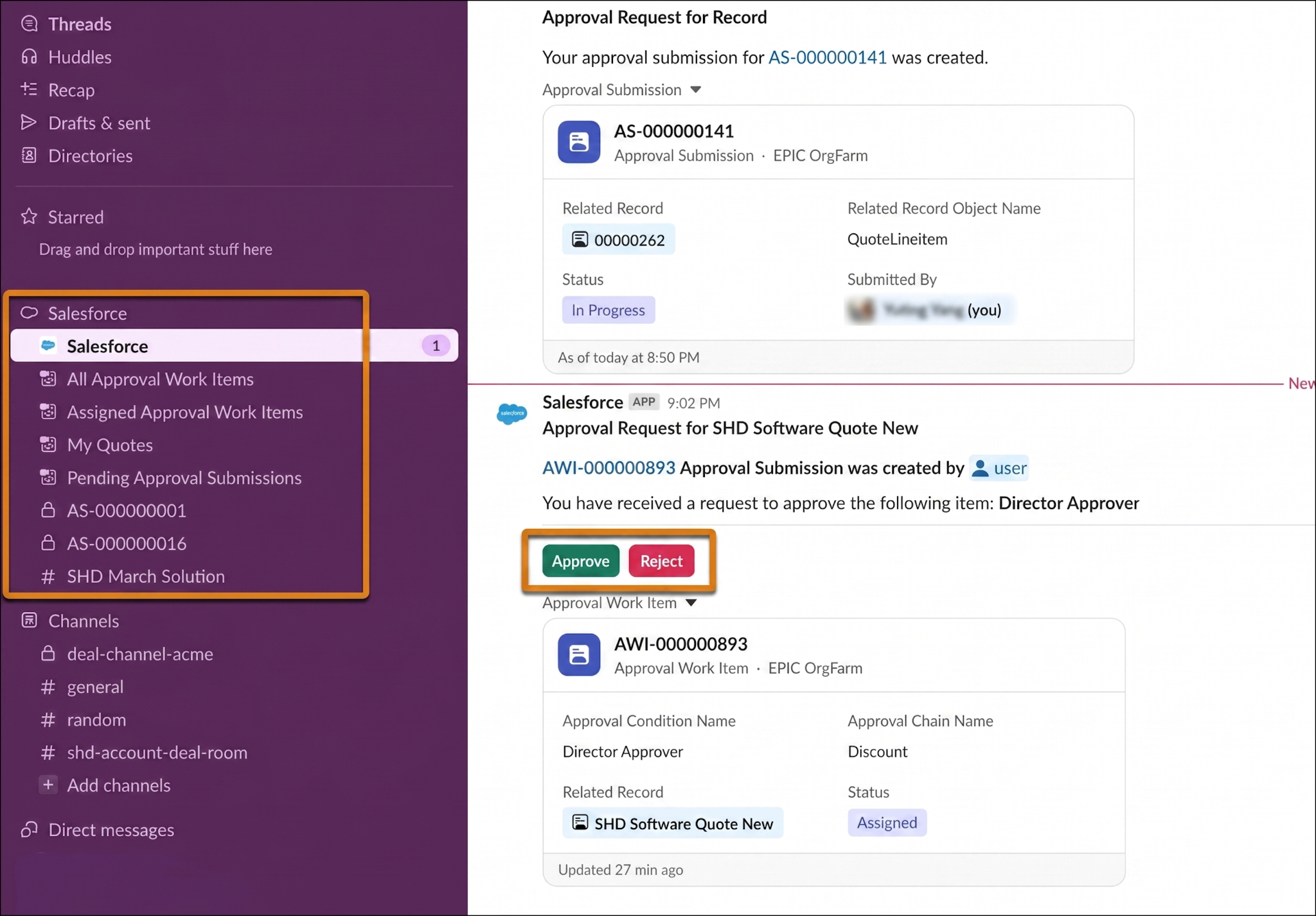
Approvals in Slack centralize key decisions right where your team already works, thus driving momentum, eliminating context switching, and speeding up response times.
Up Next
You explored approval routing options and discovered how smart features can eliminate bottlenecks. Next, you move on to build a discount approval workflow that lays the foundation for your approval framework.