Create Custom Dashboards with Widgets
Learning Objectives
After completing this unit, you’ll be able to:
- Create a new personalized dashboard in Cloud Data Governance and Catalog.
- Identify the types of widgets available for a custom dashboard.
- Describe various actions, including clone, edit, rearrange, and delete, to manage widgets.
- Share and manage dashboards with other users, user groups, and roles.
Before You Start
Before you start this badge, consider completing this recommended content.
-
Informatica Cloud Data Governance and Catalog Fundamentals
-
Data Asset Discovery in Informatica Cloud Data Governance and Catalog
-
Business Assets in Informatica Cloud Data Governance and Catalog
-
Informatica Cloud Data Governance and Catalog QuickLook Extension
-
Data Asset Quality and Classification in Informatica CDGC
-
Data Lineage and Asset Relationships in Cloud Data Governance and Catalog
Your Dashboard, Your Way
Data governance works best when teams have access to the right information and can act on it fast. Informatica Cloud Data Governance and Catalog (CDGC) makes this possible through customizable dashboards and collaborative workflows.
While CDGC includes a default dashboard set up by your administrator, you can build your own. A dashboard is a customizable page where you add and arrange widgets—building blocks that display governance information relevant to you.
Angela Duran, a business analyst at Infiwave, needs to create a personalized dashboard to track her team’s daily governance activities—like data quality scores and open governance tickets. She also wants to use workflows and comments to keep stakeholders accountable.
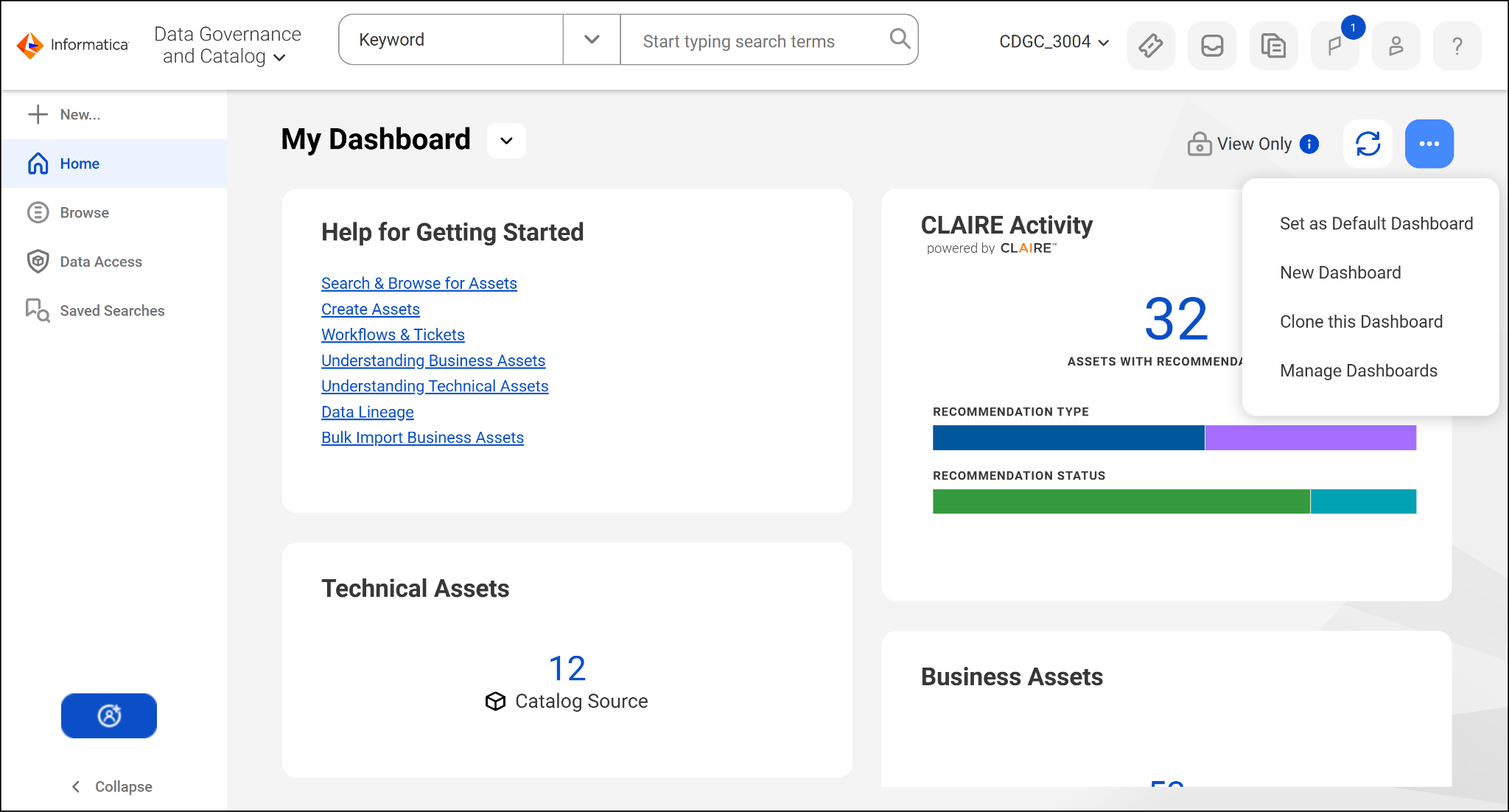
Useful shortcut: When requirements for a new dashboard are similar to an existing one, clone it and modify it as needed.

Meet the Seven Widget Types
A widget is a block within a dashboard that displays useful summaries of assets. Multiple widgets can be included on a dashboard, and each one can be selected to explore in further detail. Widgets can be edited, cloned, or deleted at any time.
CDGC offers seven types of widgets, each designed for a specific monitoring need.
-
CLAIRE Activity: This widget provides insights into the recommendations made by the CLAIRE AI engine within CDGC. It displays the total number of recommendations and categorizes them by recommendation type—such as data classifications, glossary associations, and generated classifications. It can also categorize them by status, including accepted, declined, or pending. CLAIRE Activity helps you quickly understand where actions are required.
-
Data Observability: This widget monitors and identifies anomalies within source data. It visualizes open events—anomalies detected in datasets or catalog sources—as either a donut chart or a list. Group anomalies by severity or metric to prioritize your response.
-
Data Quality: This widget provides an overview of the data quality state of your governance program based on the search criteria you define. Select the data source from assets, saved searches, or a new search query. The widget displays quality scores across dimensions like completeness, accuracy, and validity, and color-codes them as good, acceptable, or not acceptable. Create visualizations as bar, score, and donut charts.
-
Job Monitoring: This widget provides real-time updates about both running and completed jobs in the data governance environment. Configure the title, description, and type of jobs to monitor. Choose to display results as a count or list.
-
Notice Board: The Notice Board widget is a simple, customizable text widget you can pin to your dashboard to display notes, reminders, or references. It’s ideal for quick announcements, guidelines, or scheduled updates relevant to your team or organization.
-
Search Based: The Search Based widget dynamically displays the results of a predefined search query. Define the data source using a saved search or a new query. Display options include list (detailed table of assets), count (total number of assets matching the criteria), bar chart, and donut chart.
-
Tickets: The Tickets widget lets you monitor and manage tickets related to various assets directly from your dashboard. Access a list or count of tickets and their details, such as status, type, and associated asset information.

Add and Configure Widgets
With her dashboard ready, Angela adds the widgets her team checks daily. From the personalized dashboard, she selects Add Widget, chooses the widget type, and configures its settings—which vary depending on the widget. For example, a Data Quality widget requires a data source and visualization type, while a Notice Board widget just needs a title and text content.
Before saving, she selects Show Preview to see how it looks and then drags widgets into the arrangement that works best for her team.
Manage Your Widgets
Once widgets are on your dashboard, you have full control over how to display and organize them. You can perform the following actions on any widget.
-
Clone: Create a copy of an existing widget and modify it. This is useful when you want a similar widget with just a few changes.
-
Edit: Update the configuration of an existing custom widget, such as changing the data source, title, or visualization type.
-
Rearrange: Drag widgets to reorder them on the dashboard.
-
Delete: Remove a widget that’s no longer needed.
Share and Manage Dashboards
As the dashboard owner, Angela can share her dashboard from the Options menu. She selects Manage Sharing and chooses a sharing scope—private, specific users, or all users in the organization. When sharing with specific users, she assigns View or Edit permissions and can choose to include the saved searches used in her widgets.
All dashboards, including ones others have shared with you, can be managed from the Manage Dashboards option. There are three sharing options.
-
Share with specific users, user groups, and roles: Share the dashboard with one or more selected users, user groups, or roles and assign them either View or Edit permissions.
-
Share with all users: Make the dashboard accessible to everyone in the organization. In addition, assign View or Edit permissions.
-
Private: Restrict access to the owner only, which removes access for all previously shared users.
Check out this video to learn more about dashboards, widgets, and sharing.