Explore the Dispatcher Console
Learning Objectives
After completing this unit, you’ll be able to:
- Navigate to the classic dispatcher console.
- Check out the appointment list and Gantt.
- View real time traffic data on a map.
Open the Classic Dispatcher Console
Now that you’ve got the basics down, it’s time to take your field service operations to the next level. You’ve already gotten a taste of what the Field Service Admin app can do, in Field Service Basics and Field Service Scheduling. It’s where you configured scheduling policies and set up global actions. But here’s the key distinction: the Field Service Admin app is designed for the people who need to configure and maintain your org while the Field Service app is built for the people on the front lines of your field service operations. This is where your dispatchers and service representatives spend their time creating and tracking work orders, setting up appointments and managing the mobile workers out on the field using the dispatcher console. Let’s review the appointment list and real time traffic data.
Scan Service Appointments
- From the App Launcher
 , search for and select Field Service.
- Select the Classic Dispatch Console tab. It may take a few minutes to load the page.
When you open the dispatcher console, there are service appointments listed and the Gantt schedule is displayed. The appointment list is easy to customize. You can filter, sort, and search within the list, and perform actions on selected appointments. Here’s a review of the basics.

-
Policy (1): Choose the policy Field Service uses to schedule appointments. Right now, the console is using the default Customer First scheduling policy, but you can change it if your needs change, such as during an emergency.
-
Territories
 (2): Used to select the service territories, and to display appointments not associated with a service territory.
-
Settings
 (3): Used to customize the appearance of the appointment list, such as appointments per page and default sidebar view.
-
Time frame (4): Used to choose different types of dates to display or set a time horizon. You can also set it to view the appointments that match the Gantt date.
-
Service appointments displayed (5): By default, you get to view all service appointments, but you can filter them as needed, such as viewing only unscheduled appointments. If you don’t see a suitable filter, you can create a custom one.
-
Actions for selected appointments (6): If you select one or more appointments, you can then choose to schedule, dispatch, flag, unflag, or optimize them.
Explore the Gantt Schedule
Taking up a majority of the page is the Gantt schedule. The Gantt contains the resource list, the schedule view, and many features that help a dispatcher monitor their team’s schedule. Let’s explore the different areas of a sample Gantt schedule.

- Assess the health of your schedule at a glance by checking the key performance indicator (KPI) bar (1). The bar shows stats like total scheduled time, average travel time per appointment, and the number of appointments that are in jeopardy.
- Use the
 (2) at the top of the Gantt to filter which mobile workers and records appear on the Gantt. For example, filter mobile workers by skill or resource type. From the filter, you can also control which hours of the day are shown, apply a custom color scheme, and customize the long-term and utilization views.
- Control the time frame (3) using the arrows and calendar.
- The resource list (4) shows mobile workers organized by territory. You can display custom text under a mobile worker using the Gantt Label field to better display their title and expertise.
- The schedule view (5) at the center shows appointments, absences, breaks, travel times, and service crew assignments. You can use Gantt keyboard shortcuts to view records and navigate the schedule view.
Review Traffic Conditions in Real Time with Maps
The dispatcher console doesn't just show you where your technicians are, it shows you the world they're moving through. The integrated Google Maps view displays the locations of your appointment, your resources, your territories—and the traffic conditions that connect them all. Here’s how to view all that:
- In the Gantt, select Map.
- Select Traffic.
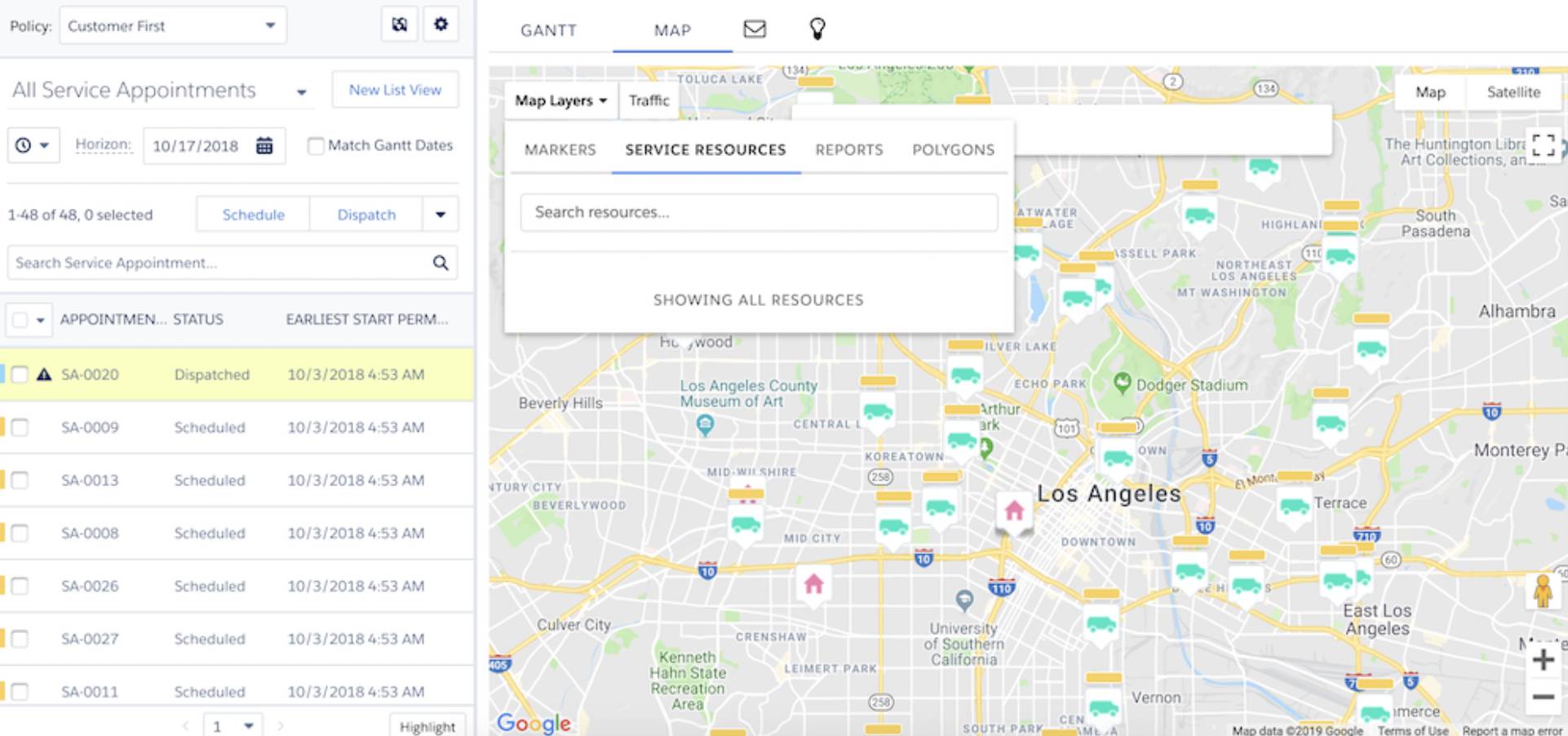
Since travel time considerations and traffic make up a major part of modern day scheduling, having real-time traffic data at your fingertips can make all the difference between a smooth day of appointments and a logistical nightmare.
Imagine you’ve scheduled three appointments for one of your technicians spaced based on typical travel times. But then rush hour hits, or there's an unexpected accident on the highway. Without real-time traffic visibility, you wouldn't know there's a problem until your technician is already running late and customers start calling. But with the traffic map embedded right in your dispatcher console, you can spot delays before they impact customers and make informed reassignment decisions. This means fewer missed appointments, happier customers, and field technicians who can focus on service delivery instead of fighting through unexpected traffic.
In the next unit, you’ll get hands-on in the Dispatcher console. Let’s get to it!
Resources
- Salesforce Help: Work in the Field Service Classic Dispatcher Console
- Salesforce Help: Working in the Classic Field Service Dispatcher Console Map
- Salesforce Help: Gantt Keyboard Shortcuts