Set Up Token Grants and Resource Rates
Learning Objectives
After completing this unit, you’ll be able to:
- Assign grants for token resources.
- Set resource rates in tokens and token rates in currency.
Bring Token-Based Selling to Life
In the last unit, Liam defined the token resource and the AI Agent Interactions usage resource. He then connected both to the AI Services Plan using product usage resources. But customers can’t actually use these tokens until the system has three critical pieces of information.
- How many tokens do customers receive when they purchase the AI Services Plan?
- How many tokens does each AI Agent Interaction cost?
- How much does each token cost in real currency?
In this unit, you allocate token grants, define resource rates in tokens, and set token rates in currency.
Allocate Token Grants
Token grants are the initial balance of tokens that customers receive when they purchase your product. Think of it as a welcome bonus or included usage—it makes the product more attractive and gives customers immediate value.
For the AI Services Plan, InfinitraBytes wants to provide 1,000 credits as included usage for its token resource. This means that when a customer pays the $100 monthly fee, they automatically receive 1,000 credits deposited into their wallet.
Remember, when creating a product usage grant, set the Status to Draft and save the record. You cannot set the Status to Active during the initial creation. Return to the record later to set the Status to Active.
Follow along with Liam to create the product usage grant.
- From the App Launcher, find and select Product Usage Grants.
- Click New.
- Add these details to assign grants for the token resource.
- Product Usage Resource: Find and select the PUR for AI Credits that you created in the last unit.
- Label:
AI Credits Grant - Status: Draft
- Quantity:
1000
- Unit of Measure Class: Credit UoM Class
- Unit of Measure: Credits
- Usage Definition Products: AI Services Plan
- Validity Period Term:
1 - Validity Period Unit: Month
- Drawdown Order: Expiring First
- Refresh Policy: Mobile Plan Renewal Policy
- Rollover Policy: Mobile Plan Rollover Policy - Allowed
- Effective Start Date: For Date, select today’s date – 4 days, and for Time select 12:00 PM.
- Product Usage Resource: Find and select the PUR for AI Credits that you created in the last unit.

- Save your work.
Review the data for accuracy. When ready, activate your product usage grant.

You've successfully allocated 1,000 credits as included usage. When a customer purchases the AI Services Plan, Agentforce Revenue Management automatically creates a wallet and deposits these 1,000 credits into it.
Set Up Resource Rates
In the Usage Management with Agentforce Revenue Management badge, you explored why rate cards and overage pricing are important for usage-based products. Now it’s time to apply those concepts to token-based selling.
Token-based pricing works through two layers of rates, each serving a different purpose.
-
Points Per Unit (PPU): Defines how many tokens a customer must spend to use a specific service. For example, one SMS message equals five tokens, and 1 GB of data equals 10 tokens.
-
Price Per Point (PPP): Defines the currency value of a token, such as $0.75 per token.
Together, these rates power the token model. Customers spend tokens to consume services, and when their token balance runs low, they can purchase more tokens at the defined currency rate.
Time to revisit the AI Services Plan use case to see how these rates apply.
Usage Resource |
Product Usage Grants |
Overage Allowed |
Rate |
Rate UOM |
|---|---|---|---|---|
AI Agent Interactions |
0 |
Yes |
2 |
Credits |
AI Credits |
1000 |
Yes |
1 |
USD |
Here, each AI Agent Interaction consumes 2 tokens, and each token costs $1. With the included grant of 1,000 tokens, a customer can make 500 AI Agent Interactions at no additional cost. However, if the customer runs out of tokens and continues making AI Agent Interactions, the system calculates overage charges at $1 per token.
Join Liam to configure this in your Developer Edition org.
- From the App Launcher, find and select Rate Cards.
- Click New.
- Add these details to create a Base Rate Card.
- Name:
AI Services Plan Base Rate Card - Description:
AI Services Plan Base Rate Card - Rate Card Type: Base
- Effective From: For Date, select today’s date – 3 days, and for Time select 12:00 PM.
- Name:
- Save your work.

With your Base Rate Card now set up, the next step is to define the individual rate card entries for each usage resource.
Create Rate Card Entries
When creating a rate card entry, set the Status to Draft. After the record is created, you go back and update the Status to Active. Let’s create one.
- On the newly created Base Rate Card page, navigate to the Related tab.
- For Rate Card Entries, click New.
- Add these details.
- Usage Resource: AI Agent Interactions
- Product Selling Model: Term Based - Monthly
- Product: AI Services Plan
- Status: Draft
- Rate Unit of Measure: Credits
- Rate:
2 - Effective From: For Date, select today’s date – 3 days, and for Time select 12:00 PM.
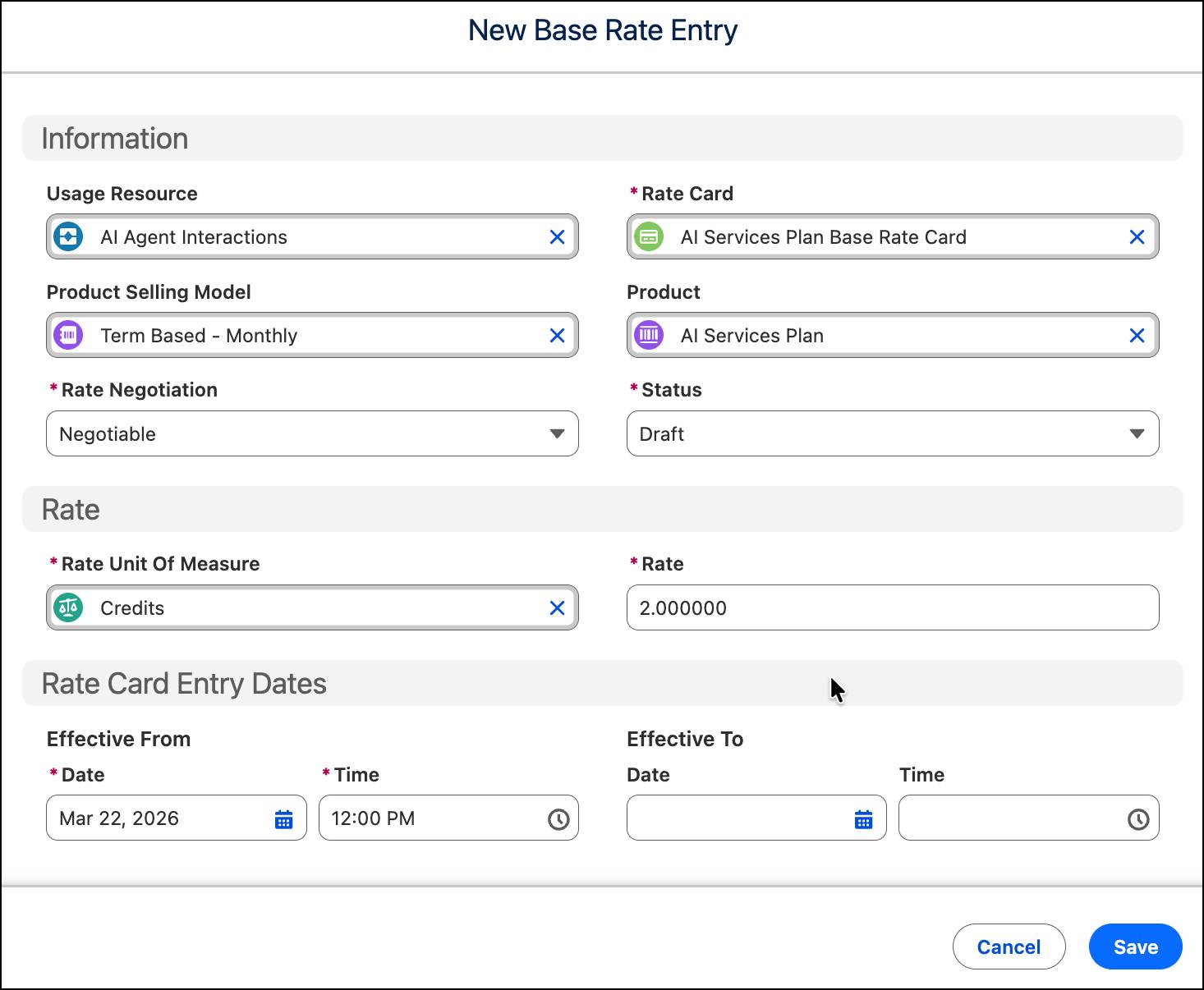
- Click Save & New.
- Add these details for the new rate card entry.
- Usage Resource: AI Credits
- Product Selling Model: Term Based - Monthly
- Product: AI Services Plan
- Status: Draft
- Rate Unit of Measure: USD
- Rate: 1
- Effective From: For Date, select today’s date – 3 days, and for Time select 12:00 PM.
- Save your work.

Review the rate card entries for accuracy. When ready, open each newly created rate card entry and activate it.

Make sure to save your changes.
Assign the Rate Card to a Pricebook
Next, Liam links the AI Services Plan Base Rate Card to the Standard Price Book. This step connects these rates to the price book used in quotes, ensuring that overage pricing is available for quoting and sales.
- From the App Launcher, find and select Price Book Rate Cards.
- Click New.
- Add these details.
- Price Book: Standard Price Book
- Rate Card: AI Services Plan Base Rate Card
- Price Book: Standard Price Book
- Save your work.
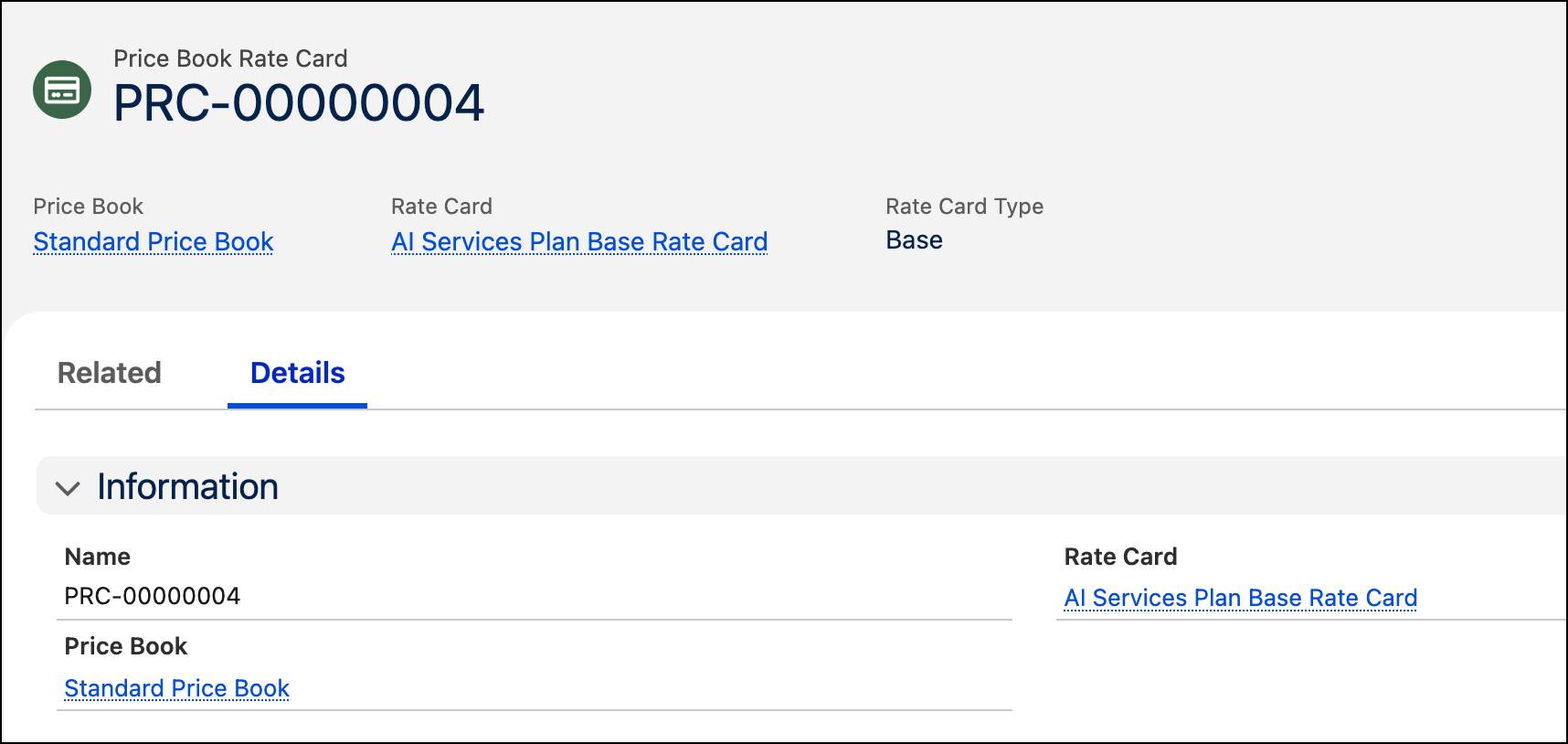
You have linked the AI Services Plan Base Rate Card with the Standard Price Book.
Great job! You've successfully set up a token-based selling model for the AI Services Plan. In the next unit, you test this on a quote and see it in action.
To pass the challenge and move on to the next unit, click Check Challenge to Earn Points.
Resources
- Salesforce Help: Create a Product Usage Grant
- Salesforce Help: Create a Rate Card
- Salesforce Help: Create a Rate Card Entry for Base Rate Cards
- Salesforce Help: Create Price Book Rate Cards