Design a Business Capability Map
Learning Objectives
After completing this unit, you’ll be able to:
- Customize a Salesforce diagram in Lucidchart with point and click, drag and drop functionality.
- Distribute a diagram using Lucidchart’s sharing feature.
Build the Dream Using Lucidchart
In this unit, you follow how an architect would modify the business capability map in Lucidchart. If you don’t have it open yet, go ahead and sign in to Lucidchart and open the business capability map so you can follow along.
You dive right into modifying the diagram, using a subset of Lucidchart’s capabilities available for free. If you’d like to review Lucidchart’s capabilities further, check out Resources for more in-depth documentation at the end of this unit.
Update the Title
From your discussion with the CEO and several other DreamHome Realty leaders, you homed in on the key themes—growth, loyalty and referrals, and national reach. These will be your business drivers. And you spent time thinking about a unifying idea—DreamHome for Everyone. That’s as great a vision as any.
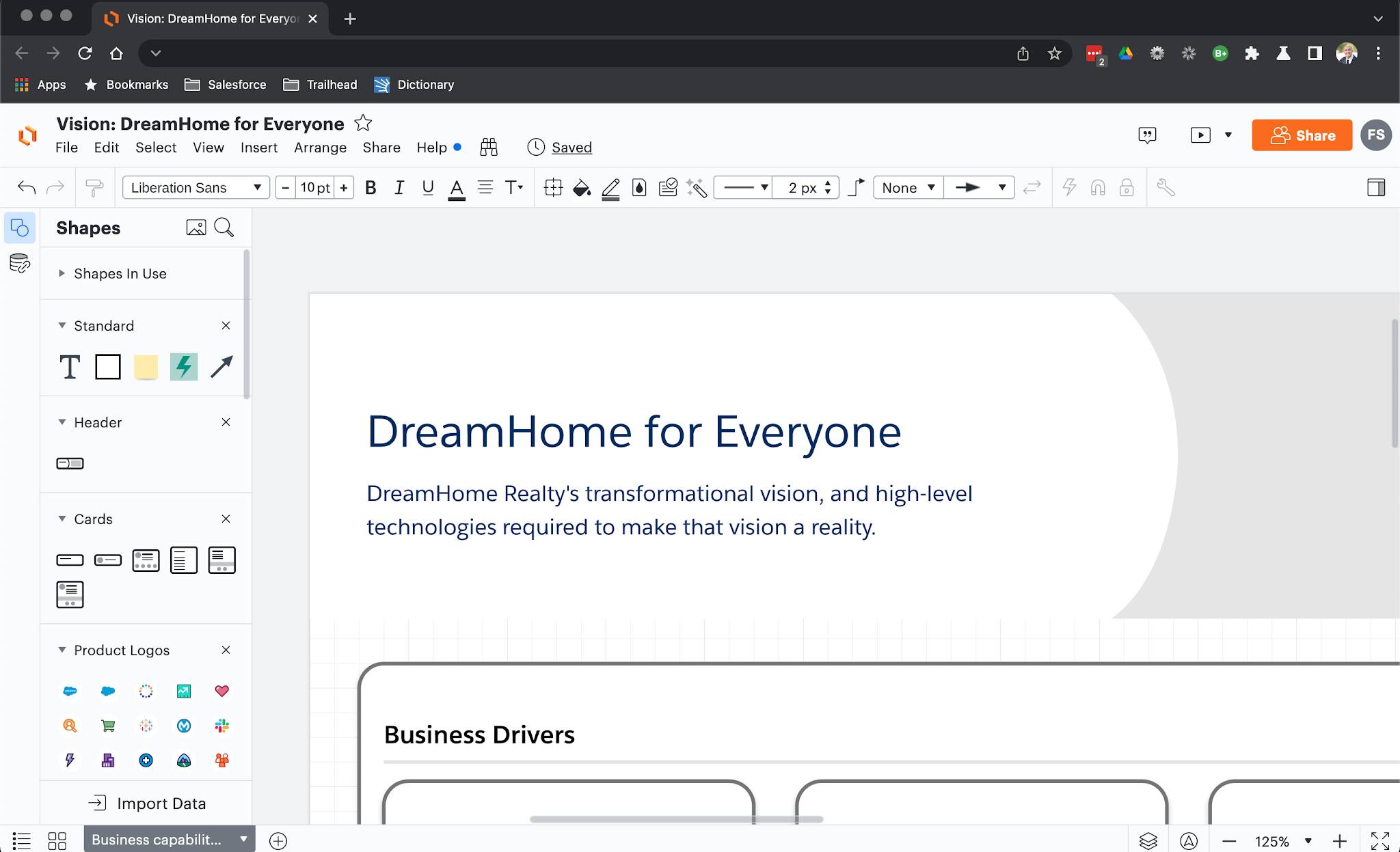
- Click the diagram title at the top of Lucidchart. Replace it with
Vision: DreamHome for Everyone.
- Click on the red shape Your Logo Here and press delete on your keyboard to remove it.
- Then, double click on the diagram header and replace it with
DreamHome for Everyone.
- Last thing for this section. Delete the introductory text and replace it with
DreamHome Realty’s transformational vision, and technologies required to make that vision a reality.
Customize Business Drivers
Adjust the business drivers to match the DreamHouse Realty’s goals for the future.
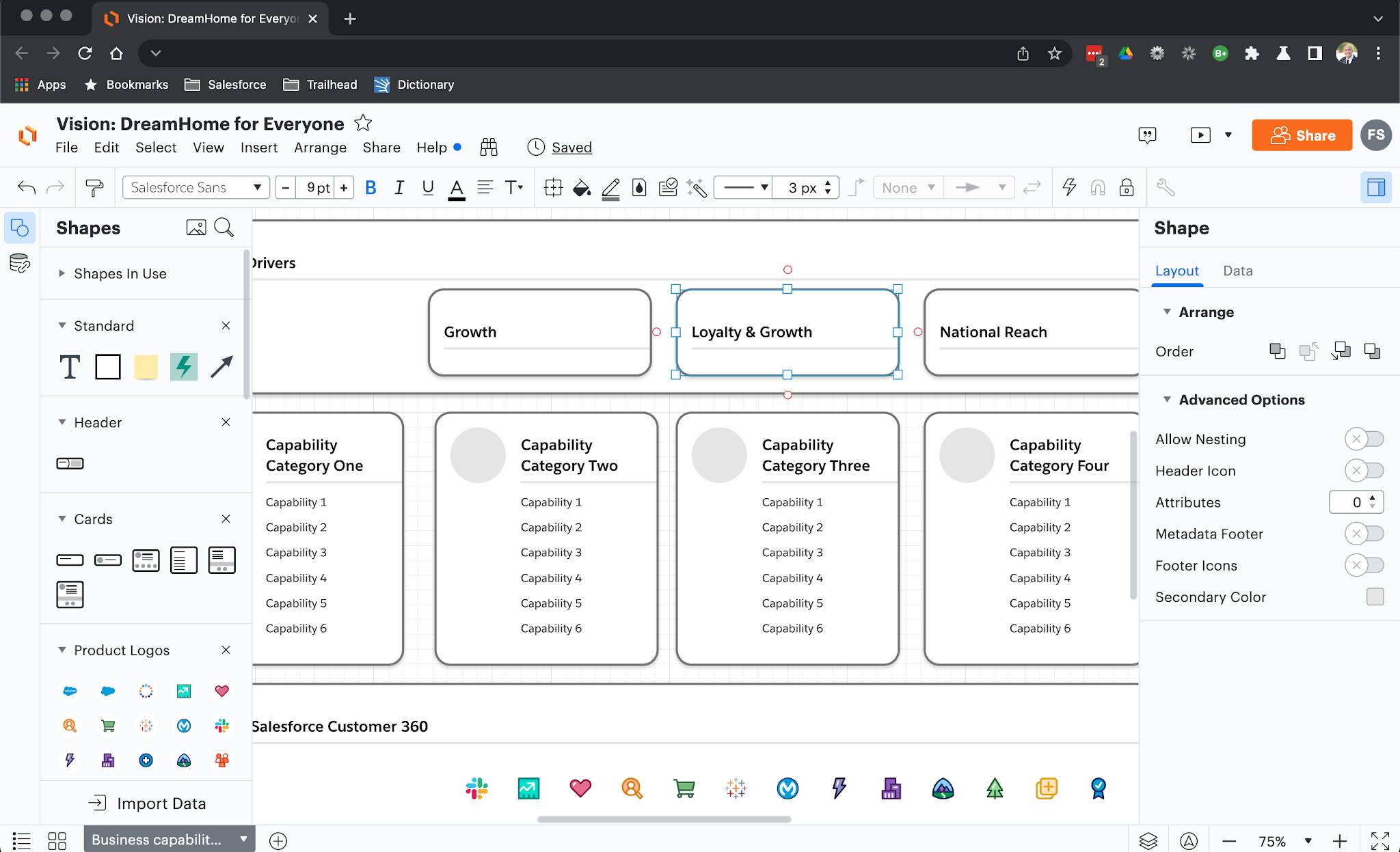
- Replace the template text with specific business themes by double clicking the text.
- Replace Revenue Growth with
Growth - Replace Customer Retention with
Loyalty & Referrals - Replace New Product Launch with
National Reach
- There are two business driver shapes left. Go ahead and delete them.
- Then center the drivers on the page.
- Hold shift on your keyboard and click on each driver shape so that all three are selected.
- Let go of the shift button and your mouse button.
- Click and hold on the shapes again.
- Then slide the shapes over to coordinates X 395 px Y 420 px. You should see a line appear in the middle of the page indicating the three shapes are centered.
Reflect DreamHome’s Current and Future Technology Stack
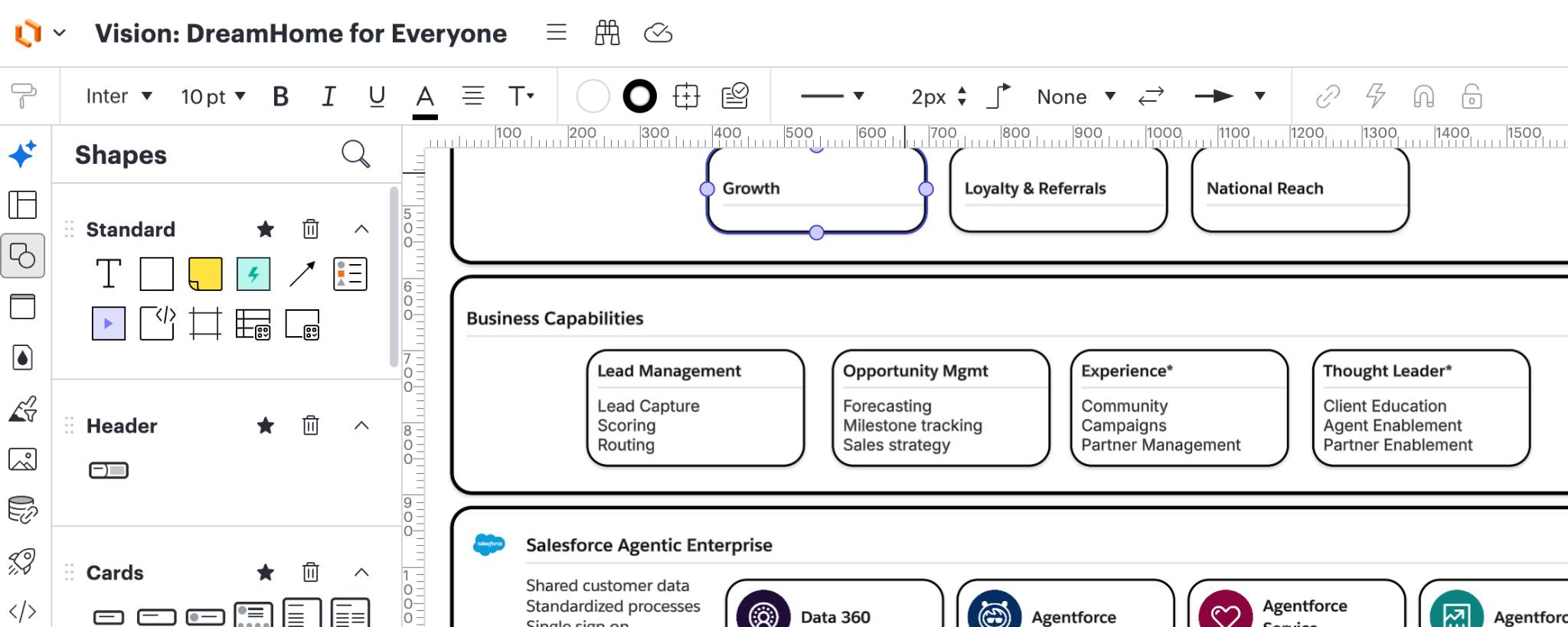
DreamHome already has key components of the architecture in place. Expanding on the data model and adding a loyalty and referral system will make this vision a reality. Indicate this with Salesforce iconography and key details in each capability category.
- If you don’t see the Salesforce icons in Shapes, you may need to enable them.
- Click the Shapes button
 to open the Shapes pane.
- Then, click More Shapes.
- Search
salesforce architecture.
- Check the Salesforce Architecture Diagram box and ensure all other boxes underneath are also checked.
- Then click Use selected shapes.
- Click the Shapes button
- Delete Capability Category, Customer Engagement.
- Lastly, center the four Capability Category columns to X 228 px Y 702 px, similar to how you did with the drivers above.
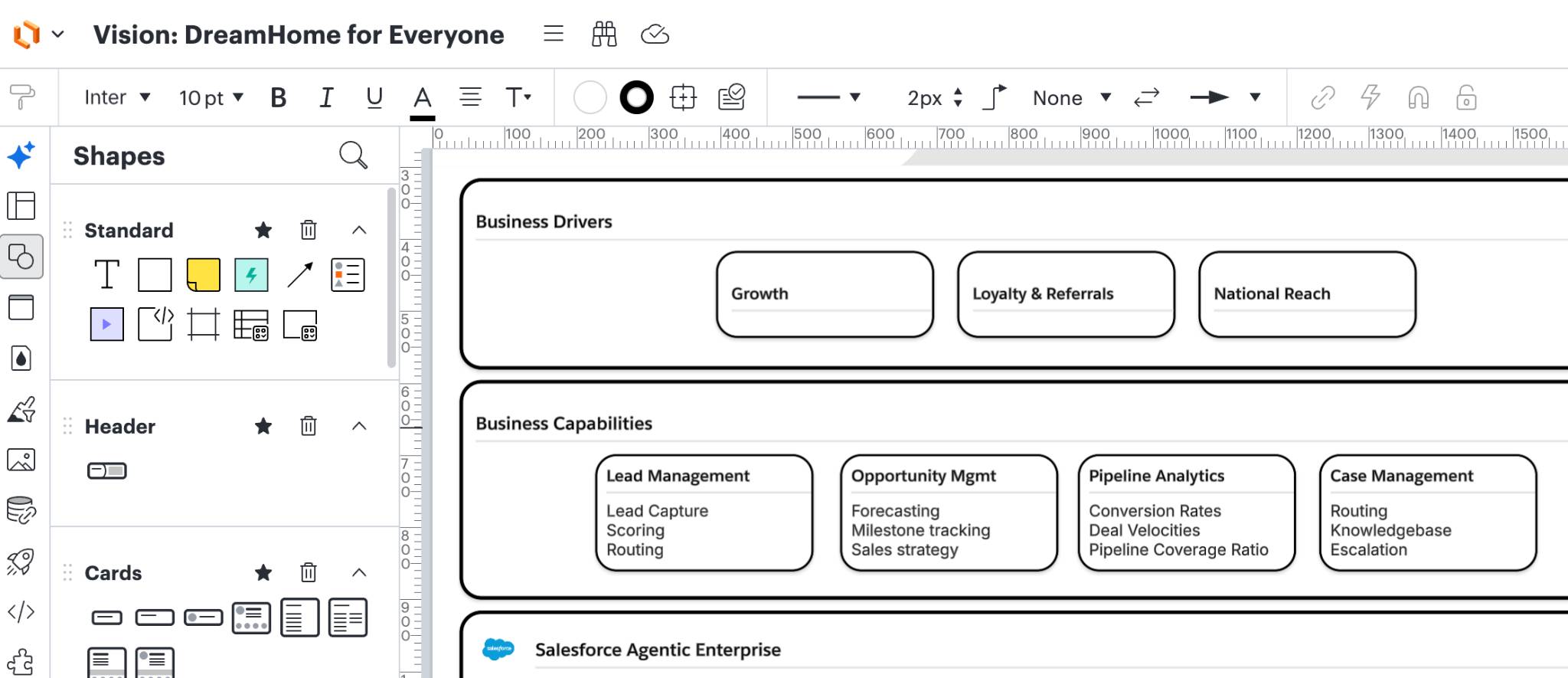
- Replace the generic Capability Categories with specifics about DreamHouse Realty’s current and future stack.
- Replace Pipeline Analytics with
Experience*. The * will help your viewers know that this will be a new technology that needs to be built.
- Replace Case Management with
Thought Leader*
- Finally, for each category list the functional Details.
- Under Experience*, list
Community,Campaigns, andPartner Management.
- Under Thought Leader*, list
Client Education,Agent Enablement, andPartner Enablement.
- Leave the rest as-is.
Share and Get Feedback Immediately
This diagram isn’t completely polished, but that’s the point. You leave space for the CEO and DreamHome Realty leadership to review and add their own ideas. Now all you need to do is share the diagram. You simply click the Share button at the top, add everyone’s email, then click Invite.
By the end of the day, the team makes a few comments and additions to each capability. The CEO says, “Overall, this is great! Thank you. Make the necessary tweaks, and let’s meet with the team later this week to discuss next steps.” That’s it! They’re on board with the vision and you come up with suggested next steps you can introduce in the upcoming meeting.
Put It All Together
In this module, Lucid breaks down the essentials of effective diagrams with the 3 C’s—clarity, consistency, and contrast. You see how the Salesforce Reference Architecture gallery sets you up for success with a variety of templates to build off of, and how you can customize them in Lucidchart with clicks.
Check out the resources below to learn more about how you can succeed with Salesforce diagrams and Lucidchart.
Resources
- Trailhead: Salesforce Architecture Diagrams: Quick Look
- Lucid Learning Campus: Lucidchart 101 (free registration required)
- Medium: Bring Consistency & Speed to Diagrams with Salesforce + Lucidchart
- Trailhead: How to Build Salesforce Diagrams
- YouTube: Getting Started with Salesforce Diagrams