Find and Search Your Business Data
Learning Objectives
After completing this unit, you’ll be able to:
- Distinguish when to use a full-text search and a filtered search to locate records.
- Explain how to save, share, and manage saved searches and search templates.
- Interpret search results using the Matched On indicator and filters.
Lost in the Search Results
Finding the right supplier record used to take longer than placing the order. The Coral Cloud Resorts procurement team frequently repeated the same searches. They cycled through combinations of supplier names, DUNS numbers, and industry types just to locate a single vendor record. Even then, multiple matches left them unsure if they had the right one, as the results didn't indicate which field matched their search.
With suppliers and contacts flowing into Informatica MDM Supplier 360, your challenge is finding the right records. In this unit, you take on the role of a Supplier 360 user at Coral Cloud Resorts. Use full-text and filtered searches to find records like PrimeLinens & Hospitality Goods Company. Save searches, share templates, and use the Matched On indicator to interpret results.

Run a Simple Search
The search box lets you perform a full-text search across one or more business entities. You can search within a specific business entity such as Supplier or Contact, or across multiple entities at once.
- On the Search page, select one or more business entities.
- In the search box, type a complete or partial search string.
- Select the search icon or press Enter. The Search Results page lists the matching records.

When the Coral Cloud Resorts procurement team needs to locate Michelle Tran from PrimeLinens & Hospitality Goods Company, they type Mich*in the search box. The wildcard returns all records with field values starting with "Mich", which narrows the list without requiring an exact match.
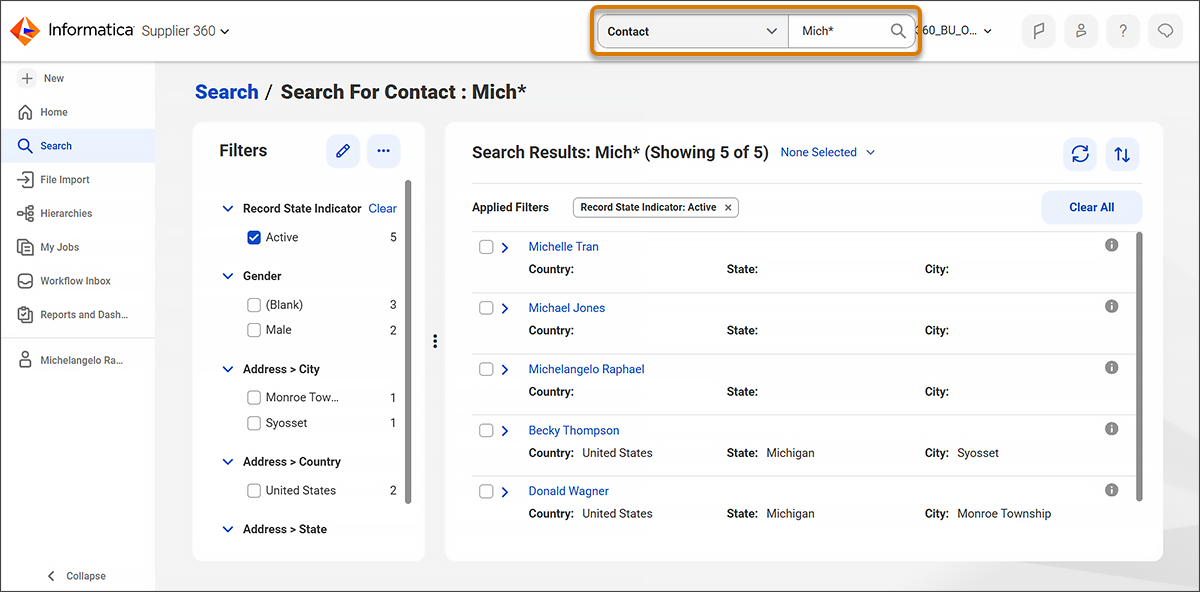
You can also use wildcards to broaden a search.
Example Search String |
What It Finds |
|---|---|
Michelle Tran |
It searches for records that contain |
Mich* |
It searches for records with a value that starts with Mich, such as Michelle or Michael. |
"Michelle Tran" |
It searches for records that contain When you use this search string format, avoid combining it with other formats. The search results might not be the same when you use them separately. For example, |
Tr*n |
It searches for records that start with |
Tr?n |
It searches records with a single character between |
* |
It returns all records. |
Find Records with Filtered Search
Unlike a full-text search, filtered search lets you add multiple fields and filter conditions together. You can search by supplier name, DUNS number, industry type, or any combination of fields. This makes your results precise from the start.
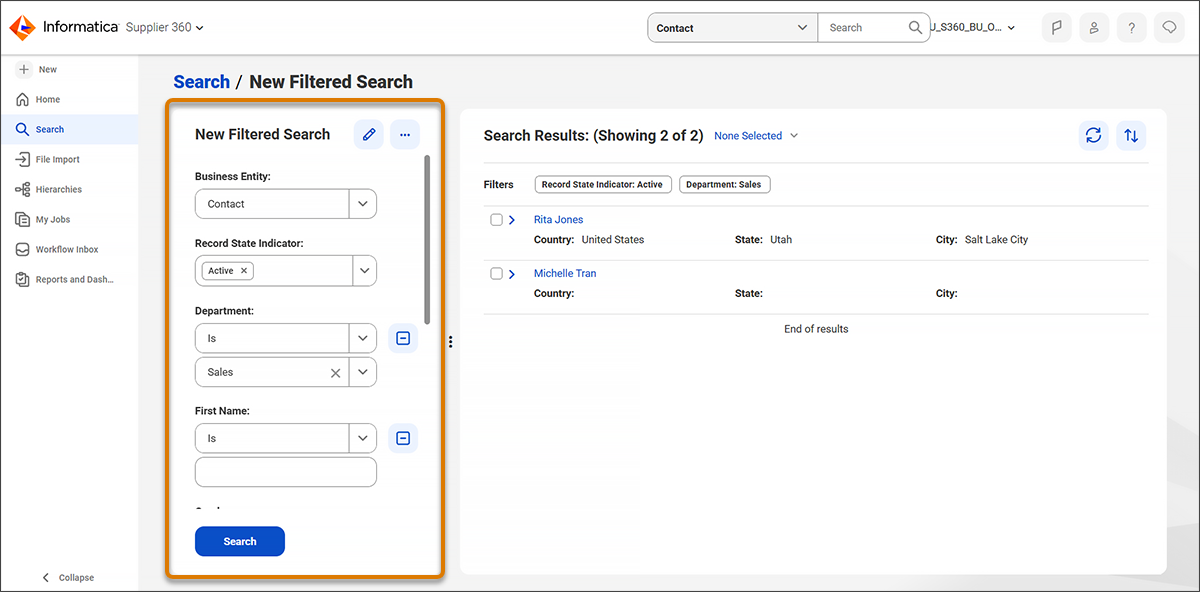
Coral Cloud Resorts needs to find all active supplier contacts in the hospitality and housekeeping supplies industry, so the team uses a filtered search. By specifying the Contact business entity and merging the Industry Type and Department fields within the filtered search parameters, the team finds the exact records required.
Run a Filtered Search
- Select Search | New Filtered Search. The New Filtered Search panel appears.
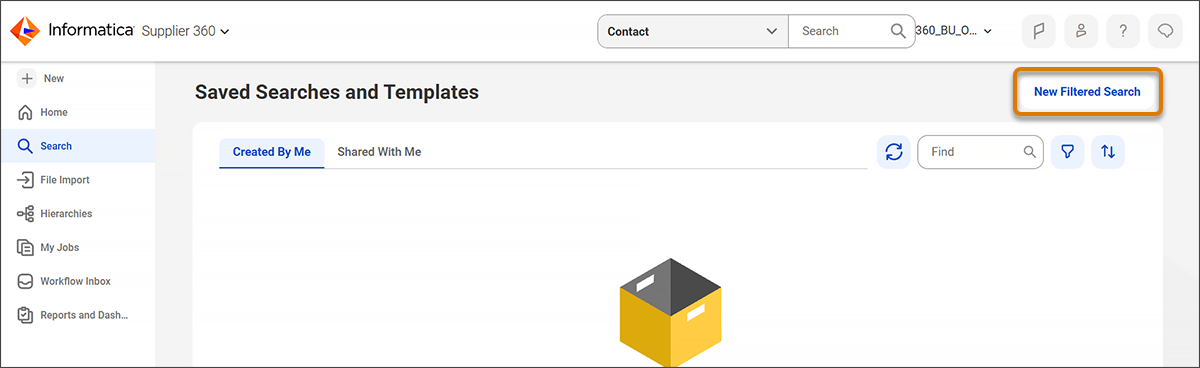
- Select a business entity. The fields for that entity appear.
- Enter search terms for the fields you want to include in the search.
- To add more fields, select Add Field, select the fields, and select OK.
- To filter records based on field values, select one of the following.
-
(Blank): This filters records that contain blank or empty space in the field.
-
(Not Blank): This filters records that contain any value in the field.
-
Is: This filters records with field values that match the search string.
-
Equals: This filters records that match the specified date and time. Use for date and date-and-time field types.
-
(Blank): This filters records that contain blank or empty space in the field.
- Select Search.
Save, Share, and Manage Searches
Once you've set up a search, either a simple search or a filtered search, save it as a template so you don't have to rebuild it every time. At Coral Cloud Resorts, the procurement team saves their most-used supplier searches so every user starts from the same reliable baseline.
Save a Search or Template
- After you run a search, select Actions | Save As.
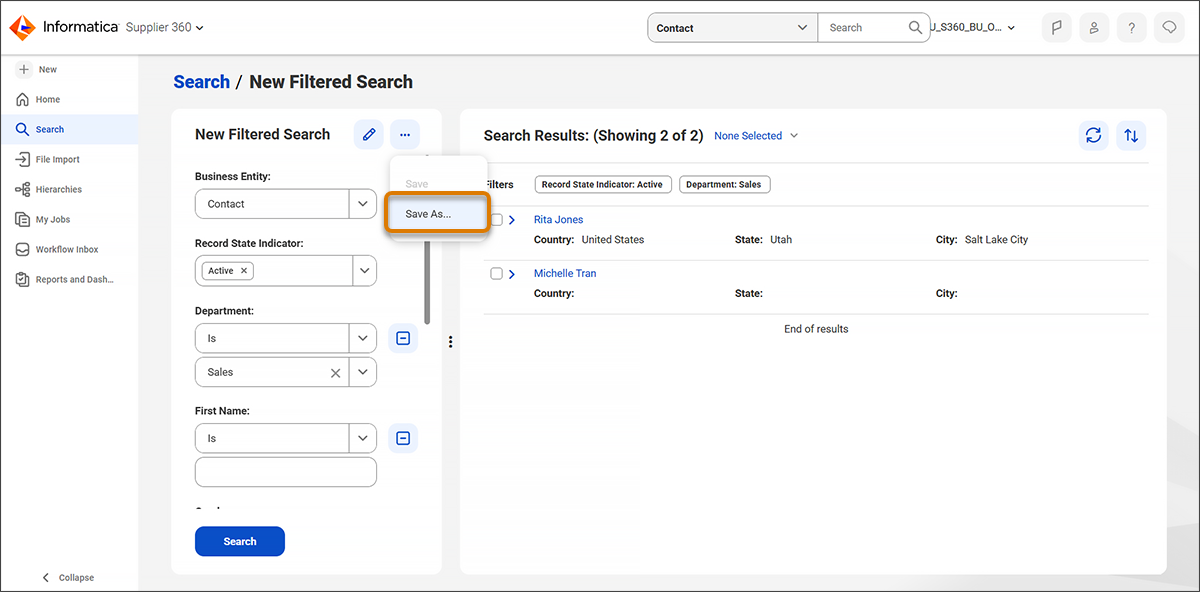
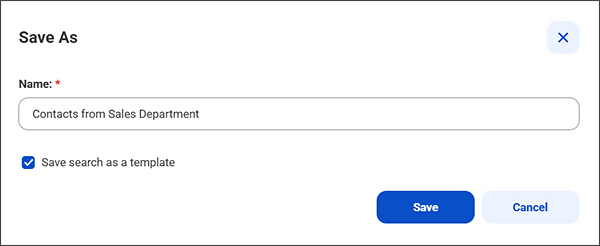
- In the Save As dialog box, enter a unique name.
- To save the search as a template, select Save search as a template. This ensures you can reuse the field structure with different values in future searches.
- Select Save. The saved search or template appears on the Search page.
Share a Search with Your Organization
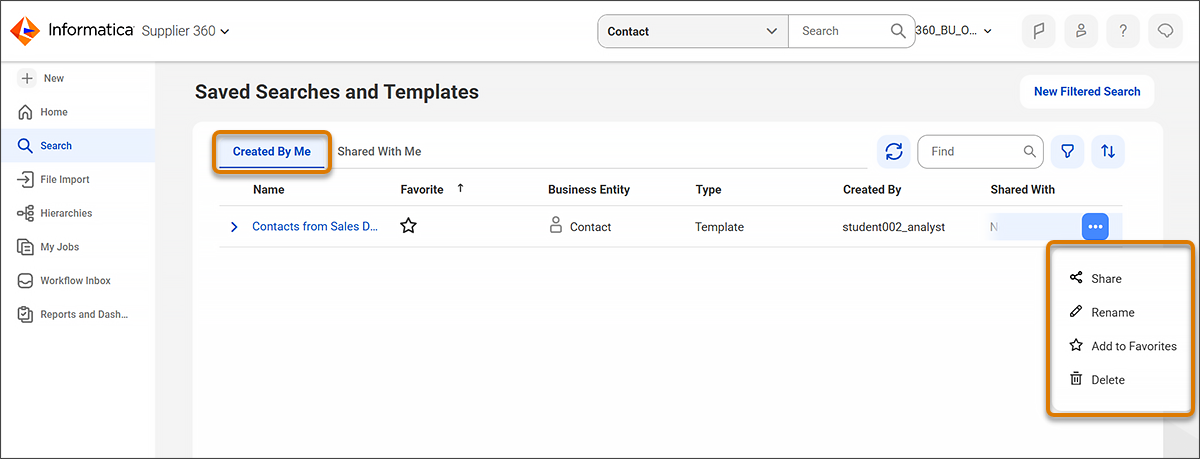
A saved search or template is private by default. But if it's useful for you, it's probably useful for your whole team too. To share a search or template with your organization, open the Created By Me tab on the Search page, select the search or template, and select Actions | Share. Select Yes, share with everyone and select Save. Your team can then find it in the Shared With Me tab.
Add a Search to Favorites
There's always a search you find yourself running every day, and pinning it to your favorites means it's always accessible. To pin a search for easy access, go to the Created By Me tab on the Search page, select your search or template, and select Actions | Add to Favorites.
Edit or Delete a Saved Search
You can update saved searches after initial creation. To update a saved search, go to the Created By Me tab and select the search or template. Add or remove fields and field values, then select Actions | Save. To remove the search entirely, select Actions | Delete.
Understand Your Search Results
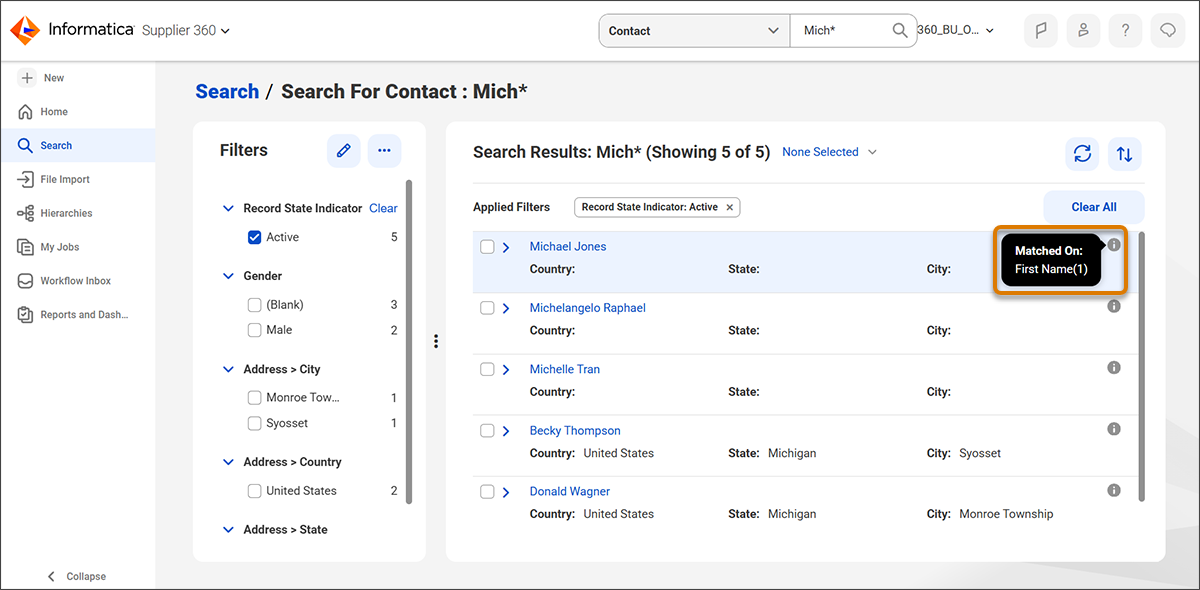
Each search result shows a Matched On indicator that lists the fields based on which the record matched your search term. This helps you understand why a record appeared, especially when the match isn't obvious from the record name alone.
When the Coral Cloud Resorts team searches for Michelle, a result for Michelle Tran appears. The Matched On indicator shows that the Supplier 360 data store matched the result based on the Contact Name field.
Sort and Filter Results
The Filters panel gives you several ways to refine your search results. You can narrow results by field value. You can also filter by a date range or numeric range using the Customize option, and Sort results by a field name or by relevance. Relevance is the default sort order. If the fields showing in the Filters panel aren't the ones you need, use the Edit option to choose which fields appear there.
Filter by Record State
To filter active records, deleted records, or both, use the Record State Indicator filter.
-
Active: Shows live records in your system; active is selected by default.
-
Deleted: Shows records that have been soft-deleted and can be restored.
Filter by Validation Status
Use the Validation Status filter to focus on records that need attention.
Status |
What It Means |
|---|---|
Valid |
The record has no data quality issues. |
Validation Errors |
The record has issues that impact data quality. |
Pending Validation |
The record is waiting to be validated. |
Skipped |
Validation was skipped for this record. |
Exception |
A data enrichment rule failed due to a connection timeout with an external data provider. |
From Lost to Found
You can now search for supplier and contact records using full-text and filtered search, save and share searches your team relies on, and interpret results using the Matched On indicator and status filters. But finding a record is only half the story.
Back at Coral Cloud Resorts, keeping records accurate depends on successful data quality validations. In the next unit, you learn how to check the data quality status and trace every change event in the history feed of a record.
Resources
- Informatica Documentation: Supplier 360 SaaS | Finding Records (login required)