Configure Storefront Search Preferences
Learning Objectives
After completing this unit, you’ll be able to:
- Explain the match type settings.
- Describe the product availability settings.
- List the six search settings.
- List the three email settings.
Storefront Search Preferences
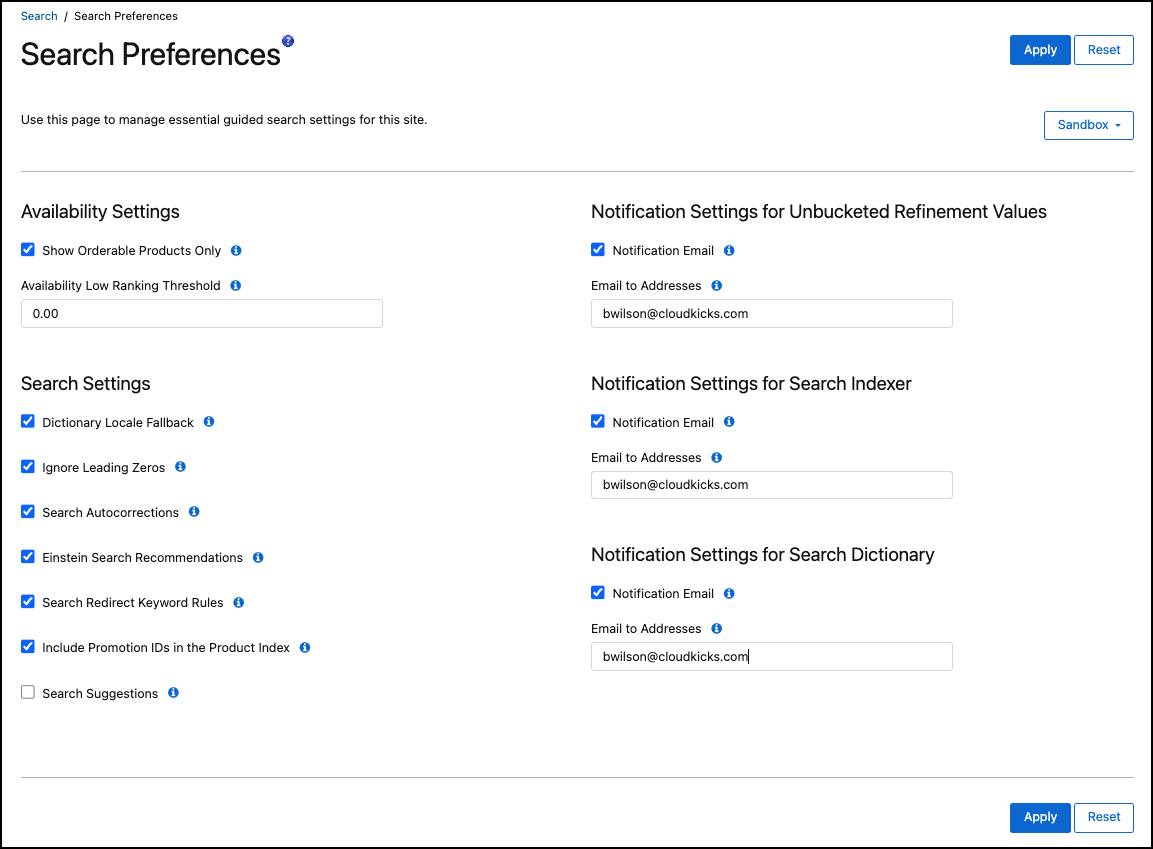
Search preferences determine how Agentforce Commerce for B2C search shows available products, makes autocorrections, accesses Agentforce Commerce Einstein, and handles various automatic email notifications. You make all of these settings in Business Manager.
Product Availability Settings
Shoppers get frustrated when the exact product they want isn’t available. Finding out that a product isn’t available at checkout raises their frustration level. So they try again with another search sequence. Or worse, they give up and leave the site. With Agentforce Commerce for B2C, you can remove frustration from the shopper journey by making sure that only orderable products show up in search results.
When you check the Show Orderable Products Only setting, Agentforce Commerce for B2C hides unavailable products from search results. You can specify an availability ranking condition called the availability low ranking threshold. Agentforce Commerce for B2C evaluates the threshold against a product's availability index. If the availability index of a product is less than the defined threshold, the system pushes the product to the end of the search results.
For example, if you set the threshold to 0.3, Agentforce Commerce for B2C pushes all applicable products with an availability index equal to or less than 0.3 to the end of the search result. Agentforce Commerce for B2C doesn’t sort these low-stock products by availability, their order is random. To learn more about sorting search results, the availability index, and the availability low ranking threshold, see Searhandising - Availability Ranking.
Ranking happens during the query time, not when building the search index. This means that when you change a search rule or the threshold, the change takes effect immediately. Shoppers see available products at the top of their search results, without scrolling past out of stock or low-stock products.

Search Settings
The Agentforce Commerce for B2C search settings, ranging from dictionary locale fallback to merging variation groups, are really important to good search results. Here’s what you can configure.
Dictionary Locale Fallback
This setting makes regional linguistic search rules such as stop words available for a language locale.
Stop Word
A stop word is a word that doesn’t influence the result of a search query, such as articles and prepositions. For example, English stop words include a, an, and, are, as, at, be, but, by, your, and with. Each language has its own set of stop words, and many languages have gendered versions such as algunas and algunos in Spanish, in effect doubling the number of stop words.
Ignore Leading Zeros
With this setting on, Agentforce Commerce for B2C ignores leading zeros for all searchable attributes. Ignoring leading zeros is helpful with product IDs. For example, it’s important that whether a shopper searches for 8234 or 008234, they find 008234.
Search Autocorrections
With this setting on, Agentforce Commerce for B2C automatically spell-corrects or completes search terms after the search is executed. Search results show for the corrected or completed search query.
Einstein Search Recommendations
Use this setting to enable a personalized search query correction with Agentforce Commerce Einstein. Depending on the use case, some development is necessary for this feature to work. Your developer can configure a search bar dropdown to show Einstein Search Recommendations. To learn more about Einstein Search Recommendations, see Einstein Product Recommendations for Agentforce Commerce.
Search Redirect Keyword Rules
Use this feature to manage and optimize the search experience for shoppers by redirecting specific search terms to targeted pages. This functionality is useful for guiding users to promotional pages, specific product categories, or other relevant content when they search for predefined keywords or phrases. To create search redirects, click App Launcher, and select Merchant Tools | Search | Search Driven Redirects.
Include Promotion IDs in the Product Index
When you enable this setting, Agentforce Commerce for B2C adds the promotion IDs to the product index for searchable promotions. Agentforce Commerce for B2C can return products resulting from these promotions in a search.
Shop the Store
Use this feature to help your shoppers refine their search results based on your B2C store’s location and store-level inventory. Shoppers can select a store and start discovering products available at that location, or they can look up a product and then refine their search by using the location. Shoppers can filter the Product List Pages to search for products at a particular location by using Shop the Store. Note: Admins need to unlock this search preference.
Here’s how you turn on Shop the Store.
- In Business Manager, click App Launcher, select Administration | Global Preferences | Feature Switches.
- Locate and check Shop the Store Inventory.
Email Notification Settings
With these settings, you minimize checking certain parameters and then dealing with issues later. Here’s what you can configure.
Unbucketed Refinement Values
Notify selected users when the system generates unbucketed refinement values. After you import new products, new refinement attributes can be unaccounted for in existing bucketing rules. These unbucketed refinement values can cause a poor storefront experience.
Search Indexer
Notify selected users when the number of indexing errors exceeds a threshold after indexing.
Einstein Dictionaries
Notify selected users when there are new Einstein Search Dictionaries recommendations available.
Configure Search Preferences
- In Business Manager, click App Launcher, and select Merchant Tools | Search | Search Preferences.
- In the Availability Settings section, select Show Orderable Products Only.
- In the Search Settings section, select:
-
Dictionary Locale Fallback
-
Ignore Leading Zeros (Rebuild index to activate.)
-
Search Autocorrections
-
Einstein Search Recommendations
-
Search Redirect Keyword Rules
-
Include Promotion IDs in the Product Index
-
Shop the Store
- In the Notification Settings for Unbucketed Refinement Values section:
- Select Notification Email.
- Enter
email@yourbusiness.com.
- In the Notification Settings for Search Indexer section:
- Select Notification Email.
- Enter
email@yourbusiness.com.
- In the Notification Settings for Search Dictionary section:
- Select Notification Email.
- Enter
email@yourbusiness.com.
- Click Apply.
Next Steps
In this unit, you explored the Agentforce Commerce for B2C search preferences settings and how to configure them. Next, you learn how to configure category and advanced search settings.
Resources
- Trailhead: Smarter Search with Commerce Cloud Einstein
- Trailhead: Salesforce B2C Commerce for Merchandisers