Query Data with the SOQL Builder
Learning Objectives
After completing this unit, you’ll be able to:
- Build and run a query using the SOQL builder.
- Retrieve query plans.
SOQL Builder
The SOQL Query Builder is a handy tool built right into the Salesforce Extension Pack. The Salesforce Extension Pack is a collection of tools and plugins that help speed up development. The SOQL Query Builder lets you construct simple database queries using a visual, form-like interface without having to type out SOQL queries from scratch. You can click to select your object, choose your fields, and apply filters. Once your query is ready, you can run it to view the results instantly, and then save that data straight to a .CSV or a .JSON file.
Case Scenario
During a heavy support spike, you need an immediate .CSV export of all High Priority cases, specifically showing each customer’s email and case subject, to redistribute your team’s workload. Instead of wasting time writing a query from scratch or risking a syntax typo, you can use the visual SOQL Query Builder.
Build and Run the Query
- Open the Command Palette using Command+Shift+P (Mac) and Ctrl+Shift+P (Windows), and type SFDX: Create Query in SOQL Builder.
- Enter
HighPrioas the name for the query.
- Select the default directory or specify a directory where the query is stored, and press Enter.
- Select these values in the builder.
-
From: The table to query. In this case, select Case.
-
Fields: Table fields to display. Select ContactEmail and Subject fields.
-
Filter: Filter condition to be applied on the records. To display high priority cases, select Priority as Field, = as Operator, and type
Highin the Value field. As you select the values, you can see the actual SOQL query being built in the SOQL Query box.
-
From: The table to query. In this case, select Case.

- Click Run Query.
- In the query results page, click .CSV, select a location to save the file in, and click OK.
To dig deeper regarding SOQL syntax or to build more complex queries, see the SOQL and Salesforce Object Search Language (SOSL) Reference guide.
Retrieve Query Plan
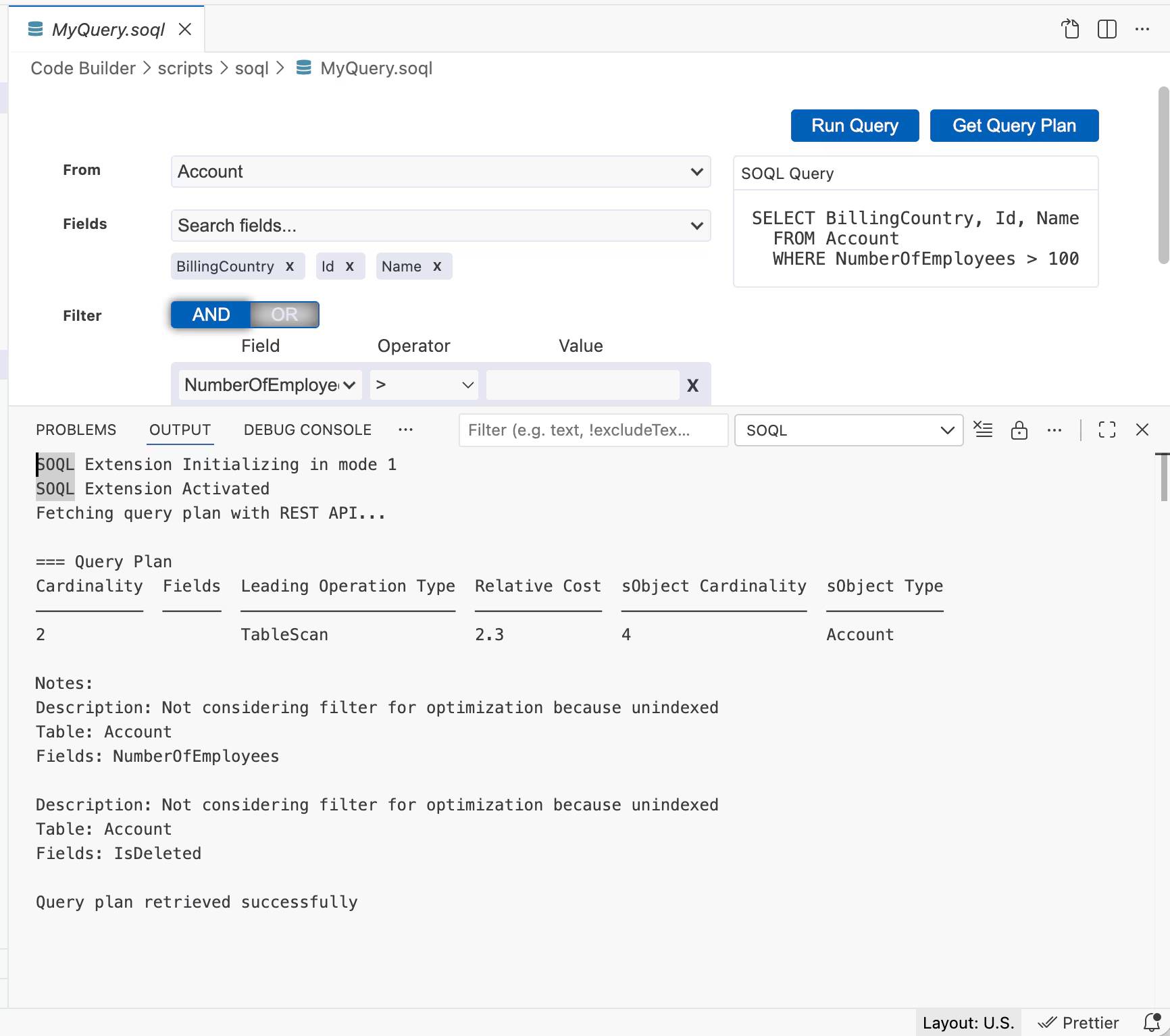
The Query Plan tool serves as a performance diagnostic for your Salesforce database. When you work with massive datasets, unoptimized queries can degrade system performance or trigger timeouts. This tool breaks down the query execution into specific operations and assigns a cost score to each, highlighting the plan Salesforce actively uses. By analyzing these costs, you readily identify performance bottlenecks, determine where to implement database indexes, and refine your query for optimal speed.
To retrieve a query plan, open a query and click Get Query Plan. The query plan opens in the Output panel.
Wrap It Up
Now that you’ve completed this unit, you’ve learned how to use the SOQL Query Builder to visually construct database queries and analyze performance with the Query Plan tool. You can now efficiently export data and optimize your queries for better system performance.