Get to Know Advanced Approvals
Learning Objectives
After completing this unit, you’ll be able to:
- Explain Advanced Approvals and its role.
- Identify the key personas and their roles in the approval process.
- List the various components in the Approvals Home page.
Before You Start
Before you start this badge, consider completing the following recommended content.
Advanced Approvals Overview
Every business needs a reliable way to govern critical decisions, such as approving a large discount on a quote or releasing a contract, before moving forward. Without a structured process, high-value deals can slip through with unapproved concessions, costing your company money and creating compliance risks.
Built on the core Salesforce Platform, Advanced Approvals helps you automate and manage complex approval workflows. Unlike standard approval processes, which you set up separately for each object, Advanced Approvals isn’t tied to a single object. You can use it across clouds and teams, such as:
-
Revenue Cloud: Managing complex discount tiers and pricing deviations on quotes.
-
IT Service Management (ITSM): Managing high-risk technical change requests and infrastructure deployments safely.
-
Employee Service: Routing internal human resources requests, policy exceptions, and corporate asset allocations.
Core Capabilities
Advanced Approvals provides a robust, automation framework designed to handle complex business rules. By separating approval logic from rigid, single-object limits, this platform delivers some core capabilities.
-
Flexible approval workflows: Design tailored, multistep approval processes for supported Salesforce objects, including standard and custom objects. Route approvals sequentially for hierarchical sign-offs or in parallel to collect approvals from multiple teams at the same time.
-
Centralized operations and visibility: Track approval requests, review pending actions, and maintain a complete audit trail of decisions from a single unified Approvals app. Real-time email and Slack notifications provide clear visibility into approval status, improving transparency and helping records move forward without delays.
-
Flow-powered automation: Use Salesforce Flow Orchestration to build complex approval processes, manage conditional routing, and pause workflows until required actions are completed.
Now that you know the core capabilities of Advanced Approvals, let's look at the people who use it and the role each one plays in the approval process.
Meet the Key Personas
Advanced Approvals uses distinct personas to control who can access, configure, and act on approvals. Understanding these is essential before setting up your first workflow.
Persona |
Responsibilities |
|---|---|
Approval Designer |
The architect of the process. They design and manage approval workflows by using flow approval processes to define routing rules, steps, and conditions. |
Approval Administrator |
The system guardian. They configure global approval settings and keep the overall approval environment running smoothly. |
Approval Submitter |
The initiator. Typically a sales rep or account executive, this user kicks off the process by submitting a record, like a quote or a contract, for review. |
Approval Reviewer |
The decision-maker. They review pending items in their queue and make the final approve or reject call. Reviewers can act directly from the on-record Orchestration Work Guide, Slack, email notifications, or the dedicated approvals agent. |
Now that you know who the key players are, your next step is examining the workspace where you can build and configure your approval workflows.
Explore the Approvals Home Page
The Approvals Home page is the central hub for everything approval-related, giving approval designers, admins, submitters, and approvers a single place to manage their work. What you see on this page depends entirely on your role. It dynamically tailors its layout based on the user persona. An approver, a submitter, and an admin each see different tiles tailored strictly to their daily responsibilities. Time to take a quick tour.
When you open the Approvals app via the App Launcher, you land directly on the Approvals Home page as shown here.
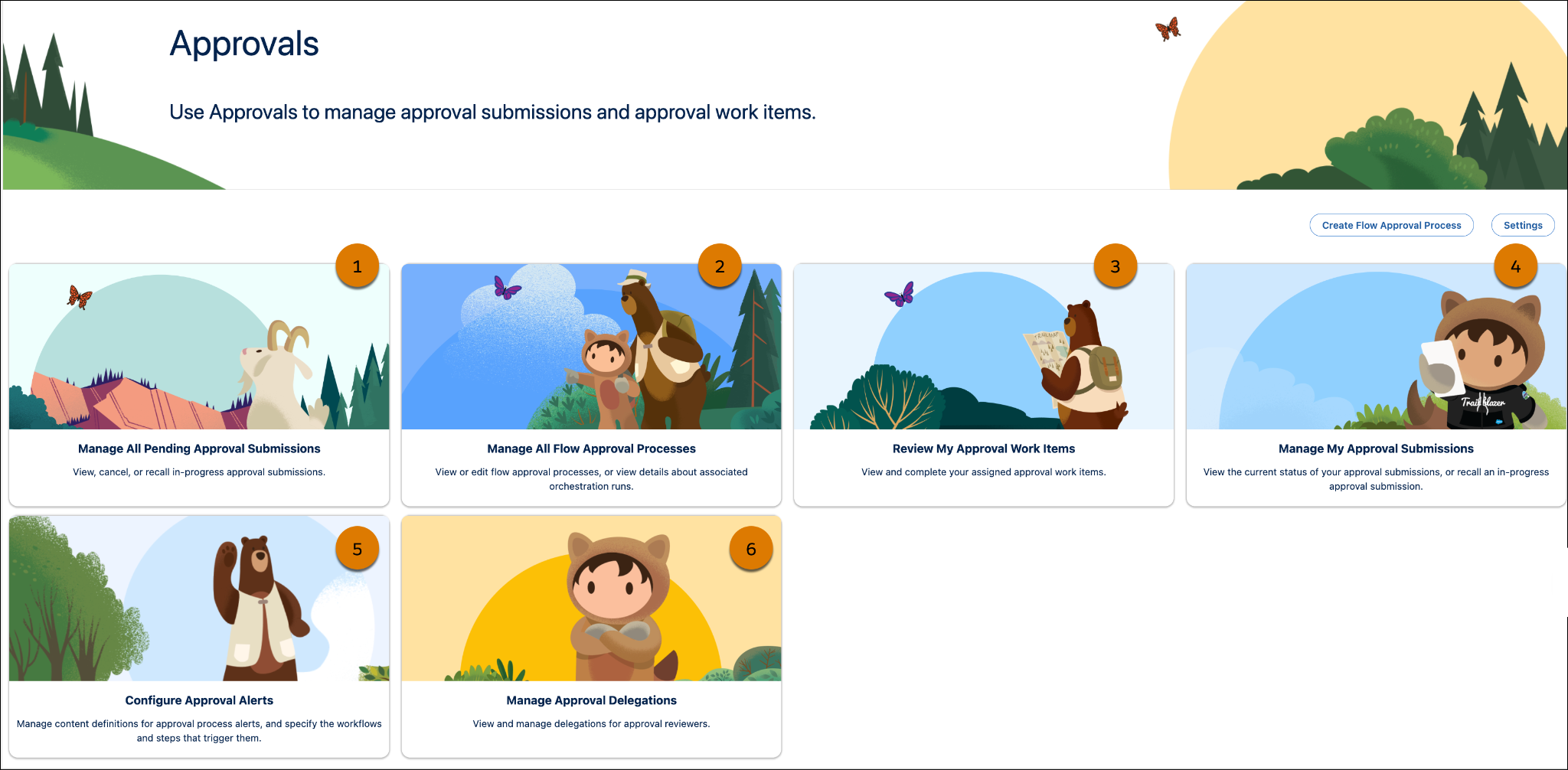
The Approvals Home contains six key tiles. Let’s explore each one in detail.
-
Manage All Pending Approval Submissions
Think of this tile as a panoramic view of your company’s active approvals pipeline. Selecting this tile opens a centralized list view of every approval request that is currently in progress but hasn't yet reached a final decision. From this view, administrators can audit open bottlenecks and take direct action, including canceling or recalling submissions, to keep high-value deals moving forward.
-
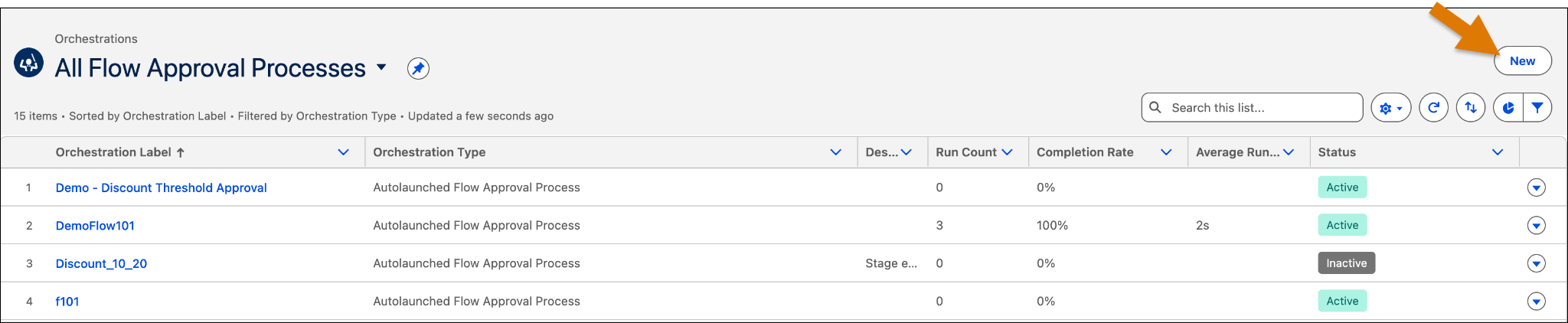
Manage All Flow Approval Processes
This tile is the control room for approval designers. It lists all the flow approval processes in your system. You can view and edit individual processes and drill into details about their associated orchestration runs. You can also launch a new flow approval process directly from here.
-
Review My Approval Work Items
This is the primary workspace for decision-makers such as sales managers, finance directors, or legal executives. Selecting this tile opens a focused list view that shows only the specific approval records that are assigned or delegated to you or a queue you belong to.
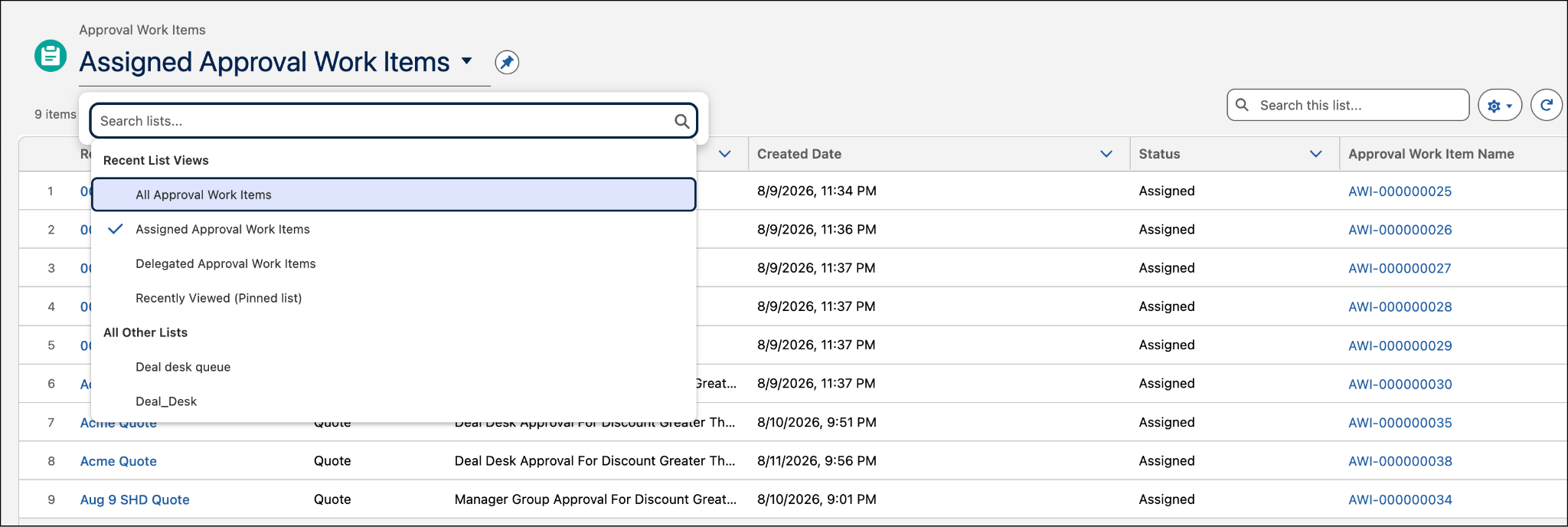
This component eliminates the classic administrative headache of hunting down records, letting reviewers instantly see what needs their attention and take immediate action to approve, reject, or reassign each item.
-
Manage My Approval Submissions
Designed for initiators like sales reps or account executives, this tile gives you a personalized view of your own submitted work. Use it to check whether a submitted quote is still in progress, approved, or needs revisions.
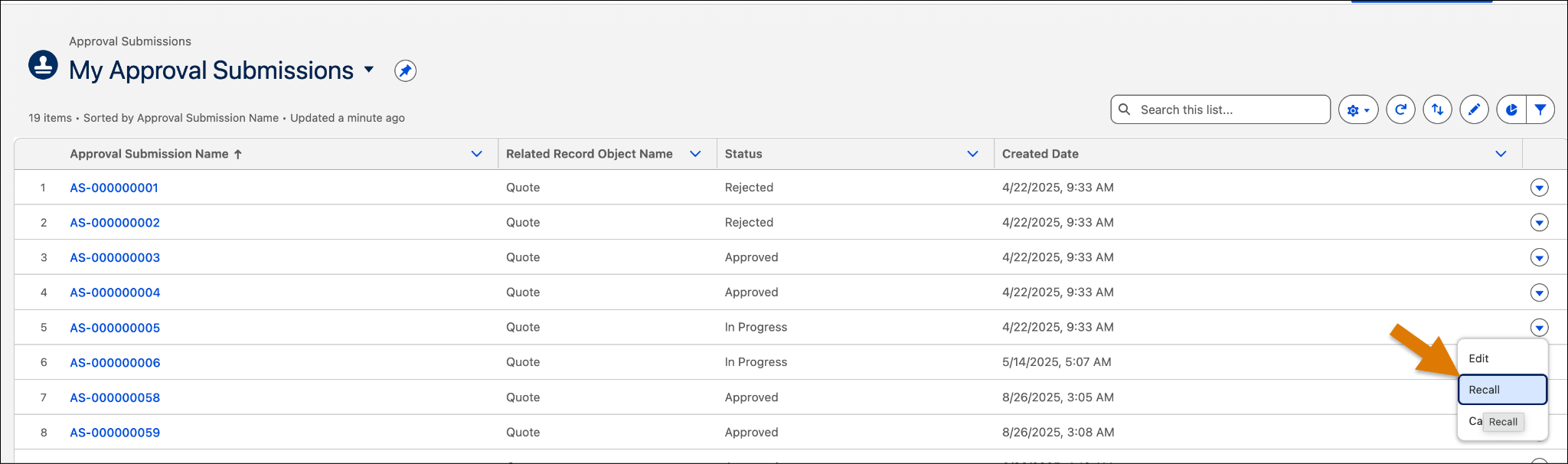
You can also recall an in-progress submission directly from this list, giving you full transparency and control throughout the approval cycle.
-
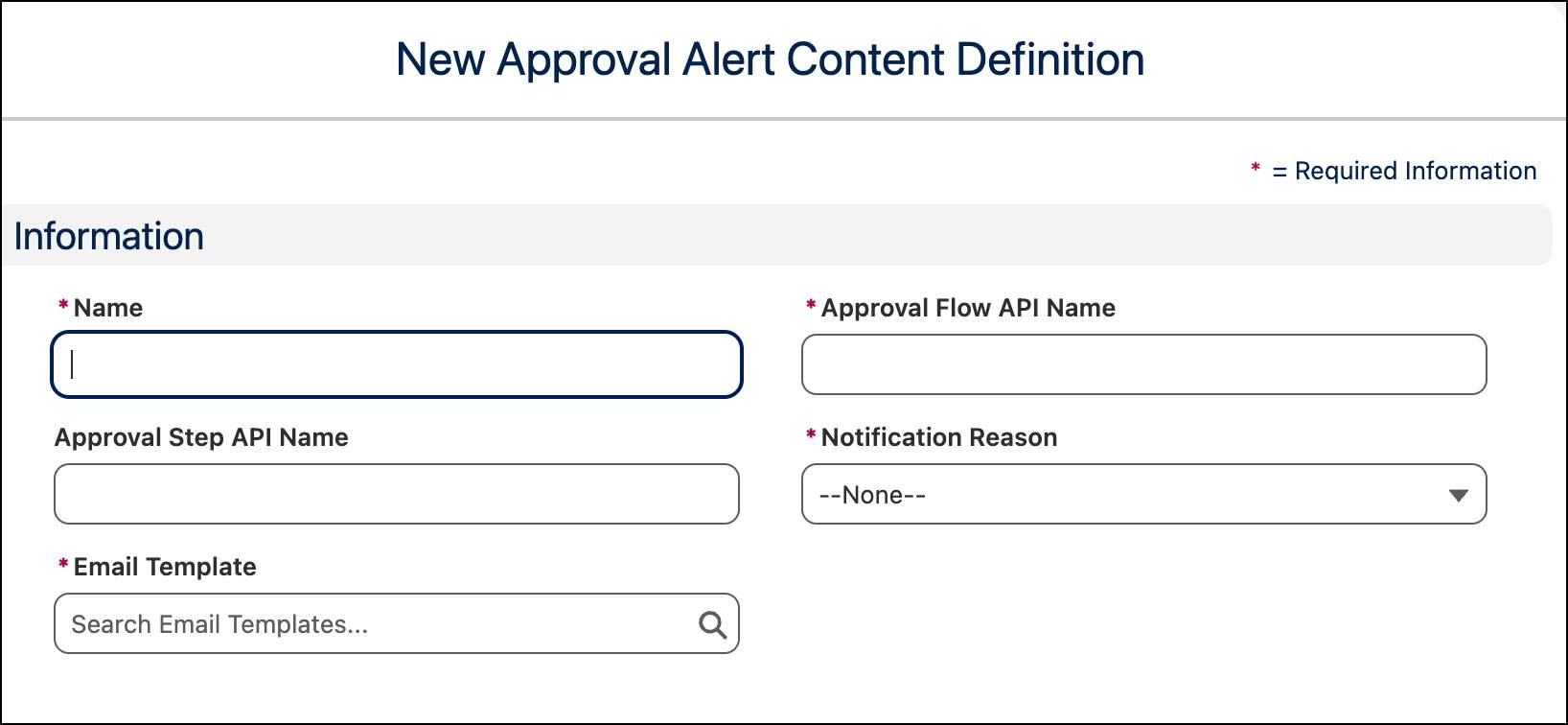
Configure Approval Alerts
Clear, timely communication is essential to a smooth approval process, and this tile is where you manage it. It provides access to the Approval Alert Content Definition records, where administrators set up, configure, and refine the data frameworks that feed your email alerts and notification categories. You can customize alerts for a variety of reasons across the approval lifecycle, including review requests, recalls, approvals, rejections, reassignments, and auto-approvals, so the right message reaches the right person at the right step.
You also specify which workflows and steps trigger those alerts here, giving you precise control over when and how stakeholders are notified at each stage of the process.
-
Manage Approval Delegations
Use this tile to set up and manage your delegate approvers. When a regular approver is unavailable, their approval tasks are temporarily routed to another person. You can also view existing delegation setups here.
In addition to these six tiles, the Approvals Home page also includes two action buttons in the page header.
-
Create Flow Approval Process
This is your rapid-deployment button. Instead of navigating to the setup menu to build a workflow, use this button to immediately kick off the creation of a new, flow-based approval process
-
Settings
This is your administrative command key. Selecting this button takes you directly to the Approval Settings setup page.
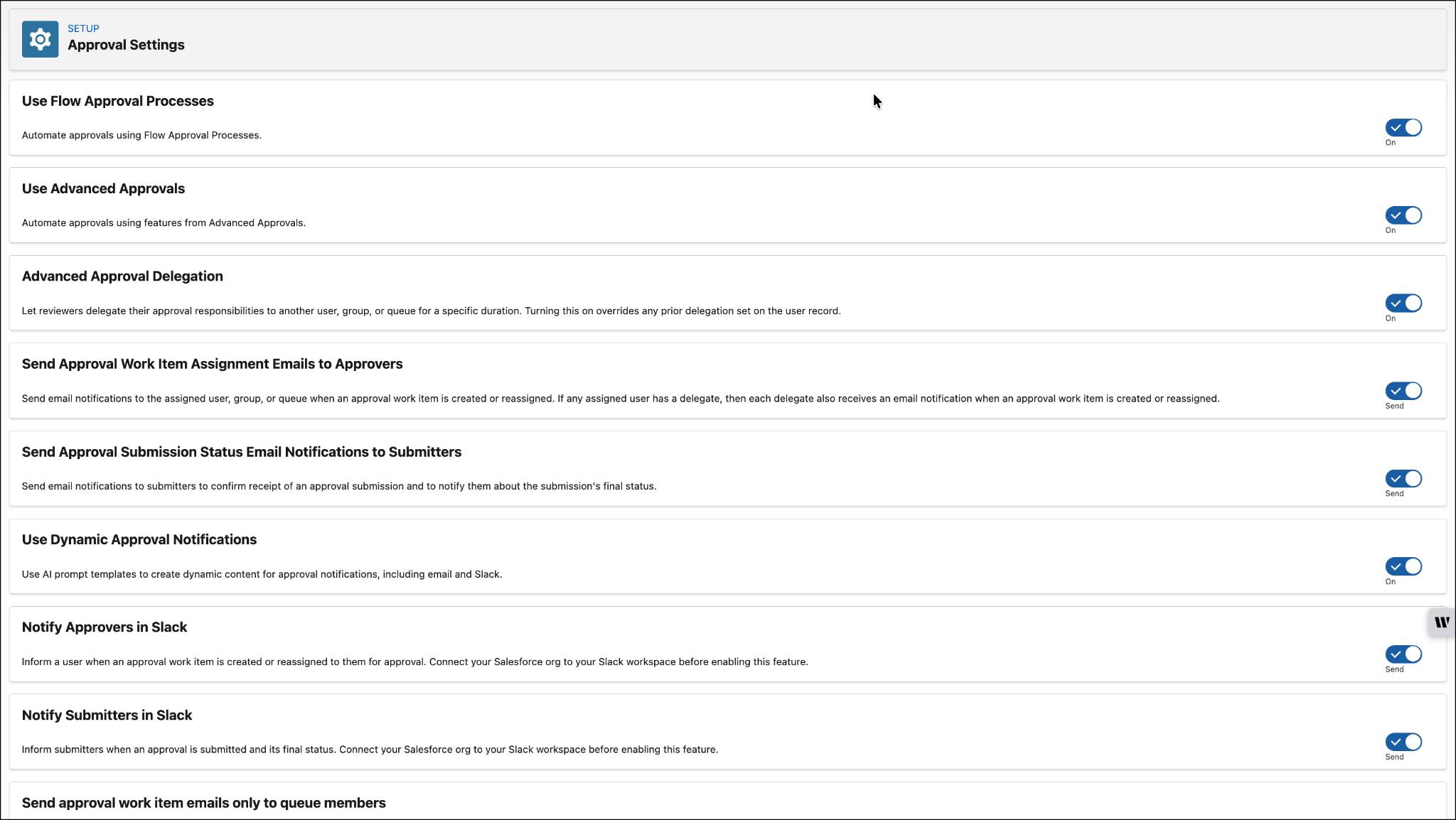
Here, you can customize global configuration settings, adjust application preferences, and fine-tune how the Approvals app behaves across your entire organization.
Congratulations! You've completed your tour of the Approvals Home page and explored how it serves as the central hub for managing approval activities.
Up Next
So far, you’ve learned the fundamentals of Advanced Approvals, explored the roles involved in the process, and familiarized yourself with the Approvals workspace. Next, you dive into the different types of approval flows and discover the intelligent features that help automate and streamline approvals.