Define Units of Measure and Unit of Measure Classes
Learning Objectives
After completing this unit, you’ll be able to:
- Set up Unit of Measure Classes.
- Define Units of Measure.
- Activate Unit of Measure Classes.
Units of Measure and Unit of Measure Classes
Before you bill a customer for what they use, such as data, call time, or the number of texts, you need a clear, standardized way to measure that consumption. In Usage Management, you do this using two key components: Unit of Measure Classes and Units of Measure (UoM).
A Unit of Measure Class is a high-level category that defines the type of consumption you're tracking. It ensures that all similar measurements are grouped together for consistency across different products and price books. For example, a Unit of Measure Class specifies whether you are measuring volume such as data, duration such as minutes, or count such as text messages.
A UoM is a specific metric used to quantify the consumption within a given class. It’s the measurable unit that the customer is actually charged for. Every UoM belongs to a Unit of Measure Class. For example, within the Data Unit of Measure Class, the UoM is gigabytes (GB).
In this unit, you follow a simple two-step approach to create these elements.
- Identify the type of consumption you want to measure by defining a Unit of Measure Class.
- Choose the specific unit that measures that consumption by creating the UoM.
Join Liam Hoko as he creates these foundational elements for his use case.
Unit of Measure Classes |
Units of Measure |
|---|---|
SMS |
Count |
Data |
GB |
Call Units |
Minutes |
This helps you to accurately track and bill a customer, whether they are consuming GBs of data or a count of text messages.
Configure the Rate Management App
To ensure all the necessary objects are in one place, Liam adds the required navigation items to the Rate Management app. Follow along in your Developer Edition org.
- On the Rate Management app, click
 and select Edit.

- Click Add More Items.
- Find and select these six items.
-
Units of Measure
-
Unit of Measure Classes
-
Usage Resources
-
Product Usage Resources
-
Product Usage Grants, and
-
Price Book Rate Cards.
-
Units of Measure
- Click Add 6 Nav Items.
- Save your work.
Your navigation menu is now updated to include all the necessary items.
Define Unit of Measure Classes
Next, Liam creates three Unit of Measure Classes: SMS, Data, and Call Units. Follow along.
- On the Rate Management app, click
 and select Unit of Measure Classes.
- Click New.
- Add these details to create the SMS UoM class.
- Name:
SMS - Code:
SMS01 - Status: Draft
- Name:
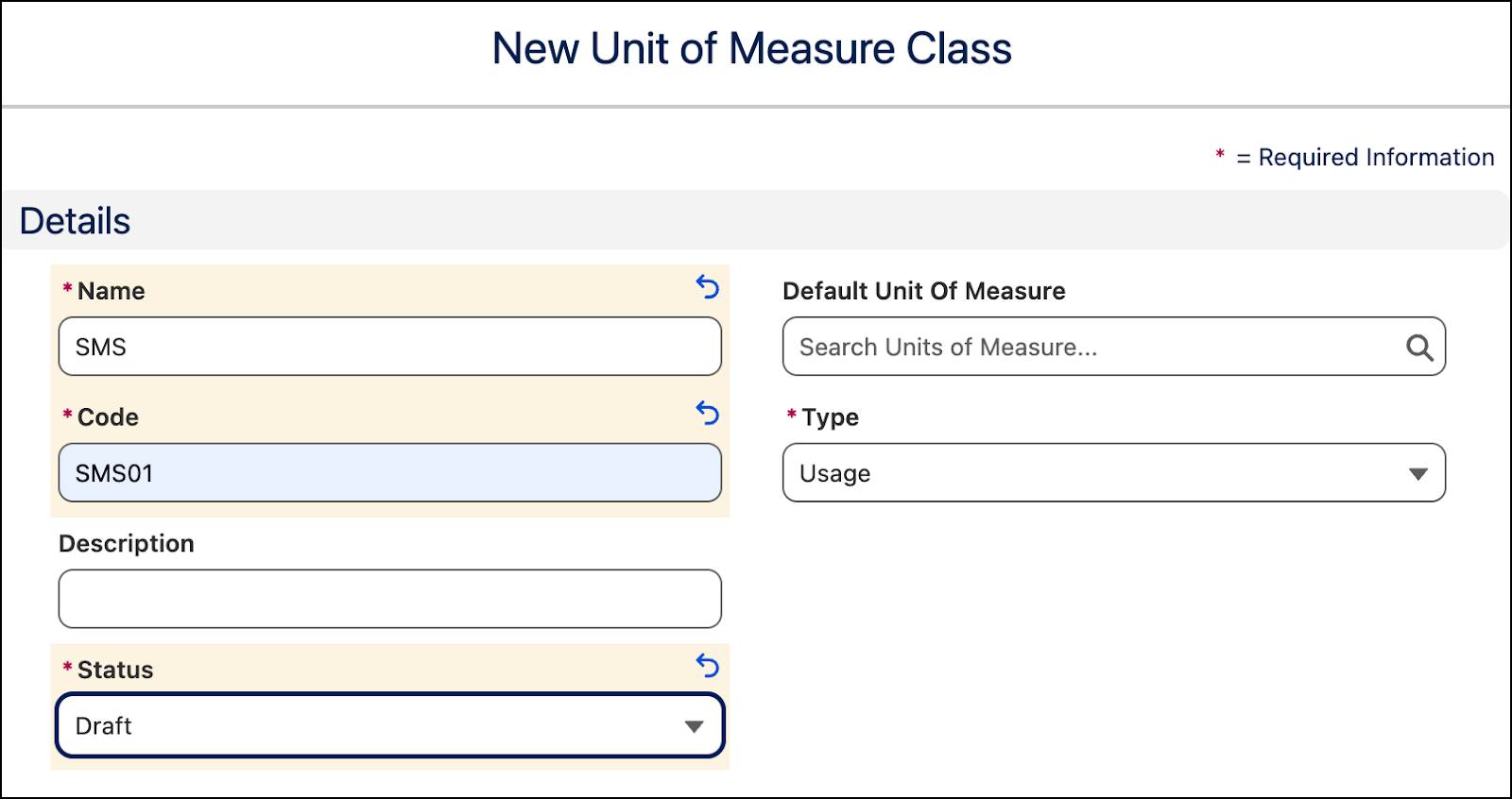
- Click Save & New.
- Add these details to create the Data UoM class.
- Name:
Data - Code:
Data01 - Status: Draft
- Click Save & New.
- Add these details to create the Call Units UoM class.
- Name:
Call Units - Code:
CU01 - Status: Draft
- Save your work.
You have successfully created three Unit of Measure Classes. They're currently in Draft status, but you revisit them later to add the Default Unit of Measure and activate them.
Create Units of Measure
Having created the Unit of Measure Classes, Liam moves on to creating three Units of Measure: Count, GB, and Minutes. Follow along.
- On the Rate Management app, click
 and select Units of Measure.
- Click New.
- Add these details to create the Count UoM.
- Name:
Count - Unit Code:
Count - Unit of Measure Class: SMS
- Sequence:
1 - Conversion Factor:
1
- Type: Count
- Status: Active

- Click Save & New.
- Add these details to create the GB UoM.
- Name:
GB - Unit Code:
GB - Unit of Measure Class: Data
- Sequence:
2 - Conversion Factor:
.001 - Type: Memory
- Status: Active
- Click Save & New.
- Add these details to create the Minutes UoM.
- Name:
Minutes - Unit Code:
MIN - Unit of Measure Class: Call Units
- Sequence:
3 - Conversion Factor:
1 - Type: Time
- Status: Active
- Save your work.

You have successfully created the three Units of Measure.
Activate Unit of Measure Classes
With the Units Of Measure now defined, it's time to revisit the unit of measure classes to set Default UoMs and activate them.
- On the Rate Management app, click
 and select Unit of Measure Classes.
- From the list, select SMS.
- Click Edit.
- On the Edit SMS window, for Default Unit Of Measure, select Count.
- Update Status to Active.
- Save your changes.
- Repeat steps 2–6 for both Data and Call Units. For Data, set the Default Unit of Measure to GB, and for Call Units, set the Default Unit of Measure to Minutes.

Great work! Your Units of Measure and Unit of Measure Classes are officially in place. In the next unit, you use these to set up your usage resources and product usage grants. Keep going.