Combine and Merge Disparate Data
Learning Objectives
After completing this unit, you'll be able to:
- Configure a Joiner transformation to blend data from separate data sources based on matching column keys.
- Configure a Union transformation to merge structurally similar data streams into a single route.
- Explain the architectural and operational differences between Joiner and Union operations.
Working with Multiple Data Sources
Cassie’s next integration assignment at AW Computing presents two common data-engineering challenges. The first requires Cassie to write the orders from an order table along with the customer information for each order to a separate CustomerOrders table. Each record should consist of the order information along with the customer information.
The second request is that the company maintains two entirely separate customer databases. Enterprise accounts live in one SQL Server instance, while retail consumer accounts reside in another. Her reporting analytics team needs a single, unified data view containing all corporate customers. To build this, Cassie must bring separate source pipelines together inside a single mapping canvas.
Cloud Data Integration (CDI) provides two primary transformation blocks for combining separate data streams: the Joiner and the Union. While both combine streams, they function in completely different ways.
The Joiner Transformation
The Joiner transformation combines two distinct data streams horizontally based on a matching relational condition that you define. It reads records from two separate inputs and outputs a single row whenever your join condition evaluates to true.
Cassie needs to combine her Order information with the primary Customer information for each record and write the new record to a CustomerOrder table. To set up this data blend on her canvas, she drags a Joiner transformation between her sources and follows these steps.
Cassie uses a Joiner to combine her Orders table with a Customers table. She wants each row to include the order and customer information. Cassie connects her Customer source pipeline to the Master input anchor of the Joiner transformation.
She then connects the Orders pipeline to the Detail input anchor of the Joiner. She clicks the Joiner object and opens the Join Condition tab in the Properties Panel below.
- To configure Cassie clicks Add (the plus icon) to define the linking keys: Customers.CustID = Orders.CustomerID.
- For Join Type Cassie selects Normal (an inner join) because her current requirement is to isolate only customers who have placed an active order.
CDI supports additional join types including Detail Outer and Full Outer—Normal and Master Outer cover most use cases.


At runtime, the Joiner merges the two streams. The joiner excludes customer rows with no matching orders from the output (inner join behavior). Cassie can switch to a Left Outer Join if she wants to keep all customers regardless of whether they have orders.

Cassie runs the mapping and writes the data to a new CustomerOrders table. Each record consists of the order information and the customer information as requested.
Join Types in the Joiner Transformation
The Joiner transformation supports multiple join types, the most commonly used are:
Join Type |
What It Returns |
|---|---|
Normal |
Only rows with a match in both streams |
Master Outer |
All rows from the master source, plus matches from the detail source |
Cassie uses a Normal join to combine customers with their orders—she only wants customers who have at least one order. If she needed to include customers with no orders, she would switch to a Master Outer join. Cassie documents her join type choice in the mapping description so the next developer to open it understands why it was configured that way.
The Union Transformation
The Union transformation combines multiple data streams vertically into a single output pipeline. Unlike the Joiner, a Union does not match rows sideways across a shared key; instead, it simply stacks incoming records on top of each other.
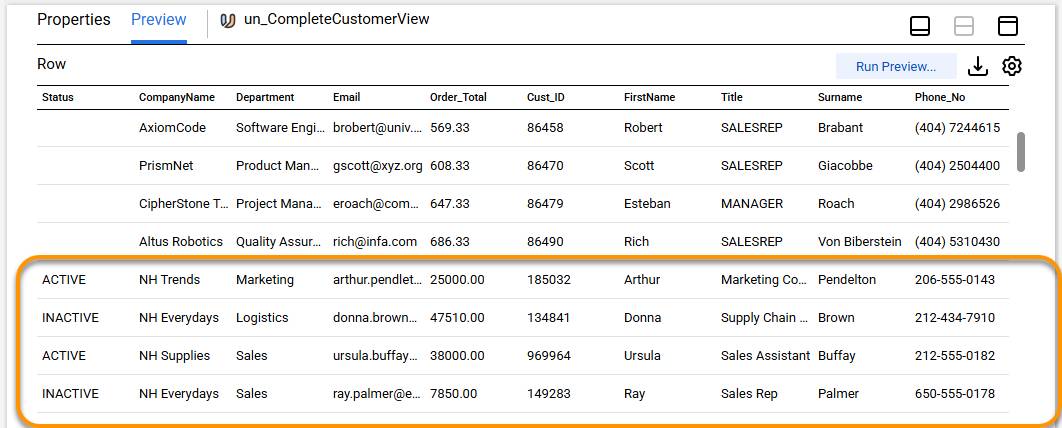
Cassie uses the Union transformation to merge her enterprise customer stream and retail customer stream together before writing to her unified reporting table. Because both tables share identical structures (CustomerID, FirstName, Surname, Email), they are perfect candidates for a Union block.
- Cassie drags a Union transformation onto the canvas and connects both the enterprise source pipeline and the retail source pipeline directly to the Union input block. Informatica Intelligent Data Management Cloud (IDMC) automatically generates distinct input groups (Input1, Input2).
- She clicks the Union object and selects the Field Mapping tab to map the fields from both inputs.
At runtime, IDMC reads records from both streams simultaneously and outputs a single, combined vertical list of customers.

Cassie saves her settings. To verify she runs a Data Preview. As can be seen below-a single list of customers is generated.
Choosing the Right Combination Approach
Deciding between a Joiner and a Union comes down to one question: Do the two data streams share rows that need to be matched, or do they share a structure that needs to be stacked?
- Use a Joiner when you’re combining related data from different tables—for example, customer records and their associated orders matched on a shared key
- Use a Union when you're combining the same type of data from different sources—for example, enterprise customers and retail customers stored in separate systems with the same field structure
Demo
Learn how two mappings combine data from two streams in different ways. The first uses a Joiner transformation to merge matching rows side by side into a single row. The second uses a Union transformation to stack the rows from both streams one after another.
Joiner Versus Union: The Key Difference
Let’s summarize the differences between the Joiner and Union transformations.
Joiner |
Union |
|
|---|---|---|
Purpose |
Combines rows from two streams based on a matching condition |
Stacks rows from two or more structurally similar streams |
Requires matching fields? |
Yes; a join condition is required |
No; streams must share the same structure |
Output |
One row per matched pair |
All rows from all input streams |
SQL equivalent |
JOIN |
UNION ALL |
With her datasets joined, Cassie is ready to transform and enhance the data. After gathering requirements, she is keen to use an Expression and a Lookup transformation to fetch and enhance her dataset further.