Create New Knowledge Articles
Learning Objectives
After completing this unit, you’ll be able to:
- Manually create new knowledge articles from incident and problem management.
- Create new knowledge articles using generative AI.
Fill the Knowledge Gap
In the previous unit, you learned how to find and manage knowledge articles. But what happens when a search yields zero results? That empty screen isn’t a dead end; it’s an invitation. It means you’ve discovered a potential knowledge gap, and it’s up to you to fill it.
Before you start typing up new articles, you need to choose the right format. Just as you wouldn’t write a cooking recipe in the format of a diary entry, you shouldn’t document IT solutions without structure and organization. Agentforce IT Service uses record types to organize information so it’s easy to digest.
Because every IT department is unique, your admin will create custom record types tailored to your organization’s specific support scenarios.

For this module, assume your admin has already configured four common record types for your team to use.
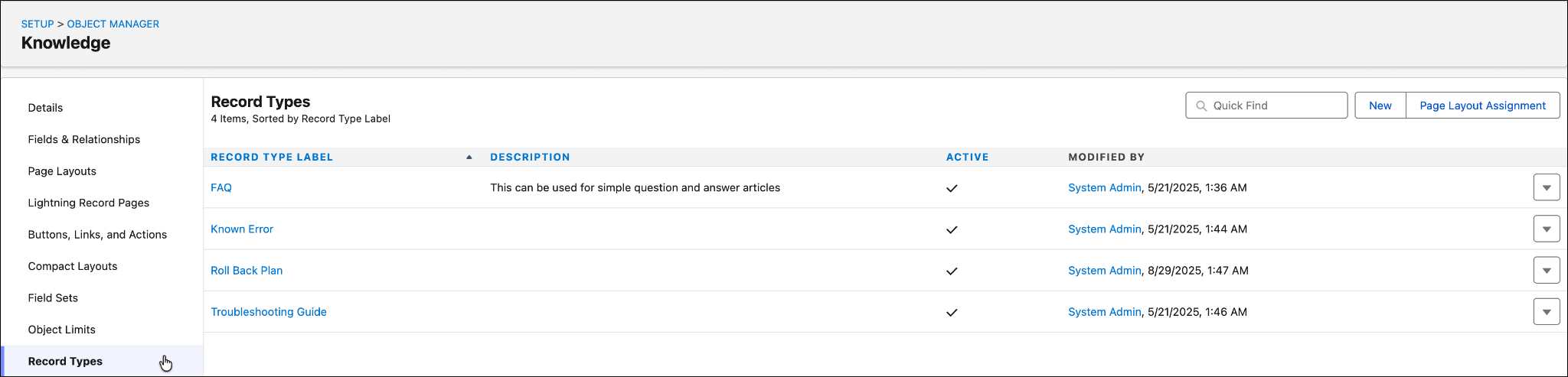
When you create a new knowledge article, the standard types have a specific purpose. If the term record type sounds daunting to you, think of it simply as a classification for articles.
Record Type |
Description |
|---|---|
FAQ |
Step-by-step instructions for completing common tasks, like, “How to request a new monitor” or “How to reset your password.” |
Known Error |
A specialized article often linked to problem management. It documents the root cause of a recurring issue and provides a workaround while a permanent fix is pending. |
Roll Back Plan |
A critical document used in change management that outlines the specific steps to revert a system to its previous state if a deployment or update fails. |
Troubleshooting Guide |
A diagnostic flow used to identify and fix specific issues, such as “Fix VPN Error 720” or “SSO error message 373.” |
Once you pick your article format, you have two ways to fill in the blanks. You can write the article manually, or you can let AI draft it for you instantly using data from your incident, problem, or change request record. Let’s explore both methods.
Create New Knowledge Articles
There are several ways to create new knowledge articles, giving you the flexibility to capture information from wherever you are working.
From Incident or Problem Management
Often you create new articles from the side panel of an incident or problem management record.
- From the App Launcher (
 ) or Agentic IT Service Desk drop-down, find and select Incidents or Problems.
- From a List View, drill down into a specific problem or incident by clicking its number.
- Click New Article.
- Select Draft Manually or Draft with Einstein (generative AI).
Whether you draft the article manually or use generative AI, you need to specify the type of article (FAQ, Known Error, and so forth).
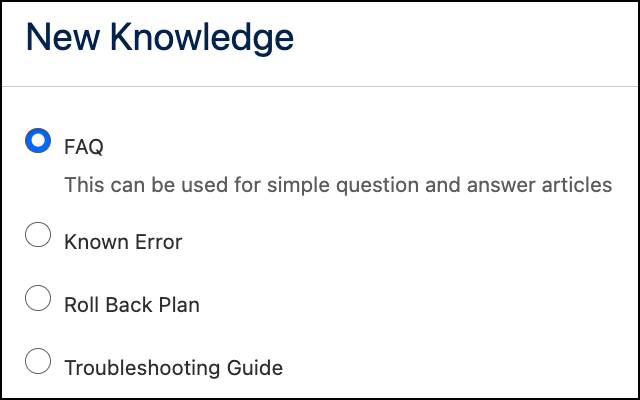
Because your admin already defined these record types in setup, you are prompted to choose the format that best fits your solution.
Drafting your own knowledge article is simple, and you can do this for any of the types of articles. For example, fill in the Title, URL Name, Summary and rich text formatted Details fields for a FAQ or Known Error.
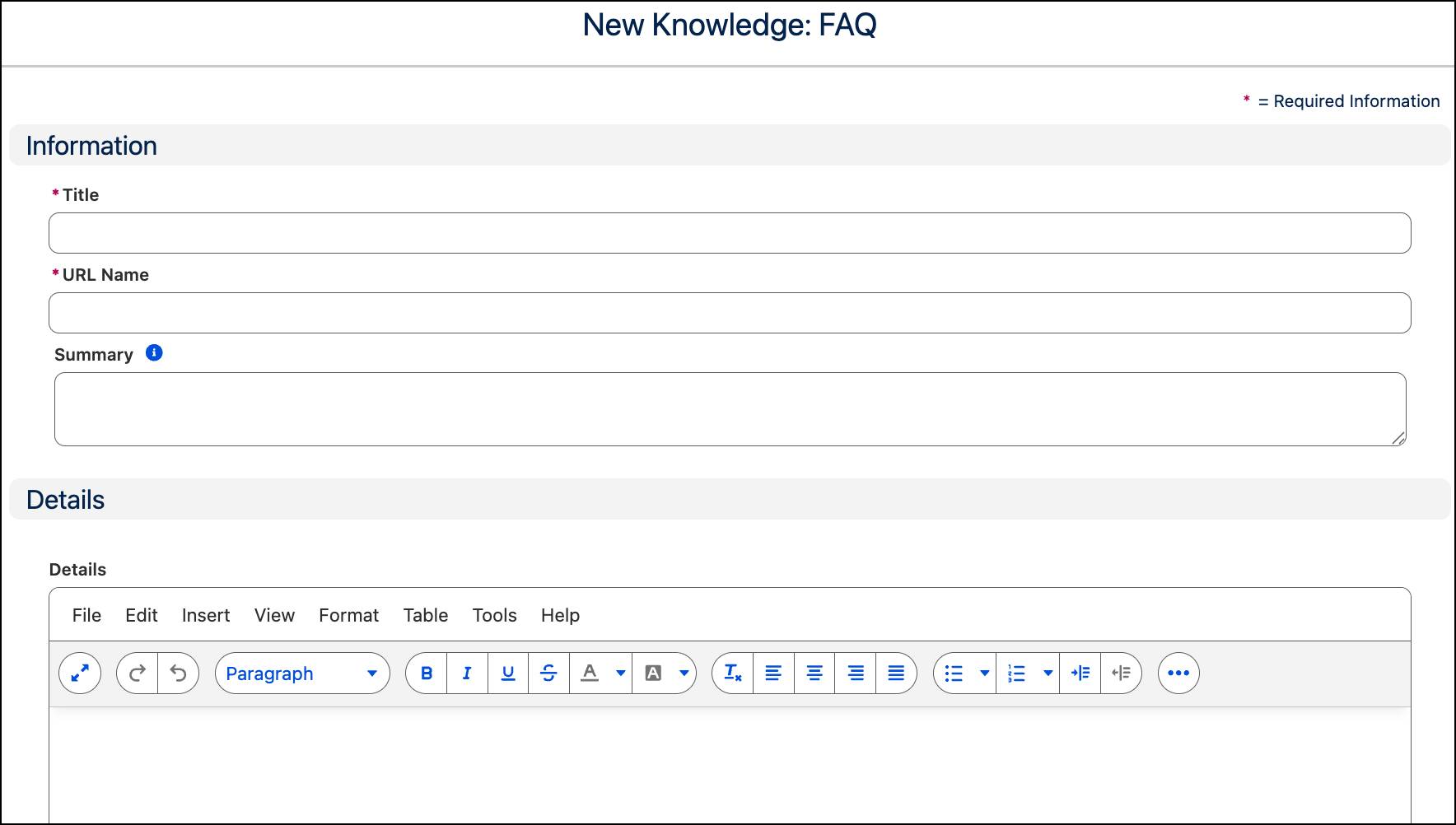
Writing manually is fine and often lends itself for general procedures or basic FAQs, but what about capturing the complex details of a resolved incident? Staring at a blank Resolution field can be daunting. Agentforce IT Service allows you to draft articles instantly using the data already part of Agentforce IT Service.
Let’s use AI to make the process even simpler! Drill down into an incident or problem again.
- Click New Article.
- Select Draft with Einstein for your new article.
- Provide the basics in the modal window again (such as the record type, title and language).
- Wait a few seconds while AI drafts your knowledge article.
- Click Go To Article Draft when it’s Ready for Review.
Agentforce uses the current incident or problem for context and generates a draft article that matches the type you selected earlier, such as FAQ.
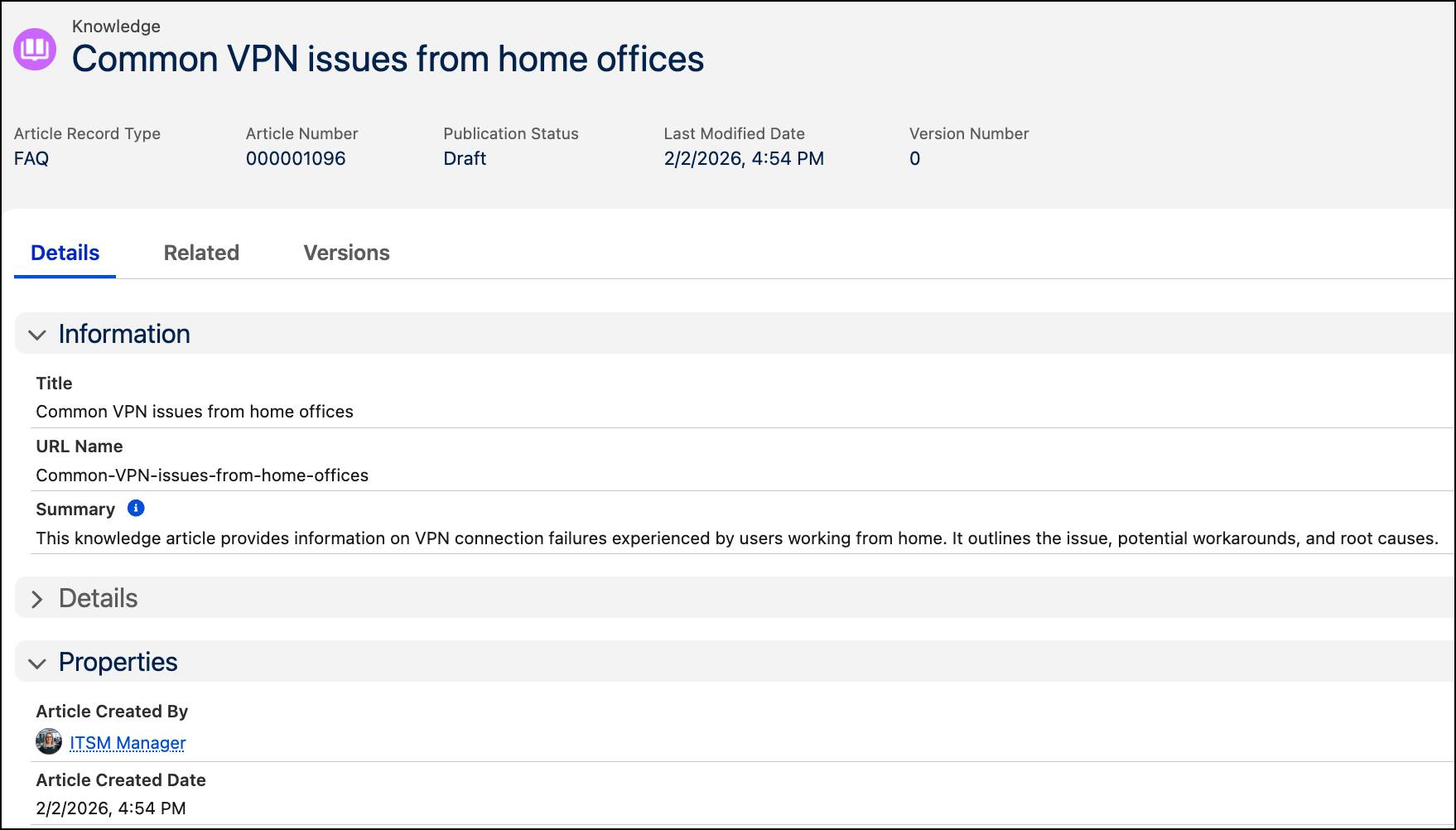
When you let AI draft new articles, it analyzes several key fields so you don’t have to comb through reams of incidents, problems, and other knowledge articles. For example, for incidents, it scans the subject, description, resolution summary along with any related incidents. Similarly, for problems, it looks at the workaround, root cause summary and related problems.
From Knowledge Management
You can also create new articles directly from the knowledge management service management process itself.
- From the App Launcher (
 ) or Agentic IT Service Desk drop-down, find and select Knowledge.
- Click New.
Once again, select the type of article and you’re off to the races! The process is the same as when you manually create a new article from incident or problem management. This manual path is often preferred for general FAQs or standard operating procedures.
AI is powerful, but don’t forget–you’re the expert! Articles drafted by Agentforce IT Service are saved as drafts, not published immediately. Always review the content to ensure it captures the nuance of the solution. Add context, clarify steps, and verify technical accuracy before you click publish.