Create Opportunity Rules
Learning Objectives
After completing this unit, you’ll be able to:
- Create a decision table to calculate the base discount.
- Create an expression set to configure the opportunity rule.
Calculate Base Discounts
In the last unit, you configured a context definition to give you the data to calculate opportunity discounts and implement compliance. Now, build a decision table to capture the base discount. The base discount percentages are defined in the Discount Rule object for each account rating.
Account Rating |
Base Discount |
|---|---|
Hot |
10% |
Warm |
5% |
Cold |
0% |
When you create or update an opportunity record, the decision table looks at the record and calculates the base discount based on the account rating of an account selected in the opportunity record. Here’s how you create the decision table.
- Select
 , then find and select Business Rules Engine.
- Select
 and select Lookup Tables.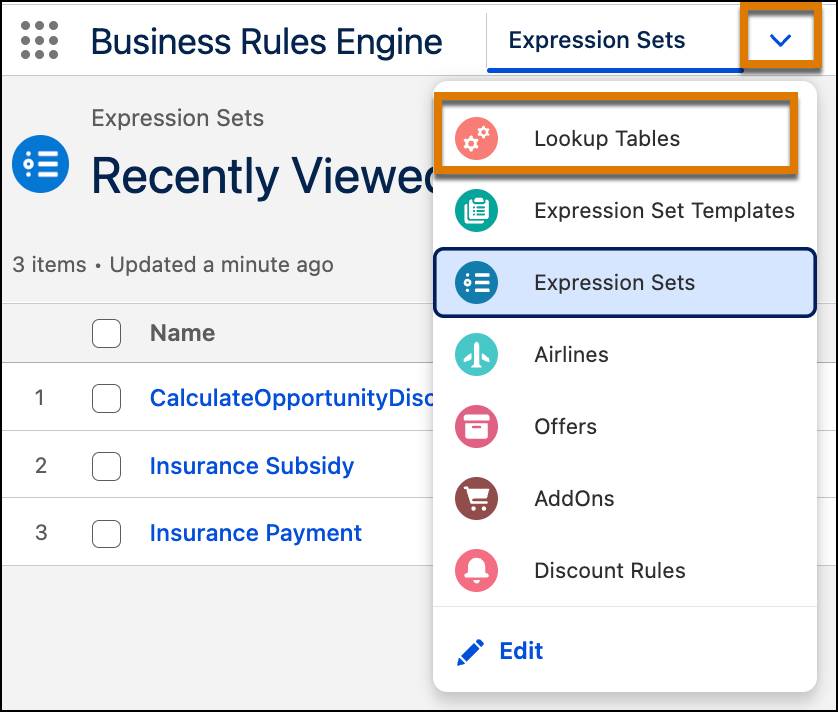
- Select New.
- In the New Lookup Table window, select Decision Table.
- Select Next.
- In the New Decision Table page, specify these details.
- Name:
DTRatingDiscount. The API Name field auto populates with DTRatingDiscount.
- Decision Table Type: Standard
- Name:
- Select Save & Next.
Now, configure your decision table.
- For Source Object, find and select Discount Rule.
- Under Conditions, for Source Object Field, find and select Account_Rating__c.
- Under Results, for Source Object Field, find and select Base_Discount__c.
- Select Save & Next.
- Under Results, for Filter Result By, select First Match.
- Select Save & Next and then Finish.
- Select Activate.
Your decision table is configured and available for use. You invoke this decision table in an expression set.
Configure Opportunity Rules
Use an expression set with List Filter and Calculation elements to configure the opportunity rule logic. Use a Lookup Table element to invoke the DTRatingDiscount decision table you built earlier.
Create the Expression Set
First, create an expression set to configure the opportunity discount and compliance rule.
- Select
 , then find and select Expression Sets.
- Select New.
- In the New Expression Set window, provide these details.
- Name:
CalculateOpportunityDiscount. The API Name field auto populates with CalculateOpportunityDiscount.
- Usage Type: Default
- Context Definition: SalesTransaction
- Name:
- Save your work.
- In the Expression Set Details page, under Expression Set Versions, select CalculateOpportunityDiscount V1. The expression set opens in the Expression Set Builder.
Build the Rule
Now, use the expression set step elements to build the rule. Configure the lookup table element first.
- In the Expression Set Builder, select
 , then find and select Lookup Table.
- In the Lookup Table element, for Lookup Table Details, find and select DTRatingDiscount.
The Lookup Table element name is auto populated. It also displays the Account_Rating__c input variable and Base_Discount__c output variable.
- Select Map Variables. Here, you map the decision table variables with the context definition attributes so that the data from the context definition is passed to the decision table.
- In the Variable Mapping window, configure these mappings.
Lookup Table Variable |
Action |
Context Variable |
|---|---|---|
Account_Rating__c |
Map |
AccountRating |
Base_Discount__c |
Map |
Opportunity_CalculatedDiscount |
- Select Done.
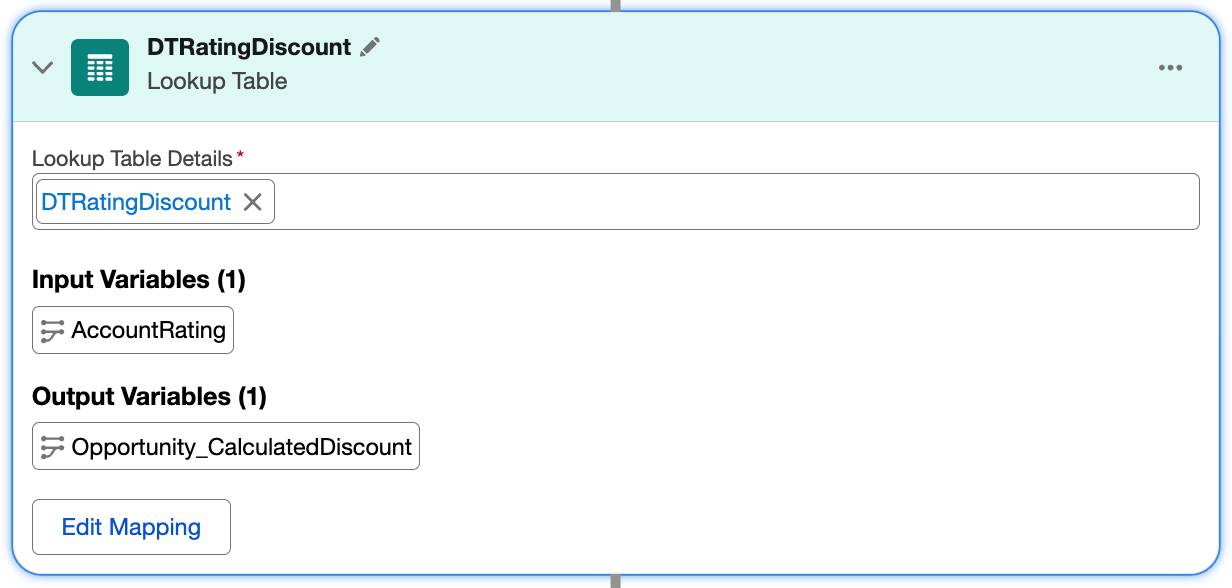
- Save your work.
Configure the First Condition
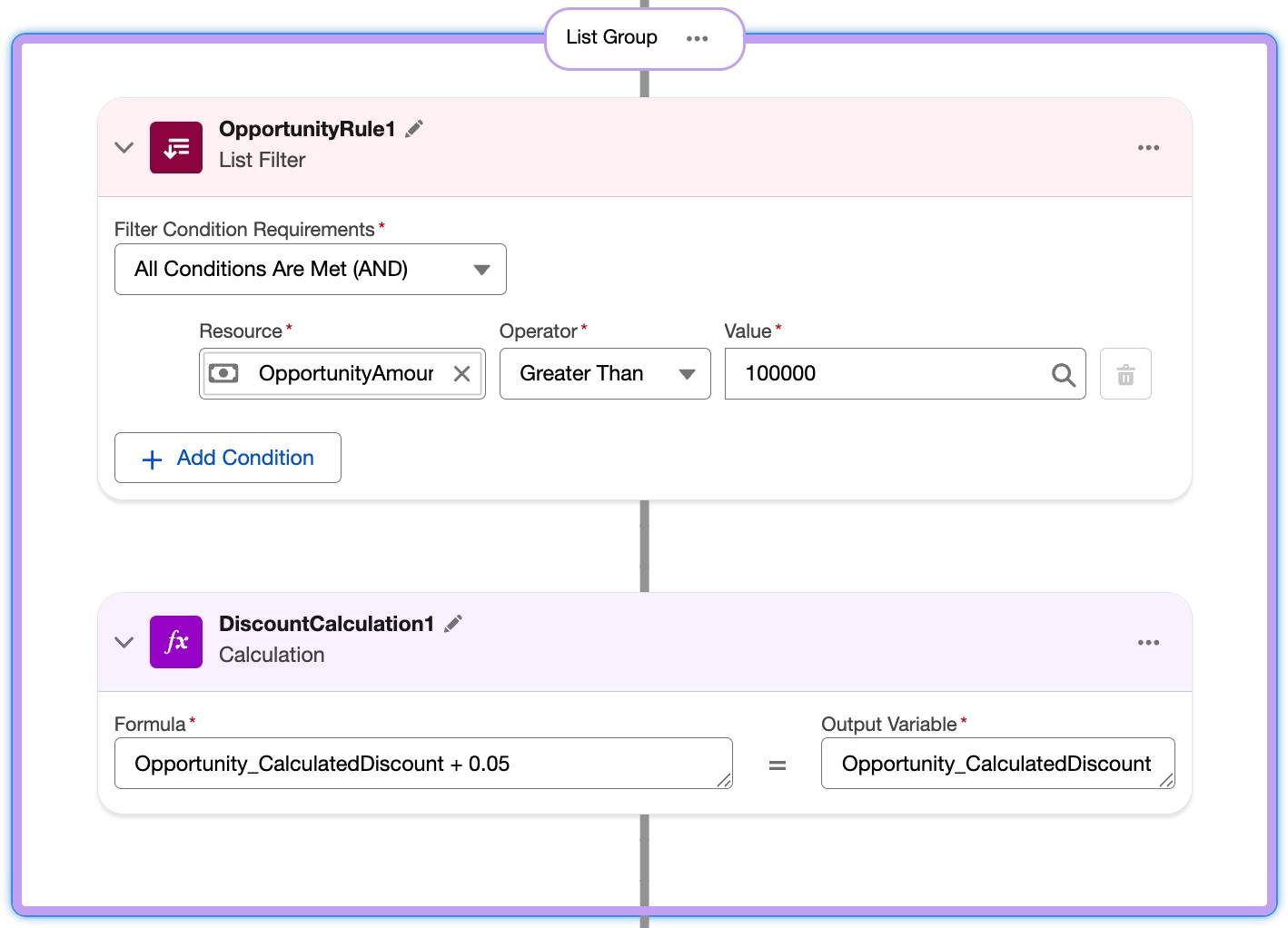
Next, add a list group element that includes a list filter and a calculation element. Use the List Filter element to fetch data from the Context Definition. As per the scenario requirement, when the opportunity amount is greater than $100,000, you add 5% to the base discount. Configure this condition.
- In the Expression Set Builder, after the Lookup Table element, select
 , then find and select List Group. A List Group element with a List Filter element is added.
- Select
 beside the List Filter name and change it to
 OpportunityRule1.
- In the OpportunityRule1 List Filter element, provide these details.
- Resource: OpportunityAmount
- Operator: Greater Than
- Value:
100000
- Resource: OpportunityAmount
- In the List Group element, after the OpportunityRule1 element, select
 , then find and select Calculation.
- Select
 beside the Calculation name and change it to
 DiscountCalculation1.
- In the Calculation element, provide these details.
- Formula:
Opportunity_CalculatedDiscount + 0.05 - Output Variable: Opportunity_CalculatedDiscount
- Formula:
- Save your work.
Configure the Second Condition
Now, configure a second condition. When the opportunity amount is less than or equal to $100,000, the base discount remains the same.
- In the Expression Set Builder, add a second List Group element after the first one. A List Group element with a List Filter element is added.
- Select
 beside the List Filter name and change it to
 OpportunityRule2.
- In the OpportunityRule2 List Filter element, provide these details.
- Resource: OpportunityAmount
- Operator: Less Than or Equal
- Value:
100000
- Resource: OpportunityAmount
- In the List Group 1 element, after the OpportunityRule2 element, select
 , then find and select Calculation.
- Select
 beside the Calculation name and change it to
 DiscountCalculation2.
- In the DiscountCalculation2 element, provide these details.
- Formula:
Opportunity_CalculatedDiscount - Output Variable: Opportunity_CalculatedDiscount
- Formula:
- Save your work.
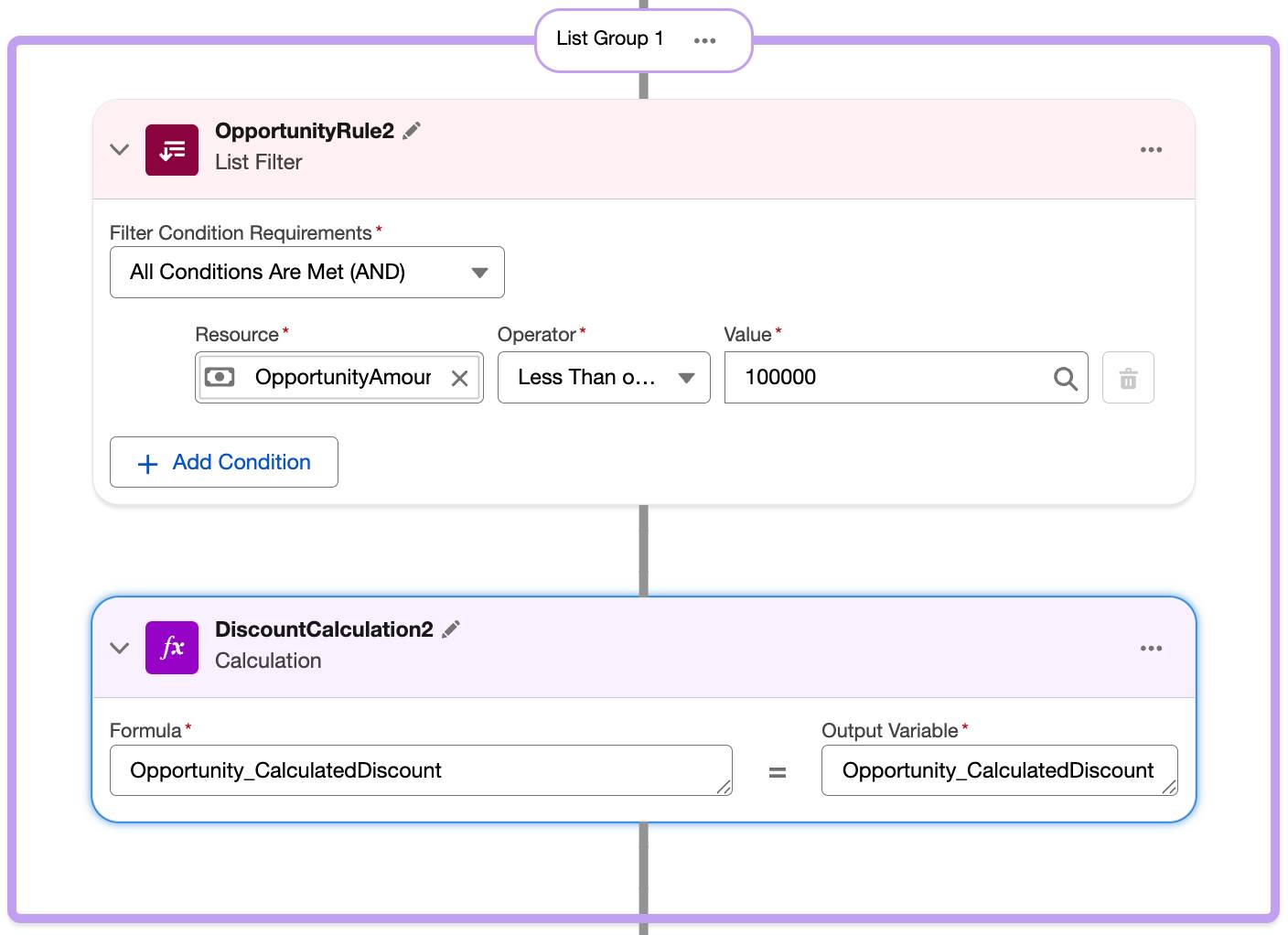
Your discount calculation rules are now set in the expression set.
Configure the Third Condition
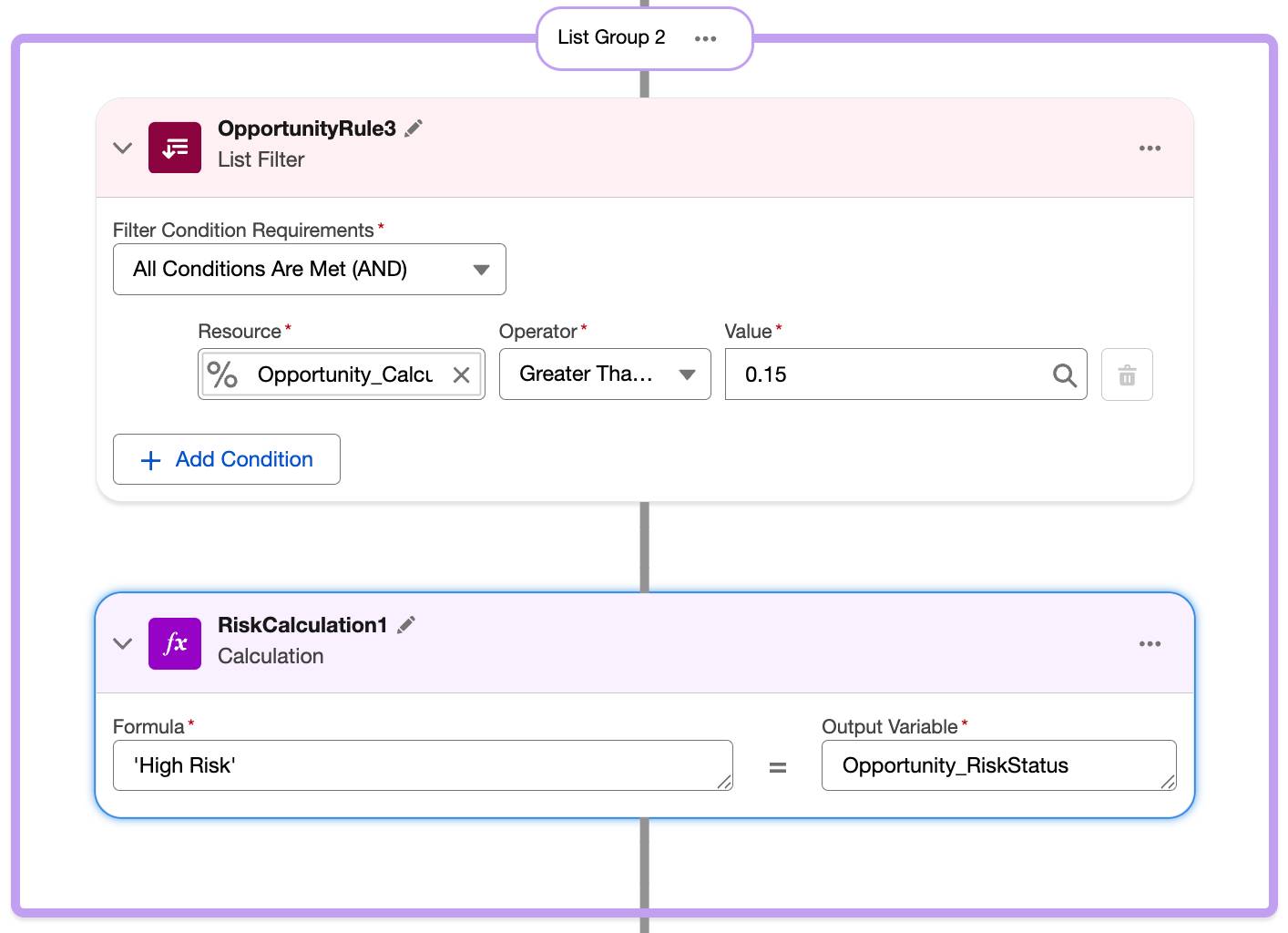
Now, create the rules to calculate the risk status of an opportunity. When the opportunity Calculated Discount is greater than or equal to 15%, then the risk status is High Risk.
- In the Expression Set Builder, after the List Group 1 element, add another List Group element. A List Group element with a List Filter element is added.
- Select
 beside the List Filter name and change it to
 OpportunityRule3.
- In the OpportunityRule3 element, provide these details.
- Resource: Opportunity_CalculatedDiscount
- Operator: Greater Than or Equal
- Value:
0.15
- Resource: Opportunity_CalculatedDiscount
- In the List Group 2 element, after the OpportunityRule3 element, select
 , then find and select Calculation.
- Select
 beside the Calculation name and change it to
 RiskCalculation1.
- In the Calculation element, provide these details.
- Formula:
'High Risk' - Output Variable: Opportunity_RiskStatus
- Formula:
- Save your work.
Configure the Fourth Condition
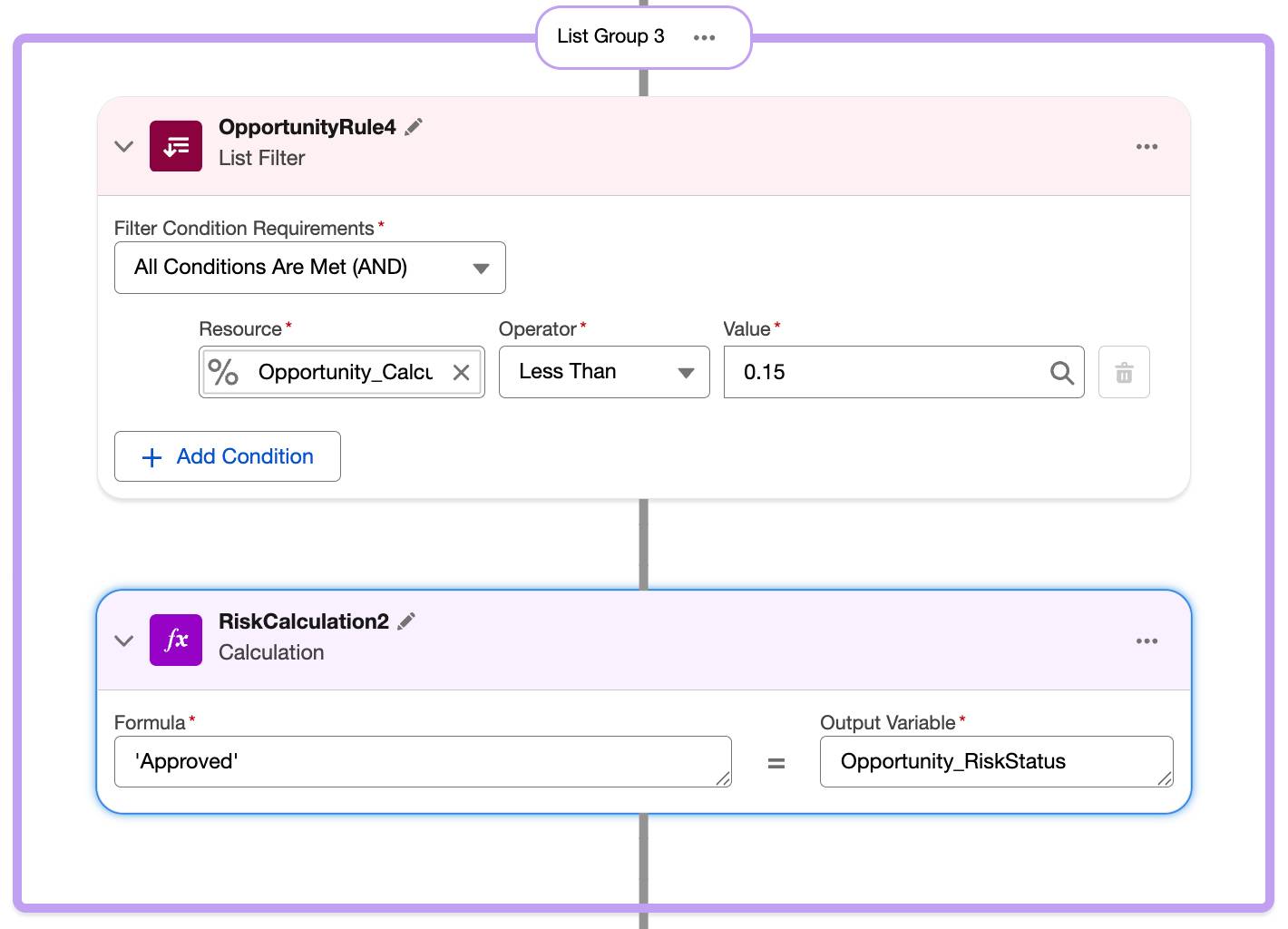
Next, create a rule for the scenario when the opportunity Calculated Discount is less than 15%, then the risk status is Approved.
- In the Expression Set Builder, after the List Group 2 element, add another List Group element. A List Group element with a List Filter element is added.
- Select
 beside the List Filter name and change it to
 OpportunityRule4.
- In the OpportunityRule4 element, provide these details.
- Resource: Opportunity_CalculatedDiscount
- Operator: Less Than
- Value:
0.15
- Resource: Opportunity_CalculatedDiscount
- In the List Group 3 element, after the OpportunityRule3 element, select
 , then find and select Calculation.
- Select
 beside the Calculation name and change it to
 RiskCalculation2.
- In the Calculation element, provide these details.
- Formula:
'Approved' - Output Variable: Opportunity_RiskStatus
- Formula:
- Save your work.
Activate the Expression Set
Your expression set configuration is complete. Next, set a rank and activate it.
- In the Expression Set Builder, select
 .
.
- In the Expression Set Properties panel, under Advanced Details, for Rank, enter
1.
- Save your work.
- Select Activate.
Your expression set is now configured for the opportunity discount and risk status calculation rule and is available for use.
What’s Next?
In this unit, you created a decision table to calculate the base discount. You also created a rule using an expression set to calculate the opportunity discount and risk status.
In the next unit, you create a Salesforce Flow and invoke the Business Rules Engine and Context Service components to execute the rule. You also create opportunity records to test your rule.