Visualize Data with Tableau Next
Learning Objectives
After completing this unit, you’ll be able to:
- Enable conversational analytics by creating an agent based on the Analytics and Visualization template and Data Analysis subagent.
- Run a pilot group test to validate the clarity and accuracy of the agent’s visual and data responses.
- Deploy a user-facing agent to the broader organization with a full launch.
Where Data Becomes Visual
You’ve built your technical foundation in Data 360 and configured your business logic in Tableau Semantics. Now, you move into Tableau Next to activate those models and bring your data to life for your users.
Tableau Agent in Tableau Next enables conversational analytics, so your users can ask questions and get accurate answers and visualizations anywhere.
Your goal in this phase is to launch this user-facing visualization assistant, refine its accuracy through user and manual testing, and embed agentic analytics right where your teams view their data.
Set Up Tableau Agent
Now it’s time to create an agent that enables conversational analytics.
Configure and Activate Your Agent
Before your team can interact with data conversationally, you need to prepare your environment and launch the agent. This involves turning on core AI features, activating the Analytics and Visualization template, and assigning the proper permissions so the agent is accessible to your users. Refer to the Tableau Agent configuration documentation for detailed steps.

Enable AI Features and Functionality
Your agent requires that Tableau Next, Einstein, and Agentforce are set up and configured in your organization. Perform these steps.
-
Enable Tableau Next
-
Enable Agentforce
-
Enable Einstein Generative AI for Tableau Next
-
Enable Q&A Calibration (Beta)
Assign User Permissions
Before assigning permissions, ensure you have already created and activated your agent.
When your agent is active, the next critical step of the Tableau Agent in Tableau Next configuration is assigning user permissions. Because managing the agent template requires a different level of access than simply chatting with the agent, permissions are split into two groups.
-
For admins: To manage the agent template, you must assign yourself the feature permission sets outlined in the Assign User Permission Sets section of the Tableau Agent configuration documentation.
-
For end users: Everyday business users don’t need access to the agent template. To grant them permission to view and chat with the agent, assign them the permission sets described in Manage Employee Agent Access.
You must assign the correct permissions before the agent is visible to users. If you don’t complete this step, the Agentforce panel won’t appear in their interface.
Activate the Analytics and Visualization Template and Data Analysis Subagent
Next, enable the Analytics and Visualization agent template and Data Analysis subagent in Tableau Next. When you turn on these settings in Tableau Next, the template and subagent become available in Agentforce Builder and Agentforce Studio.
Create and Verify Your Agent
In Agentforce Builder or Agentforce Studio, create a new agent based on the Analytics and Visualization template.
To test your new agent, open an asset in Tableau Next, select the Analytics and Visualization agent from the Agentforce panel, and ask a question about your data to verify it generates a response. If the underlying semantic model isn’t properly configured for use with Tableau Agent, the agent notifies you.
Enable Tableau Agent in Slack (Optional)
You can also extend conversational analytics directly into your team’s communication tools. When enabled, users can interact with the agent right in Slack to ask contextual questions about any metrics or dashboards shared from Tableau Next. For detailed steps, see the configuration documentation for Tableau Agent in Slack.
Agent Testing and Optimization
In the previous units, you built a semantic model using your unified data. Now that data and logic are ready to power your agent. At this stage, you transition to a pilot phase to see how the agent handles real-world business scenarios. This is an iterative process where you use pilot feedback to continuously refine your model and ensure the agent provides accurate, meaningful answers.
Prepare the Pilot Workspace
The pilot workspace is the secure environment where you set up the agent for your testing group. To configure it:
-
Create a workspace dedicated to your pilot group.
- Add your unified data assets to the workspace so the agent can access them.
- Run a quick manual test by opening the workspace in Tableau Next: Locate the Agentforce panel, and ask a test question to verify the connection works.
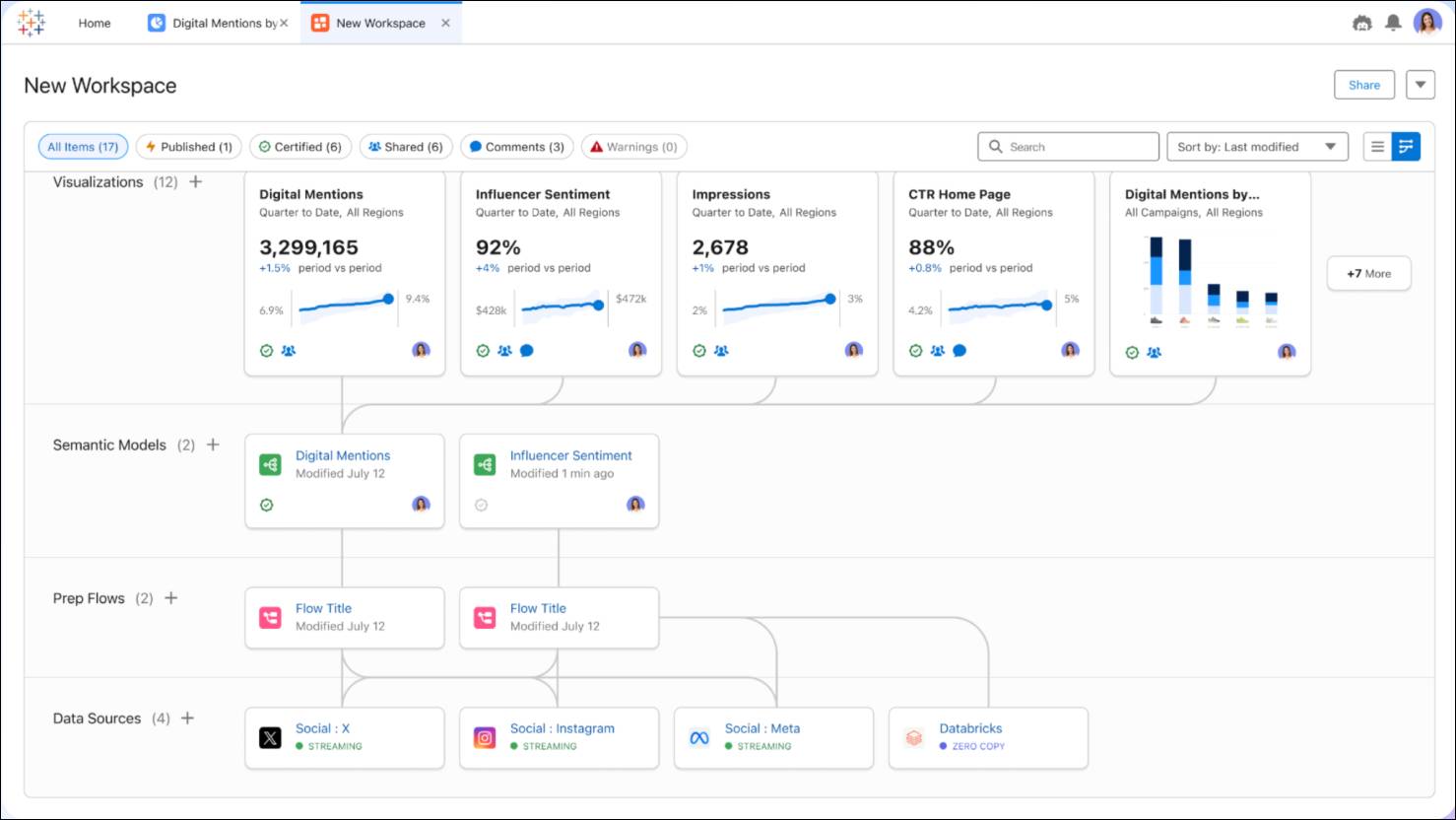
To learn more about managing assets in Tableau Next workspaces, see Workspace Strategy in Tableau Next.
Assemble Your Testers
Identify a group of power users who understand your business data. Their goal isn’t to double-check the math (you did that part during the technical validation), but to ensure the agent’s conversational responses are clear, practical, and helpful. Grant these pilot users Viewer or Editor access to your newly created pilot workspace.
Review and Address Feedback
To ensure accuracy now and long after your agent goes live, you can use Q&A Calibration (Beta). Q&A Calibration enables you to test, calibrate, and verify agent responses for increased accuracy. Your pilot workspace is the perfect place to start using this tool and to build calibration habits you can rely on for continuous improvement and ongoing maintenance.
Regularly review the questions your users submit and the answers the agent generates. Use Q&A calibration to analyze and improve agent responses.
- When the agent provides a correct, high-quality answer, classify the response as Verified. Verified responses act as guided examples that help improve agent consistency.
- If the agent provides an inaccurate response, classify the response as Inaccurate and select a reason. Reasons include unrecognized terms, additional fields required, wrong fields used, unsupported calculation, or wrong calculation used. Enter the expected answer, and then click Save & Suggest Calibration. Follow the guided calibration recommendations to resolve the underlying issue. Always re-test the initial prompt to confirm your adjustment successfully returns the correct answer.
For detailed steps, see Use Q&A Calibration (Beta).
From Pilot to Launch
When you and your pilot group confirm that the agent is providing accurate, conversational insights, you’re ready to officially deploy the experience to your entire user base.
Expand Access Through Permissions
To go live, you must scale the access you tested during the pilot. Ensure that your broader user base has the correct permission sets for both Data 360 and Tableau Next.
Enable and Support Your Users
Provide your team with clear guidance and context to ensure their success. Take time to educate users on the specific data connected to your semantic model. Share examples of supported questions, and clarify which types of inquiries aren’t yet available. Set these expectations early to prevent frustration and enable stronger adoption.
Roll Out Embedded Components
The most effective way to drive adoption for all users is to put the agent where they spend their time. Use the Lightning App Builder to add the agentic components to the primary record pages used by your teams, such as Account or Opportunity pages. This ensures the visualization layer is a natural part of their daily workflow rather than a separate tool they have to search for or might forget about entirely. For detailed steps, see Bring Insights into the Flow of Work.
Commit to Continuous Improvement
While the pilot helped you refine the agent’s initial logic, a larger group will likely ask a wider variety of questions. Continue to iterate on your implementation to ensure the agent remains a high-value partner for your business.
Ready for Action
With the first three layers of the agentic analytics platform complete, the action layer is now unlocked. This is where your users take the lead to seamlessly execute strategic, tactical, or operational next steps directly from their visualizations and dashboards.
As an admin, make sure you are familiar with the action types available to your users. Through built-in workflows, your users can add functionality within their visualizations and dashboards to:
-
Navigate: Add direct links to Salesforce pages or external websites.
-
Manage records: Create, update, and interact with Salesforce records.
-
Automate: Trigger custom Salesforce flows to handle tasks like creating follow-up assignments or sending reminder emails.
For more information on how users can implement this functionality, see:
-
Take Action from Your Tableau Next Visualization
-
Add Actions to Visualizations
-
Add Single-Click Actions to Your Data
-
Add a Salesforce Flow Action to a Dashboard
Summary
Let’s review what you’ve built.
-
The grounding layer (Data 360): You unified disconnected data sources into a single, indexed source of truth that grounds your AI models in verifiable facts.
-
The logic layer (Tableau Semantics): You bridged the gap between raw data and business language by building a semantic model with flexible relationships, centralized metrics, and synonyms.
-
The visualization layer (Tableau Next): Moving to the frontend, you activated conversational analytics with Tableau Agent, validated it with a pilot group, and embedded it directly into your teams’ primary record pages, giving users the interface where they interact with and experience the data your semantic model powers.
-
The action layer (Salesforce actions and flows): By completing the first three layers, you unlocked the ability for users to trigger workflows and take immediate action directly from their visualizations and dashboards.
Congratulations! You’ve built an end-to-end agentic analytics platform that turns passive dashboards into an active, intelligent partner. As the architect of this experience, you’ve fundamentally changed how your business works.