Build a Learning Program and Learning Program Plan
So far, you’ve discovered how to create a learning course using the Learning Wizard. While some institutions only offer standalone courses, most opt to group their courses within a larger learning program.
When building a learning program, you define basic information, such as the total credit hours, and associate any logical prerequisites, corequisites, or recommendations for the program.
Each learning program your institution offers can have one or more learning program plans. A learning program plan provides a detailed blueprint for a specific version of a program, including unique requirements, sequencing, and milestones for a given catalog term or academic year.
Creating a learning program plan follows a similar process to creating a learning course, at least initially. First, you create your learning program in the Learning Wizard. After you're done with the program setup, the Program Plan Builder launches so you can quickly configure an associated program plan for the program.
The Learning Wizard and Program Plan Builder give you the ability to create large, complex programs and program plans with multiple prerequisites, requirements, and outcomes, and you can even nest sub-plans within your program plans. Here, we’ll keep it simple: Create a program and program plan to define the curriculum for a small foundational Computer Science microcredential. This program will include three courses that we’ve configured for you.

Create a Learning Program from the Wizard
Follow these steps to create a learning program for a Computational Theory badge.
- From the App Launcher
 , find and select Academic Operations.
- Select Learning Programs in the app menu
 .
.
- Click New from Learning Wizard.
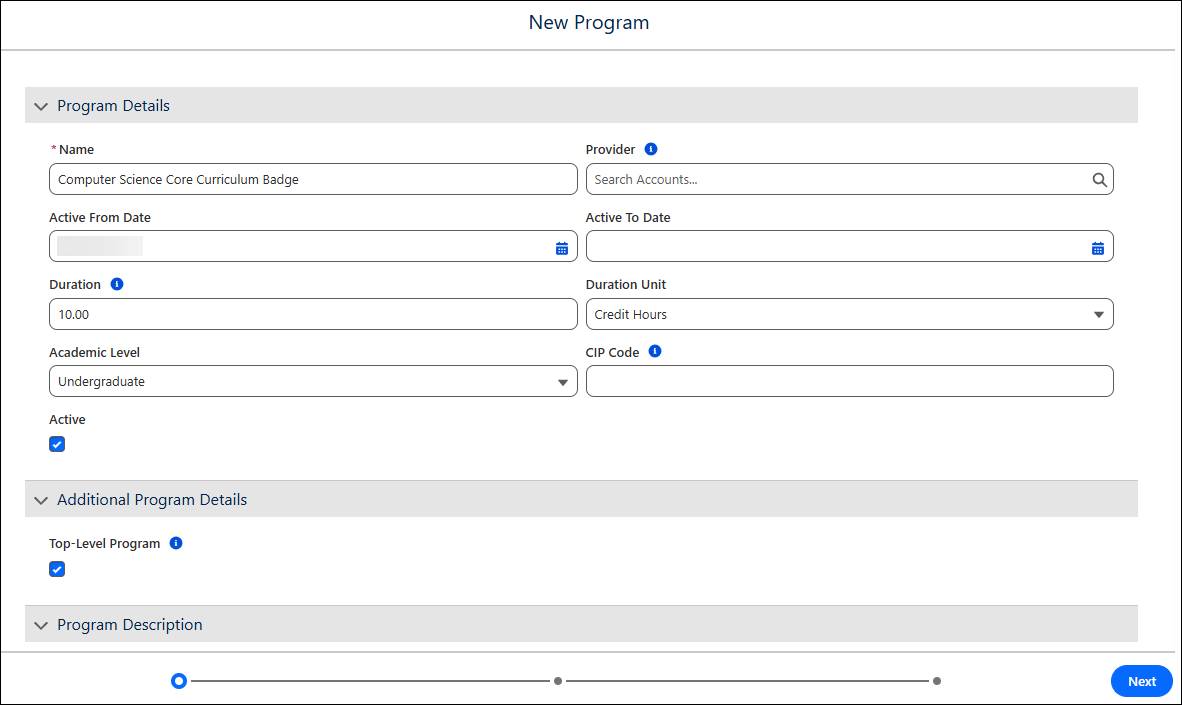
- For Program Details, enter the following information.
- Name:
Computer Science Core Curriculum Badge - Active From Date: Today’s date
- Duration:
10 - Duration Unit: Credit Hours
- Academic Level: Undergraduate
- Name:
- Toggle on the Active checkbox.
- Click Next.
- Click Next.
- Click Create Program.
After you click Create Program, the Program Plan Builder launches so you can configure an associated learning program plan.
Create a Learning Program Plan Using Program Plan Builder
Follow these steps to build a learning program plan for your new learning program, and then sequence the requirements.
- In the Program Plan Properties pane, enter the following information.
- Name:
Computer Science Core Curriculum Plan - Fall 2026 - Version Number:
1 - Active From Date: Today’s date
- Name:
- Click Save Properties.
- In the Program Plan Builder canvas, click
 and select Required Courses.
- In the Required Course Properties pane, enter
Required Courses for CS Core Curriculumfor the Group Name.
- Click Add Courses.
- In the search bar, enter
Calculusand press Enter.
- Click
 for Calculus I.
- In the search bar, enter
Computer Scienceand press Enter.
- Click
 for Computer Science I.
- In the search bar, enter
Computingand press Enter.
- Click
 for Computing and Social Responsibility.
- Click Add Selected.
- In Required Course Properties, click Save Properties.
- Click Save Draft.
- Click Publish and then click Publish on the confirmation screen.
- On the Computer Science Core Curriculum Plan - Fall 2026 record, click the Related tab. Notice that the three required courses are present in the Learning Program Plan Requirements list.
- Click
 in the Calculus I requirement, and select Edit.
- For Sequence Number, enter
1.
- Save your work.
- Repeat the steps to set the sequence for the two other requirements:
- Computer Science I | Sequence Number:
2
- Computing and Social Responsibility | Sequence Number:
3
- Computer Science I | Sequence Number:
Nice work! You’ve created a learning program and learning program plan that contains three required courses. You also set the sequence in which students should complete the three courses to earn the badge.

You might’ve noticed some other elements that you can add in the Program Plan Builder. Here’s a summary of all the elements you can add to your learning program plan.
-
Category: A container for other plan elements, such as Required Courses or Reusable Collections
-
Required Courses: Courses that are required to complete the learning program
-
Elective Courses: Free electives or elective tracks that learners can add to their program
-
Reusable Collection: Give you the ability to create program plans more quickly by adding a collection of courses across several program plans
Learning programs are the blueprints that outline your curriculum. When a student enrolls in the learning program, a learner program record is created to capture their engagement.
You’re doing great! In the next unit, you explore another common task that registrars perform: creating a new version of a learning program plan.