Get Started with Slack Admin Processes
Learning Objectives
After completing this unit, you’ll be able to:
- Set up and maintain robust support models in Slack.
- Use channels and workflows to simplify request management.
- Identify best practices for channel and workflow setup.
Simplify Intake and Resolution of Admin Requests
As a consultant, you play a crucial role in ensuring that your client’s Slack support model runs smoothly and efficiently. Admin requests are a key part of this model, and the number and type of requests are heavily influenced by the policies and settings your client implements. Your goal is to advise your client on how to simplify the intake and resolution of these admin requests using Slack's product functionality.
Configure Org-Level Policies and Settings
Org-level policies and settings are the backbone of the Slack Enterprise Grid experience across all workspaces. These can be set at both the organization and workspace levels to meet specific needs. Workspace policies can be defined from the org-level settings to address unique workspace and business requirements.
As a consultant, you should advise your client on both org and workspace settings, and the admin processes needed to support them. The decisions about policies and settings greatly affect user permissions versus admin-managed tasks. When more control is given to admins, their role in providing end user support becomes critical. To handle these requests efficiently, a solid set of admin processes must be established.

Build a Support Model in Slack
Your client might already have a request process and management system in place, such as Jira or ServiceNow. Encourage them to integrate these tools with Slack. This integration allows support agents and admins to handle requests directly in Slack, streamlining workflows and reducing the need to switch between multiple tools. With thousands of app integrations available, seamless integration with their existing issue resolution tool is highly likely.
When your client is building a support model that lives in Slack, admins will be managing requests with two key Slack features: channels and workflows.
Using Channels for Admin Requests
Channels in Slack can be categorized into two types: request channels and back-end channels.
-
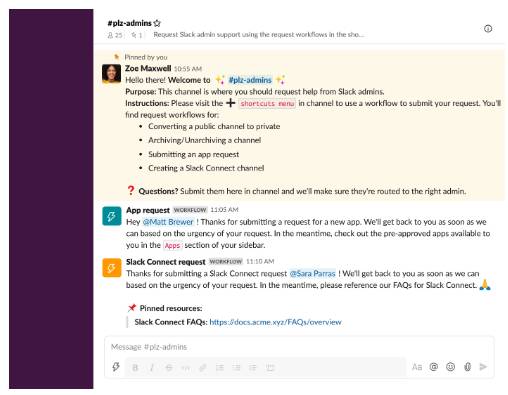
Request channels: These public channels allow end users to submit requests for help across the organization. The types of requests vary based on the organization’s policies and settings. For instance, if custom apps require preproduction review, admins handle those requests. Similarly, if end users can't create multi-workspace channels, they need to submit a request for admin review.
-
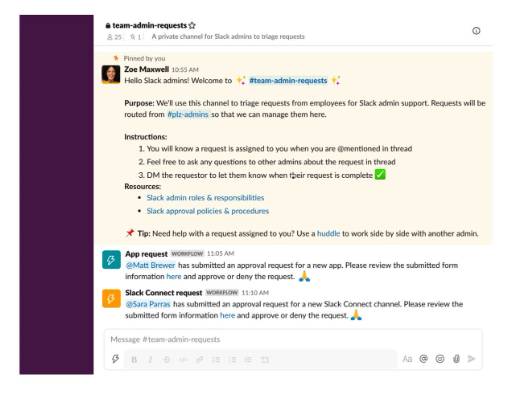
Back-end channels: These are private, org-wide channels where admins coordinate and manage the resolution of requests. They provide a central place for assigning ownership and ensuring timely support.
This table summarizes the use, setup, and examples for both request channels and back-end channels.
|
Request channels |
Back-end channels |
|---|---|---|
Channel use |
For users to submit requests and for the admins to review and approve these requests. |
For admins to coordinate and manage the resolution of requests. |
Channel set up |
Public, org-wide channels |
Private, org-wide channels |
Example channels |
#plz-admins (“plz” is shorthand for “please”) |
#team-admin-requests |
Best Practices for Channels
-
Channel naming conventions: Reinforce the importance of standard naming conventions for admin channels. This helps end users find the right channels and helps admins distinguish the types of requests they're supporting.
-
Clarify the purpose: After creating a new channel, make sure to include a channel topic or description so users are clear of the purpose for the channel. This helps them know when to use the channel.
-
Multiple request channels: Depending on the volume of requests, consider having separate channels for different types of requests, such as #plz-admins, #plz-apps, or #plz-slack-connect. This keeps things organized and efficient.
Optimize Requests with Workflows
Workflows in Slack automate routine processes without requiring coding. Workflow Builder can create efficiencies in complex processes and connect with other tools outside of Slack. Workflows are particularly useful for facilitating requests.
Workflow Examples
Set up the #plz-admins channel with workflow requests for common actions. For instance, a workflow to make a public channel private should collect details like:
- Level of urgency
- Full channel name
- Date to convert the channel
Use Product Features to Improve Processes
Beyond managing user requests, Slack admins are responsible for maintaining the health and structure of the Slack instance. Tools like the Slack Analytics Dashboard and channel management features can help create regular processes for keeping everything organized. Guide your client to use these tools effectively to enhance their Slack environment.
To ensure that Slack drives value for an organization, there needs to be a plan to unblock end user issues when working in Slack. A key component of supporting users is putting robust admin processes in place to help Slack’s end users with various types of requests.
Explore a Channel Workflow Example
Imagine a Slack client that centralizes all admin requests in a global #plz-admins channel, accessible from any workspace. This channel includes pinned instructions and a prepopulated shortcuts menu with relevant workflows based on the client's settings.
Common admin requests include:
- Archiving/Unarchiving a channel
- Converting a public channel to a private one
- Creating a Slack Connect channel
- Submitting an app request
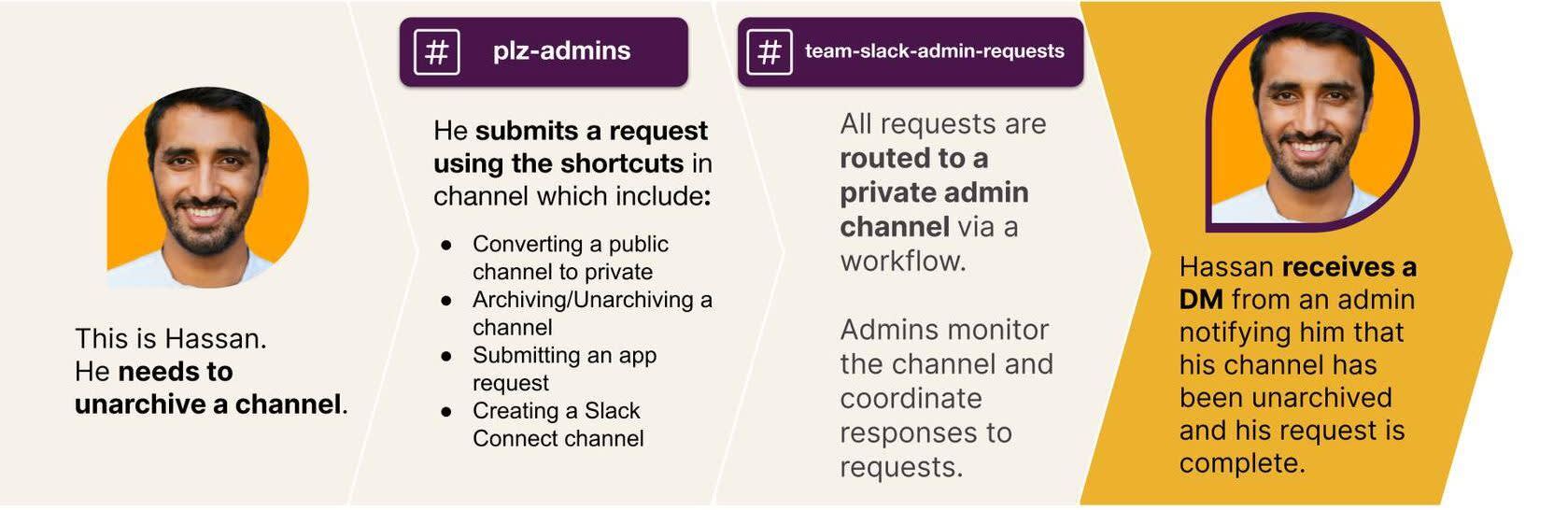
When a user submits a request, the workflow form prompts them for the necessary details. These requests are sent to a back-end private channel where admins can coordinate and fulfill them. Admins use the eyes emoji to indicate they're working on a request and the check mark emoji to mark it as complete. They also DM the user to notify them when the request is fulfilled.
The whole process looks like this.
Recap
You learned to review and optimize admin processes in Slack, explored the importance of org-level policies and settings and how they influence user permissions and admin tasks. Using channels and workflows can simplify admin requests and ensure efficient support and communication. Key best practices include standard channel naming conventions, clear channel descriptions, and using Slack’s Workflow Builder to automate routine tasks. In the next unit, you dive into common admin requests and how to handle them effectively.