Set Up Branch Units and Bankers
Learning Objectives
After completing this unit, you’ll be able to:
- Describe setup steps for Branch Management.
- Create branch units.
- Create banker records.
- Associate bankers with branch units.
Prepare Your Institution for Branch Management
Before your institution begins using Branch Management, there are a few tasks to complete as a Salesforce admin. You:
- Assign permissions to users.
- Grant access to Branch Management objects.
- Add the Branch Selector utility component to the apps your bankers use. Using Branch Selector, bankers can choose their current working location.
We don’t cover those steps in this badge, but you can check out Configure Branch Management in Salesforce Help for detailed instructions.
In this badge, we assume you’re a Salesforce admin who’s ready to use Branch Management. If you’re not an admin, that’s OK. Read along to learn how your admin would take the steps in a production org. Don’t try to follow these steps in your Trailhead Playground. The Branch Management feature isn’t available in the Trailhead Playground.
Explore a Business Scenario
So, your institution is ready to use Branch Management. What now? The first step is to create and connect records for each of your employees and the branches where they operate.
Imagine you’re an admin for Cumulus Bank, a large financial services institution getting ready to use Branch Management. You create banker records for all-star banker Hank Burton and branch manager Kamala Kharga. You then set up the branch that Kamala manages, the MG Road location. Finally, you connect Hank to the branch with the Branch Unit Business Member object. In this unit, you set up and connect those records.
Then you use Record Association Builder to automatically associate records together. That’s the topic of the next unit.
Finally, you can roll out these features to your users. In the final unit, you explore an example of how your bankers and managers use Branch Management for their day-to-day work and to follow trends across branches.
Get to work setting up your first banker.
Create a Banker Record
Let’s create a banker record for Hank Burton.
- From the App Launcher (
 ), find and select Branch Management.
- From the Branch Management console app, click
 and select Bankers.
- Click New.
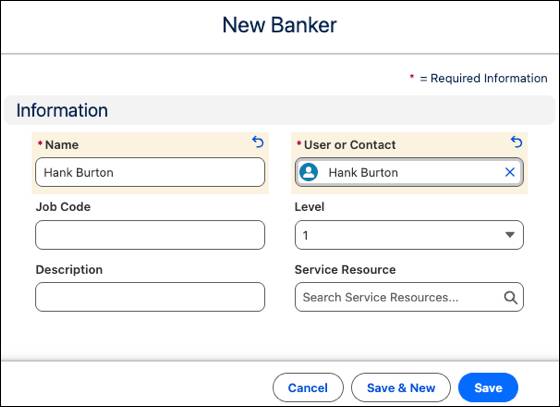
- In the New Banker window, specify these details.
- Name:
Hank Burton - User or Contact: Select User and then Hank Burton.
- Name:
- Save your work.
Now Hank’s user record is connected to a banker record. Similarly, you create a banker record for manager Kamala Kharga.
Then, it’s time to create a branch unit so we can connect our bankers to one.
Set Up a Branch Unit
Create a branch unit record for the MG Road branch.
- From the Branch Management console app, click
 and select Branch Units.
- Click New.
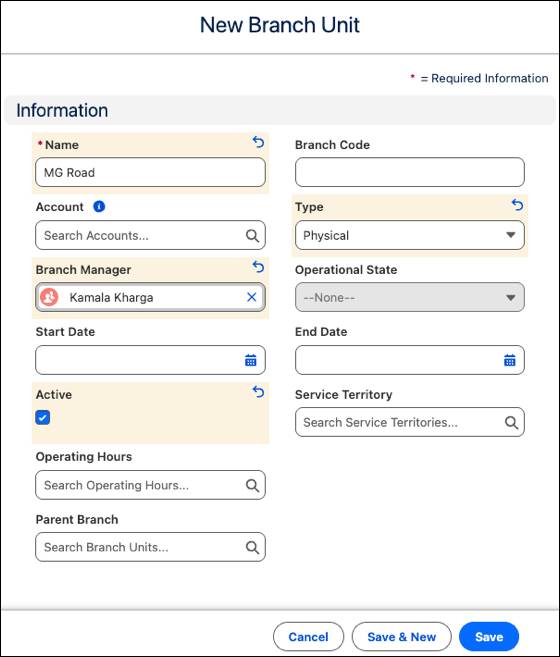
- In the New Branch Unit window, specify these details.
- Name:
MG Road - Branch Manager: Kamala Kharga
- Type: Physical
- Select Active.
- Name:
- Save your work.
The Type field on a branch unit specifies whether a branch is physical, virtual, or both.
Branch unit records can also be associated with service territory records to integrate with Agentforce Service, and related to account records to capture additional information about each branch, such as partner account information.
You have a banker and a branch unit. Now, connect them!
Associate Banker with Branch Unit
Create a branch unit business member record to link Hank Burton to the MG Road branch.
- From the App Launcher (
 ), find and select Branch Unit Business Members.
- Click New.
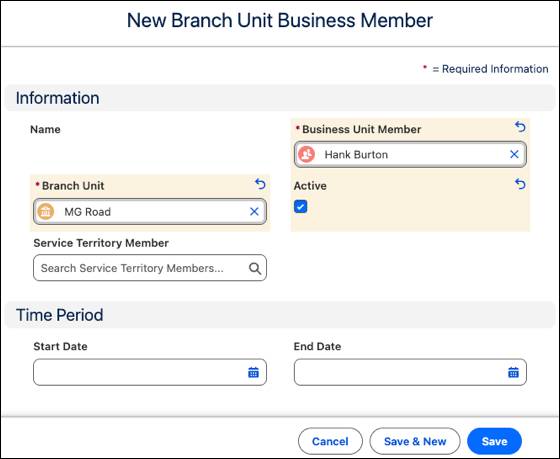
- In the New Branch Unit Business Member window, specify these details.
- Business Unit Member: Hank Burton
- Branch Unit: MG Road
- Select Active.
- Business Unit Member: Hank Burton
- Save your work.
That’s it. You have a branch, a banker, and a branch unit business member relating them to each other.
It’s possible to connect your bankers to their branches manually like this, but it also happens automatically in the flow of a banker's daily work. When a banker uses the Branch Selector to add themselves to a branch, the system creates an active branch unit business member. You learn more about the Branch Selector in a later unit.
What’s Next
In this unit, you learned how to create three of the foundational records in Branch Management.
You have the basics to start using Record Association Builder to automatically relate clients and other records to specific branches. In the next unit, you learn more about how Record Association Builder works with Branch Management records.
Resources
- Salesforce Help: Configure Branch Management
- Salesforce Help: Create Branch Unit Records
- Salesforce Help: Create Banker Records
- Salesforce Help: Create Branch Unit Business Member Records