Explore Slack Code
Learning Objectives
After completing this unit, you’ll be able to:
- Explain what a code channel is and how it differs from working with an AI agent alone.
- Identify who can use Slack Code to help build software.
- Describe use cases where Slack Code helps teams build and ship work faster.
Turn Coding Into a Team Sport
When someone asks an AI agent to write or fix code, it’s usually a 1:1 interaction that happens in a terminal or an IDE window. The rest of the team doesn’t see the work until it’s committed. It can be difficult to catch a wrong assumption early, add missing context, or weigh in on a decision while it’s still easy to make a difference.
Slack Code changes this. Instead of a solo conversation between a person and an agent, the whole team can see, shape, and improve the build together. And it happens right in Slack, in a code channel.
Dive into Code Channels
A code channel is a dedicated space for a project. It’s created automatically the moment someone tags a coding agent to start work or when a team member creates it with intention.
Instead of a wall of conversation and multiple windows, a code channel organizes everything about the project in one place.
- The conversation
- The plan
- The code changes (called diffs)
- A live preview of what’s being built
Everyone in the channel can follow along as the work happens. Team members can be brought in to lend their expertise as needed. When the work is done, the channel archives automatically so your workspace remains tidy. The conversation, code changes, and context stay fully searchable so you can always look back to understand how and why something was built.
Bring in the Team
Of course, code channels are useful for engineers. But the entire team benefits. Because starting a code channel is as simple as mentioning an agent, anyone can start one. For example, a product manager who spots a bug doesn’t need to file a ticket or wait for an engineer to be free. They can ask an agent to help figure out a fix, with the whole team able to see the reasoning and the result.
That doesn’t mean everyone needs to review or approve code. But it does mean people outside of engineering can help move work and everyday fixes forward instead of waiting in a queue.
Stay in Control
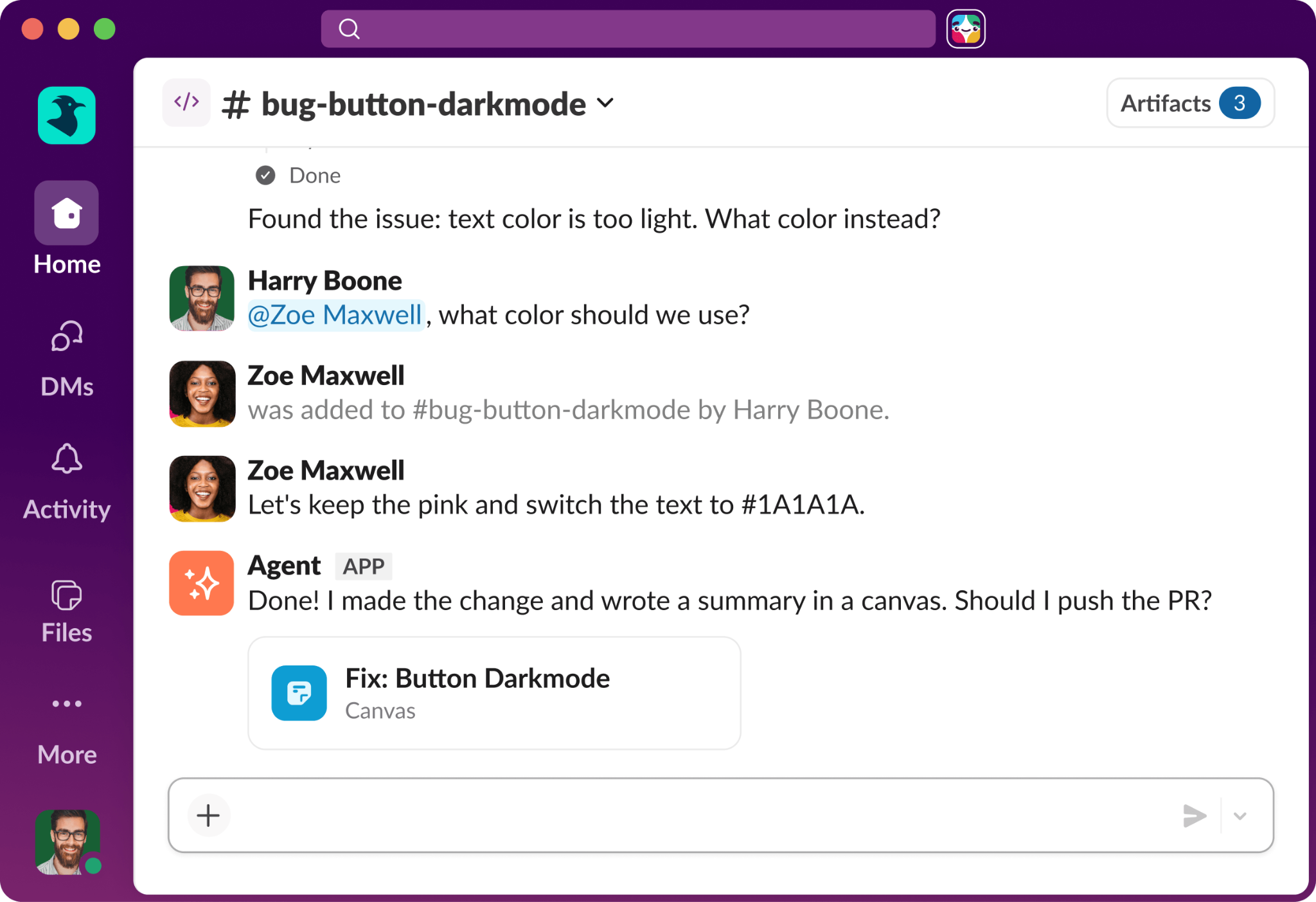
Slack Code enables you to bring in agents while maintaining oversight over the entire process. Code channels use the same permissions and admin controls your organization already has set up in Slack. For higher-stakes moments, like pushing a change to production, the agent doesn’t just go ahead on its own. It packages up the work for approval, which can be viewed right in the channel. A human stays in the loop for the decisions that matter most.
Put Slack Code into Action
Here are a few examples of what using Slack Code looks like day to day.
-
A bug gets fixed without a ticket. Someone reports a bug in a channel. An agent proposes a fix. An engineer reviews the diff and the live preview, and they authorize the change. And this all happens within the same conversation.
-
A non-technical teammate kicks off a change. A project manager describes the update in plain language. An agent drafts the fix and an engineer reviews it in the same channel before it goes further.
-
A business leader gives approval before shipping. A team has a project that needs approval from specific members. When a change is ready, the diff and previews are available in the same place as the conversation thread. Review and approval happens on the spot. Neither a presentation nor meeting is needed. Work just moves along.
Try Slack Code Yourself
If you have Slack and already subscribe to one of our Slack Code partners, you can tag in an agent and it spins up a code channel automatically. Alternatively, you can find code channels under the Agents & tools tab (click … More if you don’t see it right away) in the Slack sidebar. From there:
- Select </> Code channels.
- Click + New.
- Select a supported agent from the dropdown.
- Choose a workspace if you’re on an Enterprise plan.
- Set the channel’s visibility.
- In the Prompt field, describe the task.
- Click Create.
On mobile, you can start one just by mentioning a supported agent in a channel. When the agent starts a session, tap the link it shares to open the code channel.
Sum It Up
Slack Code takes something that used to happen alone and makes it something a team builds together. And now you know what a code channel is, who can use one to move work forward, and a few of the everyday scenarios where teams are already putting this to work. Check out the Resources below to keep exploring.