Dive into the Salesforce Go Interface
Learning Objectives
After completing this unit, you’ll be able to:
- Navigate the Salesforce Go interface.
- Describe efficient ways to discover features and products that are right for your business goals.
Admins are the unsung heroes behind every Salesforce success—tweaking, customizing, and making it all work (often on impossible timelines). You’ve set up some features so many times, you can do it blindfolded. Others might have you rummaging through bookmarked Salesforce docs for that one elusive step. Then there are the real head-scratchers, the directions to set them up living in your internal playbook, written by you, for your company’s unique needs. And finally, there are the features so demanding, you power through on caffeine and pure manifestation. Salesforce Go doesn’t promise cosmic alignment, but it does give you the tools to simplify your workflow and make the whole process smoother, no matter what kind of admin you are.
Get Familiar with the User Interface
The Home Tab
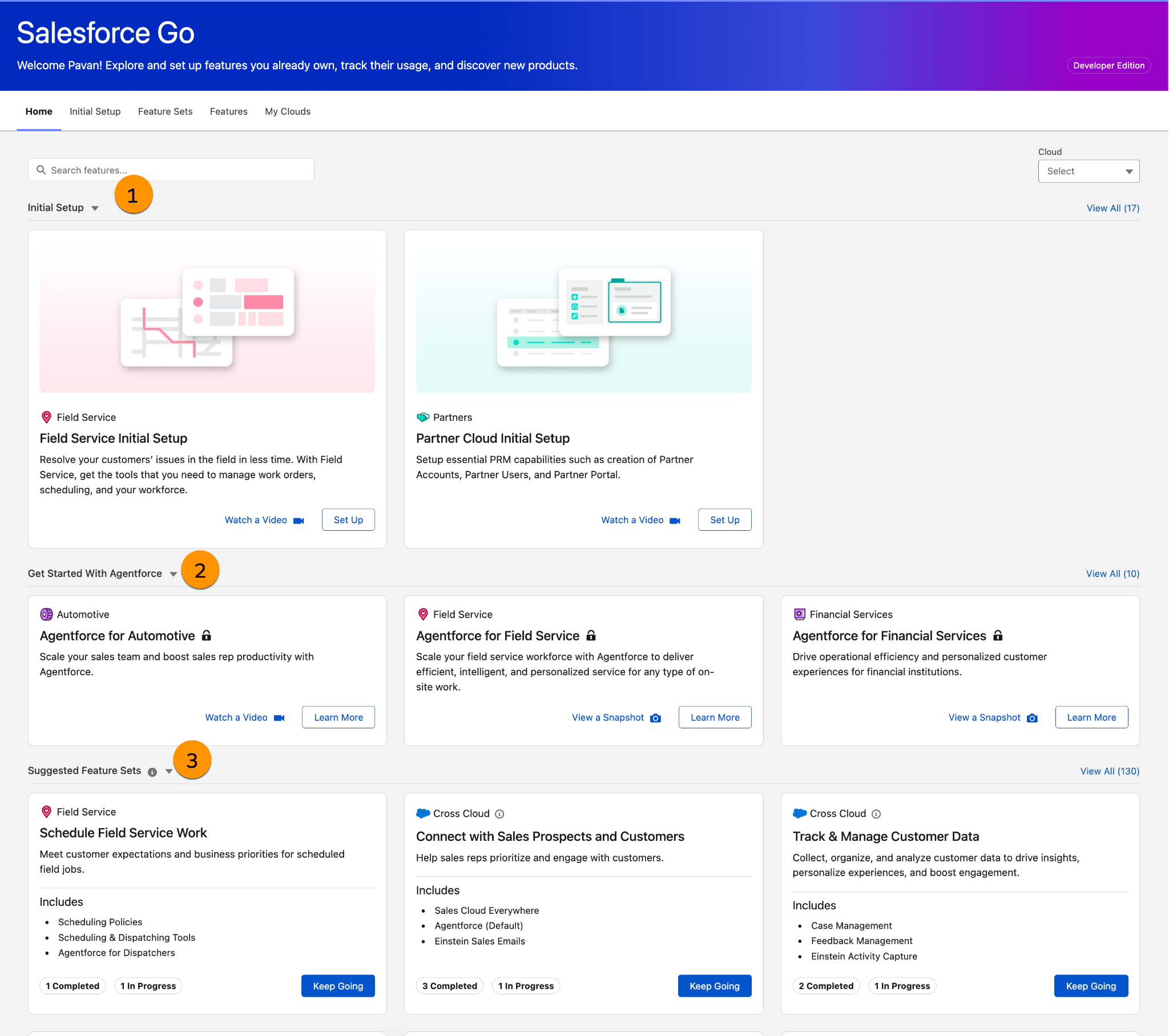
When you access Salesforce Go from Setup, you land on the Home page—the Home tab is highlighted by default. On the Home page, you see the following sections:
-
Initial Setup helps you complete essential foundational setup steps with a single click, automating configuration tasks that would otherwise take hours.
-
Get Started With Agentforce helps you set up and explore Agentforce capabilities tailored to your business needs, so you can start putting AI agents to work in your org.
-
Suggested Feature Sets highlights feature sets relevant to your org. A feature set is a collection of features that solve a specific business problem. You’ll learn more about these later.
The Initial Setup Tab
The Initial Setup tab offers setup cards that are especially useful for new organizations, allowing you to complete first-time setup activities in one place. It is designed to help you quickly turn on and implement key features across various Salesforce products. This tab offers a collection of initial setup cards across clouds, both available to set up and purchase, all in one place.
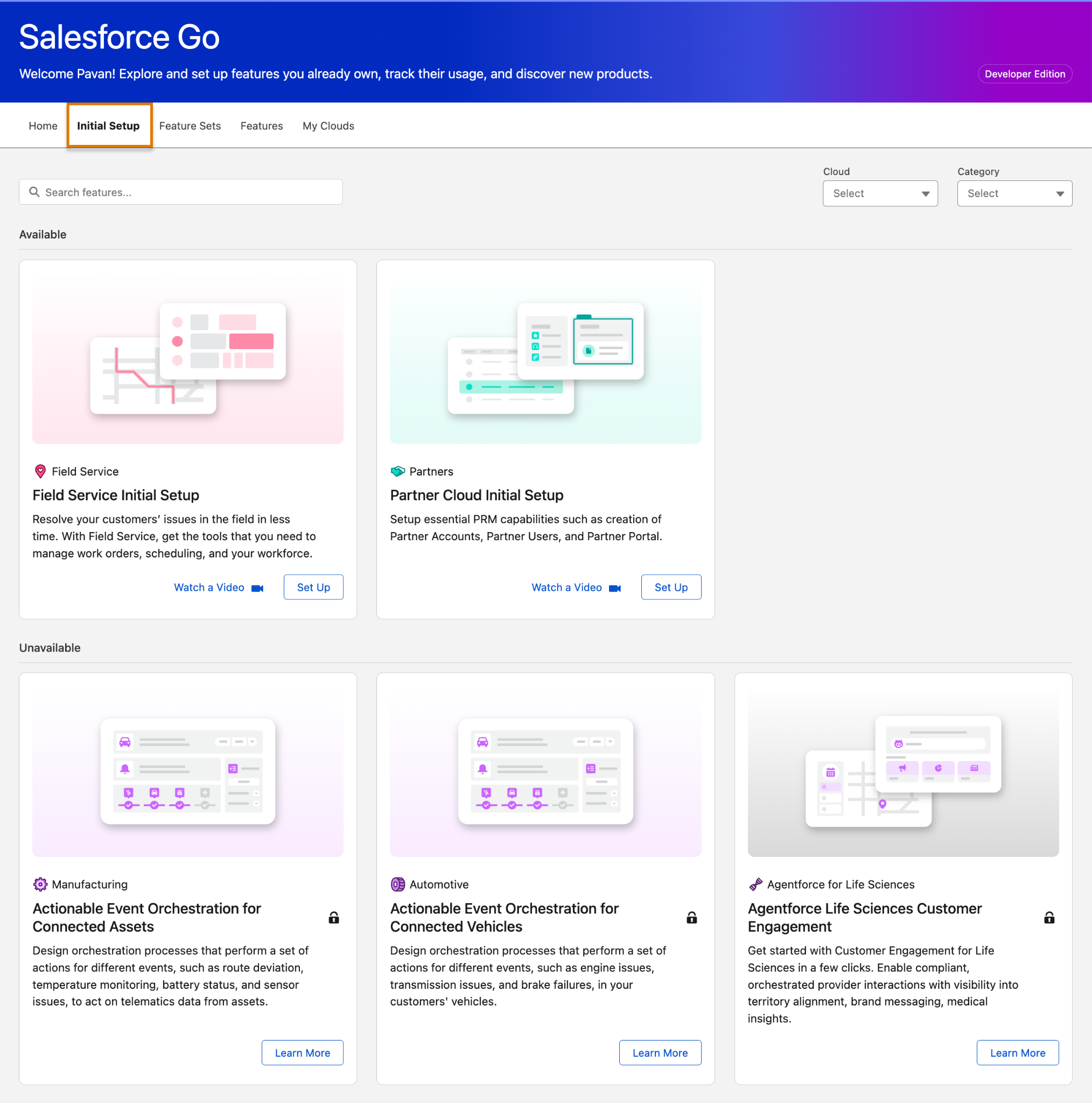
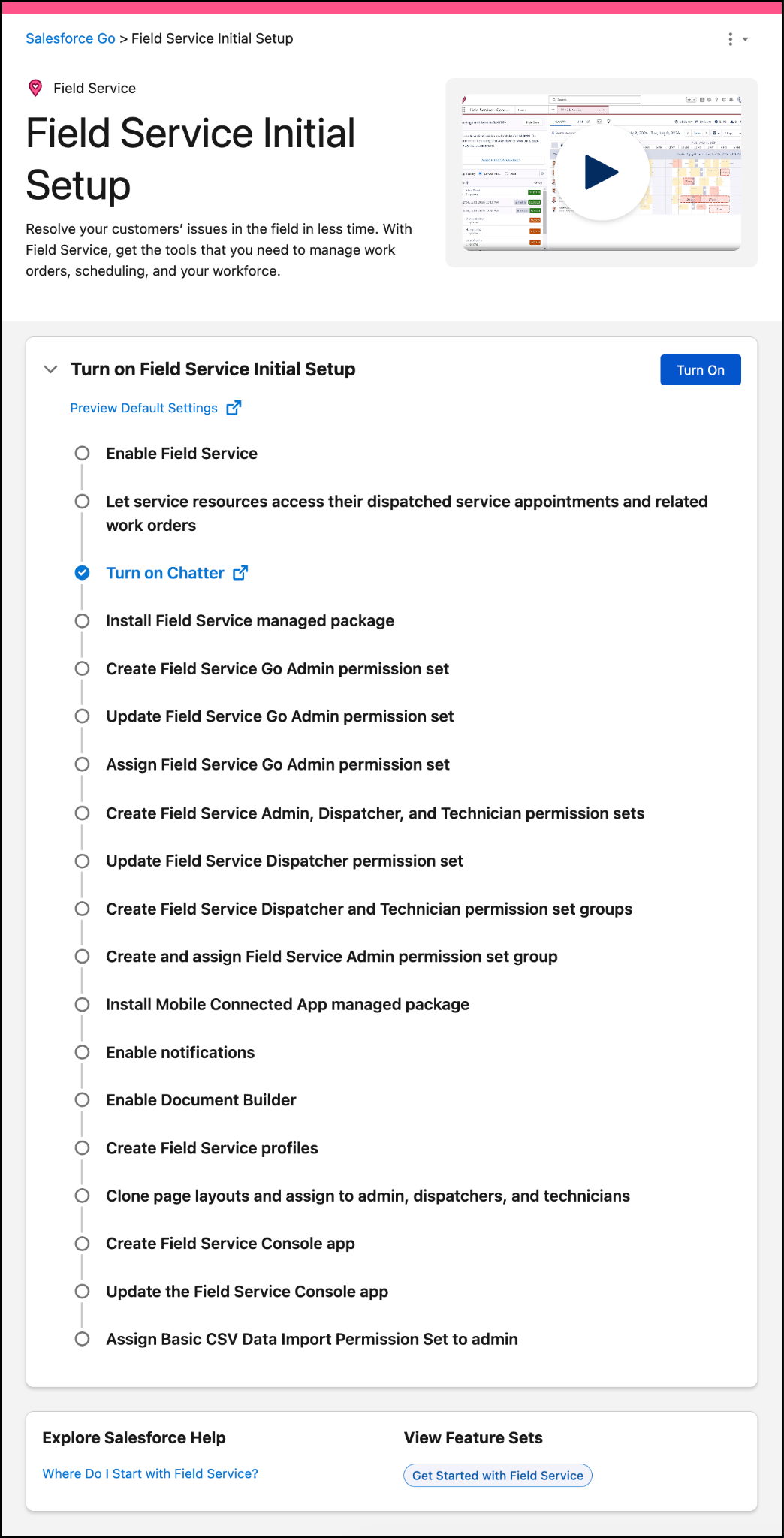
Let’s say your company has purchased a Field Service subscription to streamline field customer service operations. The initial setup involves enabling Field Service features, installing managed packages, configuring permissions, and completing a variety of other tasks. Prior to Salesforce Go, these steps were fragmented across multiple locations.
With the Initial Setup experience, you can turn on and configure all of these components with just a few clicks, helping you get the most out of your purchase from day one.
The Feature Sets Tab
The Feature Sets tab helps you browse all available feature sets across different clouds. Each card includes a brief description of how that feature set can help you. If you’re trying to solve a specific problem, just skim through the list, find the feature set that fits, and click View All Features to see everything it includes. If one or more features within a set is already set up, the card instead says Keep Going.
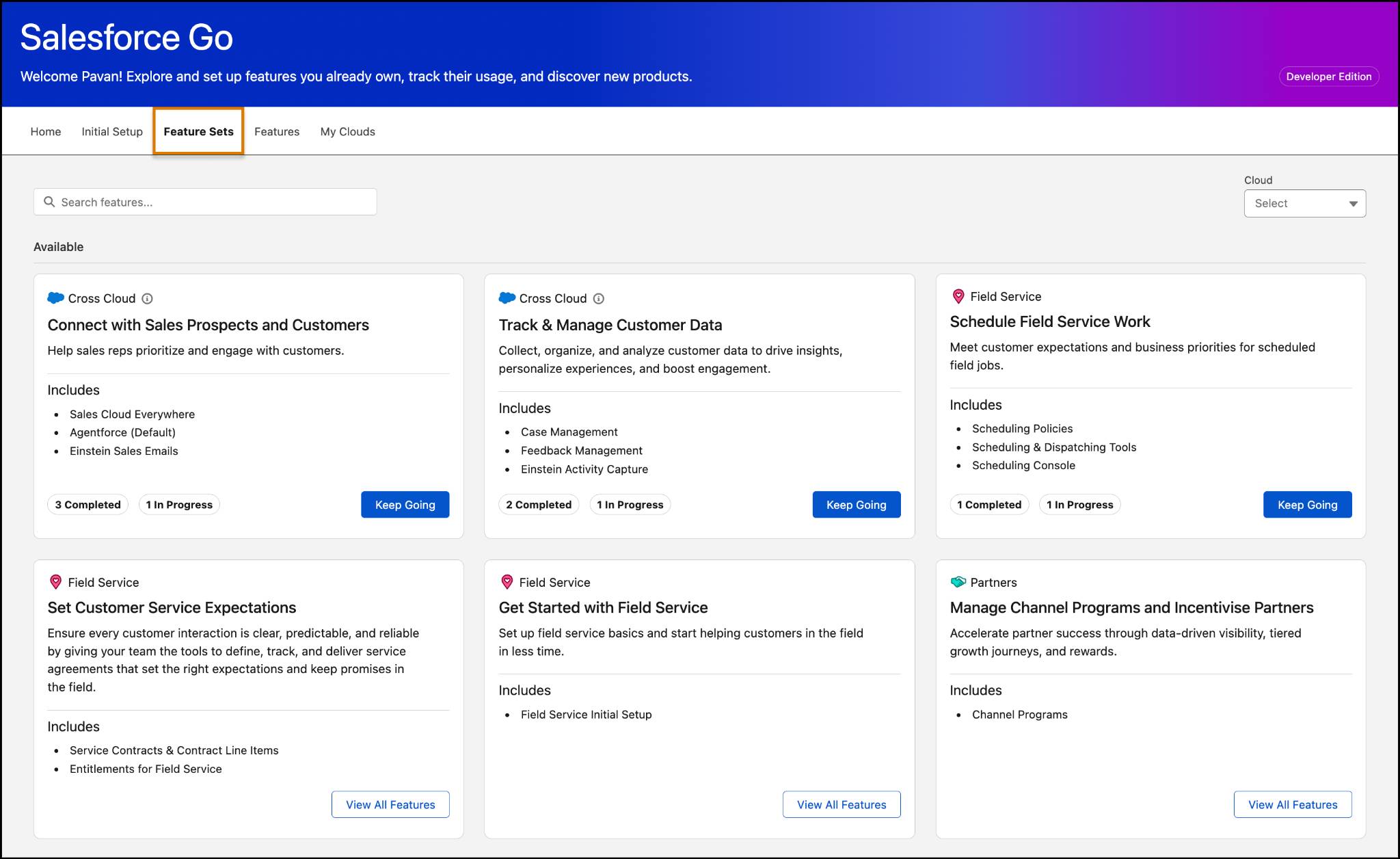
[Alt text: Salesforce Go page with the Feature Sets tab selected and highlighted.]
The Features Tab
The Features tab lists the complete inventory of features. This includes everything: Features currently being configured, those ready to set up, fully enabled features with usage data, and even features that aren’t available yet but can be purchased. It’s your full feature catalog, all in one place.
As an admin, your approach to discovering new features can vary. You might be solving a specific problem, or you might want to review everything and dive into the details before deciding. The Features tab is perfect for the latter.
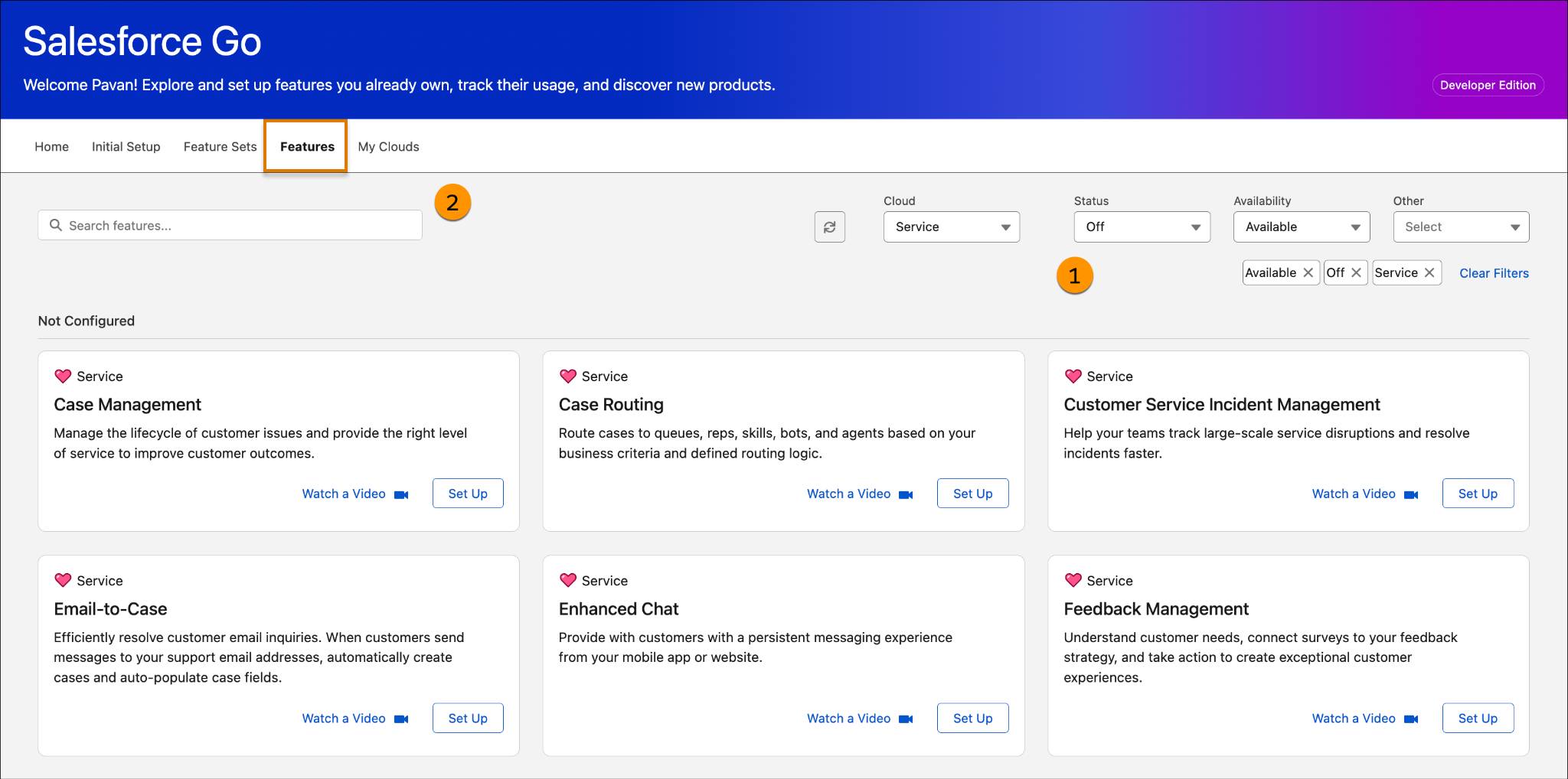
[Alt text: Salesforce Go page with the Features tab selected and highlighted.]
The Filter By option (1) is your best friend. Use it to narrow your search by setup status, availability, cloud, and more. If you already know the name of the feature, use the search bar to find it (2). Clicking Set Up takes you to the feature page, where you can find everything you need, including help articles, videos, and other resources. You can also set up and configure the feature directly from this page. You'll learn more about it in the next unit.
The My Clouds Tab
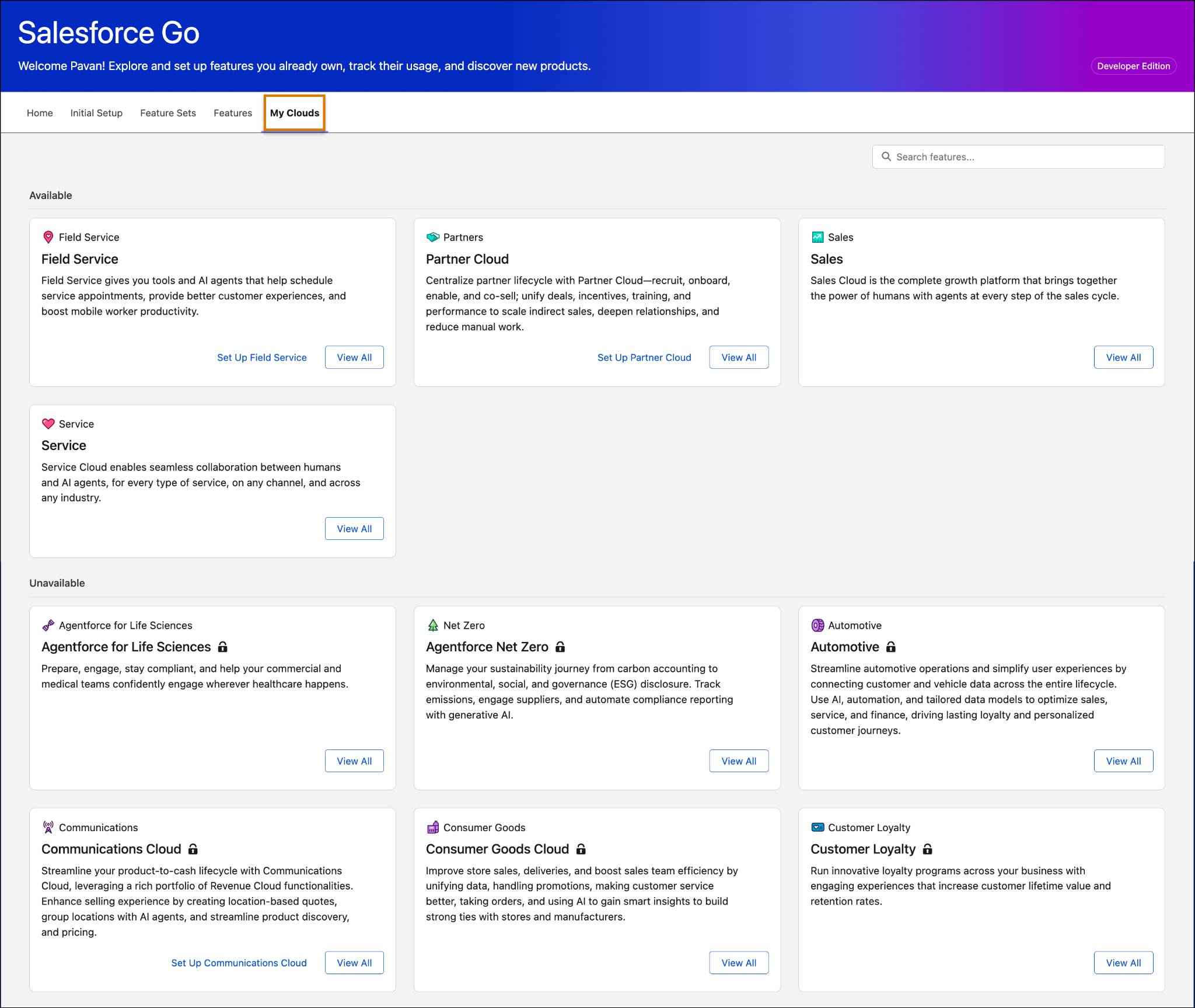
Lastly, the My Clouds tab shows you the clouds your org currently owns, ones you have licenses for (1), and clouds available through Salesforce Go that you can purchase (2). Use this space to explore what you already have and discover new solutions that could support your business goals. The goal here is to give you a consistent, easy way to discover products and features tailored to your specific needs.
Discover Features That Fit
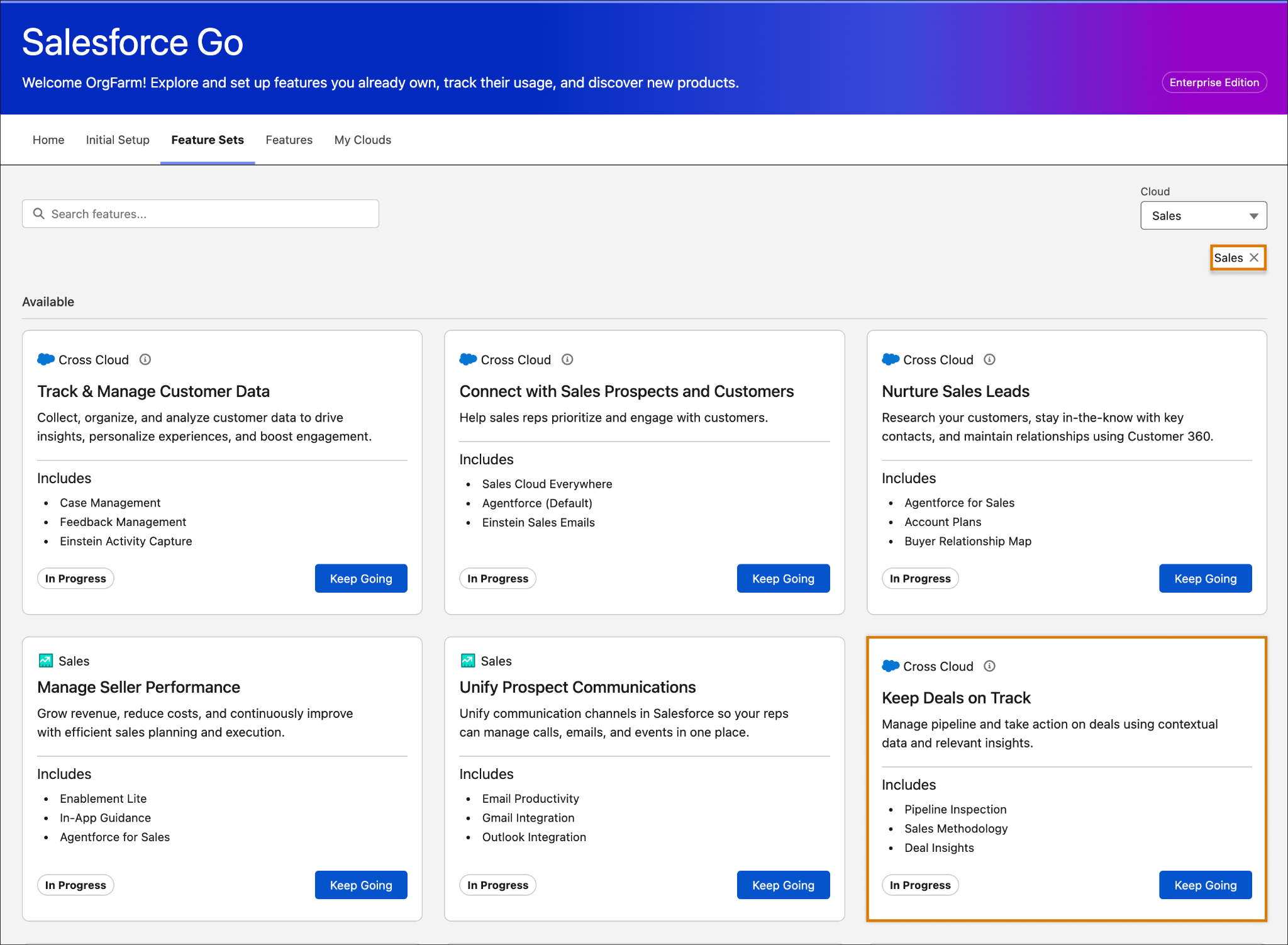
That sticky note on your pot has been staring at you for days. The sales manager recently flagged a big issue: Her sales team wastes valuable time chasing low-probability deals. She’s seeking a smarter, more efficient way to focus their efforts on high-impact opportunities with a strong likelihood of closing. Time to finally do something about it, and time to tap into what Salesforce Go can do.

Since the job to be done is pretty clear, you start by browsing through all the feature sets available. Because this is a sales-specific problem, you apply a filter to narrow it down to sales-related feature sets. As you scroll through the cards, one stands out. The Keep Deals on Track feature set, based on the description, offers a curation of features that helps you manage your sales pipeline and refocus your efforts on deals based on relevant insights and other important data—sounds similar to your specific job to be done.
It looks promising, something you can use. You click Keep Going to take a closer look at what’s inside. If none of the features in this feature set is set up, the button instead will say View All Features.
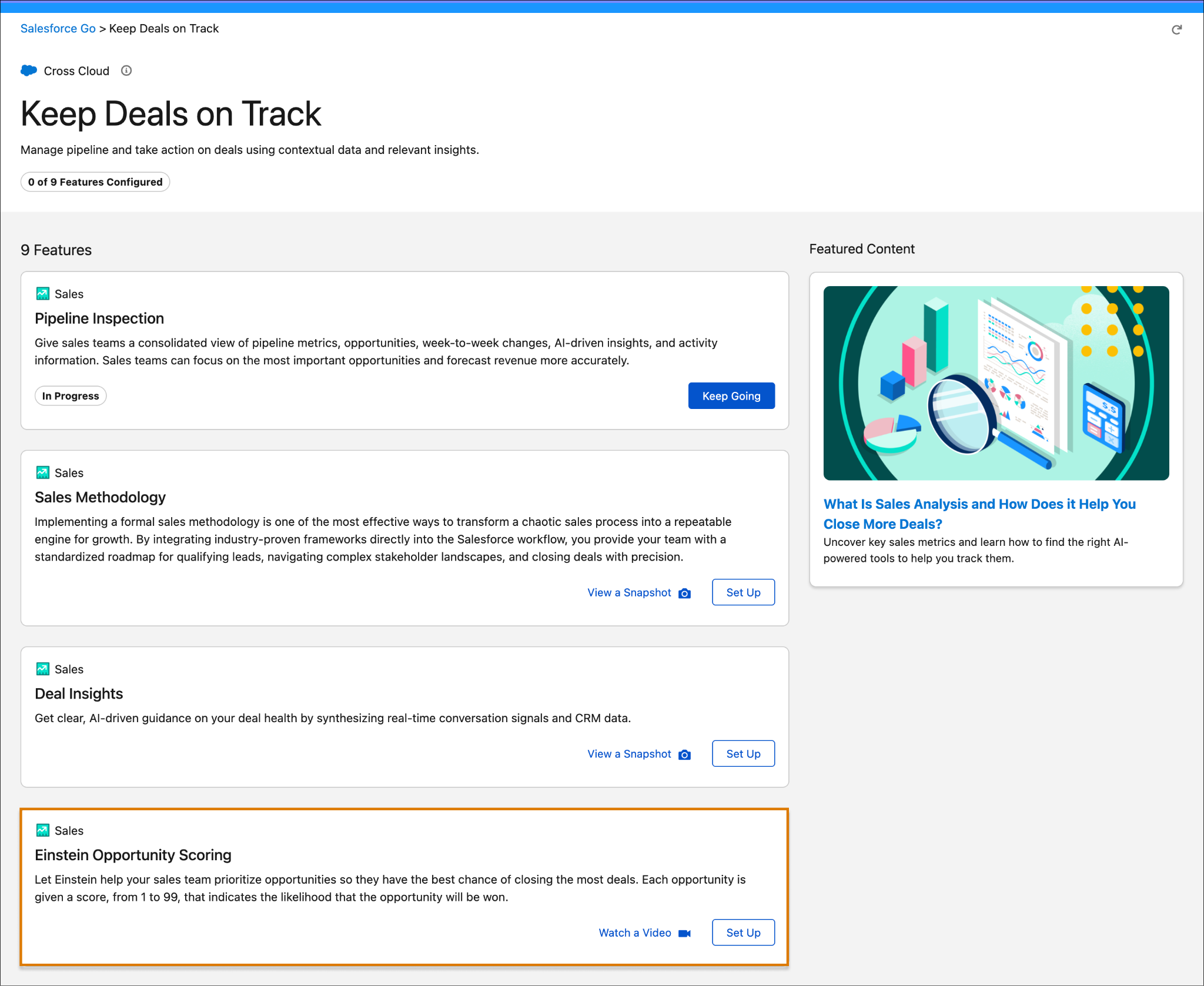
As you scan through the cards, one feature in particular catches your eye: Einstein Opportunity Scoring. Powered by Einstein, this tool helps your sales team prioritize the deals most likely to close. It assigns a score to each opportunity based on its probability of success, exactly the kind of insight you’ve been searching for.
In this unit, you explored how to navigate the Salesforce Go page, how features are grouped by specific jobs to be done, and how each tab is built to make discovery simple and intuitive. In the next unit, you dive into individual feature pages, how the information is structured, and how you can set up and configure features in just a few clicks.