Support Group Benefits at Scale
Learning Objectives
After completing this unit, you’ll be able to:
- Explain the central challenges involved in administering group benefits.
- Describe how Digital Insurance supports plan design, quoting, and enrollment.
- Identify the core personas, phases, and data structures involved in group benefits.
- Recognize how Salesforce capabilities make group benefits more configurable, compliant, and scalable.
Run Group Plans for Entire Employee Populations on One Blueprint
In the previous units, you explored how Digital Insurance supports the policy lifecycle for individual customers, from product modeling through quoting, issuance, and renewal. Group insurance operates on a different scale.
In employer-sponsored health, dental, vision, and life insurance, the client is an organization, and coverage can extend to thousands of employees and their dependents.
That scale changes how insurers operate. Insurers manage one-to-many relationships across employers, employees, brokers, and third-party administrators. Eligibility, pricing, and contribution rules vary by employee class, and plans must apply them consistently. Quoting, contracting, and enrollment must handle large populations without losing accuracy or consistency.
Digital Insurance supports this group journey, from modeling group plans and importing census data to quoting, contracting, and enrolling members.
In this unit, learn how these stages work together to move from a single employer census to enrolled members and issued policies.
Follow the Group Benefits Lifecycle
Administering group benefits is a layered process where business rules, pricing, and member eligibility are tightly connected.
Let's break down the main stages.
Stage |
What Happens |
Digital Insurance Capabilities |
|---|---|---|
Model Plans |
Define employee classes, benefits eligibility, and contribution logic. |
Define reusable specifications that structure products by class and individual attributes. |
Import and Validate Census |
Upload and validate a roster of eligible employees and dependents. |
Deploy a census component that displays census data from a single, interactive view. You can use this view to manage the census data. |
Quote Plans |
Generate a quote for the employer based on class-level or member-level pricing. |
Run pricing and eligibility rules in real time. Assign plans to employee classes and calculate total premiums. |
Create Contract |
Lock in rates, plans, and contribution rules in an agreement. |
Generate a structured contract that holds the terms and rules as the source of truth. |
Enroll Members |
Enroll employees individually or in bulk and issue policies. |
Use guided flows and APIs to create policies, calculate contributions, and identify exceptions. |
Each stage builds on the last, enabling group benefits specialists to manage large, complex enrollments with confidence and consistency.
Now, let’s follow the full process in action by checking back in with Cumulus.
Model Plans for Different Employee Classes
Group insurance products are typically offered as a program: a coordinated set of plans an employer makes available to its workforce. The employer selects plans, such as medical, dental, and vision, and then offers one or more options to different employee classes, which are standard benefits groupings, such as full-time, part-time, or salaried staff that determine eligibility and contributions. The product model needs to support that structure so that quoting and enrollment can apply class-based eligibility and contribution logic consistently.
Before our scenario begins, Justus Pardo at Cumulus has already created a small group benefits catalog for the insurer. Just as in individual product modeling, these plans are built using reusable components that ensure consistency and governed logic across quoting and servicing.
What’s unique to group products is how those components are extended to support employee classes, class-based eligibility, and contribution logic. The catalog includes medical plans at different coverage levels, plus companion dental and vision plans, all structured for reuse across employers without rebuilding the logic each time.
Now Carlos Garcia, a group benefits specialist at Cumulus, brings this catalog to a new employer. His job is to assemble a suitable suite of plans for the client, apply class-specific contribution rules, and generate a priced quote the employer can approve.
Import and Validate the Group Census
Every group insurance journey starts with a census, which is a list of eligible employees and their dependents. That data drives plan assignment, rating, and enrollment, so clean intake matters.
At Cumulus, Carlos receives a census file from the prospective client and opens the client’s group census record. From the Census tab, he uses the Insurance Group Census component to upload the data.
Carlos clicks Upload Census and selects the CSV file. The system validates the data and flags any issues. Carlos can download an error file to resolve bulk problems or edit details directly in the grid.
When the upload is complete, the populated census appears, with each primary member and their dependents nested underneath.

This structured intake ensures accuracy from the start and sets the foundation for class assignment, rating, and enrollment.
Quote Group Plans by Class or Member
Group quoting evaluates coverage and cost across a population, not an individual. That usually means pricing by employee class, by member, or by a combination of both, depending on the product and the employer’s needs.
Digital Insurance supports two common approaches.
-
Member-based rating calculates premiums using individual member attributes from the census, such as age, location, or other rating inputs defined by the plan.
-
Summary-based rating uses class-level or aggregated inputs to produce a rate without pricing each member individually.
At Cumulus, Carlos creates a new quote and links the validated Group Census. He chooses member-based rating so the quote can use employee and dependent data from the census when it runs the rating logic.
On the new quote record, he clicks Browse Catalogs and selects a suite of plans for the employer to consider, including multiple medical, dental, and vision plans at different coverage levels.
As he adds these plans, each one becomes its own quote line item. Carlos can review them together on the Group Quoting tab, and then open each line item in the same Quote Configurator experience he used earlier in the module. When Carlos clicks Configure for a medical plan, the configurator presents the plan structure in a clean UI that is ready for class assignment and benefit configuration.

Carlos can also review and adjust important benefit options within a plan. For example, he opens a specific benefit and chooses values for in-network and out-of-network cost sharing, deductible, and limits. The summary panel reflects the configured attributes so Carlos can confirm what the plan will represent in the final offer.

After Carlos has configured a plan line item, he rates it from inside the configurator. That action runs the pricing procedure linked to that plan, using the census data and the configured benefit and contribution details to calculate premiums. The calculated results are written back to the quote line item so Carlos can review the priced plan in context with the rest of the offer.
Carlos repeats that configure and rate step for each plan in the program. When he returns to the Group Quoting tab, he clicks Rate Quote to refresh the overall quote. This step rolls up the rated line items into quote-level totals and gives Carlos a single view of the full medical, dental, and vision program the employer is considering.
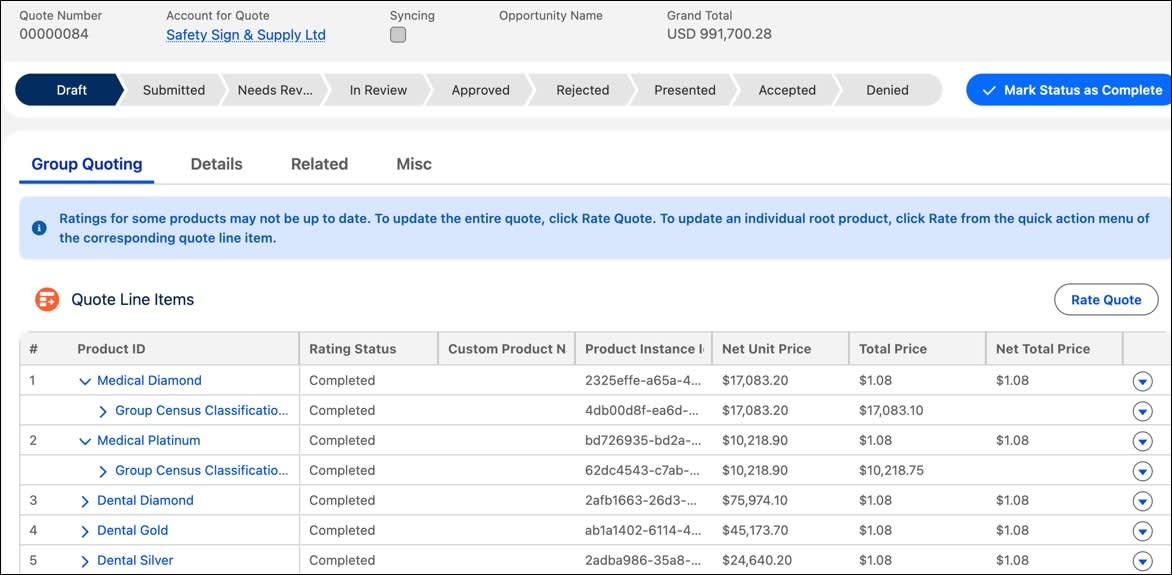
By configuring plans by class and pricing them against the census, Carlos ensures the approved offer is structured in a way that can be enforced later during contracting and enrollment.
Create Contracts That Govern Enrollment
After a group quote is approved, the insurer needs a durable agreement that enrollment can enforce. A group contract stores the approved plans, class rules, rates, and contribution splits as the source of truth for what employees can select and how costs are calculated.
At Cumulus, Carlos uses a guided flow to call the Create Contract from Quote invocable action. The platform generates a structured contract for Medical Platinum and carries forward the major decisions from the quote, such as effective dates, class assignments, and contribution rules.
Each class’s eligibility and contribution conditions are stored on the contract so enrollment can apply them consistently. That reduces manual interpretation later and keeps employee plan choices aligned with what the employer approved.
With the contract in place, Carlos is ready to move into enrollment.
Enroll Members at Scale
Enrollment is where plans and contract rules are applied to individuals. Whether employees enroll individually or the insurer processes selections in bulk, the same contract data governs eligibility, contributions, and policy creation.
Digital Insurance supports two enrollment paths using the contract as the source of truth.
Self-Service Enrollment
For a portal experience, Cumulus uses a guided flow embedded in the employer site. Employees log in, and the flow uses APIs to evaluate their class and eligibility. Only eligible plans appear, and contribution rules are applied automatically, so employees see a per-paycheck cost split between employee and employer.
After the employee confirms selections and adds dependents as needed, the platform creates the enrollment records and issues the policy linked back to the group contract.
Bulk Enrollment
When selections come in outside the portal, Carlos can process them in bulk. He uploads a file with the chosen plans and launches the Group Enrollment process.
Digital Insurance runs the job asynchronously, applying class-based eligibility and contribution logic from the contract and creating enrollment and policy records. Exceptions, such as missing data or eligibility conflicts, are flagged with error details so that Carlos can correct and rerun only the failed records without disrupting the successful ones.
When processing is completed, each member has an individual policy tied back to the contract, with contribution splits applied consistently.
What’s Next
In this unit, you saw how Salesforce Digital Insurance supports the full group insurance lifecycle from plan design to enrollment.
Product administrators define reusable group structures and rules. Group specialists manage clean census intake, configure class-based quotes, and convert approved quotes into structured contracts. From there, enrollment teams use guided flows and bulk jobs to issue individual policies at scale, driven by the same shared product and contract logic.
The result is a unified, traceable process that handles group complexity with speed, accuracy, and control.
In the final unit, you turn to Claims Management and see how Digital Insurance helps insurers deliver on the promise of coverage when it matters most.