Set Up a Mapping
Learning Objectives
After completing this unit, you’ll be able to:
- Create and manage project assets within the Informatica Intelligent Data Management Cloud (IDMC).
- Apply naming conventions to organize and identify mapping assets in a shared project environment.
- Identify and navigate the four core areas of the Cloud Mapping Designer canvas.
- Validate, save, and version mappings to prevent runtime errors and data loss.
Follow Along with Cassie
With the Secure Agent up and running, Cassie, a developer at AW Computing, has successfully bridged the gap between the cloud and her company’s on-premises SQL Server. Now comes the exciting part: executing her first data transfer.
Currently, her team manually handles a daily export of customer records from a legacy CRM system. They need to route this flat CSV file directly into the SQL Server database that drives their corporate reporting tools. But there’s a catch—the reporting team only wants to analyze active customer accounts. Inactive historical records need to be filtered out mid-pipeline. To build this automated, curated data flow, Cassie launches the Data Integration service and creates her very first mapping.
Projects and Asset Organization in IDMC
Before Cassie builds anything, she creates a project folder. In IDMC, all assets—mappings, mapplets, tasks, and connections—live inside project folders. A project folder works like a code repository. It keeps related assets together and controls who has access. A project is the top-level container. Folders live inside projects and let you group related assets—mappings, mapplets, tasks, and connections—into logical categories.
To create a folder, Cassie navigates to Data Integration | Explore and selects New Project. She names it AW_Computing and adds a subfolder called Customer_Data to keep her customer-related assets separate from future projects. As a cloud data integration (CDI) environment grows, a well-structured folder hierarchy makes it easier to manage, audit, and hand off work.
Inside the project she also creates subfolders.
- Finance: Reserved for future accounts payable integrations
- Archive: For data transfer and replication tasks
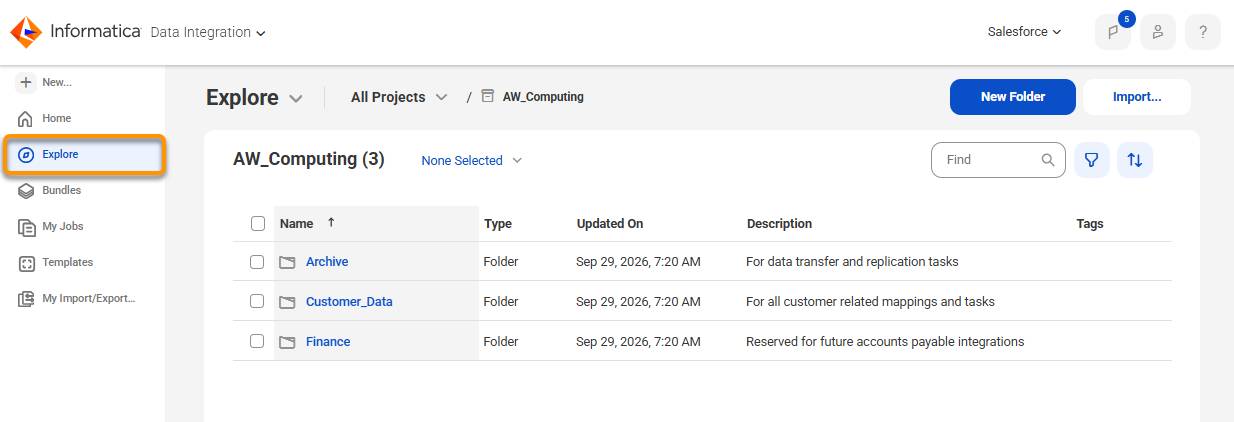
This structure pays off as the project grows. When a new developer joins the team, they can navigate the folder hierarchy to understand what each pipeline does without reading every mapping canvas.
IDMC tracks asset metadata—who created each object, when it was last modified, and which project folder it belongs to. Cassie uses this to audit changes when something breaks after a deployment.
Naming Conventions and Asset Management
Before Cassie runs anything, she establishes a naming convention for her assets. Consistent naming makes it faster to search, sort, and maintain pipelines as the project grows. This will be shared with her team and ensure consistency across the development team.
She follows this pattern:
Asset Type |
Prefix |
Example |
|---|---|---|
Mapping |
m_ |
m_LoadCustomerData |
Mapping Task |
mt_ |
mt_LoadCustomerData |
Mapplet |
mplt_ |
mplt_EnrichCustomerRecord |
Synchronization Task |
syn_ |
syn_Contact_SF |
Replication Task |
rep_ |
rep_SF_Accounts_FF |
Data Transfer Task |
dtf_ |
dtf_ArchiveOrderDat |
Taskflow |
tsk_ |
tsk_CustomerOrders |
This convention is not enforced by IDMC—it’s a team standard. But when Cassie’s manager reviews the asset list six months later, the names make it immediately clear what each object does and what type it is. Because Cassie is working on a project that will involve running several mappings in sequence, she will include numbers such as m01_ to help establish the sequence in which they should be run.
The Cloud Mapping Designer Interface
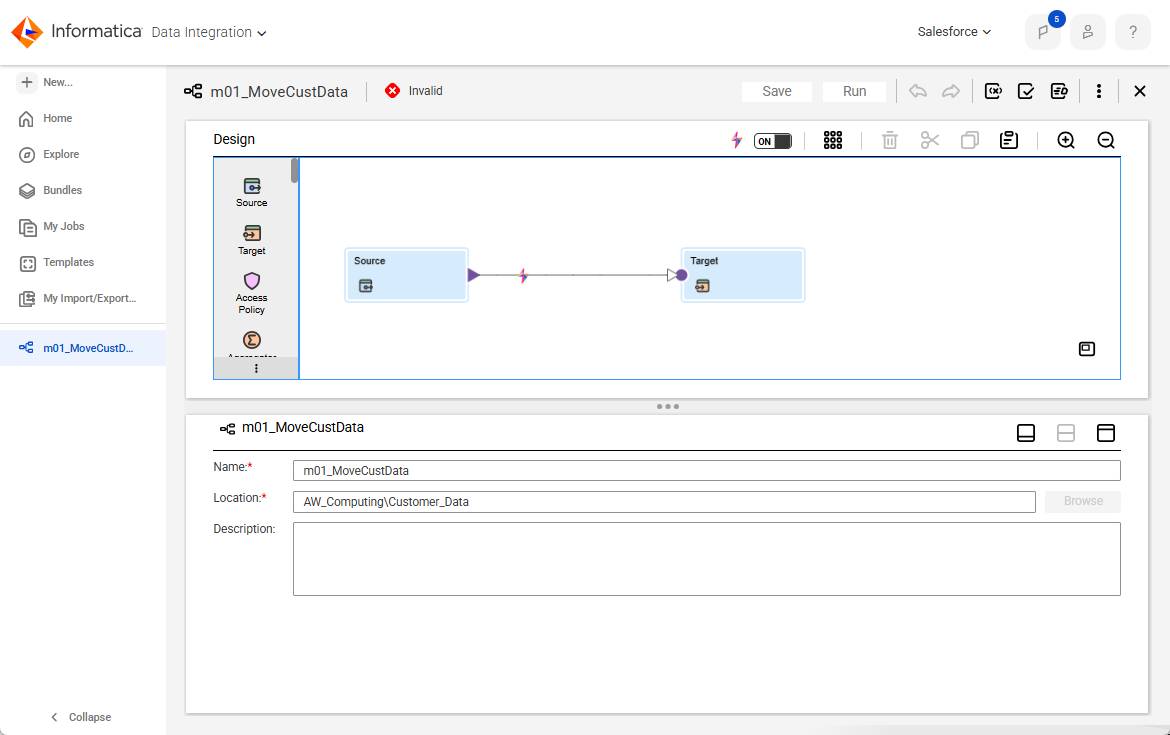
From the menu to the left, Cassie chooses New | Data Integration | Mapping to create her new mapping. The mapping opens in the canvas with the source and target already added. She renames the mapping using the predefined naming conventions and saves it in her project folder.
When Cassie creates a new mapping inside her folder, she is working in Cloud Mapping Designer—a drag-and-drop visual canvas where she designs her data pipeline. The Designer has four main areas.
Area |
Description |
|---|---|
Canvas |
The main workspace where you place and connect transformation objects to design the data flow. |
Properties Panel |
Displays configuration options for the object selected on the canvas. Click any object to see its settings. |
Transformation Toolbar |
The palette of available transformation types you can drag onto the canvas. |
Mapping Toolbar |
Top-level controls to validate, save, and preview the mapping. |
Cassie’s first mapping is simple: a Source object reading from a CSV file with a direct field-to-field connection between them. Informatica CDI creates the mapping with the source and target objects on the canvas, ready to configure. In the mapping properties, she names the mapping m01_MoveCustData and saves it to her folder.
Validate a Mapping
When you save a mapping, it is automatically validated. Alternatively before she runs a mapping, Cassie validates it. The Validate button in the Mapping Toolbar checks that:
- All Source and Target objects have a valid connection configured.
- All required fields are mapped.
- Transformation expressions use valid syntax.
- No objects are disconnected on the canvas.
Validation catches configuration errors before runtime. If Cassie forgets to connect a transformation object to the data flow, validation surfaces the issue immediately rather than letting the job start and then fail.
A green validation result doesn’t guarantee the data is correct, it confirms the mapping is structurally sound. The first run against real data is where Cassie checks row counts and reviews the session log. Because Cassie has yet to configure the mapping, she sees that it has been flagged as invalid as she expected.
Save and Version Control
IDMC doesn’t auto-save. If you close the browser before saving, you lose your work. Cassie notes this and understands that a mapping that hasn’t been saved is lost if the browser session times out. Cassie’s best practice is to save early and save often. She saves after configuring each object on the canvas, not just at the end.
IDMC also maintains a version history for each asset. During mapping configuration and development, Cassie can view previous versions of a mapping and restore an earlier state if a change introduces a bug. She accesses version history from the asset’s Actions menu in the Explore tab.
With her mapping created, Cassie’s next step is to configure where the data comes from and where it’s going. This means her next step is configuring the source and target in her mapping.