Configure Sources and Targets
Learning Objectives
After completing this unit, you’ll be able to:
- Configure a source using flat files.
- Configure a destination target such as a SQL Server database.
- Implement field mapping strategies and resolve common flat-file data type mismatches using native source metadata overrides.
Define a Source
In a cloud data integration (CDI) mapping, a Source is the starting point of your data pipeline. It is the object that connects to your source system, reads the raw data, and passes it downstream to be transformed.
When Cassie selects her Source object on the mapping canvas, the Properties Panel opens directly below the workspace. This is where all configuration options live. To ingest her company’s legacy customer file, she selects her predefined connection from the dropdown menu—a flat file connection pointing to the secure SFTP directory— where AW Computing’s legacy CRM deposits data nightly. Next, she selects her specific source object: NewCustomers.csv.
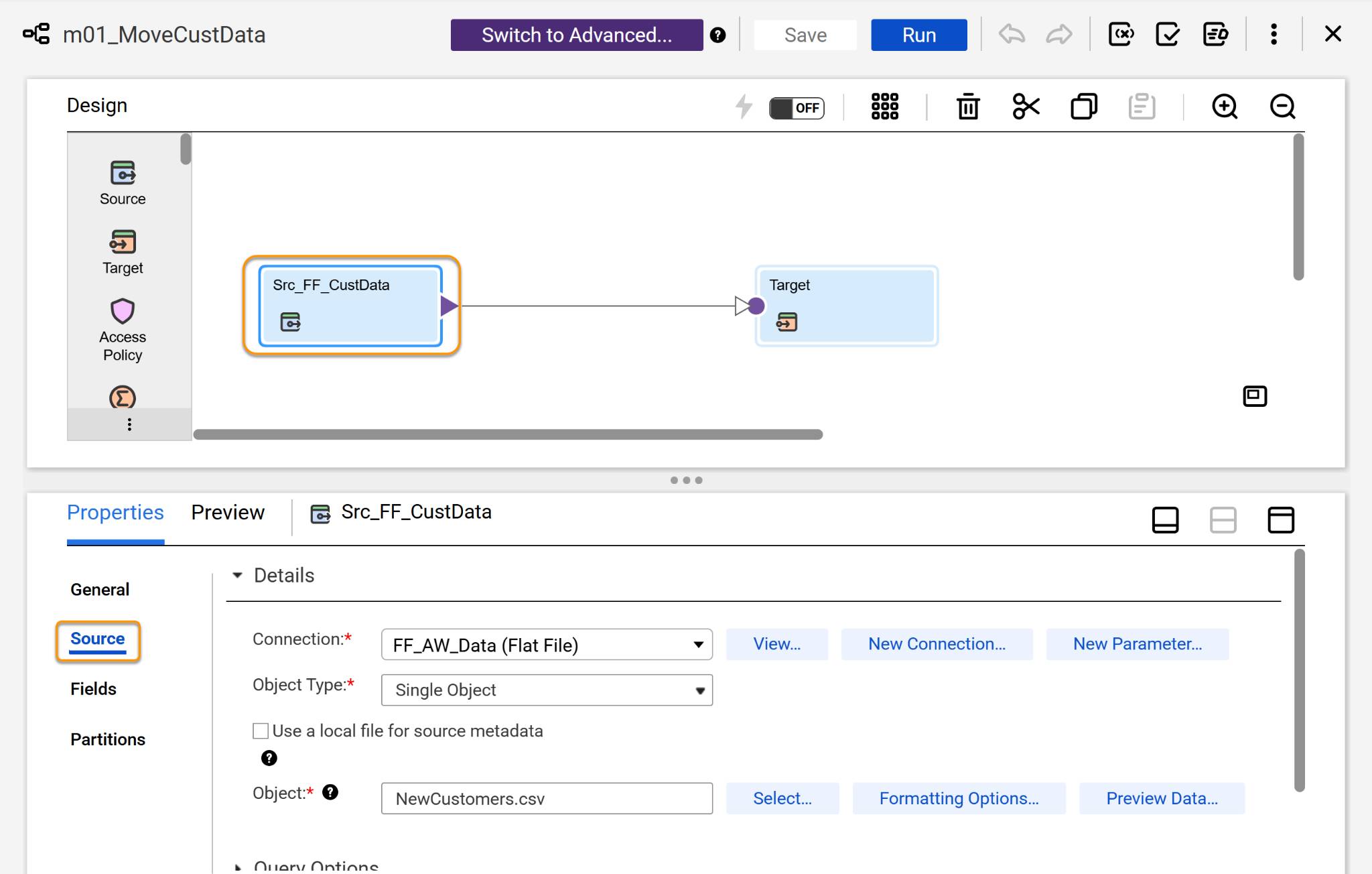
After configuration, the Source object displays the fields from the CSV on the Fields tab—columns like CustomerID, FirstName, Surname, CompanyName, Email, and Status. When you configure a Source object, you follow the same steps.
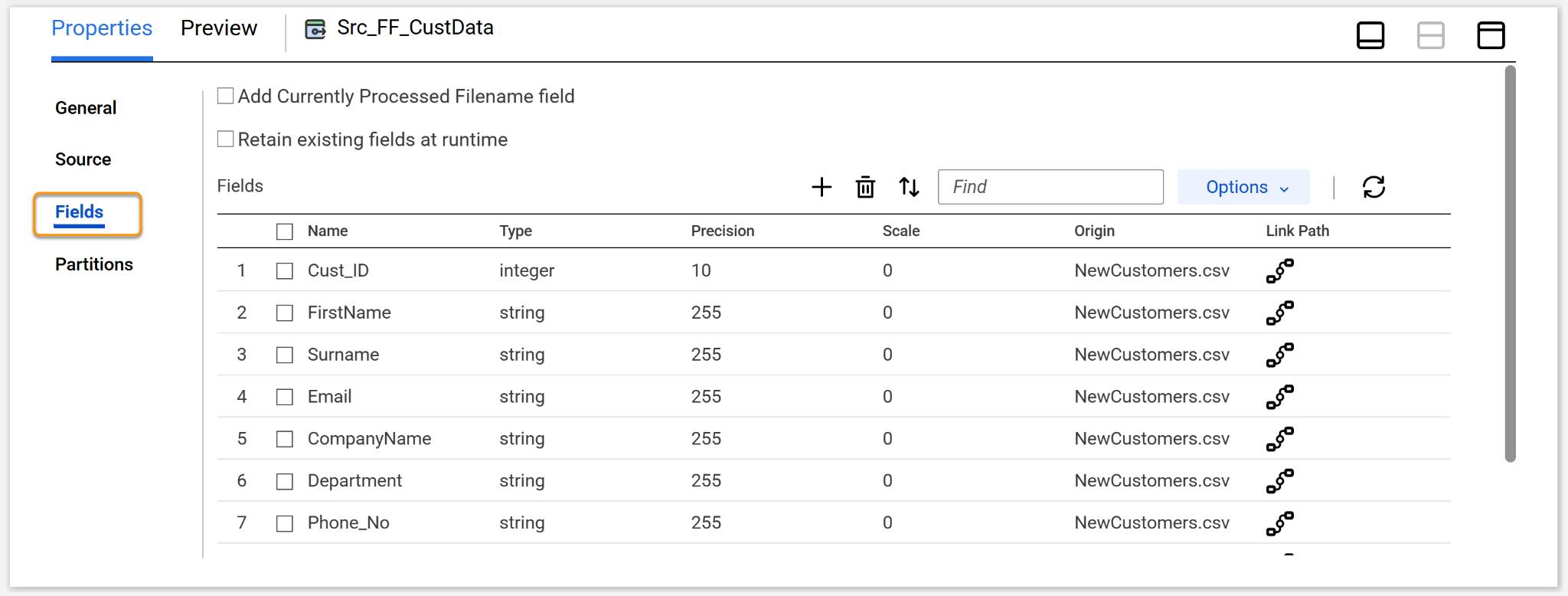
By default, when reading from a delimited text file like a CSV, Informatica Intelligent Data Management Cloud (IDMC) treats all incoming fields as strings (text). Cassie knows that leaving columns like Order_Totals as text can cause math operations downstream to fail.
Handle Data Type Mismatches
If you map a string field directly to a target column that expects a numeric decimal, it will likely cause errors—both in the mapping and at runtime. Unresolved critical mismatches can lead to database errors or failed rows at runtime.
Because flat files (like CSVs) do not contain database schema definitions, IDMC default-imports every field from a flat file as a text string. To resolve this without writing code or introducing intermediate transformations, developers can edit the source metadata directly.
Scenario: Cassie Adjusts Incoming Data Types
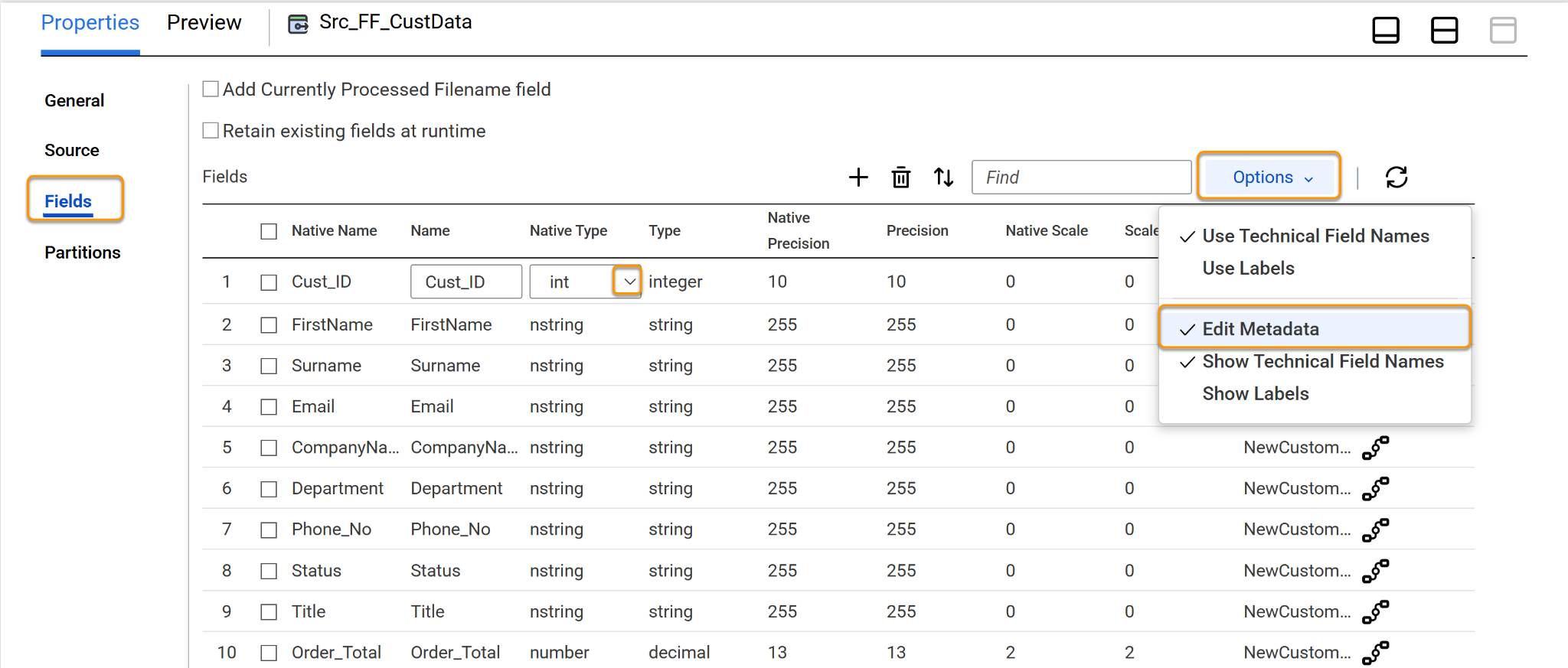
In Cassie’s source NewCustomers.csv file, the Cust_ID and Order_Totals fields are automatically read by IDMC as a String (text). However, the target SQL Server table expects an INTEGER and DECIMAL(10,2) format. To align these fields directly at the intake point without adding extra blocks to her canvas, Cassie resolves the mismatch right inside her Source object configuration.
- In the Cloud Mapping Designer canvas, select the Source object.
- In the Properties Panel below, select the Fields tab.
- Select Options | Edit Metadata.
- Locate the Cust_ID and update the Native Metadata to Integer. Locate the Order_Total field in the list and change its Native Type from String to Decimal, and set the scale to 2.
-
Save.
Now, IDMC interprets the incoming CSV data as numbers rather than text from the moment it enters the mapping.
Alternatively Cassie could have chosen to transform downstream: Use an Expression transformation to safely convert data types mid-flight.

Data Preview: Test Before You Build
As soon as Cassie configures her Source, she can preview the data before she builds the rest of the mapping. When she selects Run Preview on the Preview tab, it fetches a sample of rows from the source file or database and displays them in a table below the canvas.
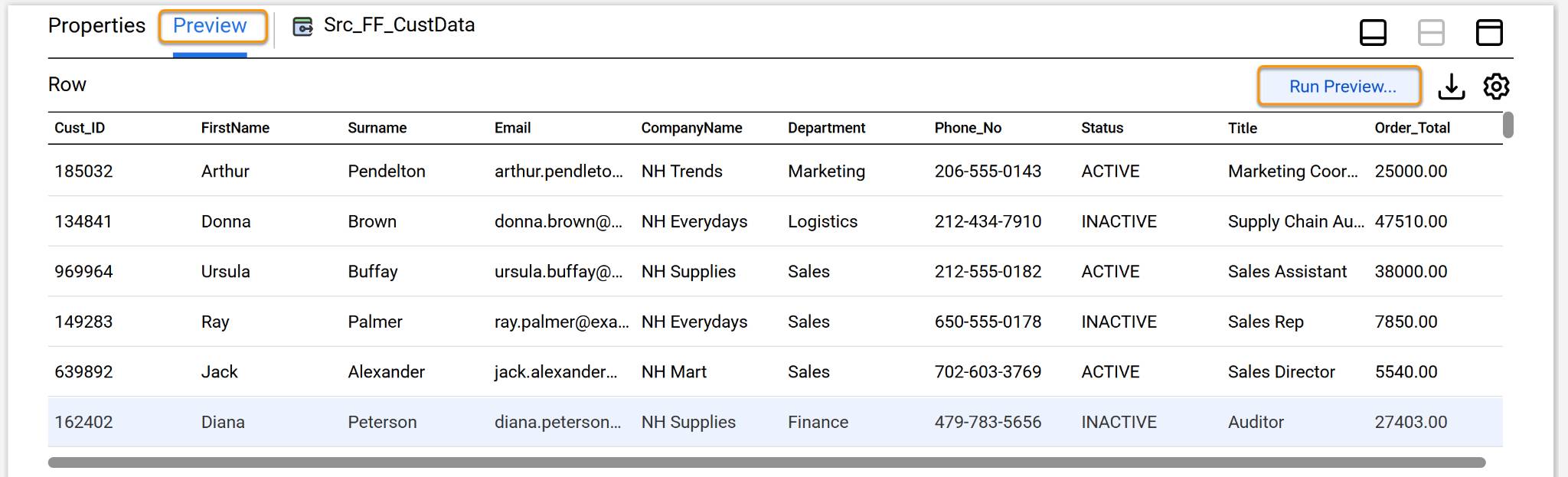
Preview is useful to:
- Confirm that the connection and file path are correct.
- Verify that column names and data types match what you expect.
- Spot data quality issues—missing values, unexpected formats, or extra whitespace—before they cause runtime errors.
- Verify output from transformations applied to data in a pipeline.
When you catch and resolve data type mismatches before the first production run, it is far cheaper than having to diagnose failed rows after the fact.
Learn About a Target
A Target is the object that writes data to an external system. Every mapping ends with at least one target. Cassie selects her Target object and the SQL Server connection—the on-premise database her Secure Agent is authorized to reach. She specifies:
-
Connection: SQL Server (configured securely via her on-premises Secure Agent)
-
Target object: AW_CUSTOMERS
-
Operation: Insert (she can also choose Update, Upsert, or Delete depending on her integration needs)
Cassie selects Insert as the operation and checks the Truncate Target option. Because she needs to overwrite the database table with fresh data every day, this combination completely purges any existing rows before loading the new file.
Connection Types in CDI
IDMC supports a wide range of connection types. The ones Cassie uses most often at AW Computing are:
Connection Type |
Used For |
|---|---|
Flat File |
CSV, TXT, and delimited files on local storage or SFTP |
Microsoft SQL Server |
On-premises relational database |
Salesforce |
Salesforce org objects (read and write) |
Amazon S3 |
Cloud object storage |
JDBC |
Generic database connection for less common db types |
Each connection stores credentials securely in IDMC and is available across all mappings in the platform. Cassie configures each connection in the Administrator service, then selects it by name whenever she adds a Source or Target object to a mapping canvas.
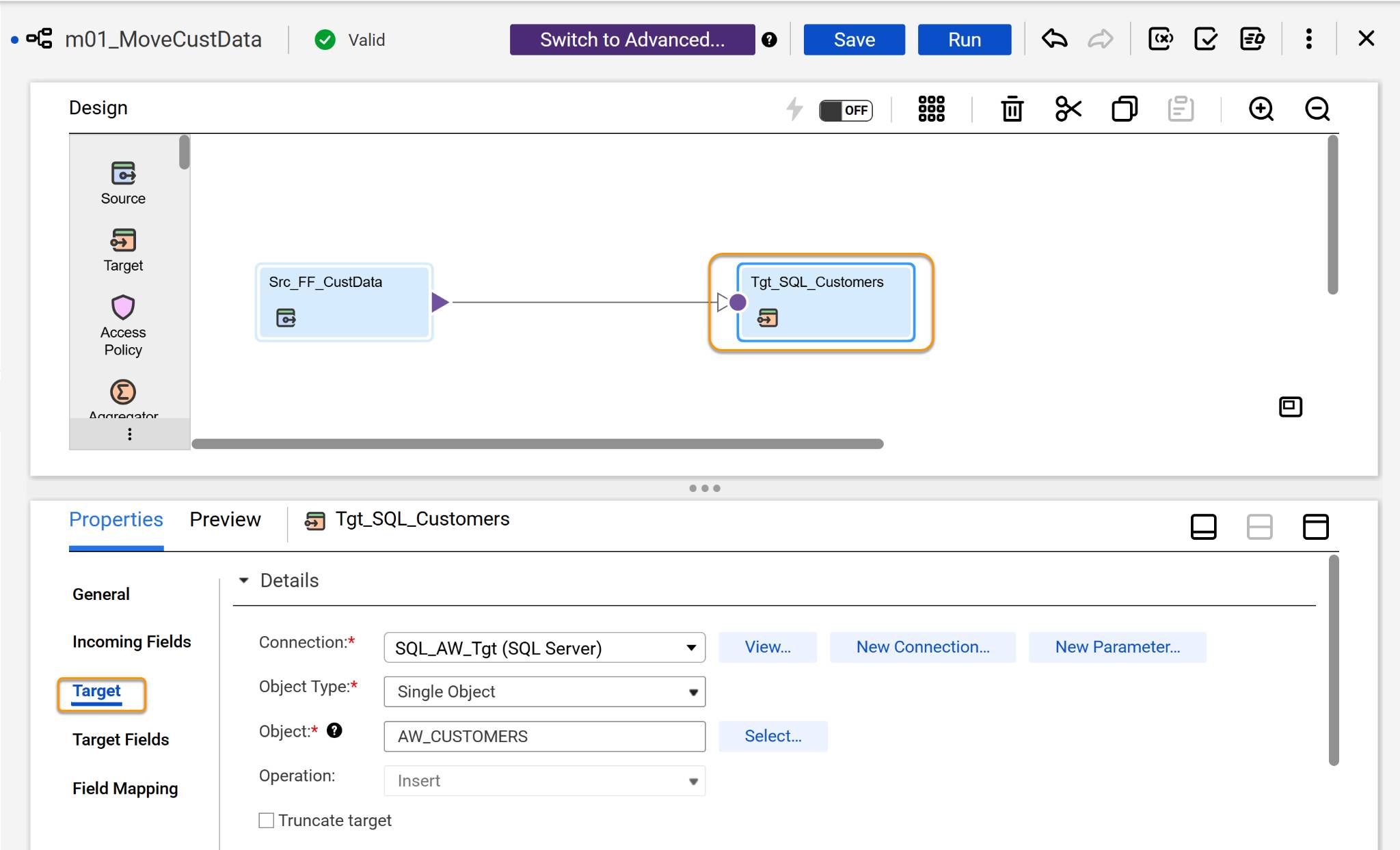
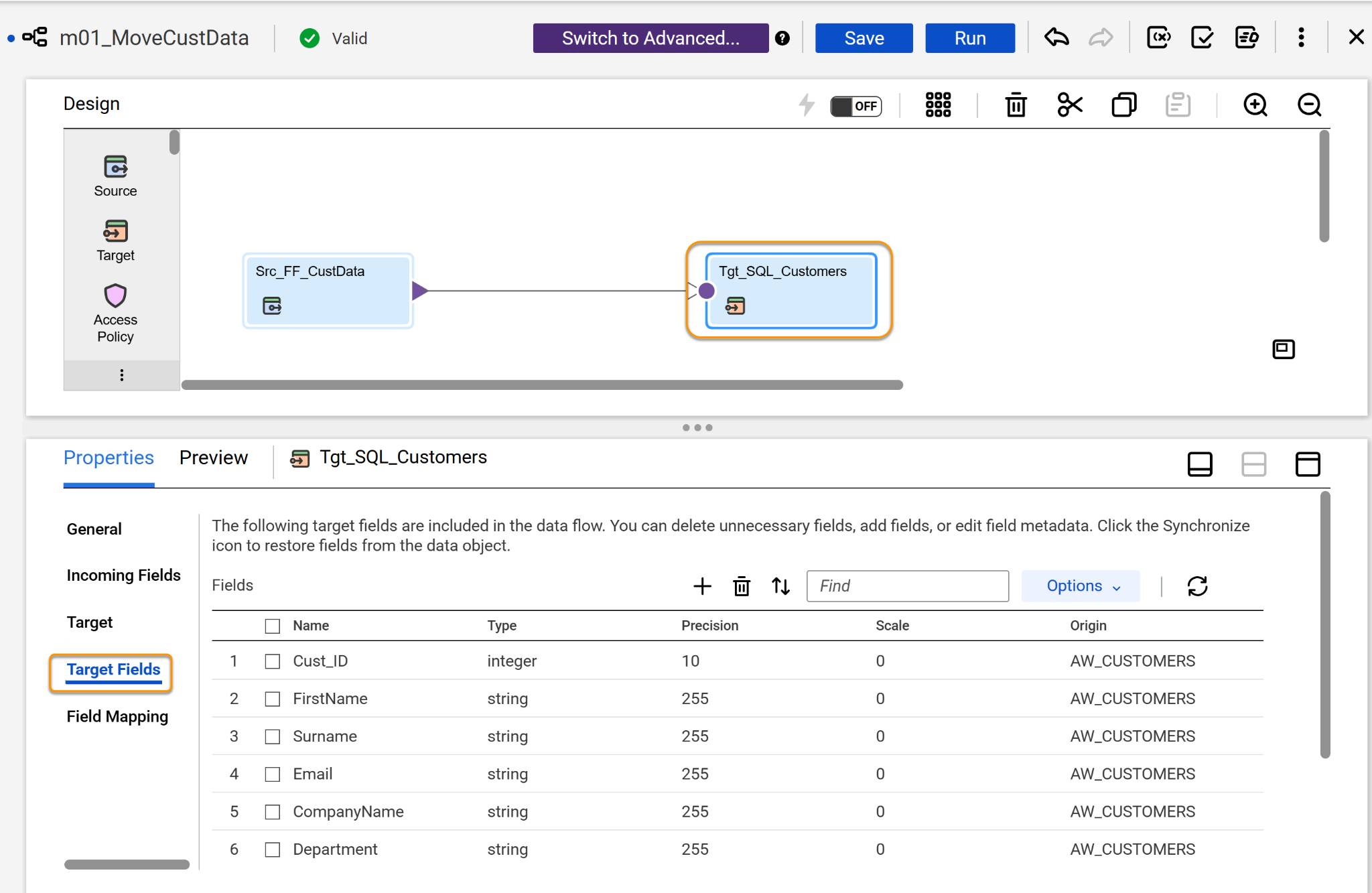
On the Target’s Fields tab, IDMC automatically imports the table schema from the database, showing expected columns and strict SQL Server data types (such as VARCHAR and DECIMAL).
Field Mapping Strategies
To move data from the source to the target, you must connect the fields. In Cloud Mapping Designer, you have different ways to map fields under the Field Mapping options.
-
Automatic: Maps fields automatically based on exact name matches.
-
Manual: Allows you to drag and drop lines directly from source fields to target fields for complete control over custom naming conventions.
Under manual you can use Automap Options.
-
Exact Field Name: Use this to match based on exact field names.
-
Smart Map: Uses CLAIRE (Informatica’s AI engine) to match fields with similar names but slightly different formats (for example, mapping Phone_No in the source to Phone in the target).
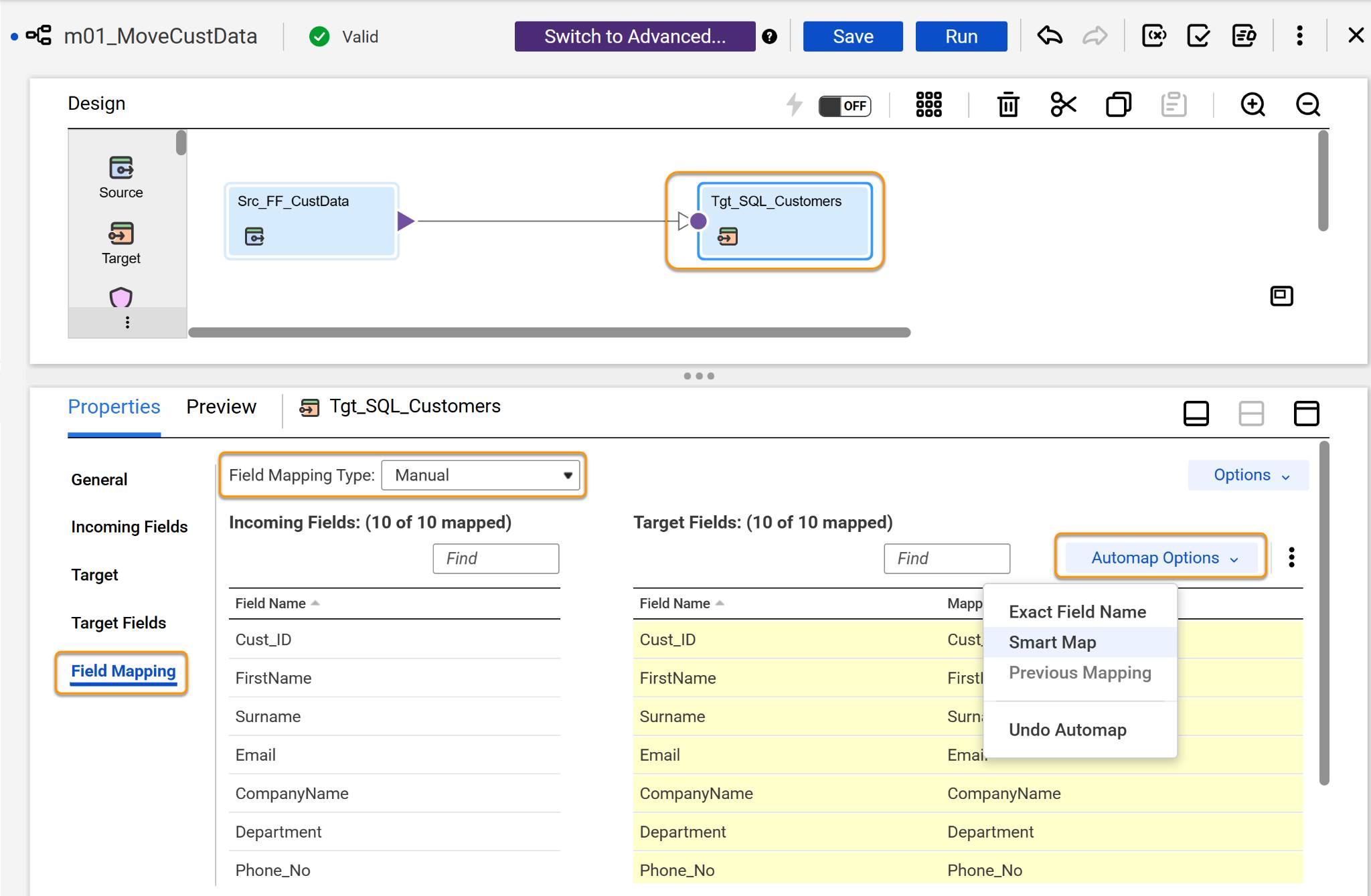
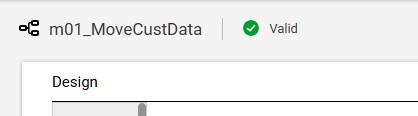
Cassie uses Manual Field Mapping Type and chooses Smart Map from the Automap Options. She checks and can see that all 10 incoming fields have been mapped to the target fields appropriately. She saves her mapping which automatically validates it and notes the Valid green tick that appears to indicate that the mapping is valid.
Up Next
Cassie's mapping is now complete. She configured a flat file source, changed the data types so her numbers are read as numbers, configured a SQL Server target, and mapped all 10 fields with Smart Map. Fixing data type mismatches at the source, before the first run, saves her from failed rows later.
The green Valid tick means her design is sound, but no data has moved yet. Next up, Cassie will run the mapping, check the results, and schedule it to run automatically every morning.