Create Custom Job Steps
Learning Objectives
After completing this unit, you’ll be able to:
- List the steps you need to take to create a custom job.
- Describe the difference between a task-oriented and chunk-oriented script module.
- Explain what the steptypes.json file is.
In this unit, you create a custom job to import data directly from an external product information (PIM) system into the production instance. You require custom code because you want to import the catalog data, process it, and then save it in the Salesforce B2C Commerce database. It isn’t a simple import. To create this custom job, you ask a developer to do these steps.
- Create a cartridge. A cartridge is a mechanism for packaging and deploying B2C Commerce storefront program code and data.
- Write a task-oriented or chunk-oriented script to run the process steps, for example, to read a product record, process it, and then write it to the database.
- Create a steptypes.json file to describe the custom steps and place the file in the root of the cartridge.
- Upload the cartridge and include it on the cartridge path.
The developer is happy to help.
When the developer finishes, you:
- Replicate the code to production and activate the code version including the new cartridge.
- Create a job by using the custom step in Business Manager.
Construct a Task-Oriented Script Module
This section gets a little technical, but you want to understand the developer-focused concepts and processes so you can collaborate with the developer, monitor job success, and plan for future requirements.
Here are some helpful definitions:
-
Task-oriented: Coded script that performs a specific task or set of tasks.
-
CommonJS script module: A type of JavaScript module that follows the CommonJS module specification. Developers use it for server-side development. In this context, it means that the developer writes a script that is easy to reuse and manage.
-
Expose a function: The script makes a particular function available for use. This function is the main piece of code that the custom job step runs.
-
Main function of a job step: The developer designs this function as the primary function that runs when the job step calls it. In other words, when the job reaches this step, it calls this specific function to perform its task.
A task-oriented CommonJS script module exposes a function to call as the main function for the job step. When you create jobs by using Business Manager, you set parameters available as scriptable objects for the module’s function and for the dw.job.JobStepExecution object. The dw.job.JobStepExecution object provides read-only access to information about the current step execution and job execution.
To control the exit status, the function returns a dw.system.Status API object. If the script finishes with an unhandled exception, the exit status code is ERROR, and the error status flag is true by default. If the script returns no status object and no exception occurs, the status code is OK by default.
See Custom Job Step Type Modules for an example of a task-oriented script module connecting via a file transfer protocol (FTP) and downloading data. The developer uses this example to create the script module.
Construct a Chunk-Oriented Script Module
A chunk-oriented CommonJS script module reads and processes items in chunks of a specified size. If the list contains more items than B2C Commerce can process in one chunk, it starts a new chunk. A chunk-oriented script can include any series of processing steps, not just database transactions.
A job step that uses a chunk-oriented script allows fine-grained progress monitoring because B2C Commerce updates the number of elements that are written each time a chunk is finished.
When you create jobs by using Business Manager, you set parameters that are available as scriptable objects for each exposed module function and for the dw.job.JobStepExecution object. The dw.job.JobStepExecutionobject permits read-only access to information about the current step execution and job execution. You can't define the exit status for a chunk-oriented script module. Chunk modules always finish with either OK or ERROR.
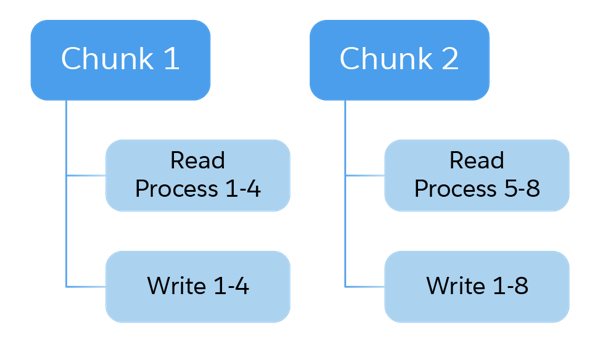
Here’s a chunk-processing example.
Assume you export a list of eight orders to a file, and the size of one chunk is four orders. The script processes the chunks in this sequence.
- Read Order1, Process Order1, Read Order2, Process Order2, Read Order3, Process Order3, Read Order4, Process Order4
- Write Order1, Write Order2, Write Order3, Write Order4
- Read Order5, Process Order5, Read Order6, Process Order6, Read Order7, Process Order7, Read Order8, Process Order8
- Write Order5, Write Order6, Write Order7, Write Order8
Implement Chunk Script Functions
You notice three functions in the example. A chunk-oriented script module exposes functions for read, process, and write.
-
read-function: Returns one item or nothing.
-
process-function: Lets you transform items and apply business logic to them.
-
write-function: Receives a list of items.
You can also use these optional functions in a chunk-oriented script module.
-
total-count-function: Returns the total number of items that are available before chunk processing begins.
-
before-step-function: Executes before a chunk step begins.
-
before-chunk-function: Executes before a chunk begins.
-
after-chunk-function: Executes after a chunk finishes.
-
after-step-function: Executes after a chunk step finishes successfully.
See Create Custom Job Step Types for an example of a chunk-oriented script module.
Compose the Steptypes File
When a developer creates a custom step, they create a steptypes.json file to describe the metadata of the step. This file specifies the script module implementing the step, the parameters the step requires, and the exit statuses the step returns. The steptypes.json file requires a specific syntax. For example, a portion of the steptypes.json file uses these name:value pairs.
"@name":"MyParameter1",
"@type":"boolean",
"@required":"true",
"description":"A required boolean parameter."
See Create Custom Job Step Types for details about the syntax and an example of a steptypes.json file.
Troubleshoot Invalid steptypes.json Files
B2C Commerce parses and loads the steptypes.json file:
- At server startup.
- When the active code version is changed.
- On sandboxes, each time a step is run.
If a steptypes.json file contains errors because of missing attributes or other problems, B2C Commerce logs the errors in an error file and does not register the custom step. B2C Commerce then loads steps from the steptypes.json files of other cartridges.
Invalid steptypes.json files cause messages like this to appear in Business Manager:
Invalid step [Step1]! Type with id [custom.MyCustomStep1] is unknown!

Apply steptypes.xml
Vijay can use an XML definition instead of JSON to define the custom steps. He must call the file steptypes.xml and place it in a custom cartridge in the root folder. B2C Commerce parses and reloads it whenever the active code version is changed. There can be only one steptypes.json or steptypes.xml file.
Next Steps
In this module, you learned to create a custom job step with the help of a developer. Next, you learn to create and configure jobs.
Resources
- Trailhead: Build Your Ecommerce Site with Salesforce B2C Commerce
- Salesforce B2C Developer Documentation: Create Custom Job Steps