Create Your Profile
Learning Objectives
After completing this unit, you’ll be able to:
- Explain how to access Cloud Data Governance and Catalog.
- Describe key Cloud Data Governance and Catalog user interface elements.
- Summarize how to browse assets in the catalog using the Browse page.
- Apply updates to your user profile and notification preferences.
Get Into IDMC and Open Cloud Data Governance and Catalog
Informatica Intelligent Data Management Cloud (IDMC) is a cloud-based data management platform that brings together multiple services—including Cloud Data Governance and Catalog (CDGC)—under a single, unified interface.
For business analysts, data stewards, and data consumers, CDGC is the starting point to find trusted data assets, understand what data means, and know who owns it. For example, Angela uses CDGC to discover and understand the data assets she needs for her reporting and analysis work.
Before you can start exploring assets, you need to log in to IDMC and navigate to the CDGC service. Angela’s Infiwave administrator has already provisioned her account, so she’s ready to get started.
To log in and open CDGC:
- Open a web browser and go to the IDMC URL for your organization.
- Enter the username and password provided by your organization administrator.
- On the My Services page, select Data Governance and Catalog.

You land on the CDGC Home page, where you can start exploring your organization’s data assets.
Explore the Key Navigation Areas
The CDGC interface is designed to help you find, explore, and govern data assets quickly. For example, Angela needs to locate customer revenue data for a quarterly business review. Her first step is to familiarize herself with the interface so she can find what she needs efficiently.
Here are the key areas you use every day.
Header Toolbar
The header toolbar, at the top of every page, gives you quick access to the tools you use most.
Name |
What It Does |
|---|---|
Search |
Search for assets by name, keyword, or query. |
Notifications |
Review notifications for events such as job completions or task assignments. |
User Settings |
Access your profile, configure notifications, or log out. |
Help |
Open context-sensitive online help for the current page. |
Org Switcher |
View your organization name and Org ID. |
Navigation Panel
The navigation panel, on the left, gives you access to the main sections of CDGC.
-
Home: Return to the Home page and your dashboards at any time.
-
Browse: Explore assets in a hierarchical tree structure.
-
Data Access: Go to the Data Access Management page.
-
Saved Searches: Quickly access searches you’ve saved for repeated use.
-
New: Create new asset types or raise tickets (available based on your permissions).
Home Page and Dashboards
The Home page is your landing page after you log in. It displays one or more dashboards—collections of widgets that give you a snapshot of the assets, jobs, and activities most relevant to your work.
For example, Angela’s Home page shows a dashboard with widgets tracking recent assets, open workflow tasks assigned to her, and a summary of the data quality scores for key datasets she monitors. She can tell whether anything needs her attention before she starts her analysis.
CDGC includes an out-of-the-box dashboard with pre-configured widgets. You can customize it or create additional dashboards organized around specific governance themes.

Additional Toolbar Icons
Along the top right, you also have access to:
-
Job Monitoring: View the status of current and completed jobs.
-
Ticket Manager: Track workflow tickets for asset creation or modification requests.
-
Workflow Inbox: Review ongoing and completed tasks assigned to you.
-
Data Access: Go to the Data Access Management page.
Browse Assets in the Catalog
The Browse page is one of the most powerful ways to explore what’s in the catalog. Unlike search—where you start with a keyword—Browse gives you a hierarchical view of all asset types, so you can explore the catalog structure directly.
For example, Angela doesn’t know the exact name of the dataset she needs. Instead of guessing keywords, she uses the Browse page to navigate the Data Catalog category and explore the technical assets available in the Infiwave billing systems.

What You Can Browse
The Browse page organizes assets into the following categories:
- Glossary Assets
- Policies
- System
- Process
- Data Catalog (Technical Assets)
- Projects
- AI Models
- Business Area, Legal Entity, Geography, Regulation
How to Use the Browse Page
- In the left navigation panel, select Browse.
- Select an asset category from the tabs at the top of the page. The assets in that category appear in a list.
- Select Show Details next to an asset to open the preview pane. The pane includes the Overview and Related Assets tabs with the asset’s key attributes and connections.
- If an asset has child assets, select the arrow next to its name to expand the hierarchy.
Configure Your Profile and Notification Preferences
Keep your profile up to date and configure your notifications to stay informed and ensure your colleagues can identify and contact you when needed.
Angela wants to make sure her job title and contact details are current so that data owners at Infiwave can reach her when she raises a question about an asset. She also wants to receive email notifications when workflow tasks are assigned to her, so she doesn’t miss requests while she’s working outside of CDGC.
Edit Your User Profile
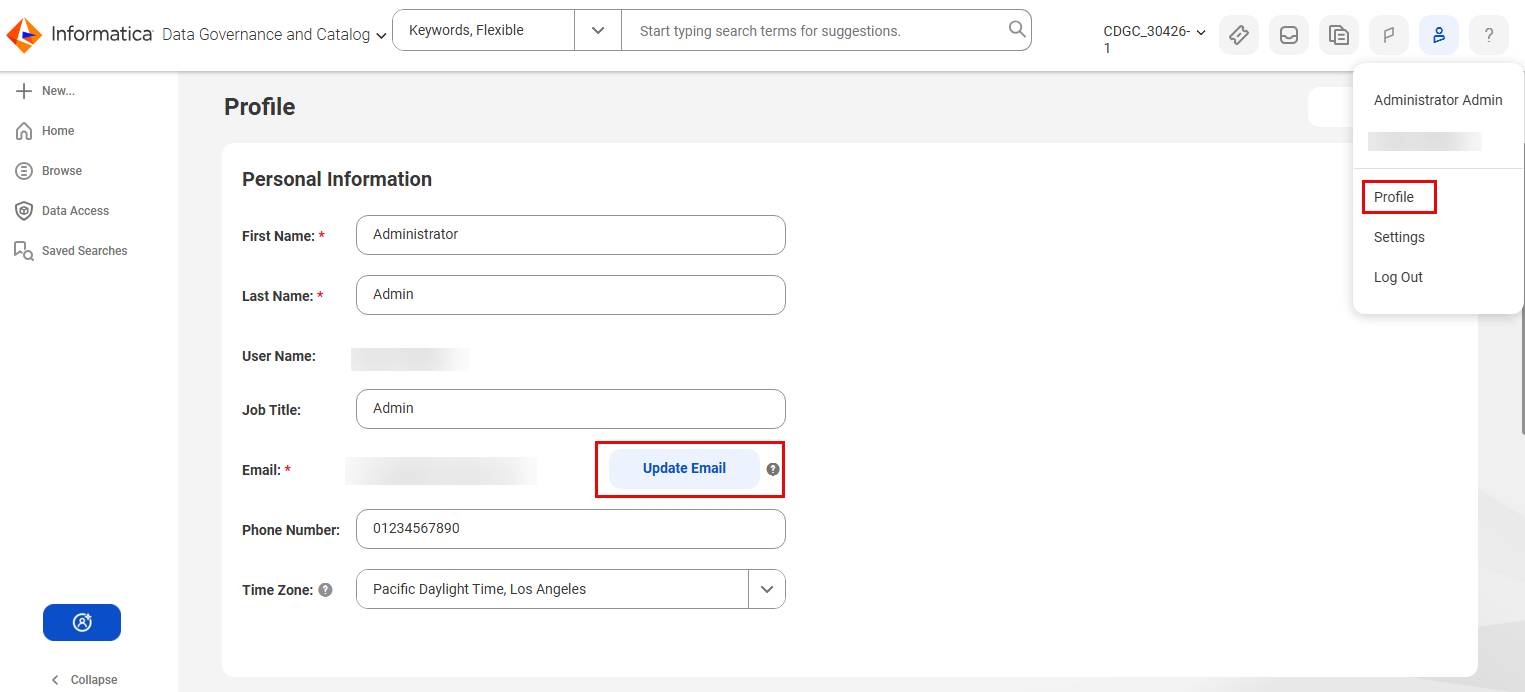
To update your profile:
- Select User in IDMC.
- Select Profile.
- On the Profile page, add or edit your name, job title, phone number, and time zone.
- To update your email address, select Update Email. IDMC sends a verification link to the new address, valid for 24 hours.
- Select Save.
Configure Notification Preferences
CDGC sends you notifications for key events—job status updates, workflow tasks assigned to you, license expiration reminders, and more. You can manage how and when you receive these notifications.
To configure notifications:
- Select User in the IDMC window.
- Select User Settings.
- In the notification settings, enable or disable in-app notifications and email notifications for the event types relevant to your work.
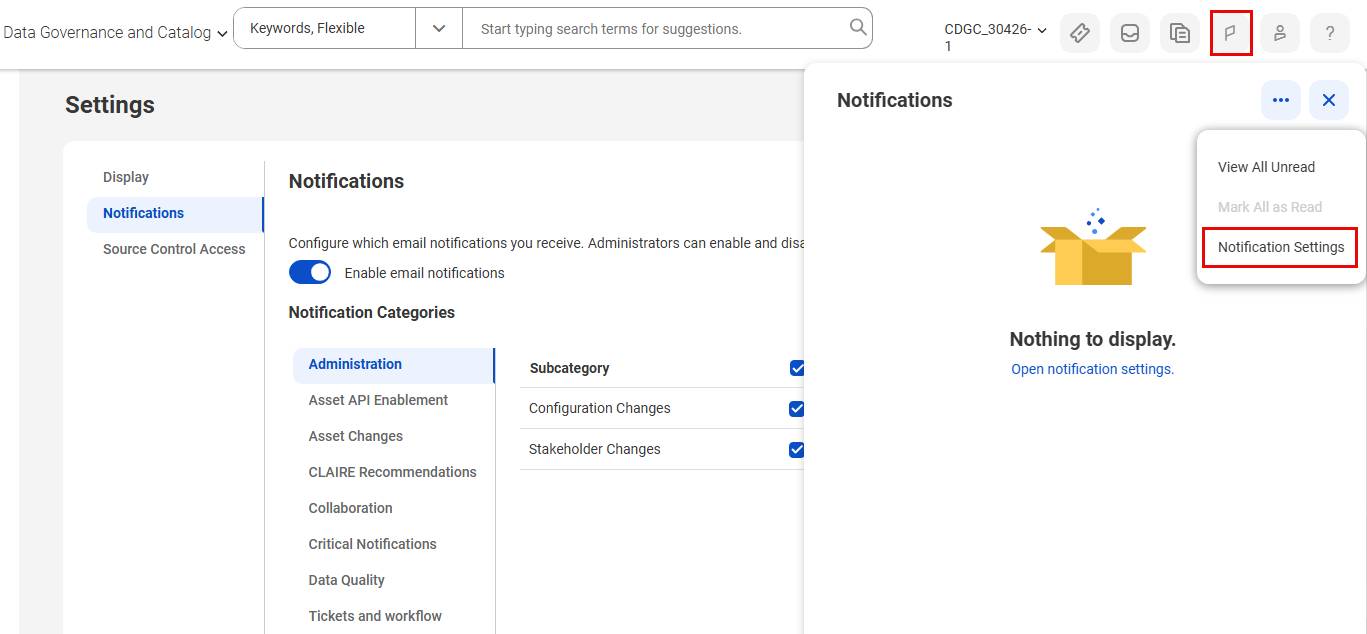
You can also review and manage all your notifications from the Notifications page. To access it, select Notifications in the header toolbar and select View All Unread from the Actions menu. On the Notifications page, you can filter by service, category, subcategory, status, and date received.
In this unit, you logged in to IDMC, found the Data Governance and Catalog service, and explored the key areas of the CDGC interface. You learned how to use the Browse page to navigate the asset hierarchy and how to personalize your Browse tabs. Finally, you updated your user profile and set up your notification preferences so you’re ready to work effectively in CDGC.
With these foundational skills, Angela is set up and ready to use CDGC. She can navigate directly to the asset categories she uses most, and she’ll be notified as soon as a workflow task lands in her inbox. And now you’re in the same position—ready to discover and work with your organization’s data assets.