Manage Incidents
Learning Objectives
After completing this unit, you'll be able to:
- Create and route a new incident record in Agentforce IT Service.
- Use the knowledge base to attach an article to an active incident.
- Escalate an incident to a major incident to coordinate a broader response.
Trace the Incident Lifecycle by Personas
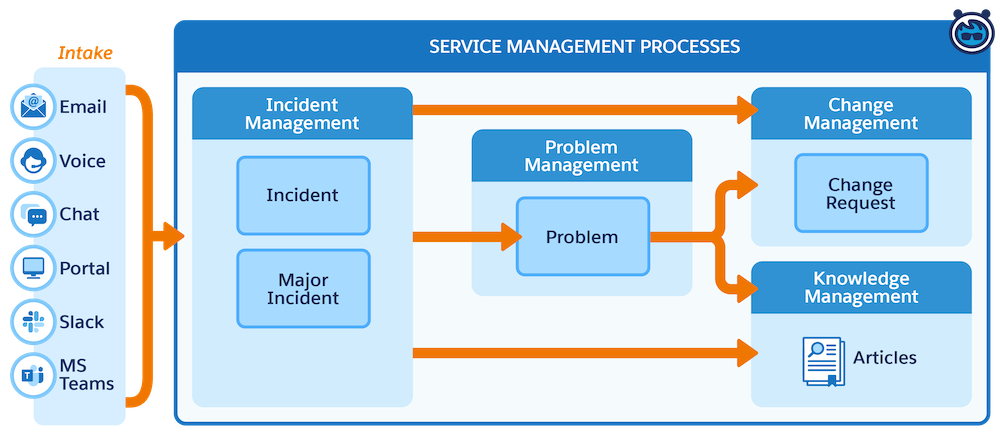
In the previous unit, you learned that incident management usually involves speed—getting services back online so that your employees can get back to work. In Agentforce IT Service, the incident lifecycle often follows a structured flow from intake to resolution.
-
Intake: Employees can use many forms of intake, such as email, voice, chat, portal, Slack, and Microsoft Teams.
-
Service management processes:
- Incident management: Restore normal service operations quickly.
- Problem management: Identify the root cause to prevent recurring issues.
- Change management: Safely implement system modifications.
- Knowledge management: Share solutions to enable faster support.
- Incident management: Restore normal service operations quickly.
Let's take a look to understand how employees, incident fulfillers, and incident managers interact at each stage of the process.
Persona |
Responsibilities |
Example Usage |
|---|---|---|
Employee |
The end user who experiences a disruption. They need a simple way to report issues and get back to work. |
Logs in to the portal to report a broken laptop, or uses email or Slack to request a password reset. |
Incident Fulfiller |
The IT agent on the front lines. They focus on the speed of resolution to restore service for the individual. |
Triages new tickets, troubleshoots errors, and proposes major incidents when widespread issues are spotted. |
Incident Manager |
The team leader with a high-level view. They focus on team performance, service health, and critical escalations. |
Monitors ticket volume in dashboards, approves major incident promotions, and identifies resource bottlenecks. |
This diagram shows a typical incident from start to resolution. Each persona has a dedicated swimlane, so you can follow the typical handoffs between them.
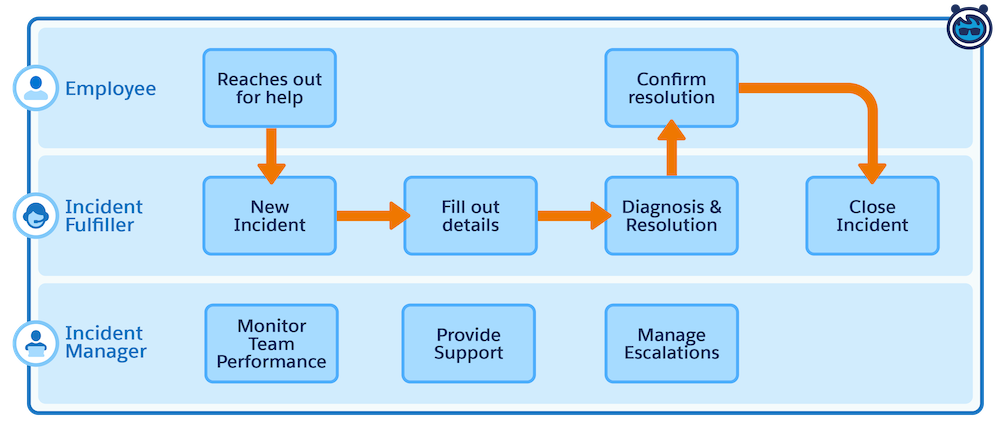
An employee reports a service disruption via one of several supported intake methods, such as email, Slack, or a web portal. From there, the workflow activates across the three personas.
-
Incident fulfiller: Creates the new incident (if not automated), fills out the details (Category, Priority), and performs the diagnosis and resolution.
-
Employee: Validates the fix and confirms resolution.
-
Incident manager: Works in parallel to monitor team performance and manage critical escalations, such as promoting a Major Incident or creating a Problem.
Now that you understand who touches the incident, learn where the incidents belong in the broader service lifecycle.
View, Create, and Work the Incident
As an incident fulfiller or incident manager, it's super simple to launch the app, view existing incidents, and understand key fields at a glance. Explore the interface and create your first incident.
View Existing Incidents
- From App Launcher
 , find and select Incidents.
- Select the All Incidents (Default) list view and pin it.
Create a New Incident
Imagine you're an incident fulfiller at Orivian Global Holdings, and multiple employees have reported that the corporate SSO portal is returning error 503. Users across the EdTech and BioSolutions divisions cannot access critical applications. Follow these steps to log the issue.
- From the Incidents tab, select New.
- In the Incident Details section, fill in the following fields exactly as shown.
-
Subject:
SSO Portal Error 503 - Multiple Divisions Affected -
Description:
Multiple users across EdTech and BioSolutions divisions unable to access SSO portal. Error 503 Service Unavailable returned. Critical business applications inaccessible. -
Impact: High
-
Urgency: High
-
Subject:
- In the Working Details section, continue to fill out the incident.
-
Status: New
-
Category: Access Management
-
Sub Category: Single Sign-on (SSO)
-
Status: New
- Save your work.
After you save, notice what happens to the Priority field in the Incident Details section. Because you set Impact and Urgency to High, the Priority automatically launches a flow that calculates and sets it to Critical. This is how Agentforce IT Service applies ITSM best practices—Priority is derived from the combination of Impact (how many people/systems are affected) and Urgency (how quickly it needs resolution).
The Status field defaults to New, indicating this incident has just been created and hasn't been assigned yet.
From the incident record you just created, you can see many more details and have additional functionality at your fingertips. Review this section to learn what you can do with an incident.
Work the Incident
Once an incident is created, fulfillers and managers have additional details and powerful features available to them. The actions on your dropdown will likely vary depending on your org’s configuration.
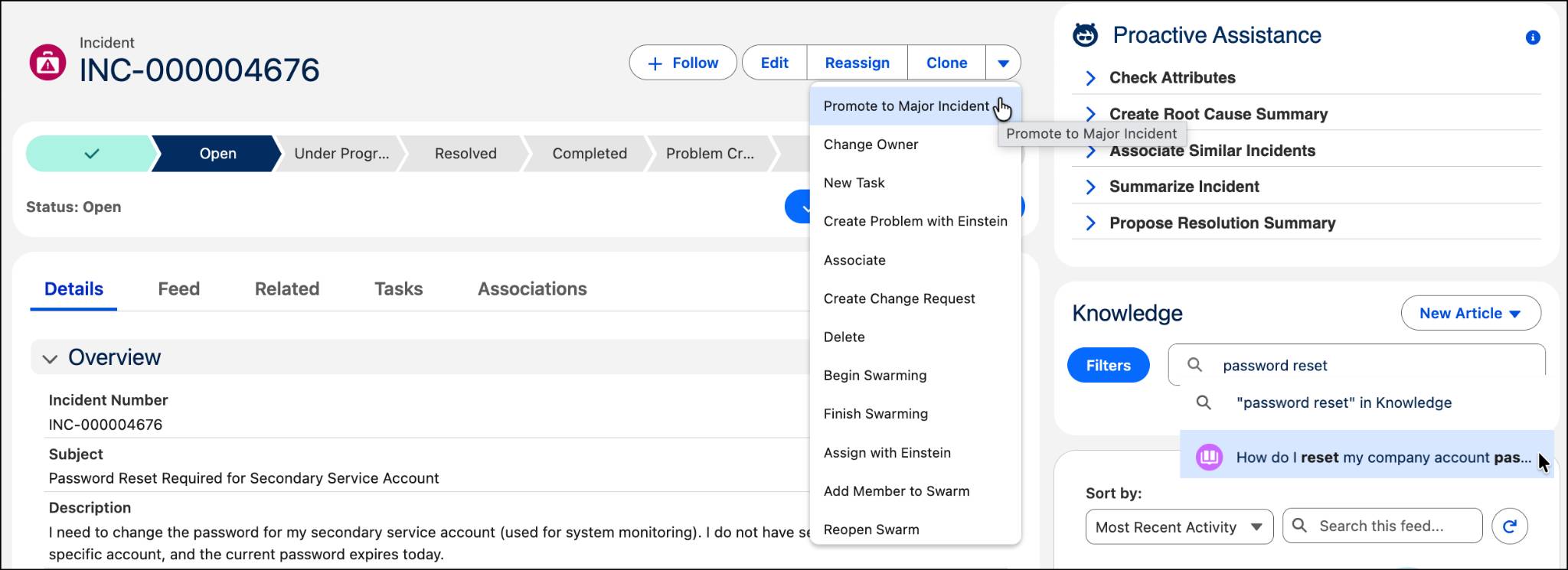
Here are some of the fields on the Details tab of an incident record. Notice that several fields are tied to ownership and can differ in a subtle way.
Field |
Description |
|---|---|
Created By / Reported By |
The user who experienced or logged the issue |
Last Modified By |
The user who most recently updated the record |
Incident Owner |
The queue or fulfiller currently holding the ticket |
Assigned User |
The specific individual actively resolving the issue |
When an incident is first created, the incident owner is often a general support queue and the assigned user is left blank. As the ticket progresses through triage, it’s typically assigned to a specific individual who actually resolves the issue. Let's work through that progression.

- On your new incident record, go to the Details tab and locate the Assigned User field (which is currently blank).
- Select Edit Assigned User (pencil icon) next to the field.
- Search for and select Cindy Mayes.
- Since you know someone is actively working on the incident, set the Status field to In Progress.
- Save your work.
Notice that the Assigned User and Status have been updated. Next, see if there is a known fix.
- In the Knowledge widget, click into the Search Knowledge and enter
SSO.
- Locate and read over the Connected App Authentication Fails with Clock Skew Error article in the results.
- Use your browser’s back button to return to the Incident Details page.
- Select Attach Article
 to attach the Connected App Authentication Fails with Clock Skew Error article to your incident.
- Select the Related tab and go to the Articles section.
The knowledge article attached to the incident can help fuel AI with goodness. Helpful grounding data anyone? Yes please!
Now learn how to escalate an issue that requires deeper investigation and a manager's review.
Manage Major Incidents
When is a regular old incident not an incident? When it's really a major incident. Major incidents are a special type of incident. They usually impact more than one user, more than one business system, or are extremely time-sensitive.
The SSO portal outage you just logged is a perfect example of a major incident candidate—it affects multiple divisions and blocks access to critical business applications.
Depending on the persona you're logged in as and the permissions tied to that persona, escalating to major incident status can require approval from another human in the loop.
Persona |
Logging an Incident |
Major Incident Proposal/Promotion |
|---|---|---|
Employee |
My Hub (portal) |
Standard incident only: Cannot propose or promote major incidents |
IT–Incident fulfiller |
Incident management (or portal) |
Propose major incident: Flags the issue as a candidate for manager approval |
IT–Incident manager |
Incident management (or portal) |
Promote: Declares the issue as a major incident immediately |
So, in this example, a fulfiller can propose that an incident become major, but escalating it to major requires an incident manager or admin. Of course, they are free to reject the proposal. About 15% of proposed major incidents are approved by incident managers. (This varies depending on organizations' policies and processes.)
Does a user need a new mouse? That's probably not going to be approved as a major incident. Are they having connectivity issues tied to the corporate VPN? That might not be approved either, unless it impacts other users as well. Is your corporate single sign-on (SSO) failing? That's a major incident and warrants immediate approval!
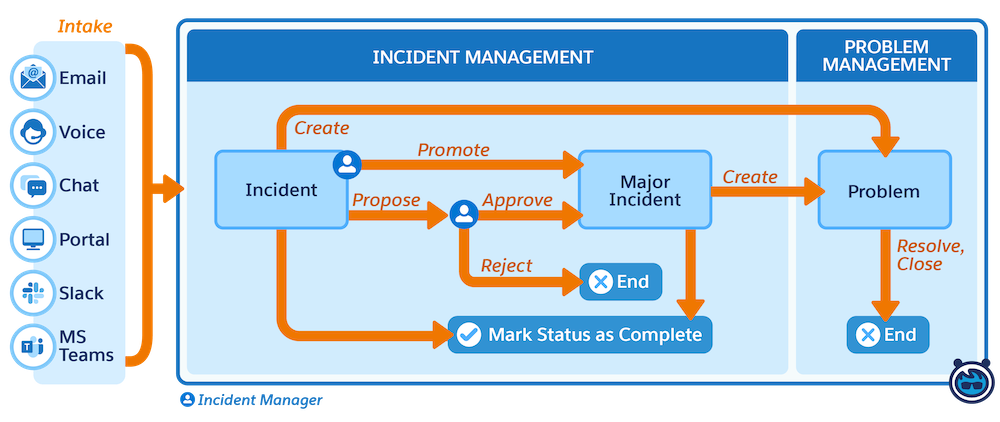
Learn how Agentforce detects widespread IT issues and groups related tickets so your team can easily propose, escalate, and resolve major incidents in this video.
Agentforce not only helps your team coordinate the immediate response, but it can also draft the initial root cause and resolution summaries for you.
Escalate Your Incident
Follow these steps to escalate the SSO incident you created earlier.
- From the top of the incident record, select Promote to Major Incident. (You may need to select the dropdown arrow to see it.)
- Notice the banner that appears at the top of the record indicating its new major incident status.

- Refresh your browser.
- On the Details tab, review the Incident Details section.
Notice what has changed tied to the major incident promotion.
- The Major Incident field has been checked.
- The Major Incident Status Comments field has been updated.
- There’s a context aware Demote Major Incident action now. (Do not click it, or your challenge check will fail.)
Up Next
You've covered the essentials of “firefighting”: navigating the incident lifecycle from the initial intake all the way to major incident escalation. But restoring service is only half the battle. To ensure long-term stability, you need to stop these issues from coming back. Next, you shift gears to problem management to discover how to find the root cause, and “fireproof” your infrastructure.
To pass the challenge, make sure to select Check Challenge to Earn 500 Points.