Configure Searchable Attributes
Learning Objectives
After completing this unit, you’ll be able to:
- Explain the importance of using searchable attributes.
- List the five general boost factor rules.
- Describe when to avoid using autocorrect with searchable attributes.
- Explain how system objects relate to searchable attributes.
What Are Searchable Attributes?
Searchable attributes help improve the shopper experience by making search results more relevant and efficient. Here are a few of the ways searchable attributes contribute to a better shopping experience.
-
Improve search relevance: By defining specific attributes such as product name, brand, or category as searchable, merchants can make sure that search results closely match customer intent.
-
Customize search prioritization: You can assign boost factors to attributes, adjusting their importance in search results, and prioritize attributes that are most relevant to your customers.
-
Enhance Auto-Correction and Auto-Completion: You can configure search attributes to include or exclude auto-correct and auto-completion to make sure that keywords and phrases are complete during searches.
Configuring searchable attributes is an important step in creating an engaging shopper experience. When a shopper enters text into the search field, Agentforce Commerce for B2C looks at the product, catalog, or content attributes that you configure as searchable, including terms maintained in the search dictionaries. It returns results on products, catalog, or content assets that contain the search term that’s in a searchable attribute. If the searched term is contained in an attribute that isn’t searchable or in the search dictionaries, the system doesn’t return the product in the results.
When identifying which attributes to make searchable, focus on attributes that highlight key areas of your products, categories, and storefront content. For example, here are attributes for a footwear retailer during the holiday season.
|
Attribute Type
|
Searchable Attributes
|
|---|---|
Product |
brand, boot type, outerwear, sandal type, shoe type, sneaker type, top type |
Category |
size chart |
Content |
holiday special |
For these attributes, you can also assign a boost factor and automate autocorrection and autocompletion. Let’s explore those next.

Boost Factor
A boost factor increases or decreases the importance of the attribute to the search results. For example, to make the sneaker type attribute more important than the color attribute, you set the sneaker type boost factor to 2.00, making the sneaker type attribute twice as important as the color attribute, which has a boost factor of 1.00. Here are some general boost factor rules.
- You can use decimals as boost factors.
- A boost factor of .01-.99 reduces its impact in the search results.
- 1.00 is the default and does not change the order of default search results.
- 1.01–100.00 increases the importance of the field in search results.
- Use boost factors less than or equal to 5.00.
Searchable attributes you select have no effect on the attributes selected for search refinement or sorting rules. However, if you create a sorting rule that uses text relevance as a sorting criterion, the boost factor that you select for a searchable attribute does affect the sort order.
Autocorrect
By default, all searchable attribute values aren’t subject to auto-correction (spell checking) and auto-completion. When you add a new searchable attribute, the default setting for auto-correction on the attribute is No. To use auto-correction and auto-completion, set auto-correct to yes when creating the searchable attributes. Carefully consider how and when you use auto-correct with searchable attributes. For example, a redirect based on a product ID attribute is configured to result in a product detail page that matches the product ID. If auto-correct changes the product ID, the redirect goes to the wrong product page or a no search results page.
Configure Searchable Attributes
- In Business Manager, click App Launcher, and select Merchant Tools | Search | Searchable Attributes. You can create or edit searchable attributes for products or content.

- Click New in the Product Index Attribute section.
- Expand the highlighted field. Only attributes with appropriate data types for search appear.
- Select a new attribute, for example Sandal Type (custom-sandalType). The new attribute has red triangles in each field, indicating that the system hasn’t applied the change.
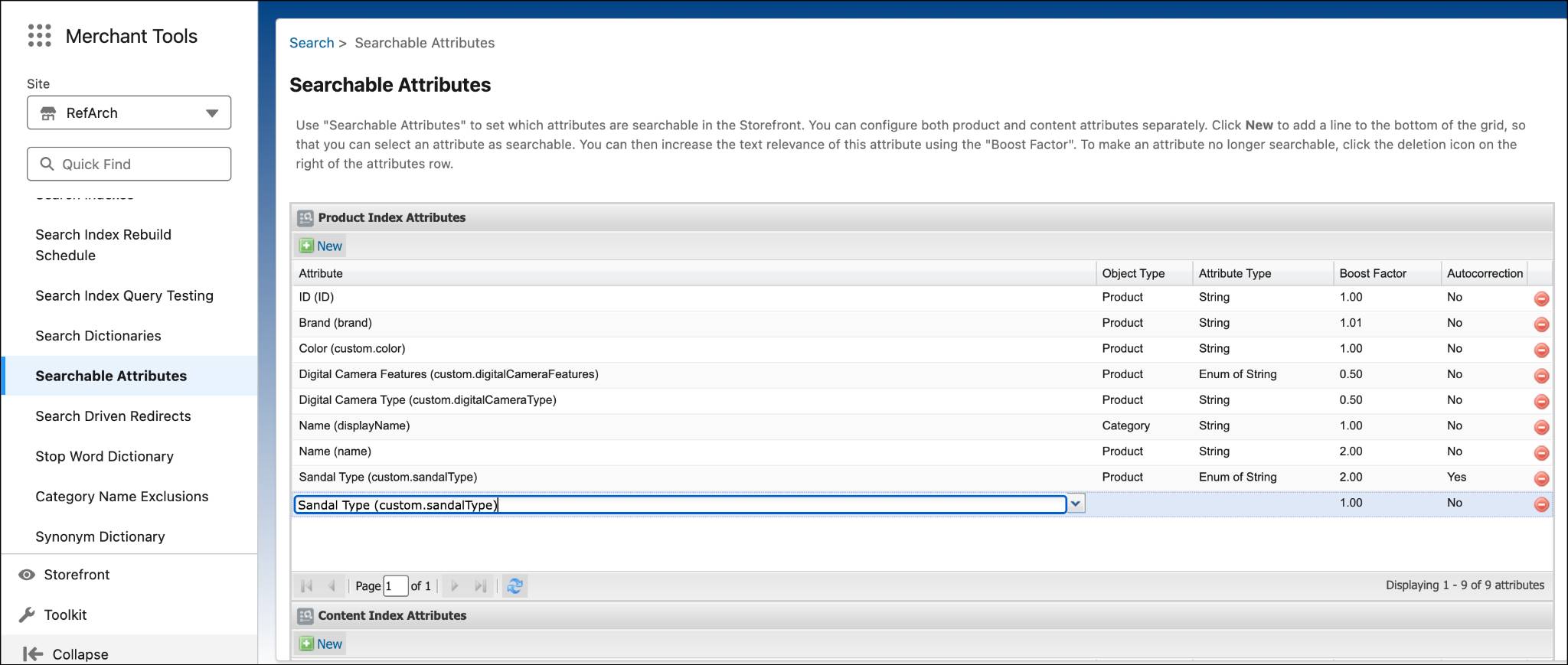
- Click the Boost Factor field and enter a boost factor:
2.00 - Select Autocorrection: Yes
- Click Apply. The red triangles in the attribute disappear.
- Rebuild the product (or content) index. The change doesn't take effect until you rebuild the index.
Create Attributes First
Make sure that the attributes you configure as searchable exist in the system as an attribute of a system object, namely, the product, catalog, or content system object.
Let’s say that the storefront includes the product and category attributes, but is missing the content attribute. You need to add that first. Here’s how.
- In Business Manager, click App Launcher, and select Administration | Sites | Site Development | System Object Types.
- Select Content.
- Click the Attribute Definitions tab.
- Click New.
- Enter the ID:
holiday-special - Enter the display name:
Holiday Special

- From the Localizable/Site-Specific dropdown, select Localizable.
- Click Apply.
- Return to set the attribute as searchable.
- Click App Launcher, and select Merchant Tools | Search | Searchable Attributes.
- In the Content Index Attributes section, click New.
- Click the dropdown and select Holiday Special (custom.holiday-special)
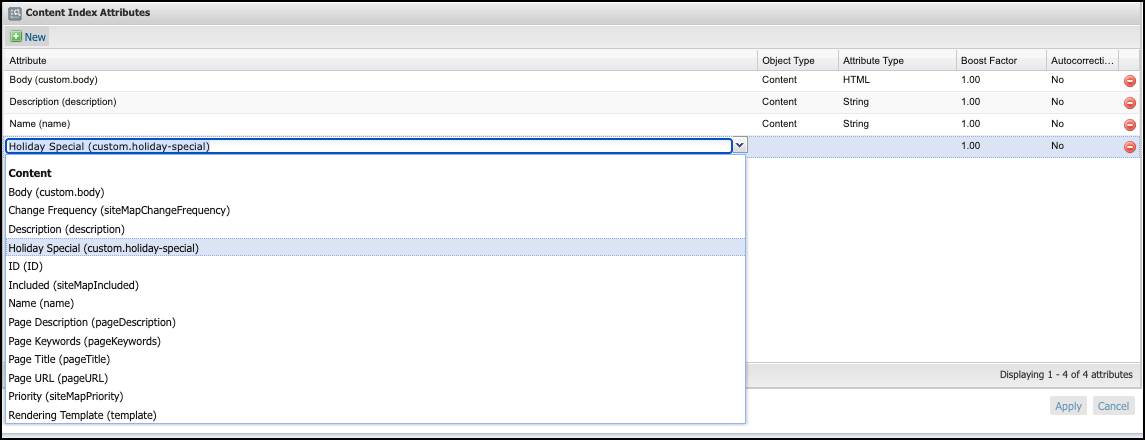
- Click Apply. This attribute is now searchable.
Troubleshoot Search Results
Configuring search settings and features can get complex, and sometimes you run into problems with your search results. When that happens, review everything from queries and indexes to see how you configured your products. Here are some troubleshooting tips.
Subject |
Tips |
|---|---|
Queries and search results |
Review a query construction using the Storefront toolkit Search Information tool. |
Index |
If a particular index feature doesn't seem to work, check to make sure that you turned on feature on the Site Preferences | Search Preferences page. |
Stemming |
If stemming doesn't work in a non-English locale, change the stemmer language setting for the index on the Search | Search Indexes | Language Options page. |
Let’s Wrap It Up
In this unit, you learned how to configure searchable attributes, and how the boost factor works. You also learned to check that the attributes exist in the system before you set them as searchable, and you learned some basic search troubleshooting techniques.
Resources
- Salesforce Help: Configure Searchable Attributes
- Salesforce Help: Examine Search Results Using the Search Information Tool
- Salesforce Help: Configure Search Index Language Options