Review and Resolve Supplier Workflow Tasks
Learning Objectives
After completing this unit, you’ll be able to:
- Identify and resolve workflow tasks for different types of supplier record changes.
- Interpret the workflow status of a task to identify completed, active, and pending approval steps.
- Explain how business event configuration shapes the tasks that appear in your Workflow Inbox.
Validate Master Data Before It Goes Live
In the previous unit, you saw how the procurement team at Coral Cloud Resorts submitted a new catering supplier for onboarding. That submission triggered a workflow task that landed in the Maya’s Workflow Inbox.
Maya opens the task and claims it. The supplier’s general information looks reasonable—the company name, industry type, and business type are complete. But as she scrolls through the financial and compliance fields, several things stand out immediately: The North American Industry Classification (NAICS) Code is missing and Ownership Type is incorrectly selected. The Ownership Type field is set to Public instead of Private. Bank details like Account Type and Society for Worldwide Interbank Financial Telecommunication (SWIFT) code are also missing.
For Maya, this isn’t a minor oversight. The NAICS Code helps to categorize the industry and determine if your business qualifies for loans. Ownership Type helps in assessing legal liabilities, financial stability, and risk. If Maya approves the supplier record with these incorrect or missing details, bad data enters the master data store—and flows downstream into every connected system.
So she doesn’t have to close the task permanently and force the procurement coordinator to restart the entire process, Maya chooses not to reject the onboarding. Instead, she performs the following steps.
- Click Send Back.
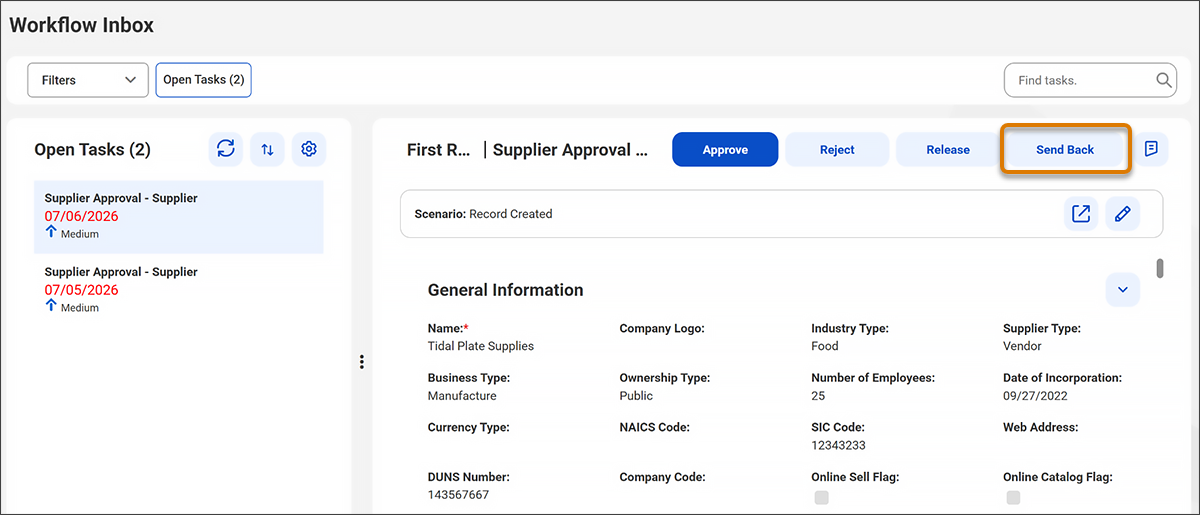
- Select the submitter who originally submitted the record for review.
- In the Notes section, enter what is missing or needs to be corrected.
- Click Submit.
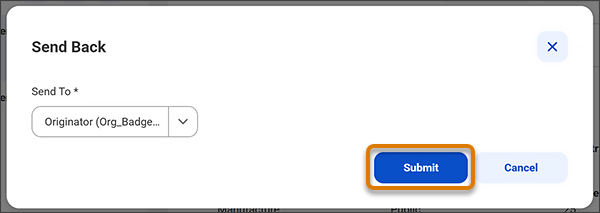
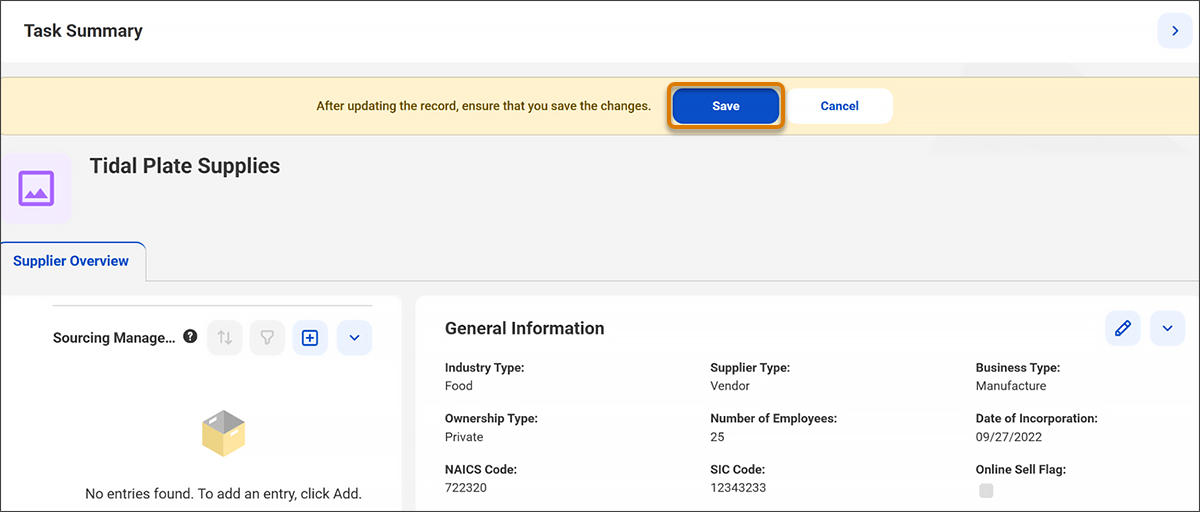
The task is routed back to the originator, who now has clear guidance on exactly what needs to be fixed before the supplier can be onboarded. Upon accessing their workflow inbox, the originator identifies the pending task and performs these actions.
- Click the Edit icon.

- Modify any necessary information and select Save. Then, the user can resubmit the record for approval.
Complete the Approval Process
After the originator provides the necessary updates, Maya conducts a final review. She approves the record, and the data is formally committed to the Supplier 360 data store, making it available for strategic business decisions.
Task Resolution by Type of Change
Supplier 360 generates tasks based on the triggering business event. The specific change type determines your responsibilities as well as the information you evaluate. To avoid conflicting edits, you must claim a task before beginning your review. This prevents other authorized users from accessing the same task simultaneously. Let’s see how Maya handles these tasks in her day-to-day work.
New Record Tasks
When the procurement team at Coral Cloud Resorts submits a new catering supplier for onboarding, the supplier record is held in a pending state until a reviewer approves it. When Maya opens the task, she sees the proposed supplier’s field values: company name, currency type, DUNS number (Data Universal Numbering System), ownership type, and bank account details. She reviews the data for financial accuracy and completeness. She can approve it to add the supplier to the master data store or reject it if the record doesn’t meet compliance requirements.
Edited Record Tasks
When a procurement coordinator updates an existing supplier record—like the incomplete bank account update Maya found on Monday morning—the task presents the proposed changes alongside the current values, with updated fields highlighted. Maya reviews the edits, spots the incomplete bank account number, and clicks Send Back to route the task back to the submitter with a note explaining what needs to be corrected. The procurement coordinator fixes the entry and resubmits. The task moves through the workflow again and lands back in Maya’s inbox for final review.
Deleted Record Tasks
When a user requests deletion of a supplier record—for example, a vendor that is no longer active—the task asks Maya to confirm the removal. Approval removes the supplier from active master data. Rejection preserves it for ongoing contracts or references.
Merge Tasks
Merge tasks are generated when supplier records are flagged for consolidation. Maya sees the candidate records side by side with a preview of the merged result. For example, if Pacific Linen Co. and Pacific Linens Company are flagged as duplicates, she determines whether they represent the same vendor and approves or rejects accordingly.
Unmerge Tasks
If a merge was approved incorrectly—for example, two regional branches were mistakenly combined—a reviewer can initiate an unmerge. The task shows the source records, and Maya can preview the master records that will be restored. Once approved, Unmerge Tasks separates them back into independent supplier records.
Reviewing Hierarchy Tasks
Supplier 360 also routes hierarchy changes through the Workflow Inbox. A hierarchy represents organizational relationships between supplier records—for example, a parent company and its subsidiaries.
-
New hierarchy task: Maya reviews the proposed parent-child structure and confirms relationships are correct before approving.
-
Edited hierarchy task: The task highlights added, removed, or moved nodes. Maya reviews and approves or rejects.
-
Deleted hierarchy task: Maya confirms whether deleting the entire hierarchy is valid.
For any hierarchy task, Maya can click Edit to make corrections directly within the task before approving.
Find Tasks
On a busy week, Maya may have dozens of tasks in her inbox. Supplier 360 provides predefined filters and a search box to help her prioritize.
-
Open Admin: Tasks assigned to Maya
-
Unassigned: Open tasks no one has claimed yet
-
Active: Claimed and in-progress tasks
-
Closed: Tasks Maya has completed
-
Past Due: Tasks that have passed their due date
-
Due In 7 Days/Due In 14 Days: Tasks approaching their deadline
-
Priority High, Medium, or Low: Tasks filtered by urgency
Maya can search by task ID, subject, owner, or status. Tasks not resolved within 365 days of creation expire automatically and become invalid.
View the Status of Closed Tasks
After sending the task back, Maya later checks whether it has been resubmitted and approved. She opens the Closed Tasks filter and finds the original task. A closed task shows two things.
-
Her action: Approved, Rejected, or Sent Back
-
The overall workflow status: Approved, Rejected, or Review in Progress
For example, Maya sees her action as Approved and the workflow status is Approved—meaning, the supplier is live in the master data store.
Understand Workflow Status
Supplier 360 routes every new supplier onboarding request through a structured approval process. By default, the process includes four steps—though the organization’s admin can configure a different workflow to match business needs.
To review and approve supplier records, a user must have an approval role. Maya logs in as a Supplier 360 credit manager—one of the roles in Supplier 360 that carries approval privileges. Other roles with approval privileges include:
- Supplier 360 Commodity Manager
- Supplier 360 Contract Manager
- Supplier 360 Risk Manager
Supplier onboarding at Coral Cloud Resorts is not a single-step decision. Once Maya approves the task as the Supplier 360 credit manager, the record does not go live immediately. It moves to the next step in the approval flow, where other managers such as the commodity manager, contract manager, or risk manager might also need to review and approve before the supplier record is saved to the Supplier 360 data store. Every role plays a part in ensuring that only verified, complete supplier data makes it through to master data.
Sum It Up
In this badge, you learned how to manage supplier onboarding approvals in Supplier 360. You explored how business events create workflow tasks, how to claim and act on them, and how to resolve tasks for different change types—new records, edits, deletions, merges, and hierarchy changes. You also discovered how workflow configuration determines whether a supplier record waits for approval before going live.