Set Up Salesforce in Claude
Learning Objectives
After completing this unit, you’ll be able to:
- Set up the Salesforce org so you can enable Claude integration.
- Enable Salesforce data on Claude and test the connection.
From Understanding to Setup
Connecting Salesforce to Claude starts in your Salesforce org. Before a rep can ask Claude about an account or opportunity, there are a few things you need to put in place behind the scenes. As an admin, you prepare Salesforce to connect securely to Claude, establish the connection, and verify that everything works as expected. Your reps shouldn’t use the connection until Salesforce is ready. When you’re done, a rep can open Claude, ask about an account, and get an answer based on the Salesforce data they’re already allowed to access.
Get started with the Salesforce setup.
Set Up the Salesforce Model Context Protocol Connector
In this section, you set up the secure Model Context Protocol (MCP) connection between Salesforce and Claude and decide who can access it. You also configure the permissions and tool settings Claude needs to work with your Salesforce data.
Activate the Headless 360 MCP Server
The Headless 360 MCP server provides the connection that allows Claude to securely access and work with information from your Salesforce org. Here’s how you set it up.
- From Setup, in the Quick Find box, enter
MCP Servers, and then select MCP Servers.
- Select Headless360 (H360) MCP Server.

- Select Activate to activate this server. Notice that the Server Status gets set to Active.

Create an External Client App
In this step, you create an External Client App to establish a secure connection between Salesforce and Claude. You also configure how Claude authenticates with Salesforce and what it needs to connect to the MCP server. Here’s how you set it up.
- In the Quick Find box, enter
External Client App Manager, and then select External Client App Manager.
- Select New External Client App.
- Enter the following information in the Basic Information section.
- External Client App Name:
Claude Salesforce MCP - API Name:
Claude_Salesforce_MCP - Contact Email: Your email address
- External Client App Name:


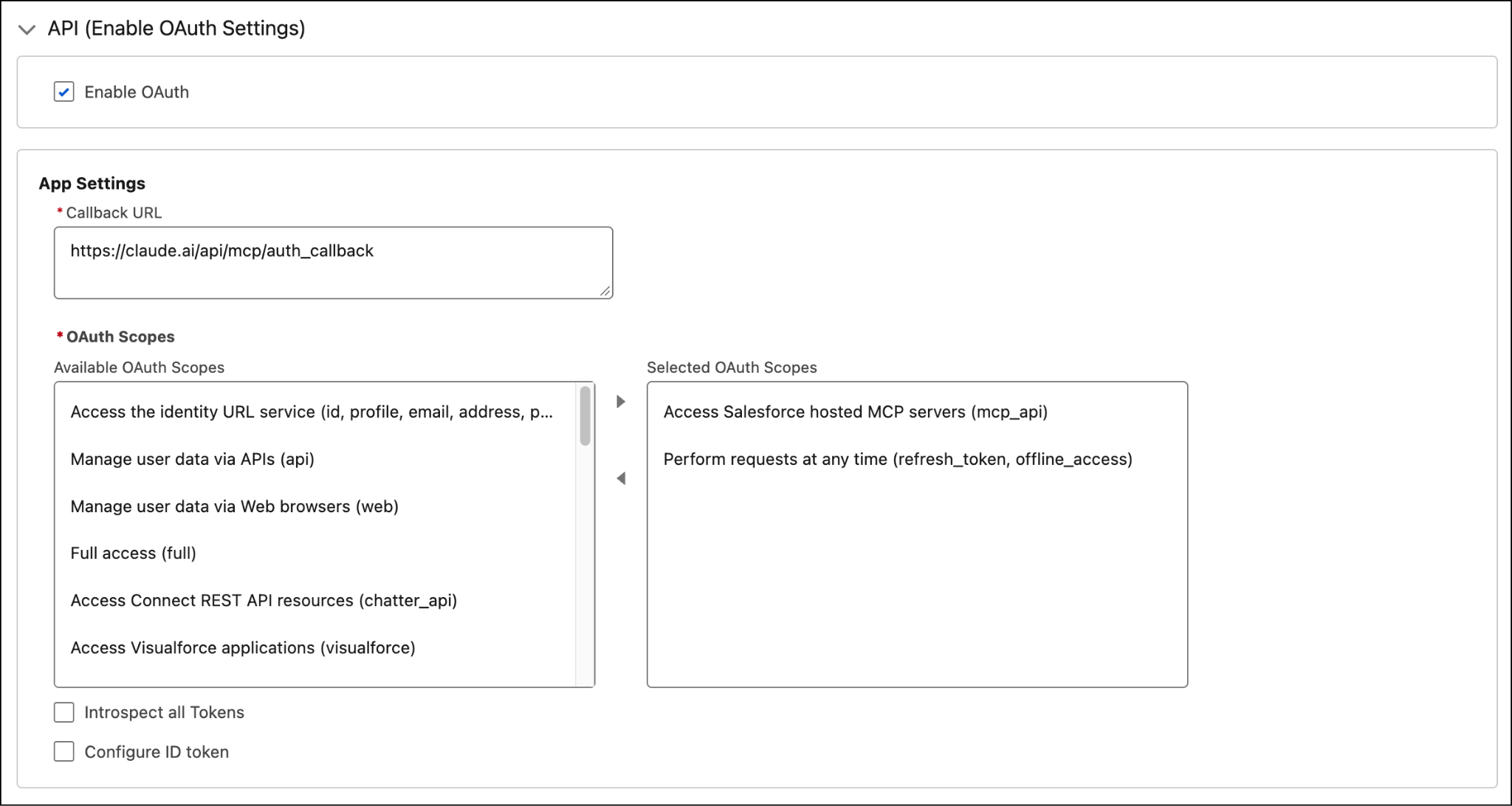
- Update the API (Enable OAuth Settings) section as follows.
- Enable OAuth: Check this box.
- Enter callback URL:
https://claude.ai/api/mcp/auth_callback - OAuth Scopes: Select mcp_api and refresh_token and then move them to Selected OAuth Scopes.
- Some of the Security settings come preselected. In the Security section, make sure the following settings are checked.
- Require secret for Web Server Flow.
- Require secret for Refresh Token Flow.
- Require Proof Key for Code Exchange (PKCE) extension for Supported Authorization Flows.
- Enable Refresh Token Rotation.
- Issue JSON Web Token (JWT)-based access tokens for named users.
- Require secret for Web Server Flow.

- Leave the rest of the settings as is.
- Navigate to the end of the Security section, and then select Create.
- Select the Settings tab, expand OAuth Settings, and select Consumer Key and Secret. If prompted, verify your identity by entering the code Salesforce sends to your email.

- Copy your Consumer Key and Consumer Secret information and save it in a trusted location such as a password manager. You need them later to connect your MCP client.
You’ve completed the Salesforce setup! Your Headless 360 MCP server is activated, and your External Client App is configured. Next, you connect Claude to the MCP server so your sales reps can access Salesforce data directly from Claude.
Connect Claude to the Headless 360 MCP Server
Now that you’ve created your External Client App and saved the Consumer Key and Consumer Secret, follow the steps to connect Claude to your Salesforce org using a custom MCP connector.
- Open Claude in your browser or the desktop app.
- Select your username and then select Settings.
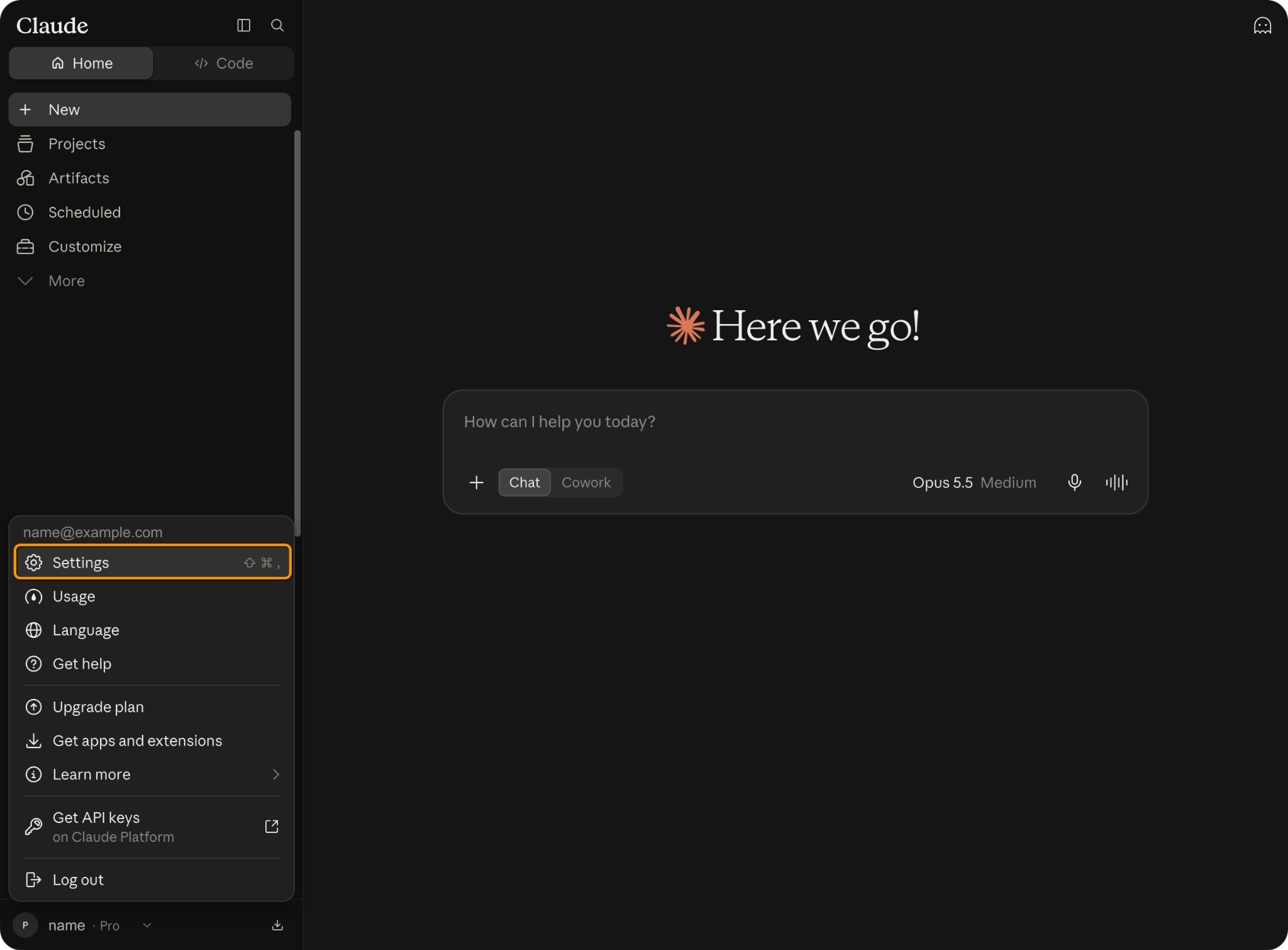
- Select Connectors.
- Select Add, and then select Add custom connector.

- In the Add custom connector window, enter the following.
- Name: Salesforce Headless 360
- MCP server URL:
https://api.salesforce.com/platform/mcp/v1/platform/headless-360
- Name: Salesforce Headless 360
- Select Continue.

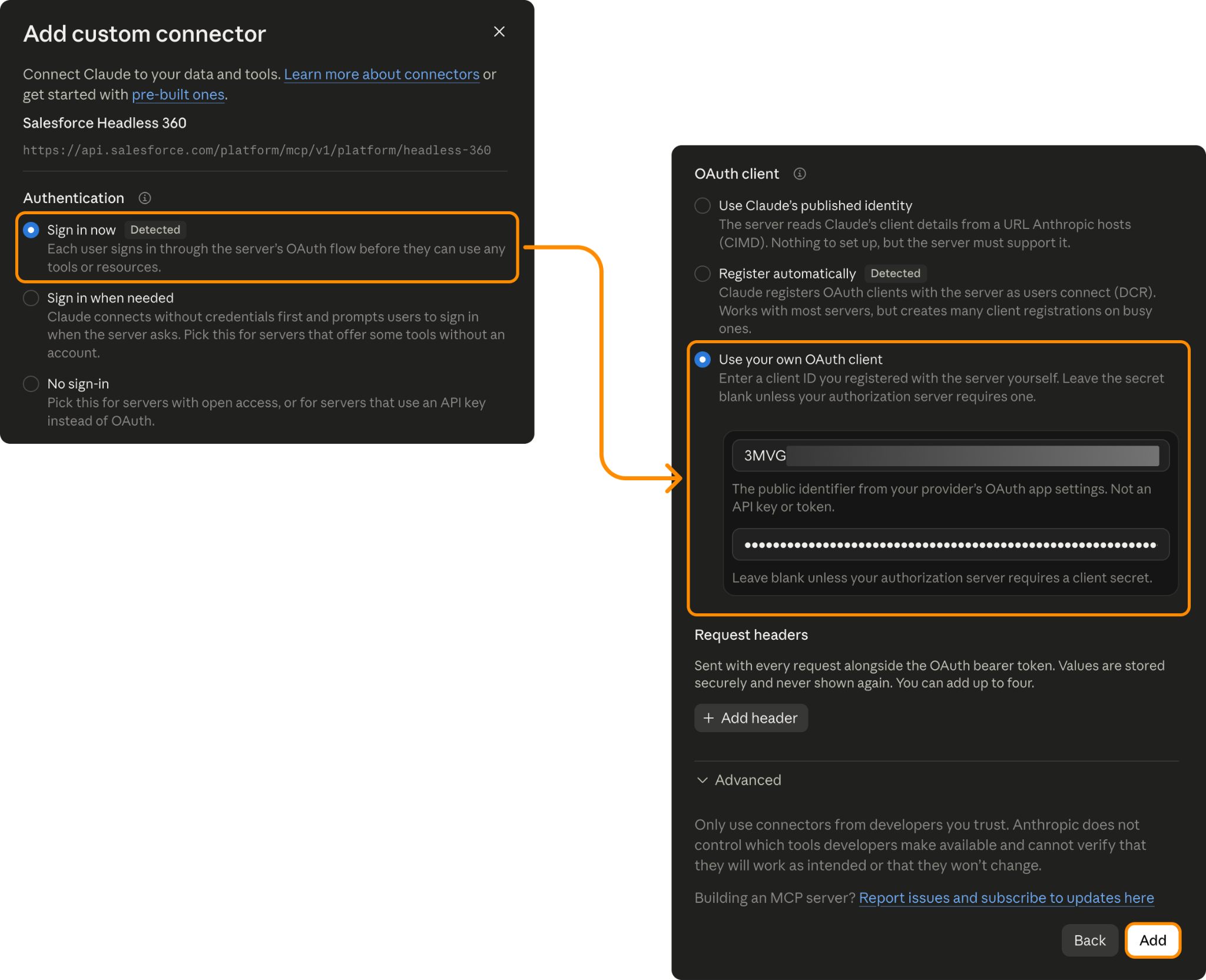
- In the Add custom connector window, select Sign in now in the Authentication section, and then select Use your own OAuth client in the OAuth client section.
- Navigate to the end of the connector window, and enter the following.
- OAuth client ID: Enter the Consumer Key you copied and saved in the previous step.
- OAuth client secret: Enter the Consumer Secret you copied and saved in the previous step.
- OAuth client ID: Enter the Consumer Key you copied and saved in the previous step.
- Select Add.
- Select Connect. Claude opens the Salesforce login page.
- Enter your Salesforce username, select Log In, enter your password, and then select Log In again.
- If asked, select Allow to authorize the connection between Salesforce and Claude.
- In Claude, select +, select Connectors, and locate the Salesforce Headless 360 connection you just added.

Your Claude workspace is now connected to Salesforce. You’ve established the secure connection that allows Claude to interact with Salesforce capabilities through the MCP server.
Put Your Connection to Work
This is where things get interesting. You’ve connected Claude to Salesforce. Now, explore what that connection can do. In this example, give Claude a real-world business scenario. Ask it to analyze Salesforce data, uncover patterns, surface important insights, and turn those insights into an interactive dashboard.
The following scenario focuses on sales data. You can use the same approach to explore accounts, cases, service trends, customer data, operational metrics, use cases outside of sales, and other information available in your Salesforce org. Try this prompt in Claude.
Act as my sales strategist. Using my connected Salesforce org, analyze all open opportunities plus deals closed in the last 12 months, and give me:
1 - Deals at risk. Open deals with no activity in 14+ days, close dates pushed more than once, or stuck in a stage longer than our average. Rank them by amount and give the reason for each.
2 - Forecast reality check. Compare what’s committed this quarter with what our historical win rates by stage say will actually close. Show the gap.
3 - What winners do differently. Compare won and lost deals by sales cycle length, number of contacts involved, activity volume, lead source and deal size. Tell me the 3 patterns that matter most.
4 - Top 5 actions this week. Name the specific deals and accounts and say exactly what to do for each (who to call, what to say, and why).
Then build all of this into a single interactive dashboard. Be blunt, use real numbers, and flag anything surprising.
Claude uses the Salesforce data available through your connected MCP server to analyze the information and present the results in an interactive dashboard.
Check out some examples of the kinds of dashboards Claude can come up with.
Quarterly Pipeline Reality Check
Help reps identify open opportunities that need immediate attention.

Things That Don’t Add Up
Uncover record inconsistencies across a sales team.

Forecast Reality Check
Make it easy for reps to compare committed deals against actual logged activities.

What Winners Do Differently
Discover patterns that lead to closed-won deals.
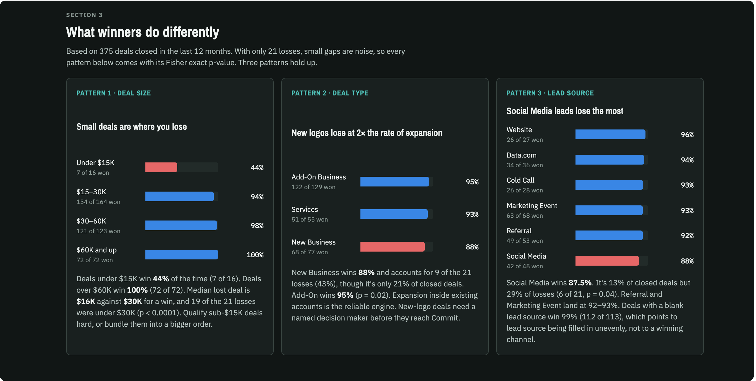
Claude analyzed the data, connected patterns across multiple data points, and surfaced potential risks. It challenged the forecast, identified differences between won and lost deals, and turned the findings into an interactive dashboard. And with a conversational interaction model, reps can now ask follow-up questions, dig deeper into a finding, and explore a completely different business question, all using natural language.
Wrap Up
You now know what it takes to bring Salesforce into Claude—prepare the org, connect your Salesforce data, and test the connection before rollout. With the link live and verified, reps can work with governed CRM data inside Claude.