Find and Open Assets with Informatica QuickLook
Learning Objectives
After completing this unit, you'll be able to:
- Explain how to search for business and technical assets by keyword in the Informatica QuickLook extension.
- Apply filter search results to narrow down available assets in the catalog.
- Review an asset’s catalog details page in the Informatica QuickLook extension.
Find Assets Without Leaving Your Browser
With Informatica QuickLook installed and configured, you’re ready to put it to work. In this unit, you use the extension to search for assets, filter results, and open full asset details—all from your browser toolbar.
Angela Duran, the business analyst at Infiwave, is in the middle of preparing a report when her manager asks about the customer data assets available in their org. Instead of switching tabs and logging in to Informatica Cloud Data Governance and Catalog (CDGC), she selects the Informatica QuickLook logo in her toolbar. She searches for “customer” from right where she is.
Here’s how to search from the browser.
- Select the Informatica QuickLook logo on your browser toolbar to open the extension.
- In the Search bar, enter a keyword related to the asset you’re searching for.
- Press Enter or wait for the results to appear automatically.
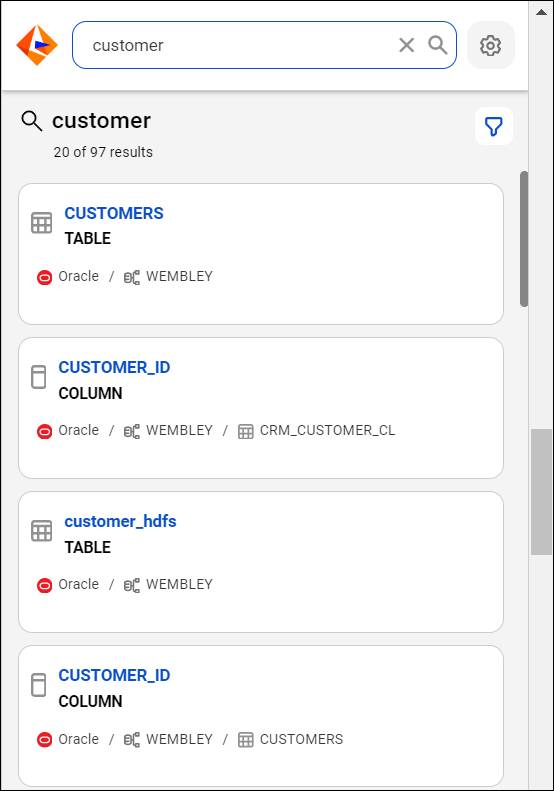
The extension displays up to 97 results from the catalog. Results include both business assets (such as business terms, policies, and data sets) and technical assets (such as tables, files, and views). The assets you can review depend on your access permissions which are assigned by your organization administrator.
Each result in the list includes the asset name, asset type, and a short description, when available. This helps you quickly assess whether it’s the asset you’re searching for.
Filter Your Results
Angela’s search returns several results. To narrow them down, she selects the Filters icon and applies the relevant filter options.
Filters help you zero in on the right asset when your search returns many results. The filters available to you depend on the keywords you entered. Common filter options include:
-
Asset Type: Filter by business asset, technical asset, or data access asset.
-
Domain: Narrow results to a specific data domain in your organization.
-
Classification: Show only assets tagged with a specific classification, such as Personally Identifiable Information (PII) or Confidential.
-
Certification Status: Filter by assets that have been certified, in review, or uncertified.
-
Stakeholder: Find assets assigned to a specific owner or steward.
After applying filters, the Filters icon includes the total number of active filters so you always know what’s in effect. To remove a filter, select the Filters icon again and then deselect it.
Preview Asset Details in the Extension
Angela spots a promising dataset in the filtered results. Before opening the full catalog, she selects the asset name to preview its details right inside the extension.
When you select an asset name in the search results, the extension opens an inline details panel. Here you can review:
-
Overview: The asset's description, classification tags, and certification status
-
Properties: Technical metadata, such as data type, source system, and last modified date
-
Related Assets: Other assets linked to this one, such as parent tables, downstream reports, or associated business terms
-
Stakeholders: Owners, managers, and other parties responsible for the asset
This quick preview is useful for verifying you’ve found the right asset before committing to a full page load.
If you need the complete asset details—such as full lineage, data quality scores, or the complete activity history—you can jump directly to the asset page in the catalog.
- In the search results or the inline details panel, select Open in Data Governance and Catalog next to the asset name.
- CDGC opens in a new browser tab, directly on the asset’s detail page.
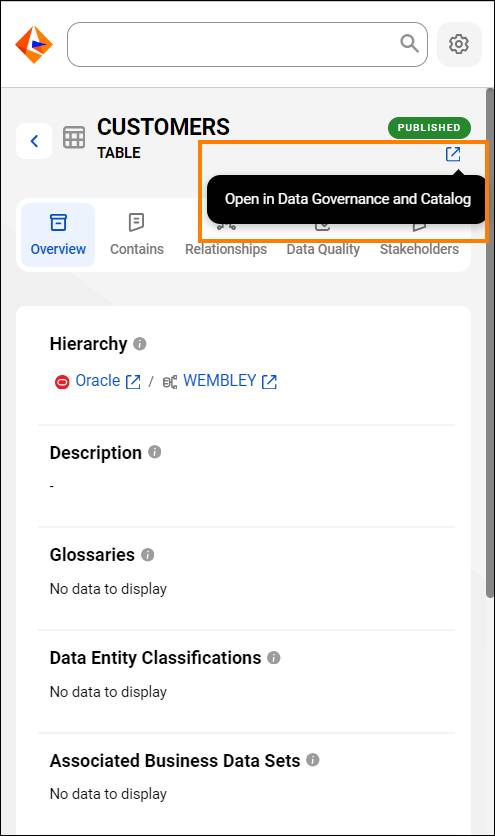
The extension redirects Angela to the asset page in CDGC. From there, she reviews the full metadata, traces lineage, and collaborates with her team. That’s a lot of progress from a quick toolbar search.

With Informatica QuickLook installed, configured, and ready to search, Angela no longer loses her place in her work to search for data assets. She finds what she needs in seconds and opens it directly in CDGC. And now you have the same capability.
Resources
- Informatica Success Portal: Informatica QuickLook Browser Extension (login required)
- Informatica Documentation: Search for Assets (login required)